How to Sign Documents on Android Using an eSignature App
 Rayronald Ochola Otieno
TL;DR: To sign a document on Android, upload it to an eSignature app, place a signature field, sign with your finger and save or send it. Our free document signing app does this for PDF, Word and image files, on the free plan.
A landlord emails you a lease, and you are nowhere near a printer. Printing, signing and scanning it back would take an evening. On an Android phone, the same job takes a few minutes.
This guide walks through each tap in the BoldSign app. It also covers Word documents (DOCX), email attachments, signing in the browser and when a phone signature holds up legally.
How to sign a document on Android phone, step by step
Install the app, upload your file, add a signer, place the fields and finish. The steps below show each screen, whether you sign alone or send to others.
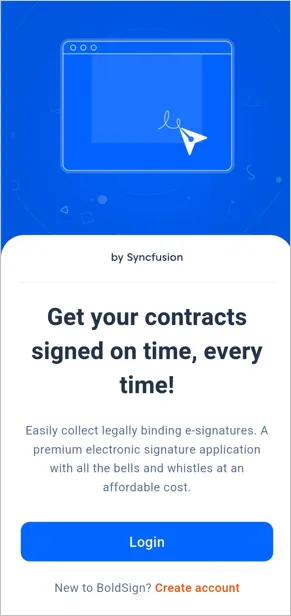
Step 1: Install the app and sign in
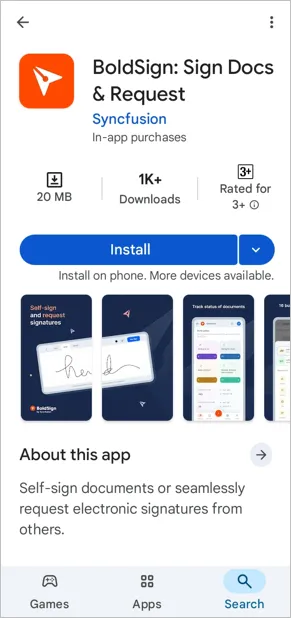
- Open the BoldSign app on Google Play on your phone.
- Tap Install and wait for the download to finish.
- Open the app and sign in, or tap Create Account to make a free account.
Step 2: Upload your document
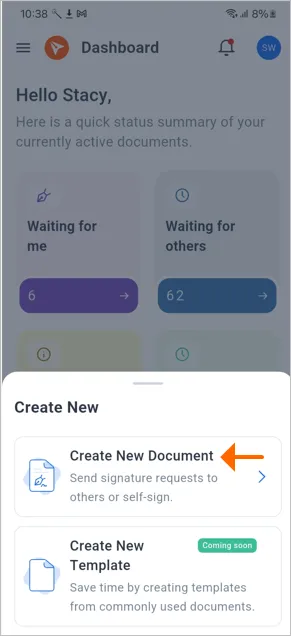
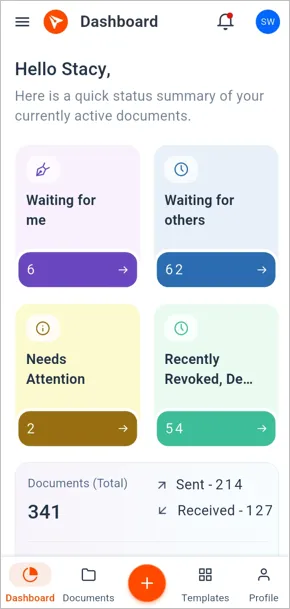
- On the dashboard, tap the + button on the bottom bar.
- Select Create New Document.
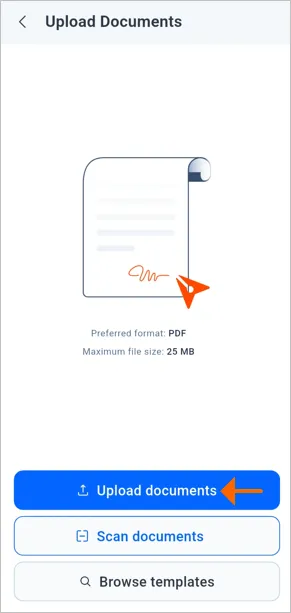
- Tap Upload Documents and pick a file from your phone or a cloud drive.
Step 3: Add who signs
- On the Recipient List screen, tap Add Me to sign the document yourself.
- To send it, enter each signer’s name and email address instead.
- Turn on signing order when people must sign one after another.
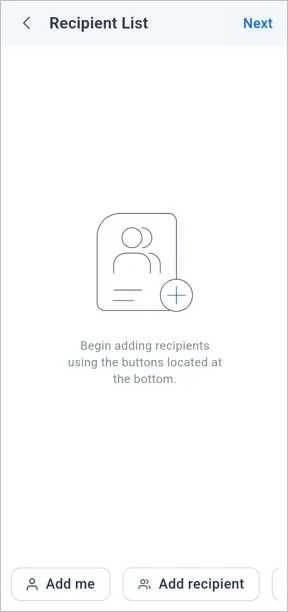
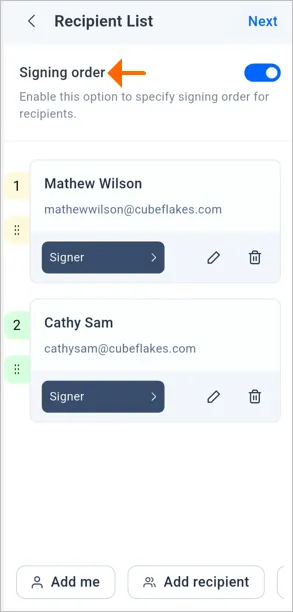
You can also set an expiry date, automatic reminders or a private message for signers here.
Step 4: Place and fill the fields
- Tap Configure Fields.
- Drag a signature, initials, date or checkbox field onto the page, zooming in to place it exactly.
- When you sign alone, tap your signature field and draw, type or upload your signature.
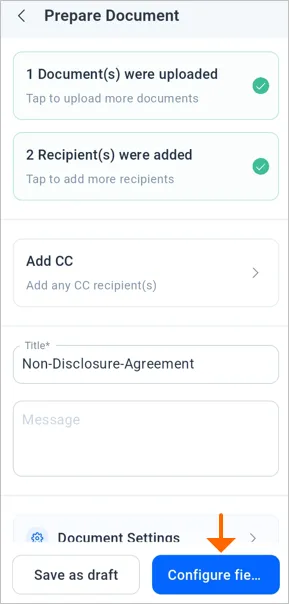
The date signed and name fields fill in by themselves.
Step 5: Finish signing or send
- Tap Continue to review the document on the Document Actions screen.
- Tap Finish Signing when you signed it yourself.
- Tap Send document when others still need to sign.
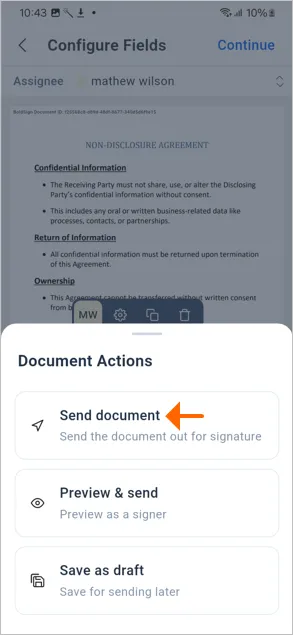
We store the signed file securely and send a confirmation. You can then track its status from the app’s dashboard.
Which files can you sign on Android?
You can sign PDF, Word, Excel, PowerPoint and image files in our app. Our help article on how to create a document lists every supported format.
PDF is the safest choice, because the layout looks the same on every screen. For a Word file, the answer to how to sign DOCX on Android is short: upload it as it is and follow the same steps.
Save the Word file as a PDF first when fonts and spacing must match the original exactly. A phone can shift a long table or an unusual font.
How to sign an email document on Android
How to sign an email document on Android depends on how it reached you. Only a plain attachment needs uploading.
- A signing link from us: tap the link in the email and fill in your fields in the browser.
- A plain attachment: save the file to your phone, then upload it in Step 2 above.
- A paper copy: scan it with your phone camera in the app, then sign it.
A signer who gets our link can sign in the phone’s browser, with no app or account. Only the sender needs a BoldSign account.
Can you sign documents on Android without an app?
Yes. Open the BoldSign web app in Chrome on your phone, sign in and follow the same five steps.
The browser suits you when your phone is short on storage or you sign only now and then. You get the same recipients, signing order, reminders and audit trail as in the app.
For more detail on each screen, see the BoldSign documentation. You can also read how the mobile app fits into a wider signing workflow.
Is signing documents on Android legally binding?
Yes, when the signing meets the rules for that document. A signature made on a phone has the same standing as one made on a laptop.
In the US, the Electronic Signatures in Global and National Commerce (ESIGN) Act covers this. Section 7001 of the Act says a signature keeps its legal effect even though it is electronic.
State laws based on the Uniform Electronic Transactions Act (UETA) say much the same. Some papers, such as wills, are left out by Section 7003, so check with a lawyer for those.
We record each step of the signing in an audit trail. The finished file is sealed, so any later change shows up.
How do you check who is signing on Android?
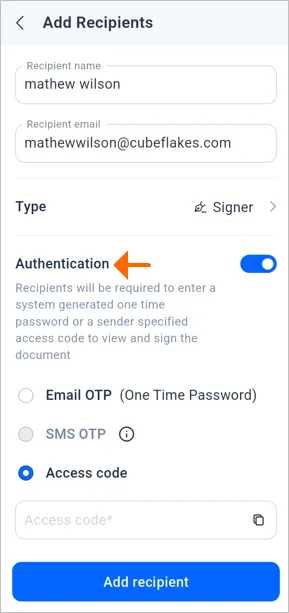
You can ask each signer to prove who they are before the document opens. Signer identity checks add a step between the email and the first page.
- Access code: you share a code with the signer, who types it in to open the file.
- Email one-time passcode (OTP): we email a short code that the signer enters.
- SMS OTP: we send the code to the signer’s mobile number.
Once documents are out, the dashboard lets you sort, filter and follow everything you sent and received.
What should you look for in an app to sign PDF on Android?
Look for an app that lets you both sign and send, and that records each signer’s steps. Check these points before you pick an app to sign PDF on Android.
- It accepts the files you get most, such as PDF and Word.
- Signers can sign in a browser without making an account.
- It keeps an audit trail and seals the finished file.
- Its free plan lets you send documents, as well as sign them.
Our app covers all four on the free plan.
Who signs documents on Android at work?
Anyone who signs away from a desk gains from a phone signature. Here are some teams that send documents for signing every week.
- Banks: customers sign loan agreements and account forms.
- HR teams: new hires sign onboarding forms before day one.
- Legal teams: clients sign contracts and non-disclosure agreements with legal eSignatures.
- Schools: students, parents and staff sign forms that used to be paper.
Which BoldSign plan do you need to sign on Android?
The free Essential plan is enough to sign and send documents from the Android app. Prices below come from our pricing page, billed yearly in USD.
The Essential plan is free, with 1 user and 2 templates. It allows 25 documents a month when you sign up with a business email, or 5 with a personal email. Documents you sign yourself do not count.
The Growth plan costs $5 per user a month and raises templates to 10. The Business plan costs $15 per user a month and adds SMS OTP and unlimited templates. The Premium plan costs $99 a month for unlimited users.
What can you do next with Android signing?
Pick the step that fits where you are today.
- Start a 30-day free trial and sign your first document on your phone.
- Book a demo to see the app set up for your team’s documents.
- Get the app on Google Play, or email support@boldsign.com with a question.
Frequently asked questions
How do I sign a PDF on Android?
Open the BoldSign app, tap Create New Document and upload the PDF. Add yourself with Add Me, place a signature field, sign it, then tap Finish Signing.
Can I sign a Word document on Android?
Yes. You can upload the Word file to BoldSign as it is and sign it the same way as a PDF. Save it as a PDF first when the exact layout matters.
Do recipients need a BoldSign account to sign on Android?
No. A signer opens the link in our email, fills in the assigned fields in the phone's browser and submits. Only the sender needs an account.
Can I see who has signed after I send a document from my phone?
Yes. The app dashboard shows each document's status, so you can see what is still waiting and what is complete.
What kinds of signature can I add on Android?
You can draw your signature with your finger, type your name, or upload a picture of your handwritten signature.
Is it safe to sign documents on an Android phone?
It can be, as long as the service records the signing and protects the file. We keep an audit trail, seal the finished file and can ask signers for a code.
Are documents signed on an Android phone legally binding?
Yes, when the signing meets the rules that apply to that document. In the US, federal law gives electronic signatures legal effect, with exceptions such as wills.
Is the BoldSign Android app free?
Yes. Our free Essential plan lets you sign and send documents from the Android app. Paid plans add more templates and signer checks.

Rayronald Ochola Otieno
Rayronald Ochola Otieno is a content specialist at BoldSign, specializing in video content and help articles within the eSignature domain. As a blog author, he creates well-researched, insightful content that simplifies complex eSignature topics like digital signatures, compliance, and workflow automation for businesses and professionals. With expertise in creating educational videos and articles, Ray helps users understand and adopt secure, efficient signing solutions. Beyond writing and video creation, Ray enjoys exploring new technologies, reading about the latest industry trends, and continually refining his skills.
More posts by Rayronald Ochola Otieno