How to Send Contracts from Claude Desktop with BoldSign MCP
 Meikanda Nayanar
TL;DR: You can send a contract for signature by typing one sentence in Claude Desktop. Connect Claude once to our hosted Model Context Protocol (MCP) server. Then ask it to send a BoldSign template, check its status or send a reminder. Our BoldSign MCP page shows everything the connection can do.
You may already use Claude, an artificial intelligence (AI) assistant, to draft an agreement or check a clause. When the document is ready, you still open another app to send it for signature.
This guide removes that extra step. Setup takes about 10 minutes. After that, you type one sentence in Claude Desktop and the contract reaches your recipient’s inbox.
Are you a developer building an agent or a product feature? Read our developer guide to the Claude API and BoldSign MCP instead.
How does Claude Desktop send contracts through BoldSign MCP?
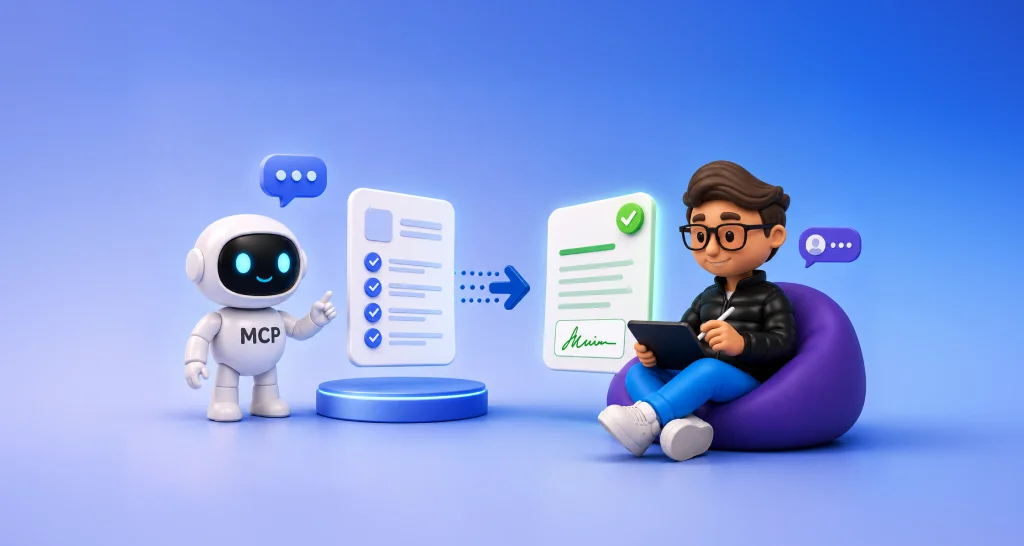
Claude Desktop connects to our hosted MCP server and gets a set of BoldSign actions it can call. You describe what you want in chat, and Claude picks the right action.
MCP is an open standard that lets AI assistants use outside tools. Think of it like a phone and its apps: the phone stays the same, and each app adds something it can do.
Our server runs on our side at a public web address, so you install nothing on your computer. You add that address in Claude Desktop once and sign in to your BoldSign account.
Does Claude sign the contract for you?
No. Claude sends the document, and the person you name signs it themselves.
Your recipient gets a normal BoldSign email and signs on the usual signing page, with the same consent step as any other request. Claude takes over the sending, and the signing decision stays with a person.
What do you need before you start?
You need a BoldSign account with at least one template, an OAuth app in BoldSign, and Claude Desktop. You also need the MCP address for your account’s region.
- A BoldSign account where you are an admin; a free API sandbox account works.
- A template, such as a non-disclosure agreement (NDA) with one signer role.
- Claude Desktop, from the Claude download page.
OAuth is a standard way to let one app sign in to another without sharing your password. You create the OAuth app in Step 1.
The sandbox suits practice runs. Its signed documents carry a watermark and are deleted 14 days after creation, as our help article on trial and sandbox accounts explains.
Which regional MCP address do you use?
Use the address for the region your BoldSign account lives in. A mismatch makes sign-in or tool calls fail.
- US:
https://mcp.boldsign.com/mcp - EU:
https://mcp-eu.boldsign.com/mcp - Canada:
https://mcp-ca.boldsign.com/mcp - Australia:
https://mcp-au.boldsign.com/mcp
Our MCP server documentation lists the same addresses.
How do you connect Claude Desktop to BoldSign?
You create an OAuth app in BoldSign, add BoldSign as a custom connector in Claude Desktop, and prepare a template. The three steps below are written for one person connecting their own Claude Desktop.
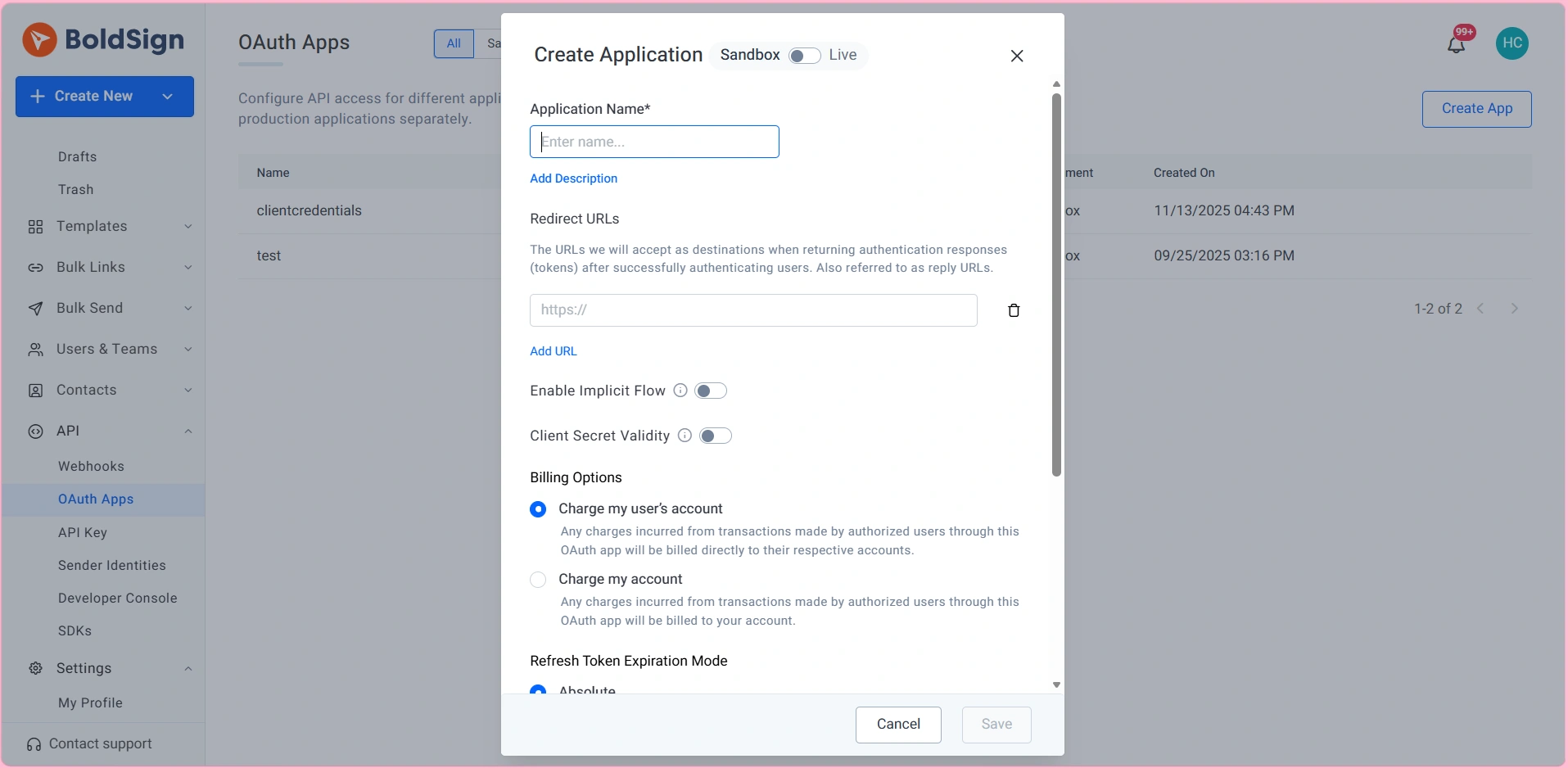
Step 1: Create an OAuth app in BoldSign
Skip to Step 2 when you already have an OAuth app for Claude.
- Log in to the BoldSign web app.
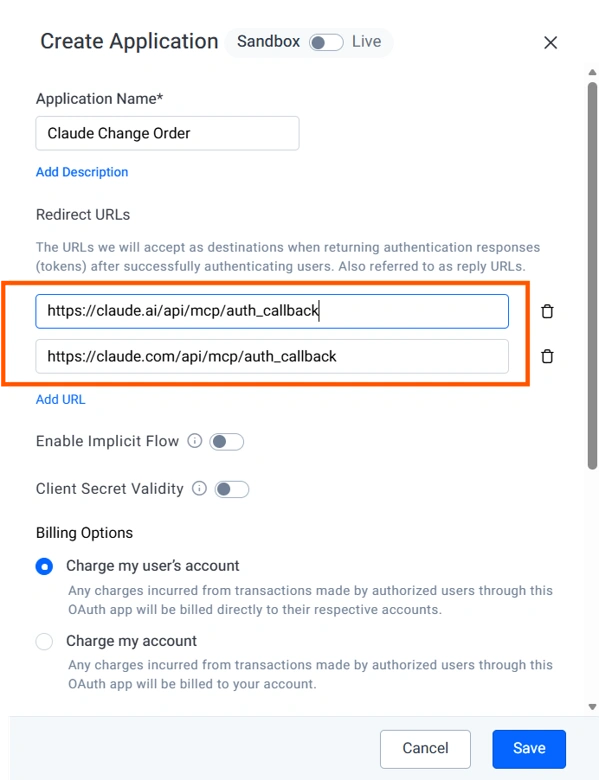
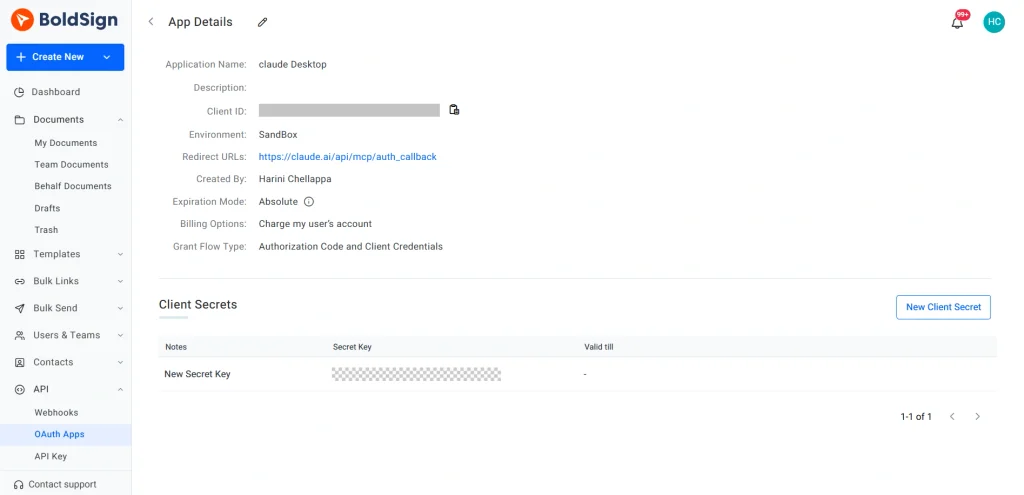
- Go to API > OAuth Apps, select Create App, and give it a clear name, such as Claude Desktop.
- Add both redirect addresses from our Claude connector guide:
https://claude.ai/api/mcp/auth_callbackandhttps://claude.com/api/mcp/auth_callback. - Save the app, then copy the Client ID and Client Secret and keep them somewhere safe.
Step 2: Add BoldSign to Claude Desktop
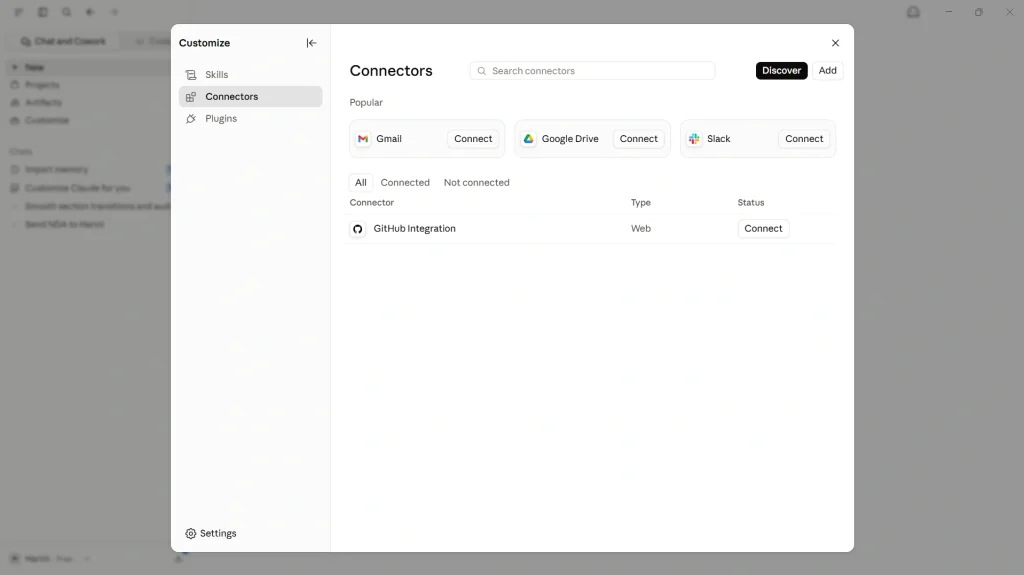
- Open Claude Desktop, open Settings from your name, and select Customize.
- Select Connectors.
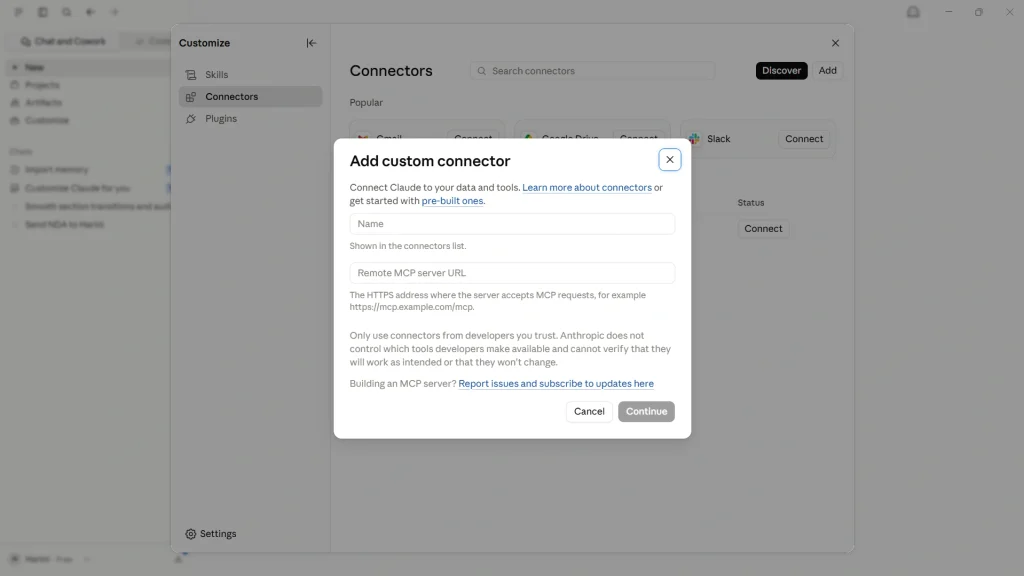
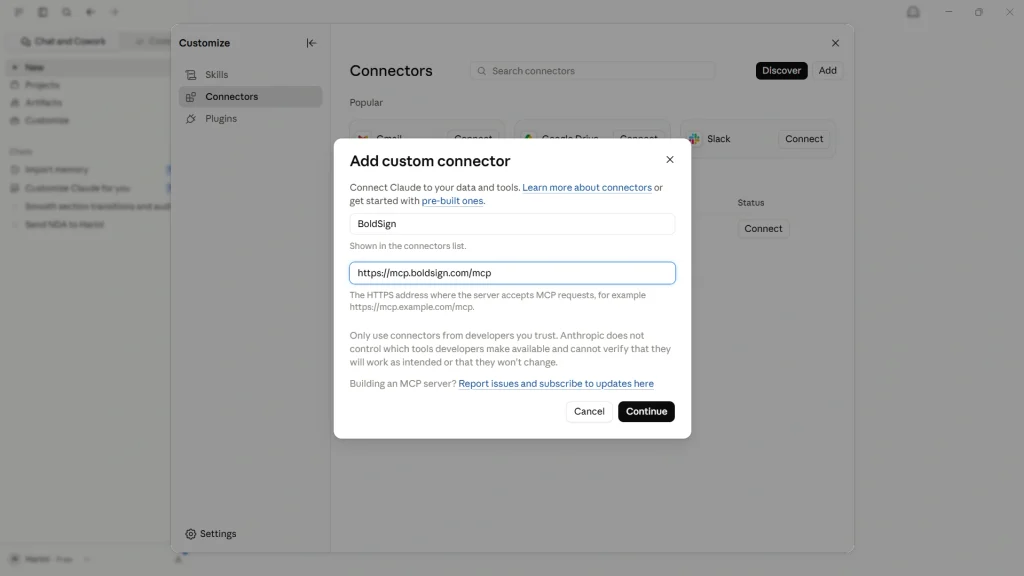
- Select Add, then Add custom connector.
- Enter a name and the MCP address for your region, such as
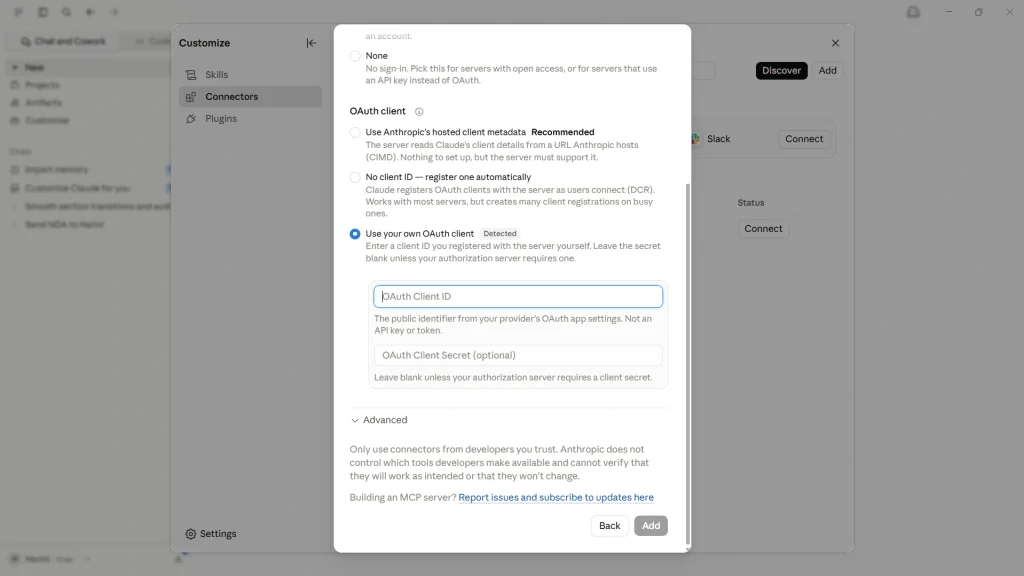
https://mcp.boldsign.com/mcpfor the US. - Select Continue, enter the Client ID and Client Secret in the OAuth Client section, and select Add.
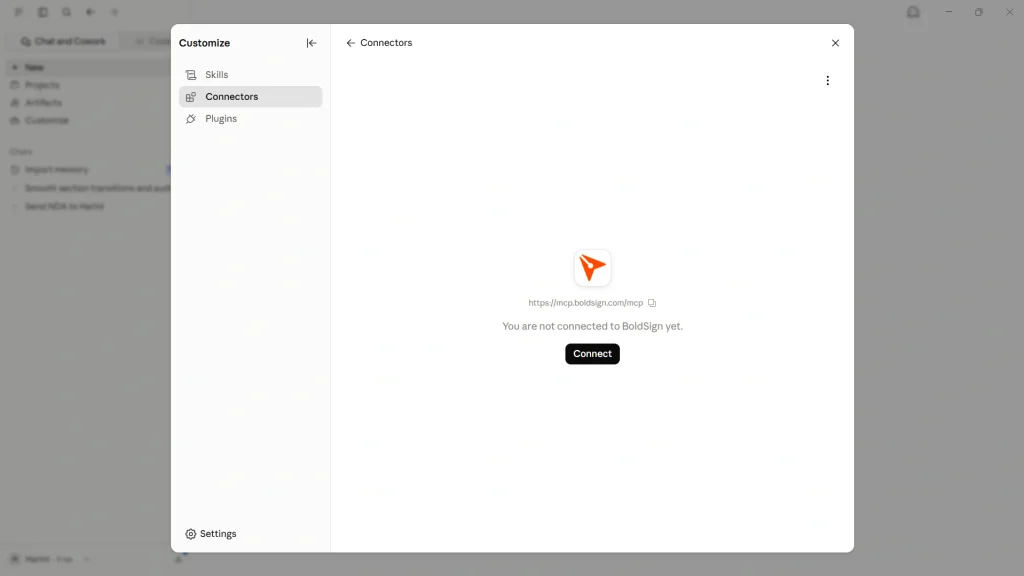
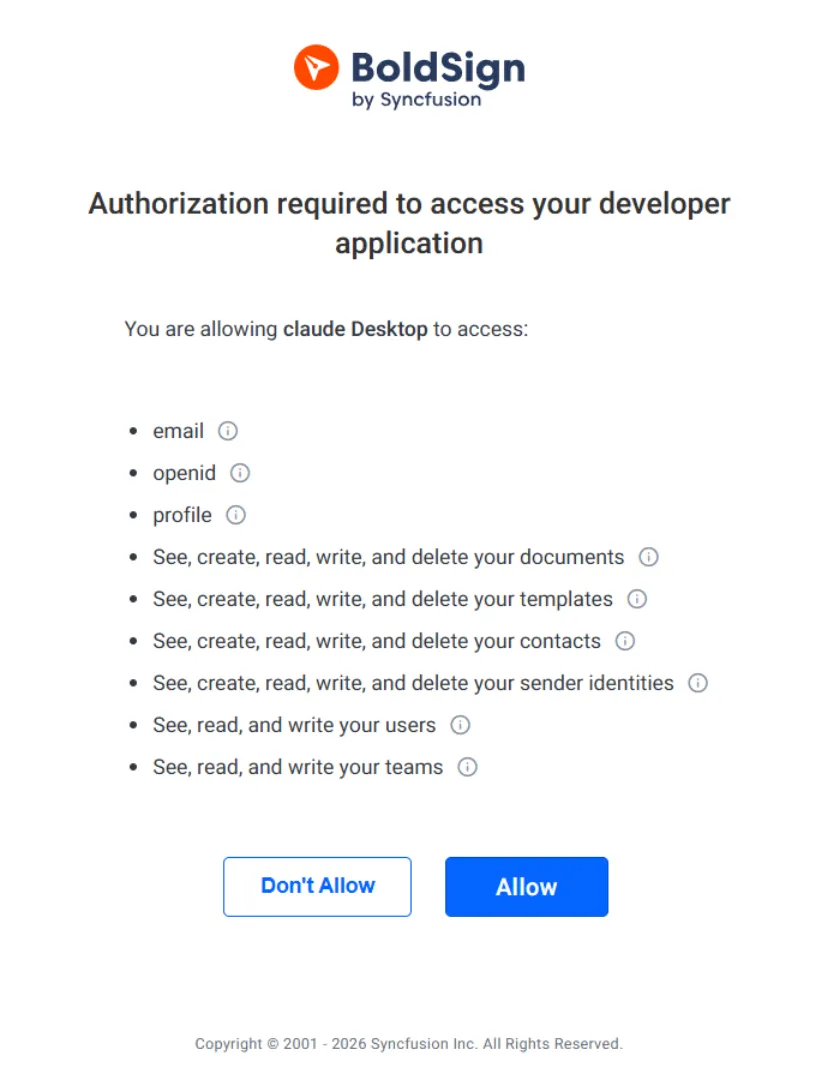
Select Connect. Your browser opens a BoldSign sign-in screen, where you sign in and approve access for Claude.
Quit Claude Desktop fully and open it again. Then start a new chat and turn on the BoldSign connector from the tools menu.
Step 3: Prepare a contract template in BoldSign
Claude sends documents only from templates you have already built. You keep full control of the contract wording.
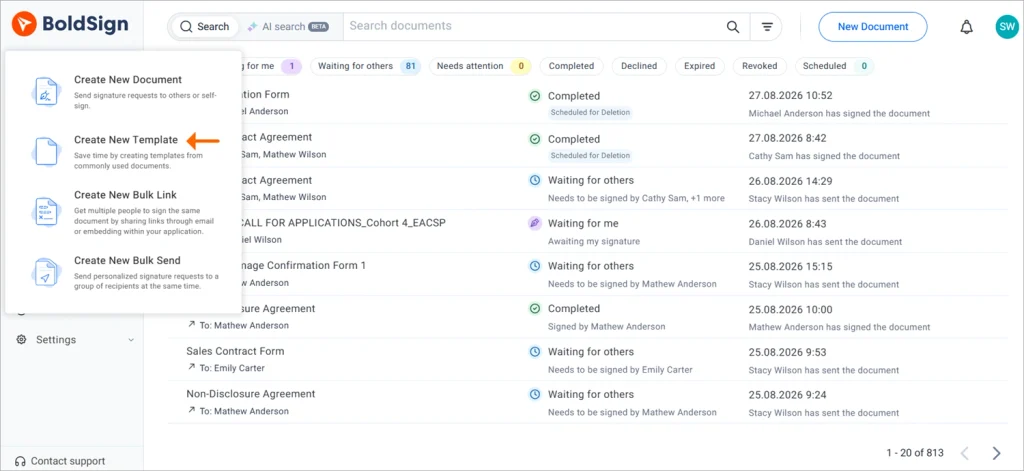
- In the BoldSign web app, select Create New > Create New Template.
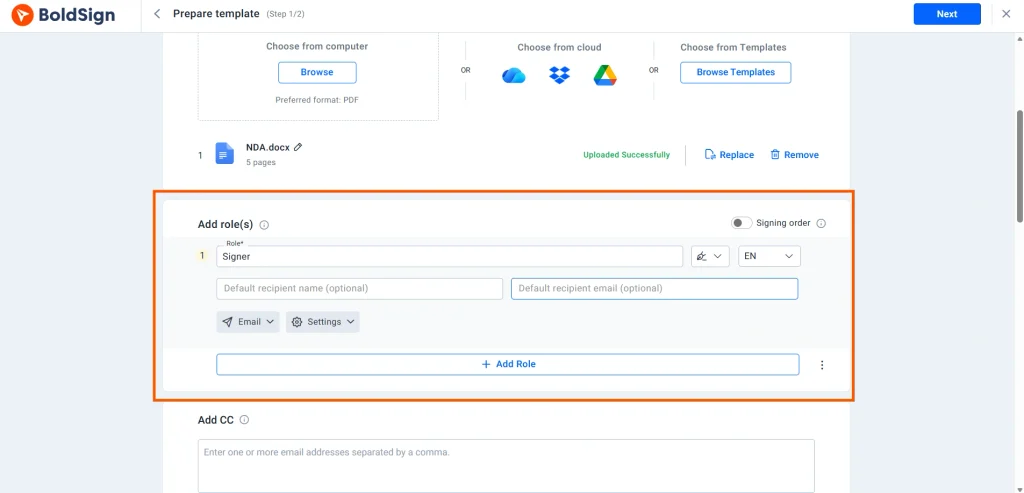
- Upload a PDF, such as a simple NDA, and add one signer role called Recipient or Signer.
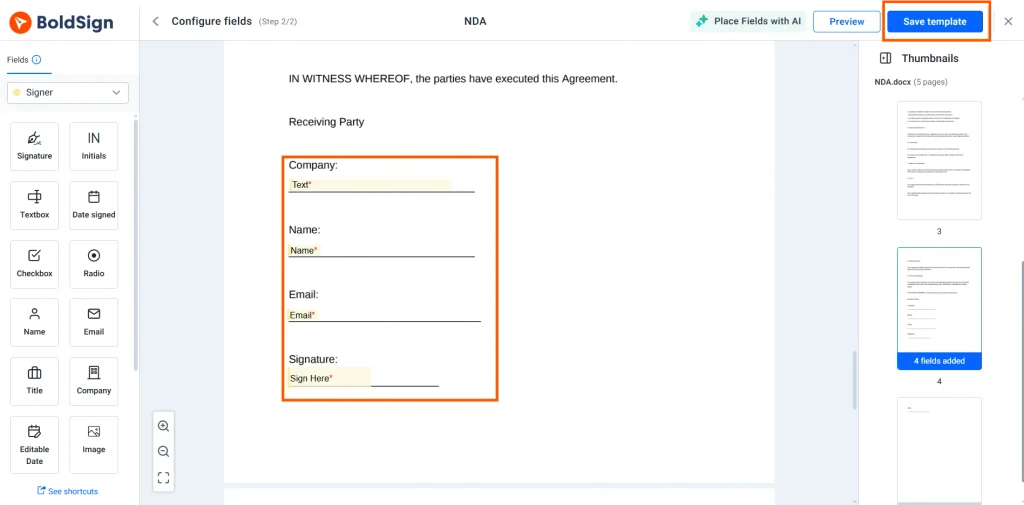
- Place the form fields for that role and save the template.
Give the template a clear name, such as Mutual NDA or Contractor Agreement. Claude finds templates by name, so you will use that name in chat.
How does a team admin set it up for everyone?
On a Claude Team or Enterprise account, an owner adds the connector once under Organization settings > Connectors. Members then find BoldSign under Customize > Connectors and sign in with their own BoldSign account.
Anthropic’s article on custom connectors lists which roles can add them.
How do you send your first contract from chat?
Start with a read-only request, such as “List my recent templates.” Once Claude lists them, type a request to send one:
Send our NDA template to Sarah Wilson at sarah@cubeflakes.comClaude finds the template and checks the details with you before sending. The reply looks something like this:
I found the template “Mutual NDA” in your BoldSign account.
I’ll send it to Sarah Wilson at sarah@cubeflakes.com.
Shall I go ahead?
You: yes
Sent. The Mutual NDA is on its way to sarah@cubeflakes.com for signature.
Document ID: 10793399-xxxx-xxxx-xxxx-eaa3dfa2123
Recipient: Sarah (sarah@cubeflakes.com)
Use a test email address you control as the recipient. Check that inbox after Claude confirms the send, and you will see the same BoldSign email a person would send from the web app.
How do you track, remind, and cancel from the same chat?
Ask in plain words in the same conversation. Claude finds the document for you, so you never need its ID.
Check the status
What is the status of the NDA I just sent to Sarah?Claude reads the document details and tells you whether it is viewed, signed or still waiting.
Send a reminder
Send Sarah a reminder about the NDA.Sarah gets the standard BoldSign reminder email, the same one the Remind option in the web app sends.
Cancel a document
Cancel the NDA I sent to Sarah.Claude checks with you, then revokes the document. Sarah can no longer sign it.
What can Claude do once it is connected?
Our MCP server documentation lists 16 tools for documents, templates, contacts, users and teams. You will use a handful of them most of the time.
- Send a document from a template to someone you name.
- List your templates and documents.
- Check a document’s status, including who has signed.
- Send a reminder to a recipient who has not signed yet.
- Cancel a document that is still in progress.
Claude picks up every tool when it connects, so you switch nothing on one by one.
How do teams use it day to day?
Teams send routine agreements from the chat where the work already happens. Here are three common cases.
A sales rep in a deal conversation types “Send our NDA template to Alex Chen at alex@newcorp.com” and moves on. An HR lead sends an offer letter right after an interview debrief, then asks later whether it is signed.
A support agent sends a warranty or authorization form while working a ticket. Our AI Warranty Claim Agent demo shows that pattern, where a customer chat ends with a signed warranty form.
How do you keep control of AI-sent documents?
Claude sends only from templates you have approved, so it controls who receives a document, never what it says. You also approve the tool calls Claude makes.
Claude Desktop asks before it runs a connector tool. Choose Allow always only for tools you trust, and keep a manual check on sending and cancelling, as Anthropic’s connector guidance advises.
Practice in the sandbox until you are comfortable, then connect your live account. Each document’s audit trail records the sender’s name, email, internet protocol (IP) address and device, as our BoldSign MCP page describes.
Are AI-sent contracts legally valid?
Yes, when the signing meets the usual rules for electronic signatures in your country and for that document type. Validity comes from the signer’s consent and the signing process, whoever pressed send.
Documents sent through our MCP server go through the same signing page, audit trail and completion certificate as documents sent from the web app. Ask a lawyer about specific legal or regulatory needs, and see our legal center for the standards we support.
How do you fix common connection problems?
Most problems come from the restart, the credentials or the region. Check the table below.
| Problem | Fix |
|---|---|
| BoldSign is missing from the tools list | Quit Claude Desktop fully, not just its window, then reopen it. On a Mac use Cmd+Q; on Windows, right-click the taskbar icon and select Quit. |
| The connector shows an authorization error | Copy the Client ID and Client Secret again, and check both redirect addresses in the OAuth app match exactly. Then reconnect. |
| The sign-in screen never appears | Check that your browser allows pop-ups and redirects. Sign in to the right BoldSign account, sandbox or live. |
| Claude cannot find the template | Use the template’s exact name. Sandbox and live accounts keep separate templates. |
| You cannot add a custom connector | A Free Claude account holds one custom connector. Remove the other one, or upgrade, then add BoldSign. |
| Every BoldSign tool call fails | Check that the MCP address matches your account’s region, then reconnect with the right one. |
Which Claude and BoldSign plans do you need, and what does it cost?
Custom connectors work on every Claude plan, and you can test every BoldSign MCP action free in the API sandbox. Sending live documents needs our Enterprise API plan.
The Enterprise API plan starts at $30 a month and includes 40 envelopes. Each extra envelope costs $0.75. Prices are in USD, as listed on our API pricing page in November 2026.
Where do you go from here?
Begin in the sandbox with one template and one test send. Connect your live account once that works.
- Create a free API sandbox account and send your first contract from Claude.
- Book a demo to see Claude send from your own templates.
- Read our BoldSign MCP server overview for every tool and client it supports.
Frequently asked questions
Does Claude sign the contract?
No. Claude sends the document from your template, and the recipient you name signs it from their own inbox. The signature and the consent step belong to the recipient.
Do I need coding skills to connect Claude Desktop to BoldSign?
No. You make an OAuth app in BoldSign, paste its Client ID and Client Secret into Claude Desktop, and sign in. The whole setup happens in two settings screens.
What is the difference between the hosted and the local BoldSign MCP server?
The hosted server runs on our side at a regional web address, so you install nothing. The local server runs on your computer through Node.js and a config file. We recommend the hosted server for new setups.
Can Claude change what the contract says before sending?
No. Claude sends only from templates you have already built in BoldSign. It fills in the recipient's name and email, and the document text stays as you wrote it.
Which Claude plans support custom connectors?
Custom connectors work on every Claude plan, from Free to Enterprise. A Free account holds one custom connector at a time.
Can I set up the BoldSign connector for my whole team?
Yes. An owner of a Claude Team or Enterprise account adds the connector once, and each member then signs in with their own BoldSign account.
Is the BoldSign MCP server free to use?
Connecting is free, and you can test every action free in the API sandbox. Sending live documents needs our Enterprise API plan, which starts at $30 a month with 40 envelopes.
Are contracts sent from Claude Desktop legally binding?
Yes, when they meet the same rules as any electronic signature, such as the signer agreeing to sign electronically. The recipient signs through the normal BoldSign signing page.

Meikanda Nayanar
A veteran product manager at BoldSign, boasting a decade-long journey as a .NET developer. With a rich history of leading product development across diverse technologies like Windows Forms, WPF, UWP, Xamarin.Forms, Flutter, and MAUI, Meikandan brings a unique blend of technical expertise and strategic insight to the table. Connect with him on LinkedIn.
More posts by Meikanda Nayanar