How to Send eSignature Requests with Your Brand Identity via API
 Gopinath Kannusamy
TL;DR: Create a brand with
POST /v1/brand/create, then pass the returnedbrandIdasBrandIdwhen you send a document. Your logo, colors and sender name then appear in the request email and on the signing page. Our branding page lists every brand option.
Your app sends contracts to customers through an eSignature API. Out of the box, the request email shows our look, so a customer may not connect it with your company. Some people ignore a request from a sender they do not recognize.
A brand fixes that. You set it up once with your logo and colors, then pick it by ID on every request your code sends.
What is a brand in the BoldSign API?
A brand is a saved set of visual and email settings, with its own ID. You attach it to a document or template, and signers see your identity instead of ours.
Think of it like letterhead paper. You print the letter on whichever sheet fits the client, and the words stay the same. You can keep several brands in one account, one per product, team or customer.
What does branding change in an email signature API integration?
In an email signature API integration, branding changes what signers see in the request email and on the signing page. The first look a customer gets comes from you.
The create brand request sets the look of each request:
- Your logo in emails and on the signing page.
- The email background, button and button text colors.
- The sender display name, such as “{SenderName} via your company”.
- A page that opens after the signer finishes.
A brand can also hold signing rules:
- Legal terms that signers must accept, with a title and description.
- The time zone shown in the audit trail.
- Whether signers can decline, save or reassign the document.
Our guide to personalizing eSignature requests with your brand identity shows the same options in the web app.
How do you create a brand via API?
Send a POST request to https://api.boldsign.com/v1/brand/create as multipart form data, with your API key in the X-API-KEY header. Only BrandName and BrandLogo are required.
The logo must be a Joint Photographic Experts Group (JPG), Portable Network Graphics (PNG) or Scalable Vector Graphics (SVG) file. It can be up to 512 kilobytes (KB).
Add any optional settings you need, such as BackgroundColor, ButtonColor or RedirectUrl. The response holds a brandId, which you save for your send requests.
The create brand reference lists every field and its format.
Create a brand in the web app
You can make the brand by hand and use its ID in code. Our help article on how to send a document with your brand identity walks through it.
- Open Settings in the left menu and choose Branding.
- Select Create New Brand and type a Brand Name.
- Upload your logo and pick your colors, with a preview on the right.
- Set the From name for request emails if you want one, then select Save.
How do you send a branded signature request via API?
Add BrandId to your POST /v1/document/send request. Every other part of the request stays the same.
Say you made a blue and white brand with your company logo. The samples below send a PDF to one signer with a signature field on page 1. Replace YOUR_BRAND_ID with your brandId and run the client URL (cURL) or software development kit (SDK) version you use.
curl -X POST \
  "https://api.boldsign.com/v1/document/send" \
  -H "accept: application/json" \
  -H "X-API-KEY: YOUR_API_KEY" \
  -H "Content-Type: multipart/form-data" \
  -F 'BrandId=YOUR_BRAND_ID' \
  -F 'Message=' \
  -F 'Signers={
  "name": "Alex",
  "emailAddress": "alex@example.com",
  "signerType": "Signer",
  "formFields": [
    {
      "id": "signature1",
      "fieldType": "Signature",
      "pageNumber": 1,
      "bounds": {
        "x": 50,
        "y": 50,
        "width": 200,
        "height": 25
      },
      "isRequired": true
    }
  ],
  "locale": "EN"
}' \
  -F 'Files=@FILE_PATH;type=application/pdf' \
  -F 'Title=DOCUMENT_TITLE'
var apiClient = new ApiClient("https://api.boldsign.com", "YOUR_API_KEY");
var documentClient = new DocumentClient(apiClient);
var documentFilePath = new DocumentFilePath
{
ContentType = "application/pdf",
FilePath = "FILE_PATH",
};
var filesToUpload = new List<IDocumentFile> { documentFilePath };
var signatureField = new FormField(
id: "signature1",
isRequired: true,
type: FieldType.Signature,
pageNumber: 1,
bounds: new Rectangle(x: 50, y: 50, width: 200, height: 25));
var signer = new DocumentSigner(
signerName: "Alex",
signerType: SignerType.Signer,
signerEmail: "alex@example.com",
formFields: new List<FormField> { signatureField },
locale: Locales.EN);
var sendForSign = new SendForSign
{
Title = "DOCUMENT_TITLE",
BrandId = "YOUR_BRAND_ID",
Signers = new List<DocumentSigner> { signer },
Files = filesToUpload
};
var documentCreated = documentClient.SendDocument(sendForSign);import boldsign
configuration = boldsign.Configuration(api_key="YOUR_API_KEY")
with boldsign.ApiClient(configuration) as api_client:
document_api = boldsign.DocumentApi(api_client)
signatureField = boldsign.FormField(
id="signature1",
fieldType="Signature",
pageNumber=1,
bounds=boldsign.Rectangle(x=50, y=50, width=200, height=25),
isRequired=True,
)
signer = boldsign.DocumentSigner(
name="Alex",
emailAddress="alex@example.com",
signerType="Signer",
formFields=[signatureField],
locale="EN",
)
send_for_sign = boldsign.SendForSign(
title="DOCUMENT_TITLE",
brandId="YOUR_BRAND_ID",
signers=[signer],
files=["FILE_PATH"],
)
document_created = document_api.send_document(send_for_sign=send_for_sign)import { DocumentApi, DocumentSigner, FormField, Rectangle, SendForSign } from "boldsign";
import * as fs from "fs";
async function main() {
const api = new DocumentApi();
api.setApiKey("YOUR_API_KEY");
const rect1 = new Rectangle();
rect1.x = 50;
rect1.y = 50;
rect1.width = 200;
rect1.height = 25;
const signatureField = new FormField();
signatureField.fieldType = FormField.FieldTypeEnum.Signature;
signatureField.id = "signature1";
signatureField.pageNumber = 1;
signatureField.bounds = rect1;
signatureField.isRequired = true;
const signer = new DocumentSigner();
signer.name = "Alex";
signer.emailAddress = "alex@example.com";
signer.signerType = DocumentSigner.SignerTypeEnum.Signer;
signer.formFields = [signatureField];
signer.locale = "EN";
const send = new SendForSign();
send.title = "DOCUMENT_TITLE";
send.brandId = "YOUR_BRAND_ID";
send.signers = [signer];
send.files = [fs.createReadStream("FILE_PATH")];
const documentCreated = await api.sendDocument(send);
}
main();<?php
require_once "vendor/autoload.php";
$config = new BoldSign\Configuration();
$config->setApiKey('YOUR_API_KEY');
$document_api = new BoldSign\Api\DocumentApi($config);
$bounds1 = new BoldSign\Model\Rectangle();
$bounds1->setX(50);
$bounds1->setY(50);
$bounds1->setWidth(200);
$bounds1->setHeight(25);
$signatureField = new BoldSign\Model\FormField();
$signatureField->setId("signature1");
$signatureField->setFieldType('Signature');
$signatureField->setPageNumber(1);
$signatureField->setBounds($bounds1);
$signatureField->setIsRequired(true);
$signer = new BoldSign\Model\DocumentSigner();
$signer->setName("Alex");
$signer->setEmailAddress("alex@example.com");
$signer->setSignerType("Signer");
$signer->setFormFields([$signatureField]);
$signer->setLocale("EN");
$send_for_sign = new BoldSign\Model\SendForSign();
$send_for_sign->setTitle('DOCUMENT_TITLE');
$send_for_sign->setBrandId('YOUR_BRAND_ID');
$send_for_sign->setSigners([$signer]);
$send_for_sign->setFiles(['FILE_PATH']);
$documentCreated = $document_api->sendDocument($send_for_sign);ApiClient client = Configuration.getDefaultApiClient();
client.setApiKey("YOUR_API_KEY");
DocumentApi api = new DocumentApi(client);
Rectangle rect1 = new Rectangle();
rect1.setX(50f);
rect1.setY(50f);
rect1.setWidth(200f);
rect1.setHeight(25f);
FormField field = new FormField();
field.setId("signature1");
field.setFieldType(FormField.FieldTypeEnum.SIGNATURE);
field.setPageNumber(1);
field.setBounds(rect1);
field.setIsRequired(true);
DocumentSigner signer = new DocumentSigner();
signer.setName("Alex");
signer.setEmailAddress("alex@example.com");
signer.setSignerType(DocumentSigner.SignerTypeEnum.SIGNER);
signer.setFormFields(Arrays.asList(field));
signer.setLocale(DocumentSigner.LocaleEnum.EN);
SendForSign send = new SendForSign();
send.setBrandId("YOUR_BRAND_ID");
send.setTitle("DOCUMENT_TITLE");
send.setSigners(Arrays.asList(signer));
send.setFiles(Arrays.asList(new File("FILE_PATH")));
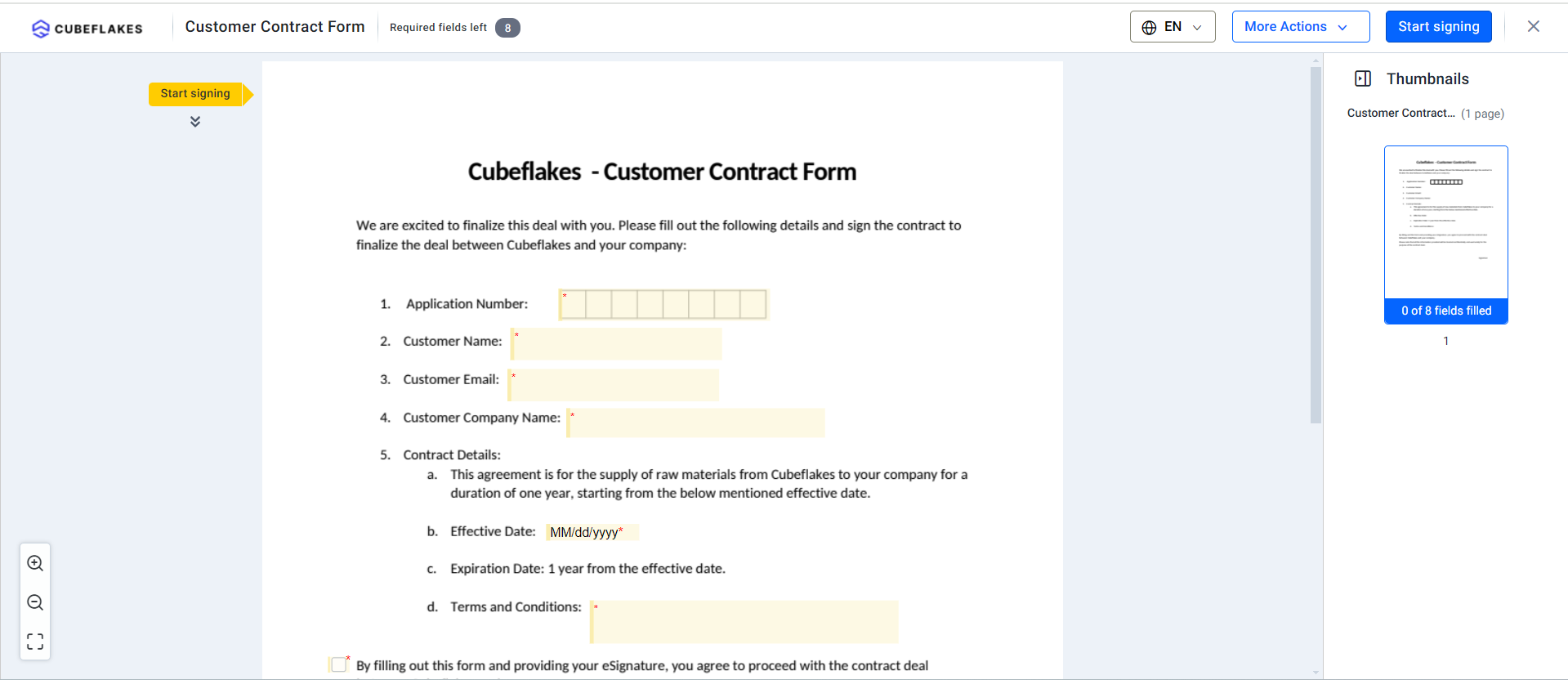
DocumentCreated documentCreated = api.sendDocument(send);The signer gets an email with your logo and colors, and the signing page carries the same look.
How do you know the branded request went out?
Listen for the Sent or SendFailed webhook event. The send call returns a documentId at once, but the file may still be processing in the background.
On a SendFailed event, read the error details, fix the request and send it again. Our developer docs list the available webhook events.
Check each event before you trust it. The X-BoldSign-Signature header holds a signature made with your endpoint’s signing secret, and our guide shows how to validate and verify webhook events.
Is there a custom signature appearance API setting?
Yes. The SignatureFrameSettings field on a brand draws a frame around each signature.
The frame can show the signer’s name, email address and a timestamp. You switch each one on or off, so every document sent with that brand shows signatures the same way.
Can you add a brand to a template?
Yes. Pass BrandId when you create a template, and every document sent from it uses that brand.
You set the look once, and each repeat send keeps the same logo, colors and email style. Our guide on how to send a document from a template covers the send step.
Can you hide BoldSign from your branded requests?
Mostly, yes. A brand replaces our logo, colors and sender name with yours, and a paid plan can hide the “Powered by BoldSign” tagline through CanHideTagLine.
Emails can also come from your own email domain through CustomDomainSettings. Our support team verifies the domain, and it costs extra. Signing links still use a BoldSign web address, as our branding page notes.
Which BoldSign plan do you need for branded API requests, and what does it cost?
Live API access comes with the Enterprise API plan, which starts at $30 a month with 40 envelopes. Extra envelopes cost $0.75 each, and the plan includes unlimited brands and templates.
You can build and test first in our free sandbox, with no credit card. Sandbox documents carry a test watermark and are deleted after 14 days. Prices are in USD, as listed on the BoldSign pricing page in November 2026.
Where do you go next with branded requests via API?
Start with one brand and one test document in the sandbox. Add the brand to your templates once the email and signing page look right.
- Create a free API sandbox account and run the cURL sample.
- Schedule a demo to walk through your branded workflow with our team.
- Open a ticket in our support portal with a question about your request.
Frequently asked questions
How do I get a brand ID in BoldSign?
Call the create brand endpoint with a brand name and a logo, and the response returns the brandId. You can also make the brand on the Branding page in the web app.
Which logo files can I upload for a brand?
The create brand request accepts JPG, PNG and SVG logos up to 512 KB. The logo shows in request emails and on the signing page.
Can I add custom terms that signers must accept?
Yes. Set DisclaimerTitle and DisclaimerDescription when you create the brand. A description is required whenever you give a title.
Can I use a different brand for each customer?
Yes. You can create one brand per customer or product and pass its ID with each send. The Enterprise API plan allows unlimited brands.
Can branded emails come from my own domain?
Yes, through the CustomDomainSettings field on a brand. Our support team verifies the domain first, and a custom domain costs extra.
Can I remove the Powered by BoldSign tagline from emails?
Yes, on paid plans, through the CanHideTagLine setting when you create a brand. Free plan users cannot turn the tagline off.
Is a branded eSignature legally binding?
Yes, when the signer agrees to sign electronically and the signed record is kept. Branding changes how the request looks, while each document still gets its audit trail.
Can I test branded requests for free?
Yes. Our free API sandbox needs no credit card. Sandbox documents carry a test watermark and are deleted after 14 days.

Gopinath Kannusamy
Gopinath is a passionate software developer with 2 years of experience at BoldSign. He is an avid writer and enjoys sharing his insights on technology and development. In his free time, he enjoys exploring new technologies and learning new things. Connect with him on LinkedIn.
More posts by Gopinath Kannusamy