Step-by-Step Guide to Using the BoldSign Mobile App for eSignatures
 Jayavigneshwaran
TL;DR: The BoldSign mobile app lets you sign, send and track documents from an iPhone or Android phone. Install it free, log in with your existing account, and follow the steps below for each task. Our eSignature mobile app page lists every feature.
A client is ready to sign, but you are away from your desk. Or a contract lands in your inbox while you are on a train. You can deal with both from your phone.
This guide walks through each task in the BoldSign app, from installing it to finding an old document. Every step uses the labels you see on screen.
How do you install the BoldSign mobile app?
The app is free on the App Store and Google Play. Install it, then open it to log in.
iOS
- Open the BoldSign app on the App Store on your iPhone or iPad.
- Tap the download button and follow the prompts.
- Open the app to get started.
Android
- Open the BoldSign app on Google Play on your Android device.
- Tap Install.
- Open the app to get started.
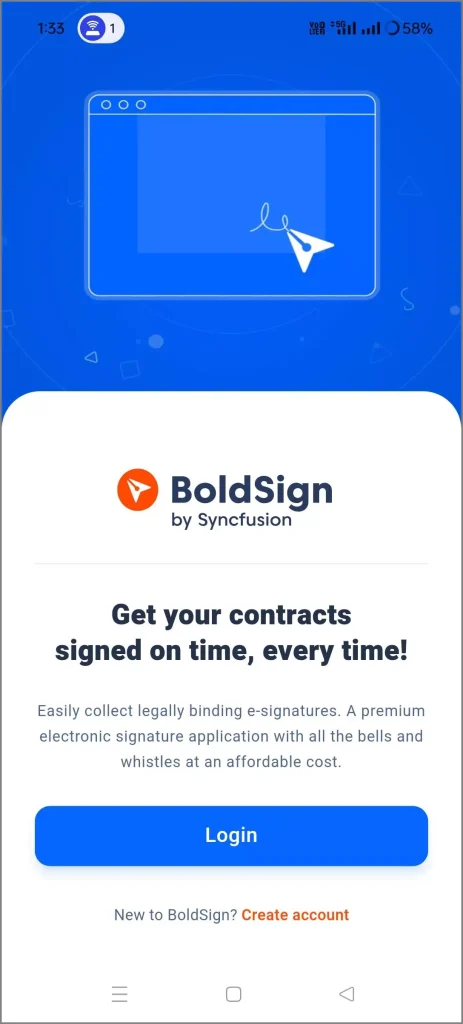
How do you log in to the BoldSign app?
You log in with the same email address and password you use on the web. The app then sends a code to your email to confirm it is you.
- Tap Login.
- Enter your email address and password.
- Turn on Keep me logged in for 30 days if you want to stay signed in.
- Tap Sign in, enter the 6-digit code from your email, and tap Verify.
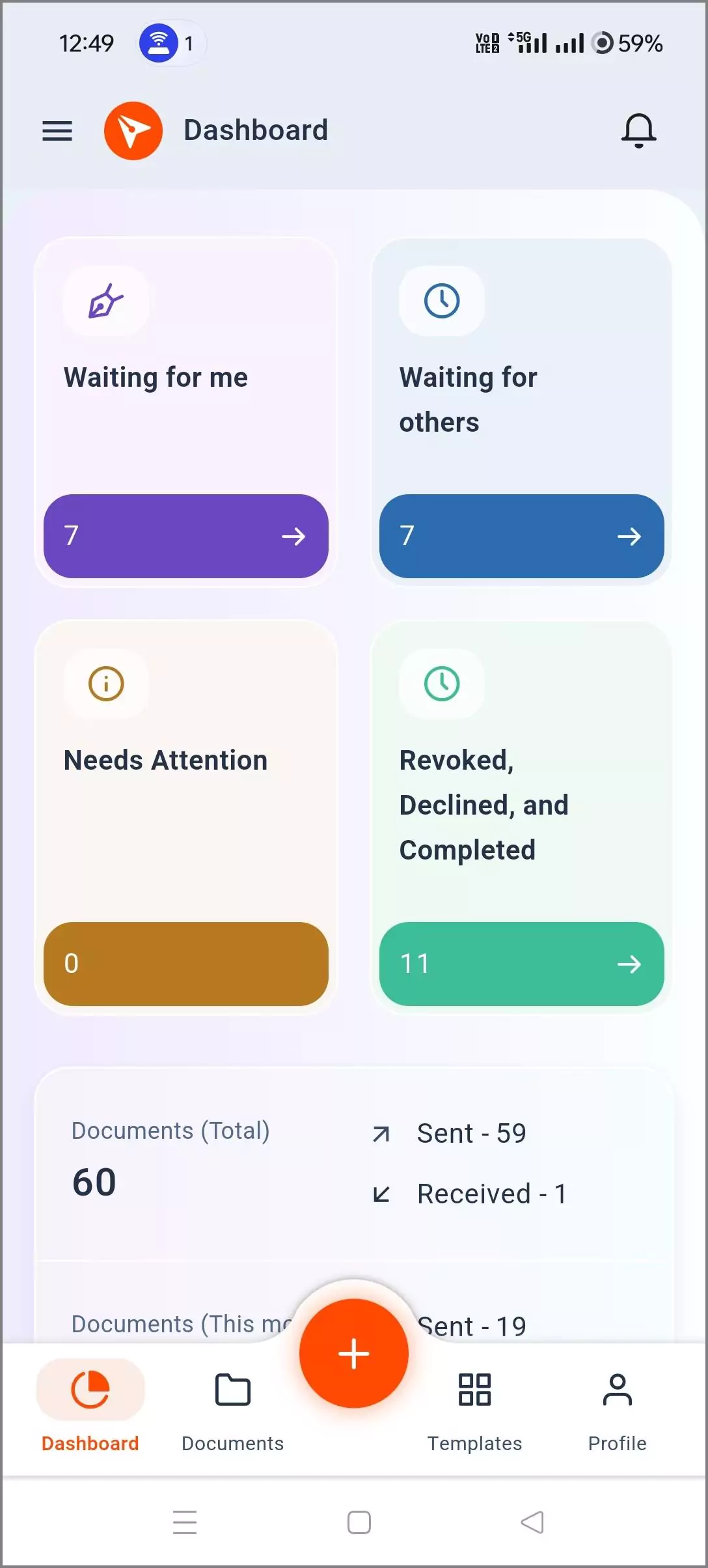
After you verify, the app opens on the dashboard. The Waiting for me card shows documents that need your signature.
How do you lock the app with Face ID or a fingerprint?
Turn on biometrics in the app’s settings. The app then asks for your fingerprint, face or device passcode before it opens.
- Tap Profile in the bottom bar, then open App Settings.
- Turn on Enable Biometrics and confirm your identity on the device.
- Set Auto-Lock to Immediately, or to Custom with a delay of 1 to 60 minutes.
- Optionally, turn on Require verification when app opens.
- Tap Save Changes.
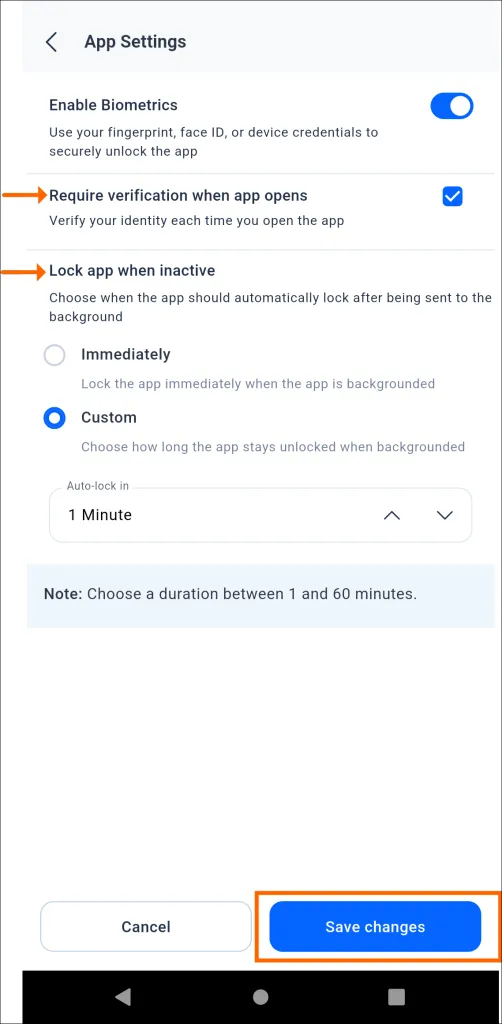
You can use Face ID, Face Unlock, a fingerprint or your device passcode, depending on your phone. Logging out clears these settings, so turn them on again after you sign back in.
How do you sign a document in the BoldSign mobile app?
Open the document from the Waiting for me card and tap Sign now. The app then guides you from one field to the next.
- Tap the Waiting for me card on the dashboard, or the Documents icon in the bottom bar.
- Tap Sign now on the document. You can also open its menu and choose Sign document.
- Read and agree to the terms, then tap Continue.
- Tap Start signing, fill in each field, and tap Next field to move on.
- Tap Complete signing when every field is done.
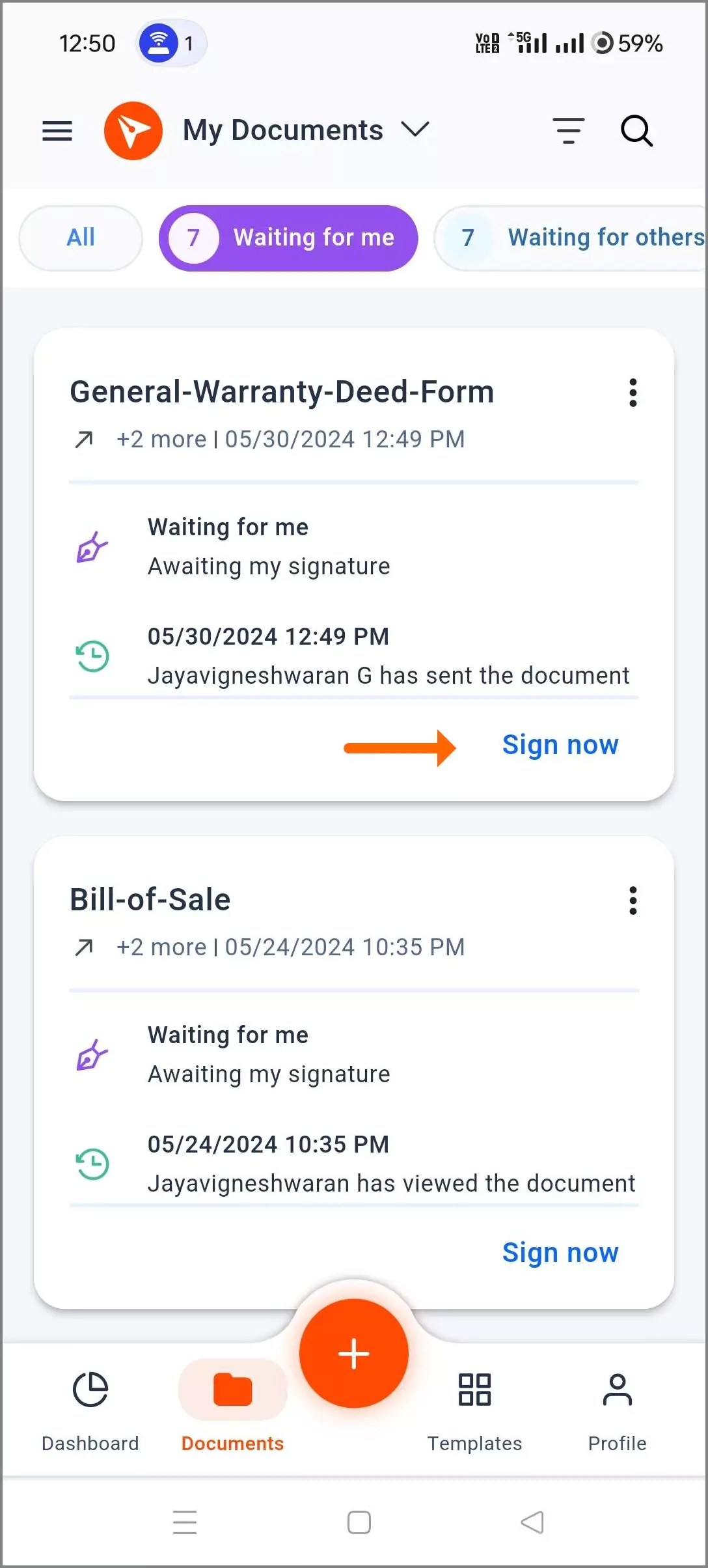
The top of the screen counts how many fields you have finished. Need to stop partway? Tap More and choose Finish later, Re-assign or Decline.
How do you send a document for signature from the app?
Upload a file, add the people who need to sign, then place the fields. The whole flow starts from the + button.
Upload your document
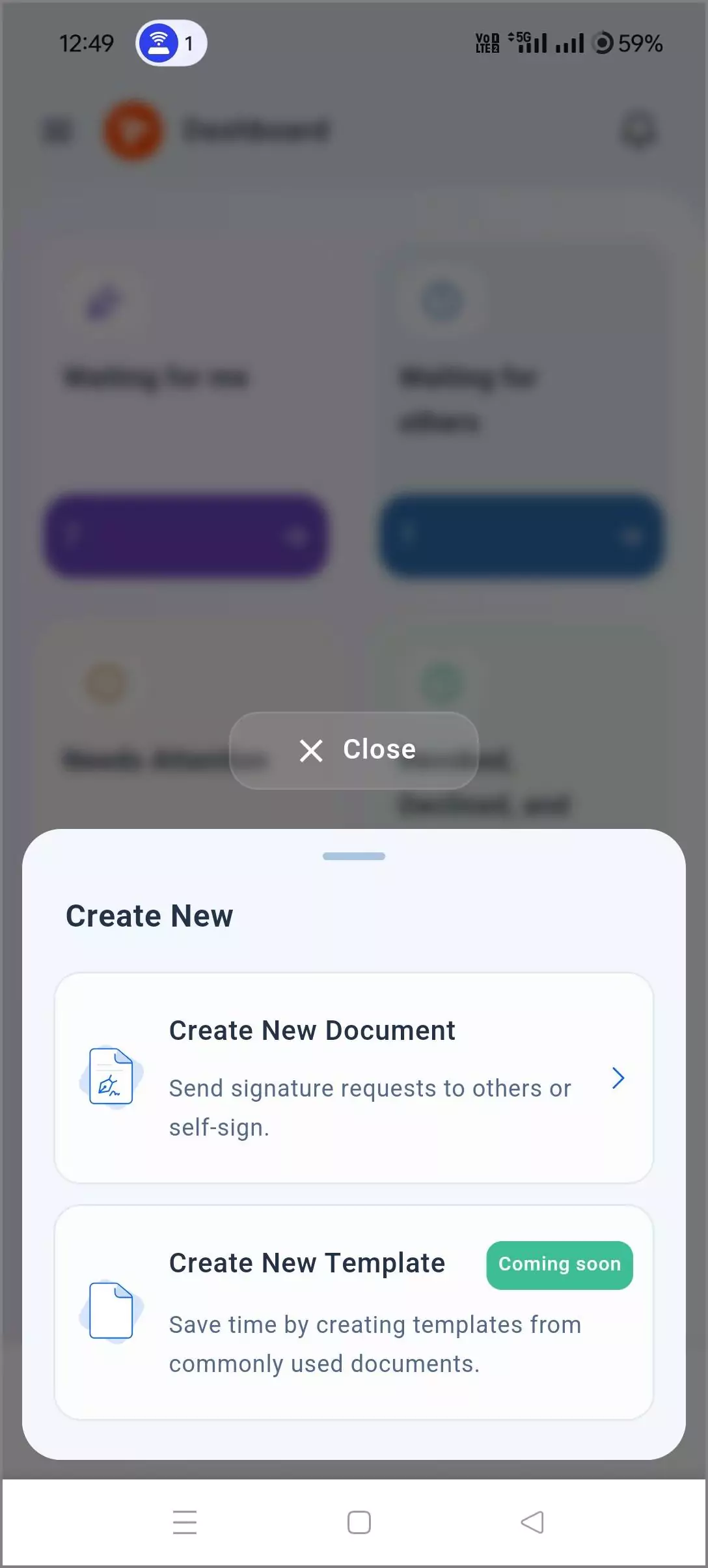
- Tap the + button in the bottom bar.
- In the Create New sheet, tap Create New Document.
- Tap Upload Documents and choose files from your phone, then tap Continue.
You can upload PDF, Word, Excel, PowerPoint and image files. Each document can hold up to 25 files of 25 megabytes each.
Add recipients
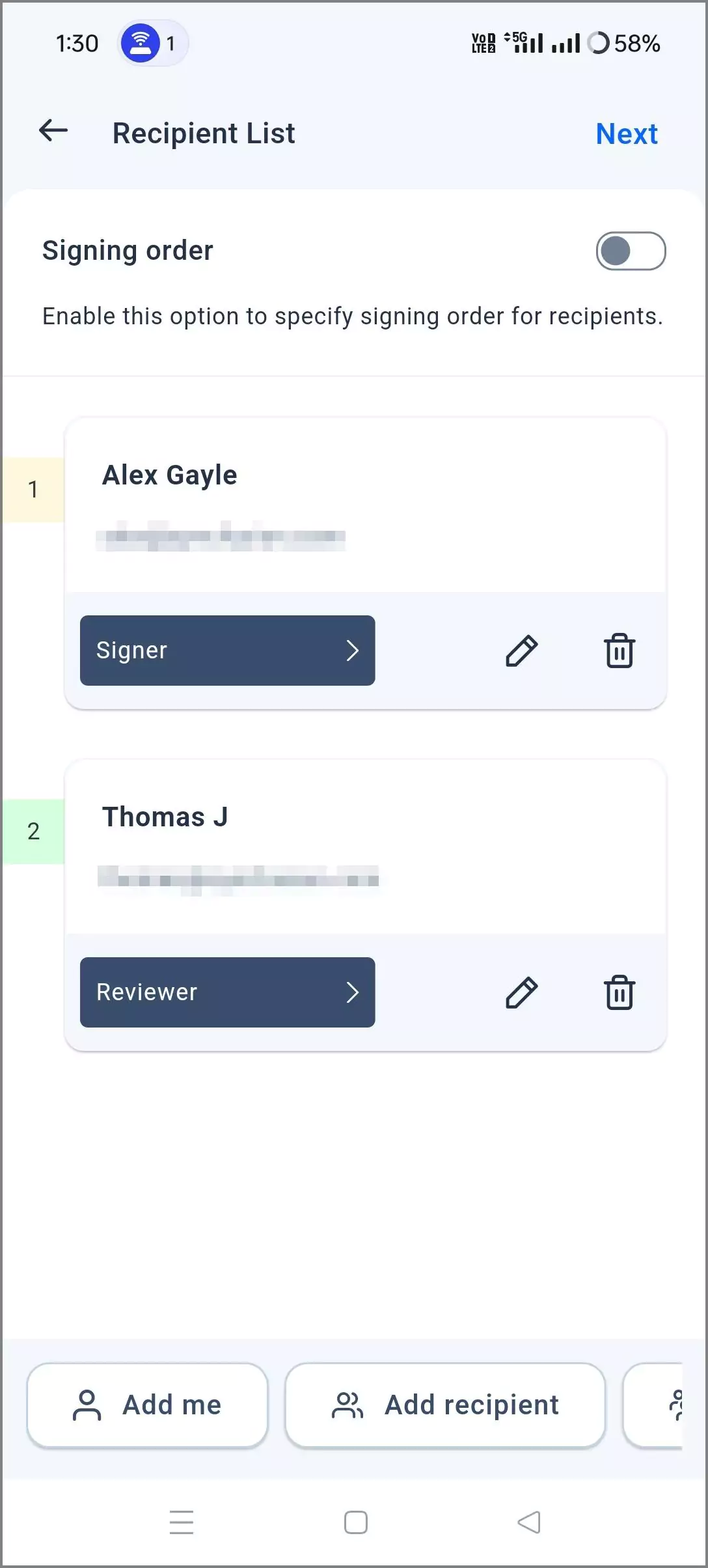
- On the Recipient List screen, tap Add recipient.
- Enter a name and email address, then pick a type: signer, reviewer or in-person signer.
- Add a one-time password (OTP) or access code if the signer must prove who they are.
- Tap Add recipient to save, and repeat for each person.
- Turn on signing order for more than one signer, then tap Next.
The one-time password goes to the signer’s email or phone. Share an access code with the signer yourself.
Under Delivery Options, email is the default. Pick SMS or WhatsApp to send the link by SMS or WhatsApp instead. Then enter the phone number with the country code.
Prepare and send
- On the Prepare Document screen, add any CC (carbon copy) recipients and edit the title or message.
- Tap Document Settings to pick a brand, set an expiry date and turn on reminders.
- Tap Configure fields, then tap + Fields or press and hold the document to place fields.
- Tap Continue, then Send document.
- Check the summary and tap Send.
On the same screen, you can also preview the document before sending or save it as a draft.
How do you self-sign a document on your phone?
Self-signing means you sign your own document, such as a form you fill in before sharing it. The steps start the same way as sending.
- Tap +, then Create New Document, upload your file and tap Continue.
- On the Recipient List screen, tap Add me, then Next.
- Tap Configure fields and place your fields, filling in each one as you add it.
- Tap Finish, then Finish signing.
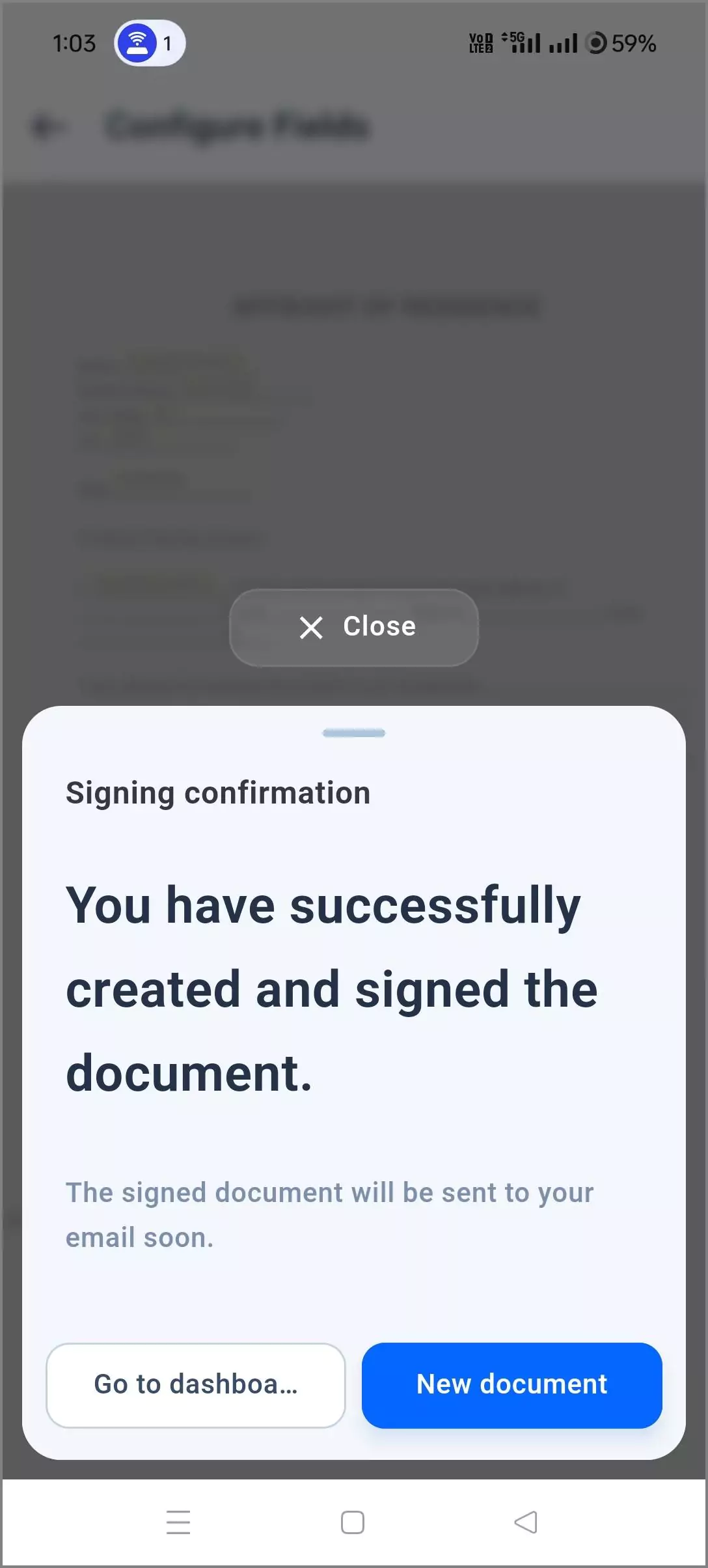
The app fills in your name, email address and the signing date for you. You can then download your signed copy.
How do you download a signed document?
Open the document’s menu on the Documents screen and tap Download document. The app saves it to your phone’s Downloads folder unless you choose another one.
- Tap the Documents icon in the bottom bar.
- Find the completed document and open its menu.
- Tap Download document, or Download audit trail for the signing record.
On Android, you can pick another folder from the download screen before you tap Save. Make sure the app has permission to use your phone’s storage.
How do you find and manage documents in the app?
Search, filters and folders help you find any document fast. All of them start from the Documents screen.
Search for a document
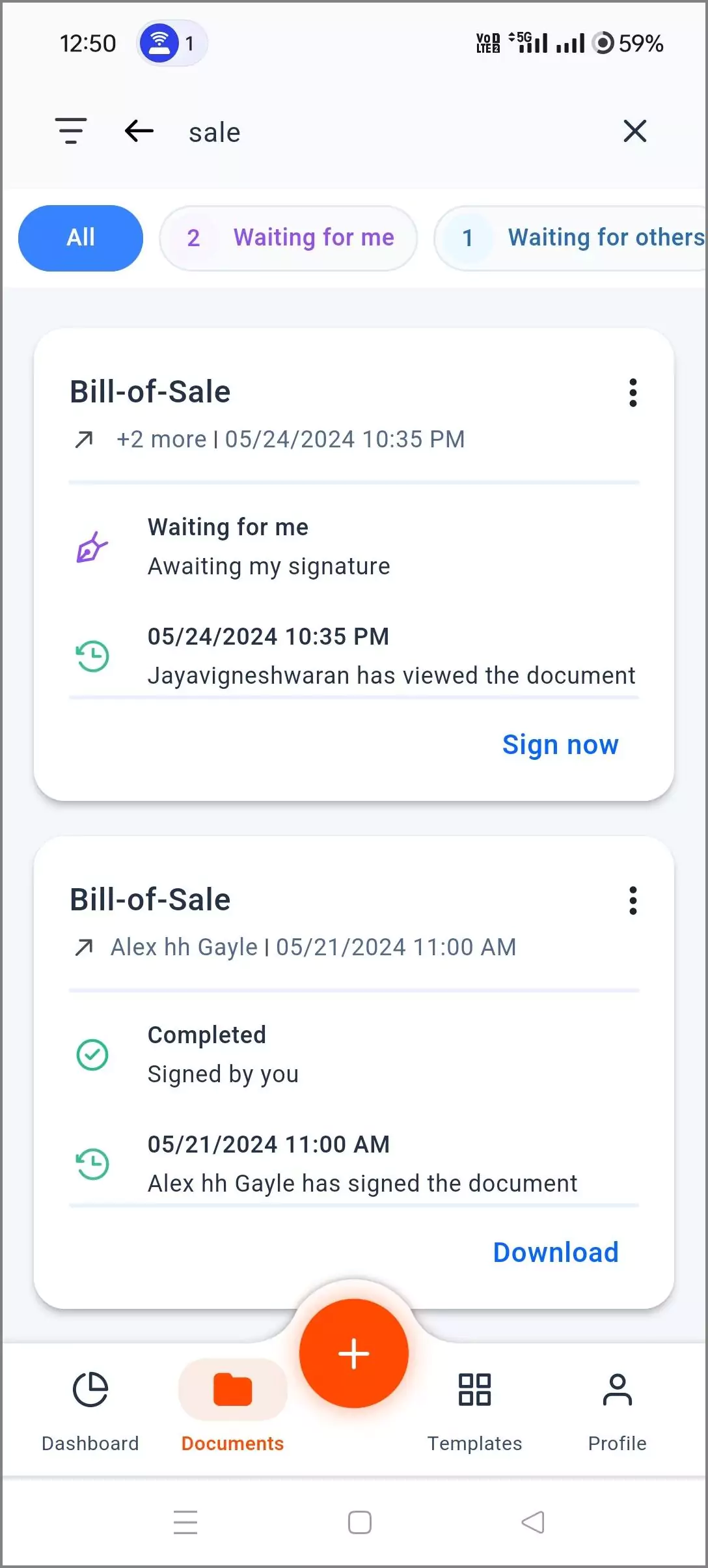
Tap the Search icon in the app bar and type part of the document’s title. The list narrows as you type.
Filter your documents
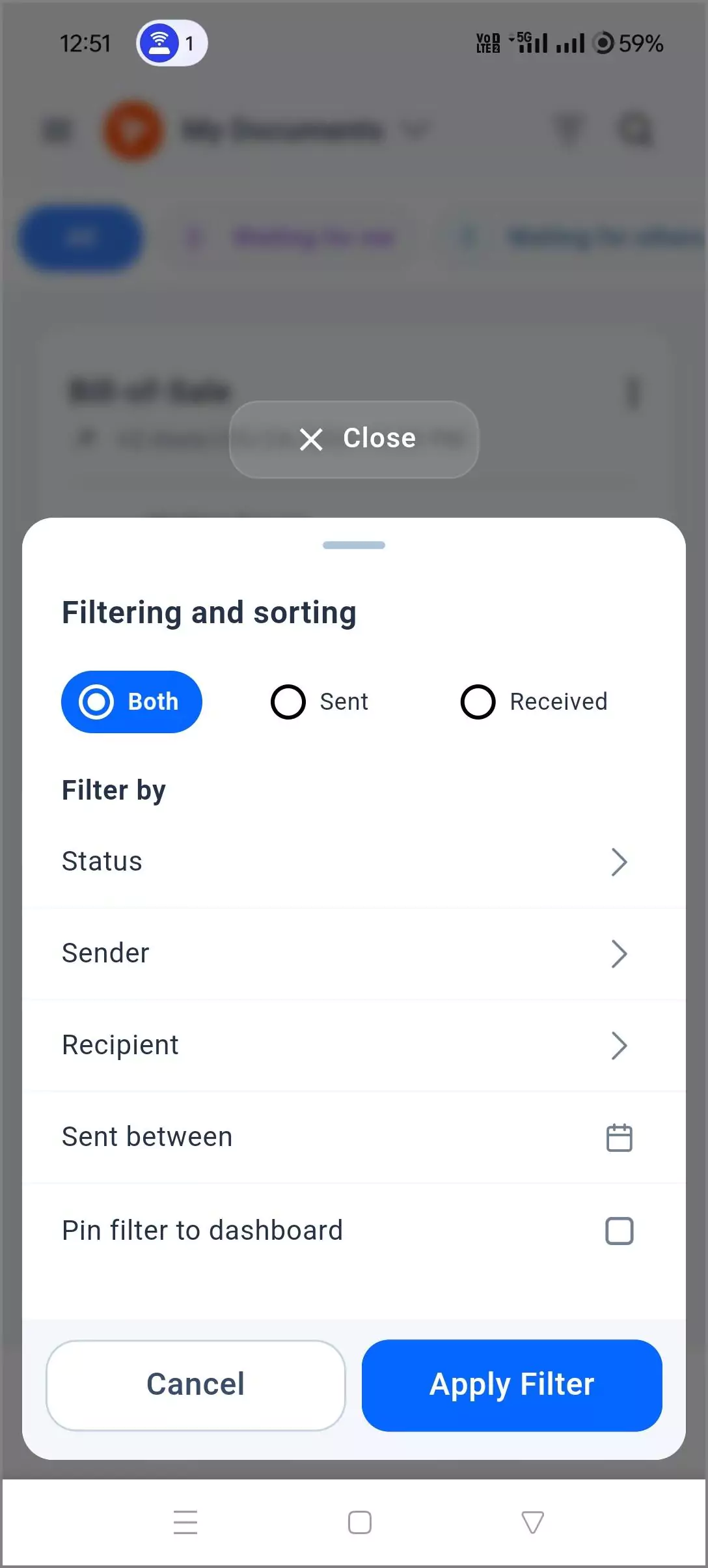
Tap the Filter icon on the Documents screen to narrow the list. You can pin a filter you use often to the dashboard.
- Sent, Received or Both, to choose which documents you see.
- A status, such as Waiting for me, Waiting for others, Completed or Expired.
- A sender or a receiver.
- Sent between, for a date range such as this week or last month.
See a document’s details and history
Tap any document to open its overview. The Basic Info tab shows its status and dates. The Recipients and Document History tabs show who has signed and what each person did.
Drafts and Trash
Find saved drafts by tapping the menu icon (three lines), then Documents, then Drafts. You can finish a draft and send it later.
Deleted documents go to Trash, in the same Documents menu. They stay there for 30 days. Open a document’s menu to Restore it, download it or choose Delete forever.
How do you log out of the BoldSign app?
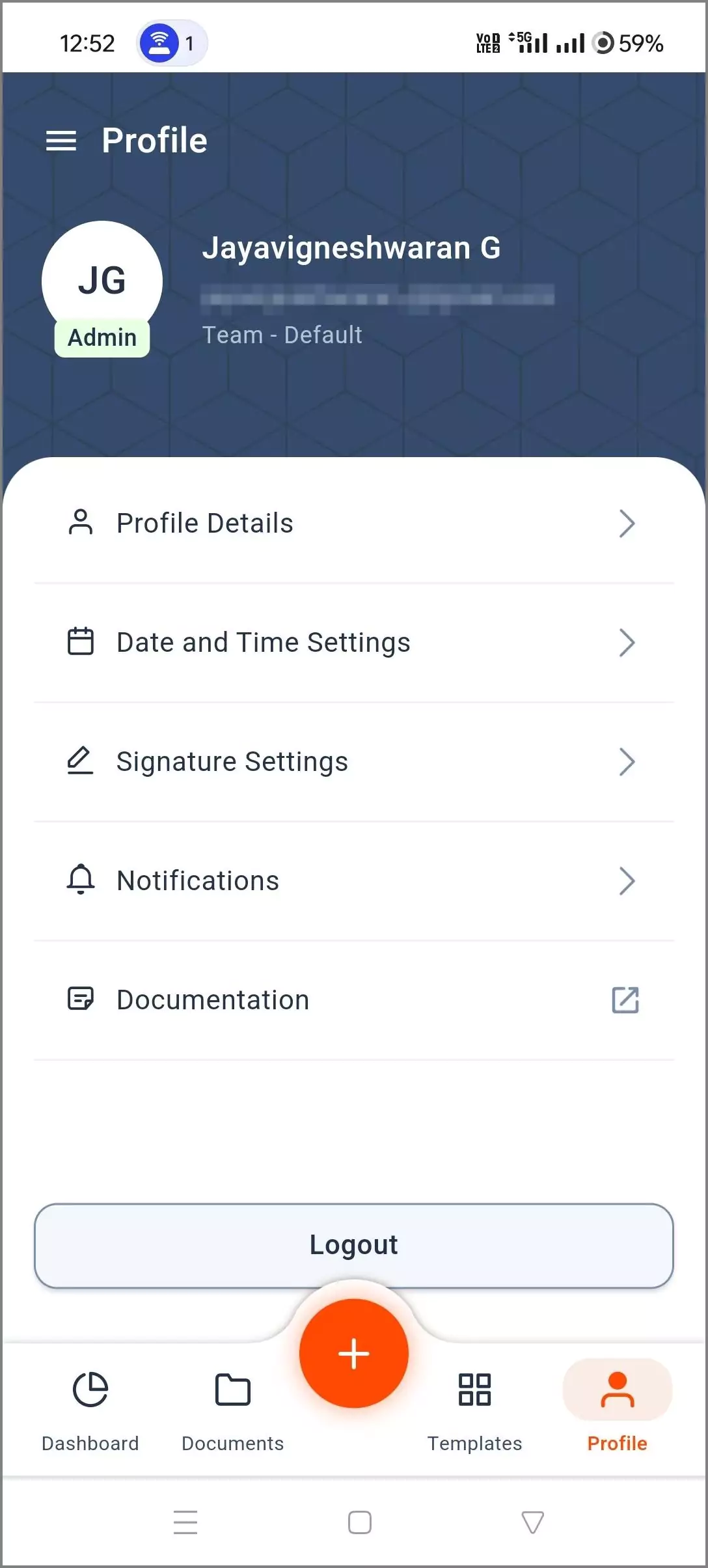
Open the Profile tab and tap Logout at the bottom of the screen. You can then log in with a different account.
Which BoldSign plan do you need for the mobile app?
The app comes with every plan, so you need no extra purchase. Some send options depend on your plan, as listed on the BoldSign pricing page in November 2026.
Our free Essential plan includes 25 envelopes a month and one brand. The Growth plan costs $5 per user a month, billed yearly, and adds in-person signing.
The Business plan costs $15 per user a month, billed yearly, and adds scheduled send and unlimited brands. SMS one-time passwords, SMS delivery and WhatsApp delivery need the Business or Premium plan. Prices are in USD, and you can start with a 30-day free trial.
Where can you learn more about the BoldSign mobile app?
Our help center has a short article for each mobile feature, and our team can answer the rest. Pick the next step that fits.
- Start a 30-day free trial and send your first document from your phone.
- Read our guide to sending a document from your phone, with every option explained.
- Email support@boldsign.com with a question or feedback about the app.
Frequently asked questions
Is the BoldSign mobile app free to download?
Yes. The app is free on Google Play and the App Store. It works with every BoldSign plan, including our free plan.
How can I discover sign request features available in the app?
Tap the + button on the dashboard and choose Create New Document to walk through the full send flow. Our help center also has a short article for each mobile feature.
Do I need a separate account for the BoldSign mobile app?
No. You sign in with the same email address and password you use on the BoldSign web app, so your documents appear in both places.
Can someone sign my document on their phone without the app?
Yes. Signers can open the request and sign in any phone browser. The app is for people who want to send and manage documents on the go.
Does the BoldSign mobile app support multiple signers?
Yes. Add each person on the Recipient List screen, then turn on the signing order option to choose who signs first.
Are documents signed in the BoldSign app legally binding?
Yes, when the signature meets the same rules as any other electronic signature, such as the signer's consent. Signing in the app uses the same process and audit trail as the web app.
Can I lock the BoldSign app with Face ID or a fingerprint?
Yes. Open Profile, then App Settings, and turn on Enable Biometrics. The setting clears when you log out, so turn it on again after you sign back in.
How long do deleted documents stay in the app's Trash?
Deleted documents stay in Trash for 30 days. You can restore or download them during that time, and after 30 days we delete them for good.

Jayavigneshwaran
Product Manager at BoldSign with a strong foundation in web and mobile development. Started as a web developer working with React, Angular, TypeScript, and Blazor, then moved into mobile development with Flutter and Dart. Now leading the BoldSign mobile app and support experience, combining technical depth with product strategy to deliver reliable releases and great customer outcomes. Connect with him on LinkedIn.
More posts by Jayavigneshwaran