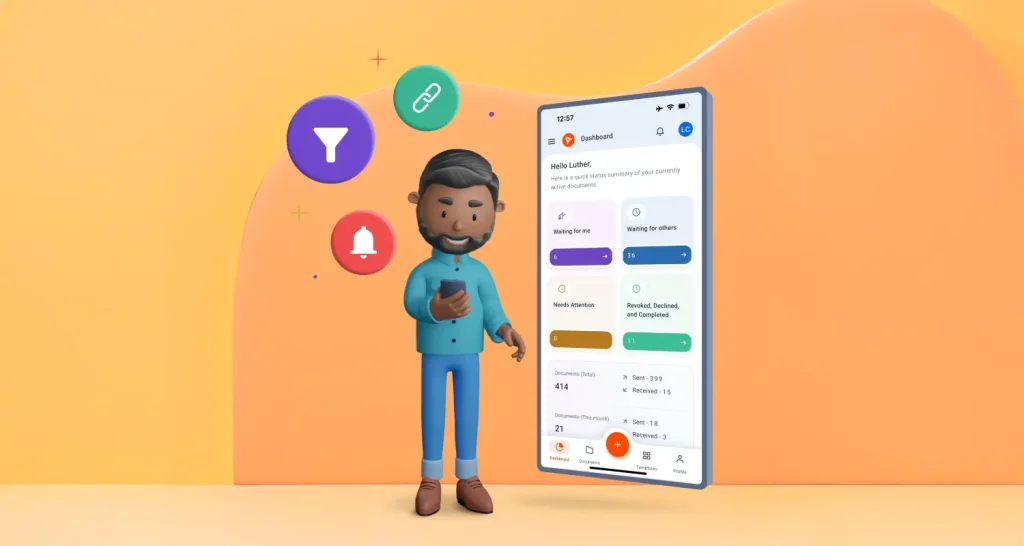
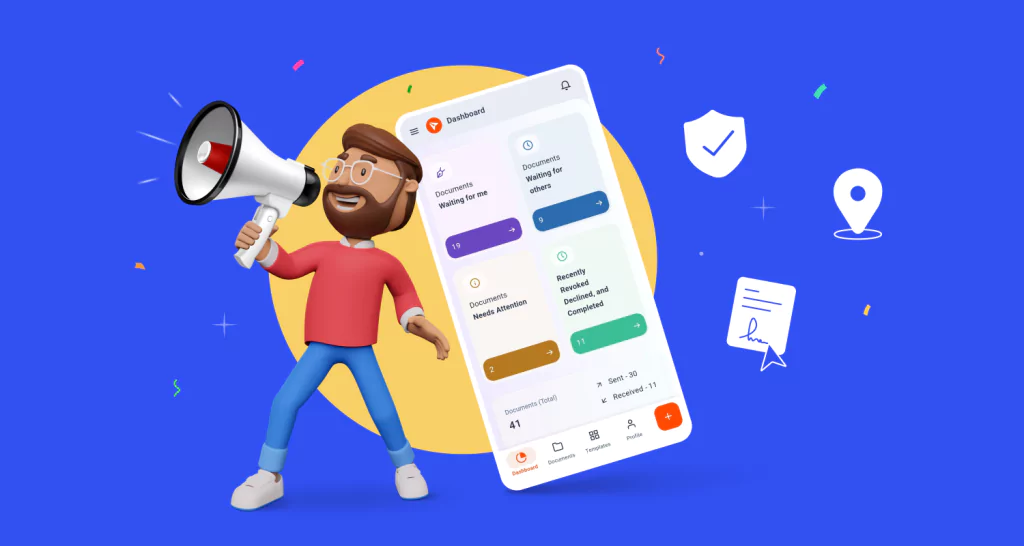
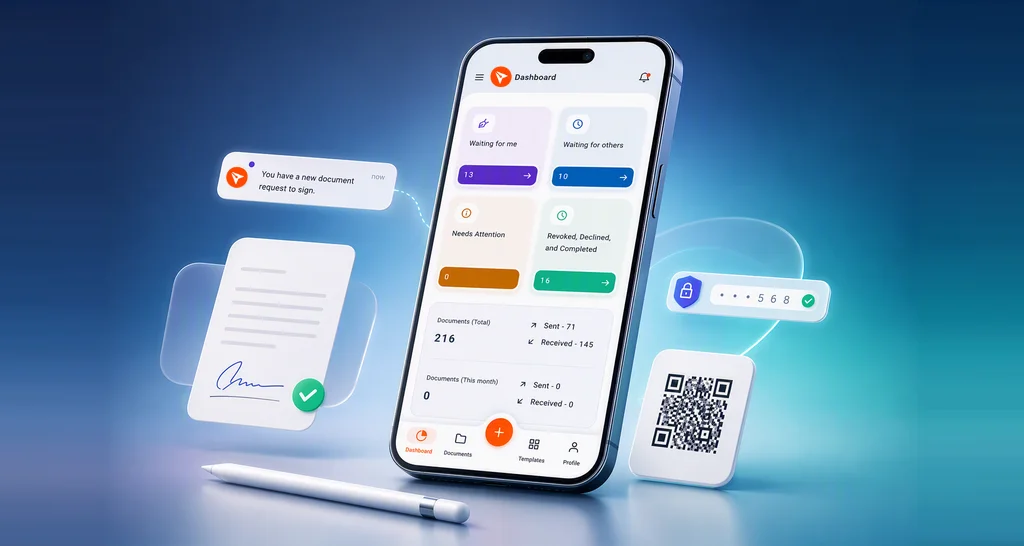
Push Notifications in the BoldSign Mobile App: Real-Time Alerts on iOS and Android
 Jayavigneshwaran
TL;DR: The BoldSign mobile app sends push notifications on iOS and Android. You get an alert when a document needs you, is signed or declined, expires or is done. Tap it to jump to the right screen, and pick your alerts in our eSignature mobile app.
You send a contract before a meeting and need it signed by noon. Without alerts, you keep opening the app to check. Or a client sends you a form to sign, and it waits in your inbox all day.
Push notifications fix both. The BoldSign mobile app now sends real time alerts to your phone, so you know the moment something changes.
Which document signing software offers real-time notifications?
BoldSign does, through our iOS and Android apps. Every plan includes the app, and it sends push alerts about the documents you send, sign or follow.
Think of it like a parcel tracker that messages you when the parcel ships and when it arrives. You never refresh the courier’s page. Our alerts do the same for your documents.
Alerts reach your phone whether the app is open, in the background or closed. You also get them on every device where you are logged in.
Which events send a push notification by default?
Your role on a document decides which alerts you get. Each set below is on by default, and you can change it later.
As a sender
- You receive a document to sign or approve.
- A recipient signs, approves or declines the document.
- All recipients complete the document.
- The document expires.
- A reminder goes out for the document.
As a recipient
- You receive a document to sign or approve.
- Another recipient declines to sign or approve.
- The sender revokes the document.
- All recipients complete the document.
- The document expires.
As a CC (carbon copy) recipient
You get an alert when a new signature request goes out. You get another when all recipients complete the document.
What notification settings does the app have?
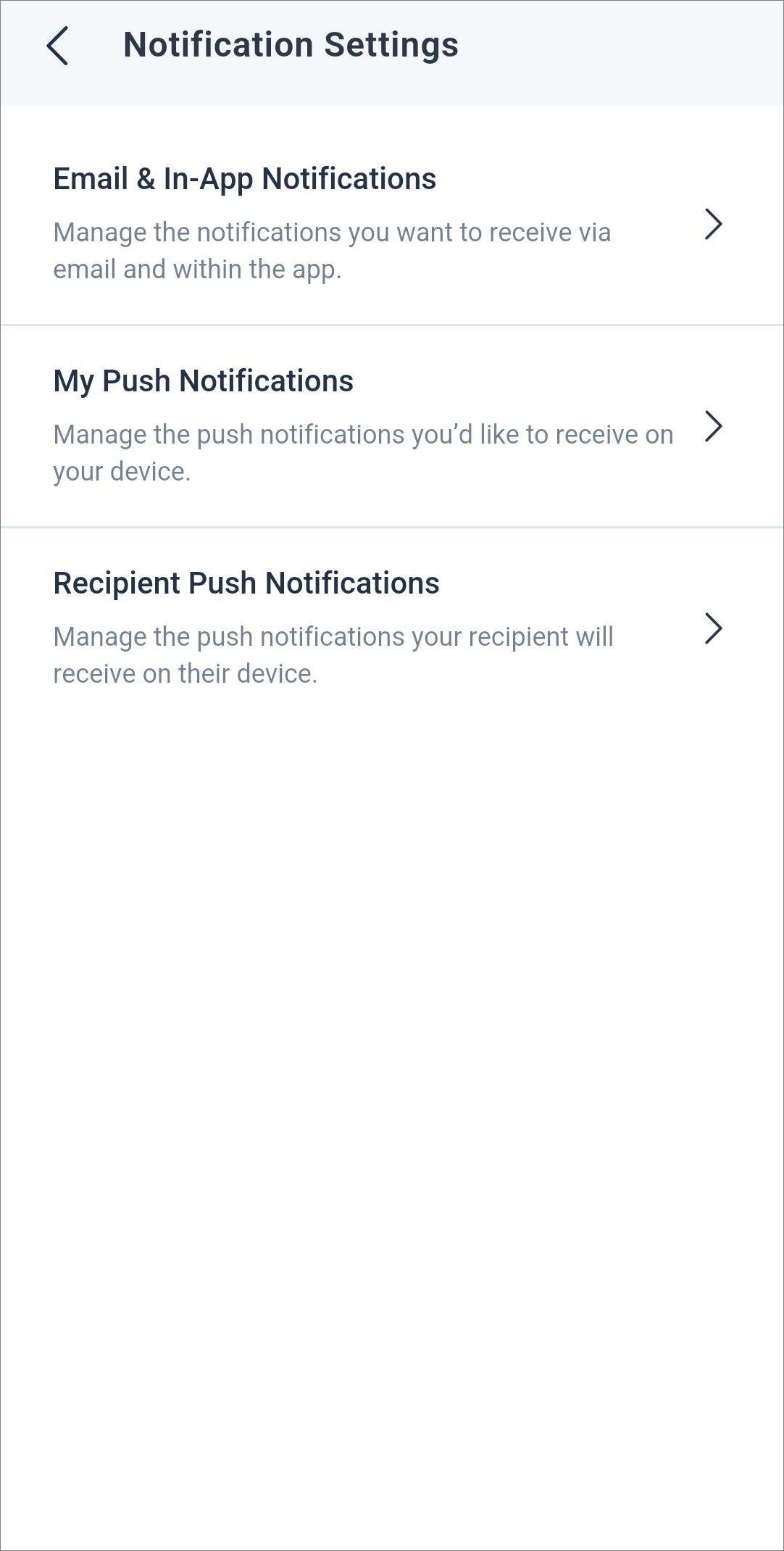
The app has three kinds of notification settings. Each one controls a different set of alerts.
- Email and in-app notifications: what you get by email and inside the app.
- My push notifications: the alerts that reach your own device.
- Recipient’s push notifications: the alerts your recipients get on their devices.
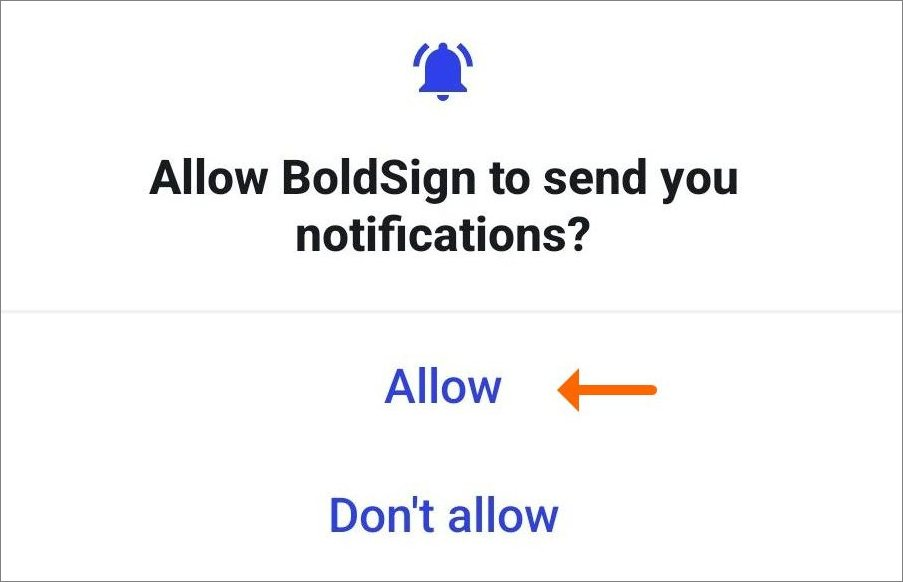
How do you allow push notifications from BoldSign?
Allow them when the app asks, right after you log in. Your phone will not show any BoldSign alerts until you do.
How do you turn push notifications off?
You can switch them off in your device settings or inside the app. Either way, in-app notifications stay, so you can still see updates when you open the app.
From your device settings
Open your device’s Settings, find the BoldSign app and turn off its notifications.
Inside the BoldSign app
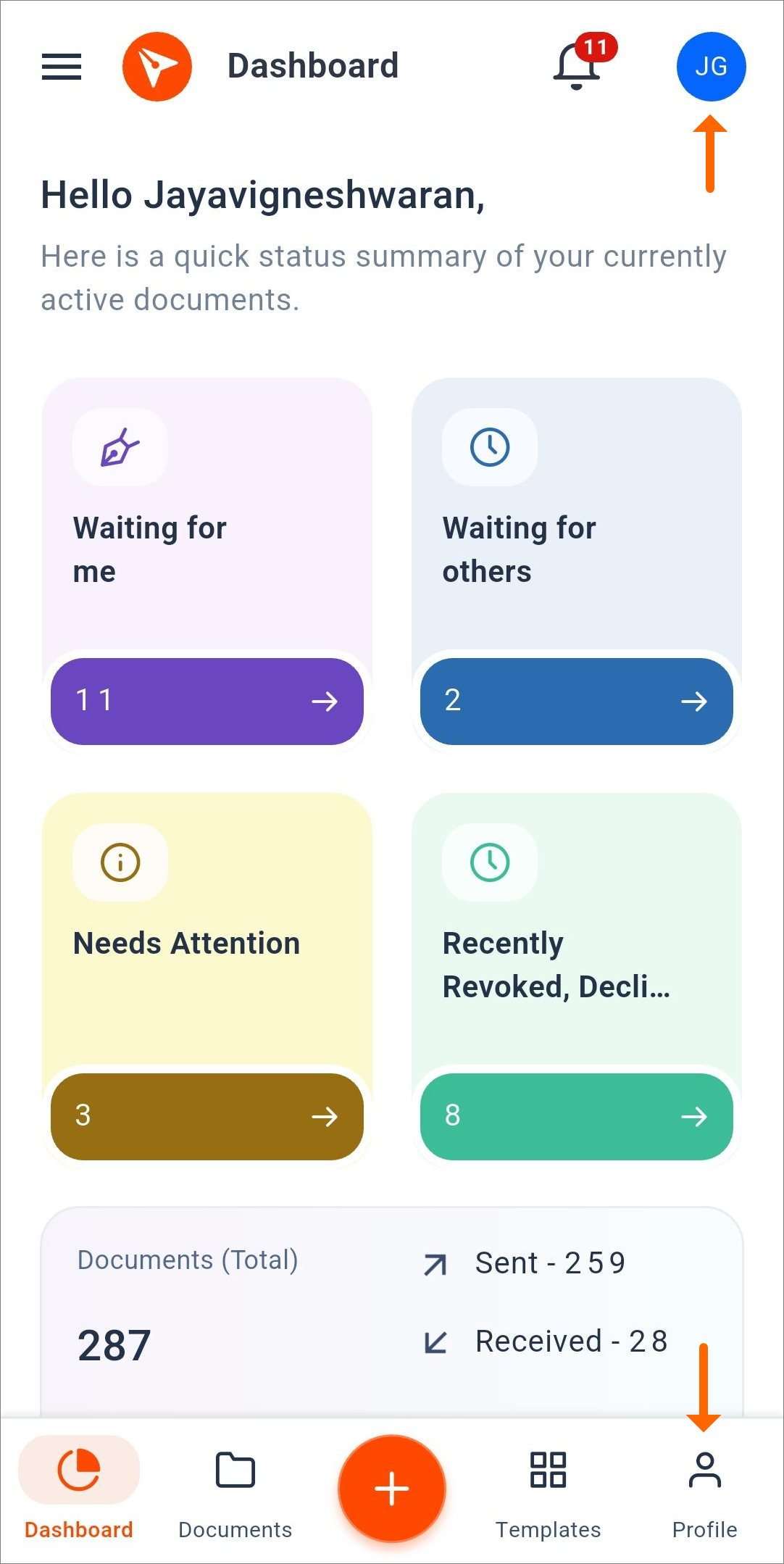
- On the Dashboard screen, tap Profile in the bottom bar or tap your initials.
- On the Profile screen, go to Notification Settings and select My Push Notifications.
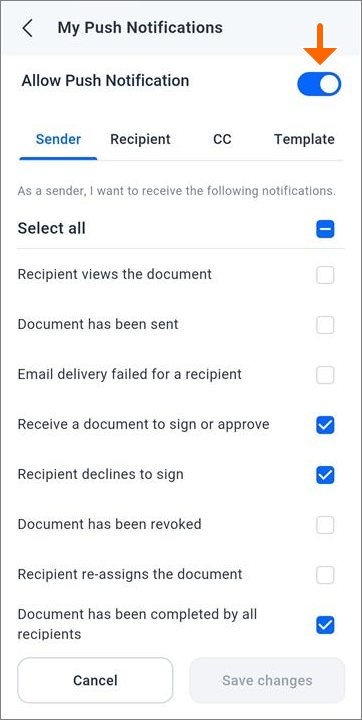
- At the top, switch off Allow Push Notifications.
- Tap Save changes.
How do you choose which alerts you get?
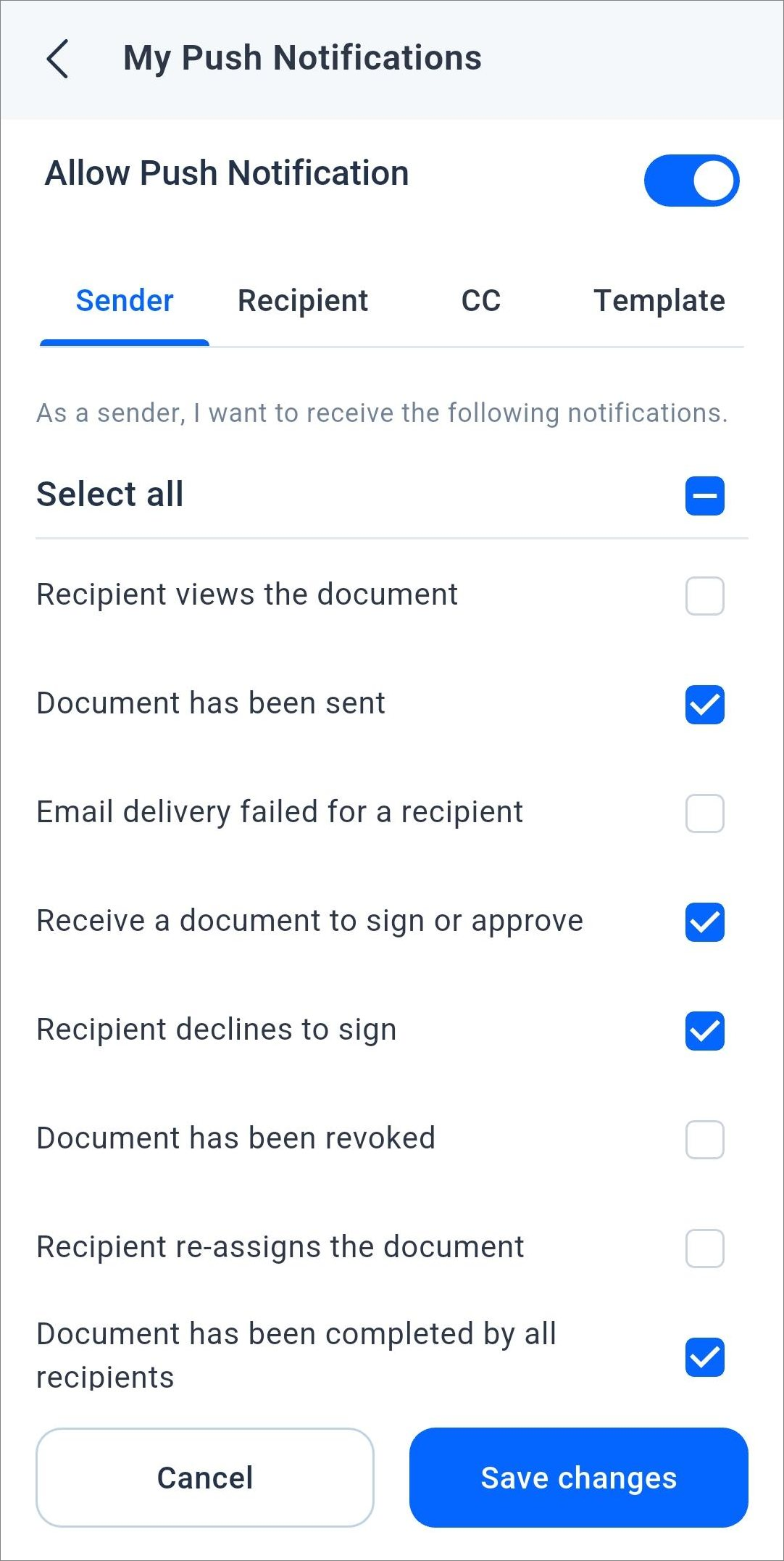
Pick each alert by hand under My Push Notifications. The settings sit on four tabs: Sender, Recipient, CC and Template.
- From the Profile screen, go to Notification Settings and select My Push Notifications.
- Open the tab you want to change.
- Tick or untick the box on the right of each alert.
- Tap Save changes.
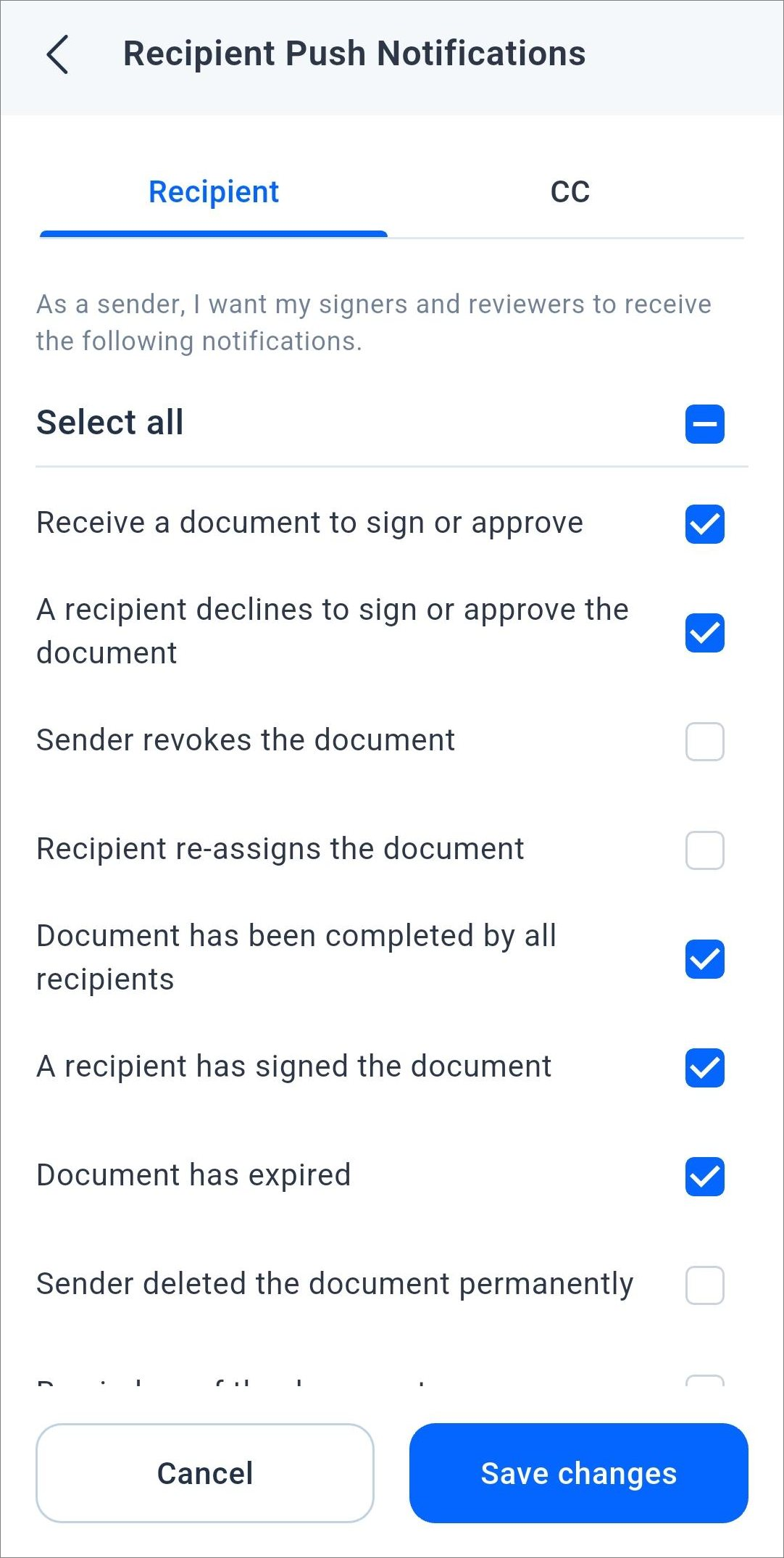
How do you control the alerts your recipients get?
Use Recipient Push Notifications before you send a document. An alert you switch off there stays off for that document, even when the recipient has it on.
Both sides must agree for an alert to show. You need it on in your recipient settings, and the recipient needs it on in their own.
- Open the Profile screen, go to Notification Settings and select Recipient Push Notifications.
- Choose the Recipient tab or the CC tab.
- Tick or untick the box on the right of each alert.
- Tap Save changes.
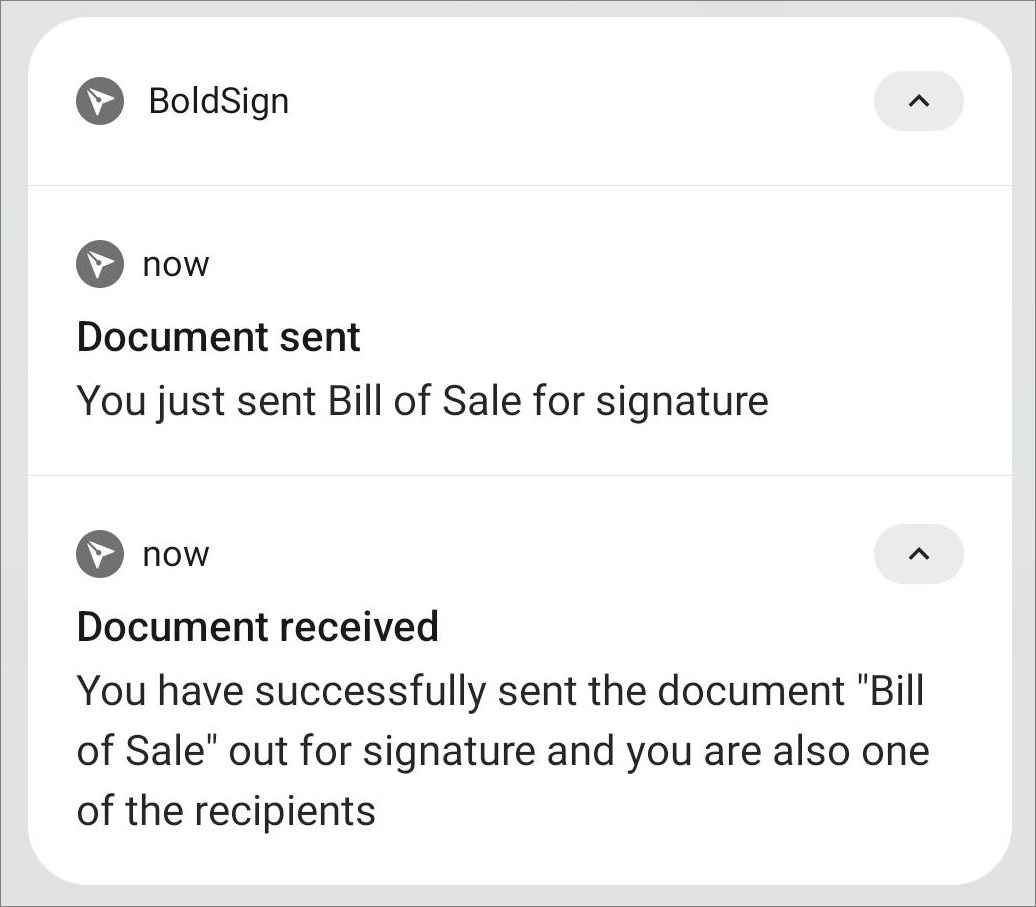
What happens when you tap a notification?
The app opens on the screen for that document. What you see first depends on the state of the app and your account.
- App open: you go straight to the right screen.
- App in the background: the app comes to the front and opens the right screen.
- App closed: the app starts and opens the right screen.
- Logged out: you see the login screen first, then the right screen after you log in.
- Logged in to another account: you see an Access Denied screen, since that account cannot open the document.
How do you change how BoldSign alerts look and sound?
Use your phone’s own notification settings for BoldSign, on Android or iOS. On iOS, go to Settings, then Notifications, then BoldSign.
- Change the alert sound.
- Turn vibration on or off.
- Show or hide alerts on the lock screen.
- Pick a banner or pop-up style.
- Turn badges on or off.
Which BoldSign plan includes push notifications?
Every BoldSign plan includes the iOS and Android apps, and with them push alerts. That covers the free Essential plan, so you can try alerts at no cost.
Paid plans add more sending features. See the BoldSign pricing page for what each plan holds.
How do you start getting push notifications today?
Install the app, log in and allow notifications when asked. From then on, your phone tells you when a document moves.
- Get the app for iOS or Android.
- Start a 30-day free trial and send your first document from your phone.
- Book a demo, or contact our support team with a question.
Frequently asked questions
What are push notifications in the BoldSign mobile app?
They are short alerts on your phone's screen about your documents. They tell you when a document needs you, gets signed, is declined, expires or is done.
What should document signing software real-time notifications tell you?
They should tell you when a document is waiting on you and when its status changes. Our app alerts you to new requests, signings, declines, expiry and completion.
Do BoldSign push notifications work when the app is closed?
Yes. Alerts reach your phone when the app is open, in the background or closed. Tapping one opens the app on the right screen.
Do I get alerts on every device I use?
Yes, on each phone or tablet where you are logged in to the same account. Every one of those devices shows the alert.
How do I turn off BoldSign push notifications?
Turn them off in your device settings, or in the app under Profile, Notification Settings, My Push Notifications. Switch off Allow Push Notifications and tap Save changes.
Will I miss updates if I turn off push notifications?
No. The app still keeps in-app notifications, so you can see each update the next time you open it.
Can I stop alerts going to the people I send documents to?
Yes. Under Recipient Push Notifications, untick the alerts you want to stop before you send. Your recipients also need the alert switched on at their end to see it.
Can I change the sound or lock screen display for BoldSign alerts?
Yes. Open your device's notification settings for BoldSign. There you can change the sound, vibration, lock screen display, banner style and badges.

Jayavigneshwaran
Product Manager at BoldSign with a strong foundation in web and mobile development. Started as a web developer working with React, Angular, TypeScript, and Blazor, then moved into mobile development with Flutter and Dart. Now leading the BoldSign mobile app and support experience, combining technical depth with product strategy to deliver reliable releases and great customer outcomes. Connect with him on LinkedIn.
More posts by Jayavigneshwaran