Top Electronic Signature Features for Business Growth
 Ben Jacob Ngoya Ouma
TL;DR: The eSignature features that matter most as a business grows are signing order, signer checks, templates, bulk links, document tracking, team controls and branding. We list every one, grouped by job, on our eSignature features page. This guide explains what each feature does and which plan includes it.
A small team can get by with one person sending each contract by hand. As the business grows, the same steps repeat dozens of times a week. Contracts wait in inboxes, and nobody can say who signed what.
The right features remove that repeat work. Below, we walk through the ones teams use most in BoldSign, with a screenshot of each.
What features to look for in business productivity software with eSignature capabilities?
Look for features that cut repeat work and show you where every document stands. Think of a good mail room: it knows who gets each letter, in what order, and when it arrived.
- Signing order, private messages, and delivery by email, SMS or WhatsApp.
- A check that proves who is signing before the document opens.
- Templates and shared links for the documents you send most.
- Tracking, filters, team permissions and your own branding.
Each section below covers one of these groups in BoldSign.
How do you send eSignature requests to several signers?
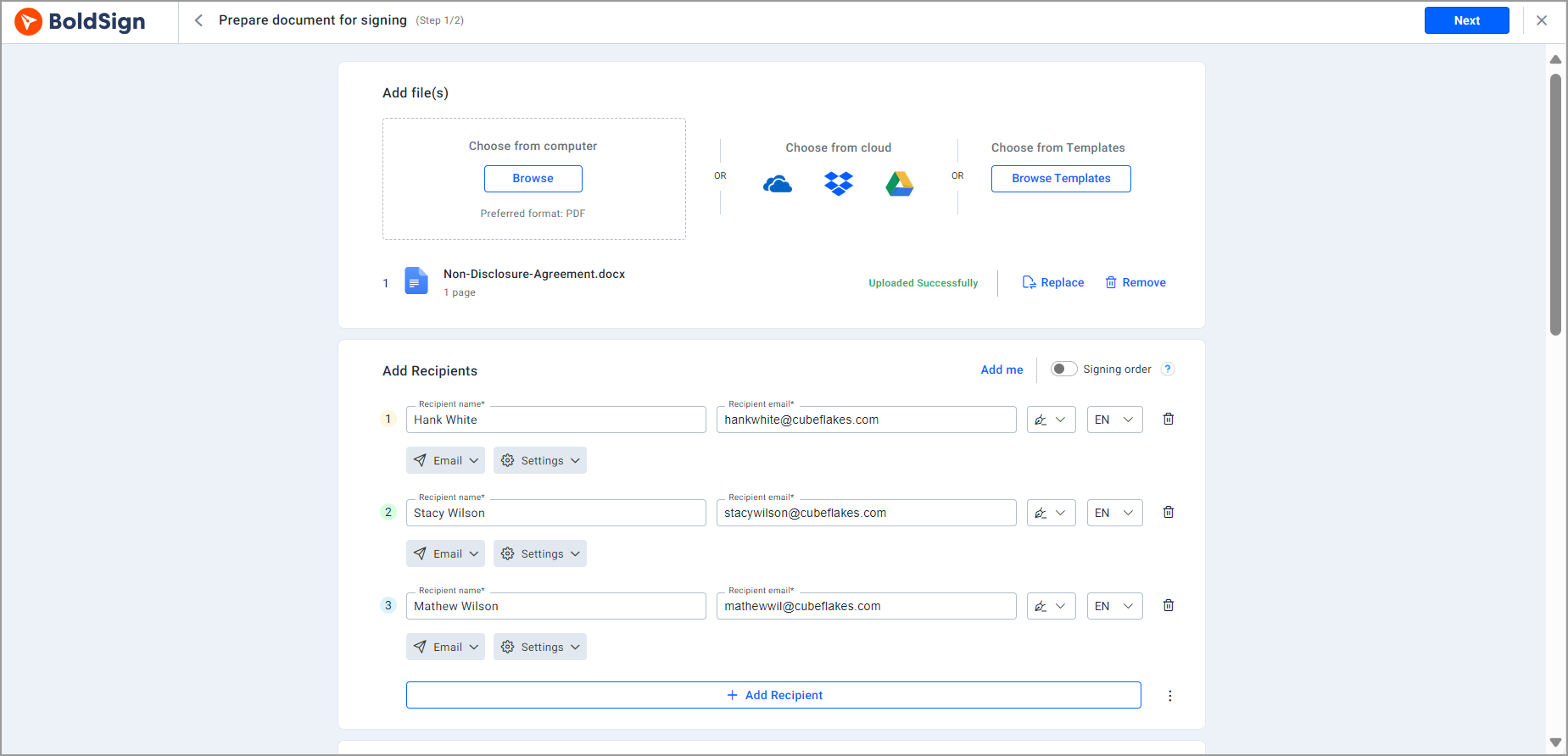
You add each signer to the request, then set the order in which they sign. Our eSignature request features let you collect signatures in a set order, all at once, or a mix of both.
To change the order, drag the signers’ names into place while you prepare the document.
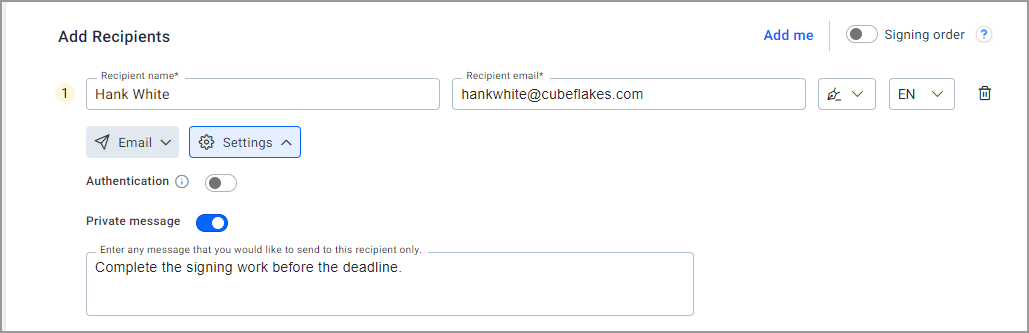
Private message to signers
You can give each signer their own instructions. Other signers on the document cannot see that message.
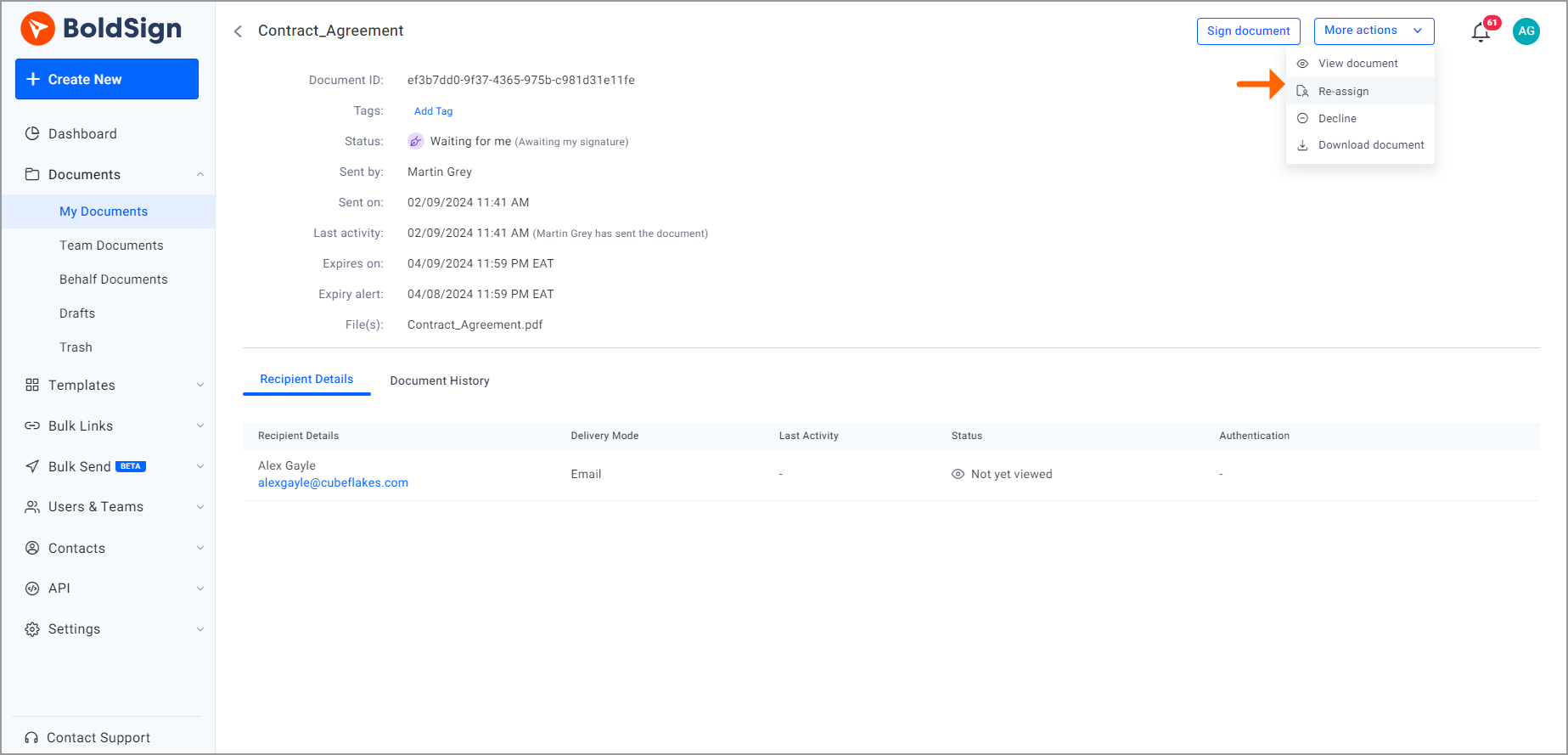
Delegating signing responsibility
A signer can reassign a request to another person, such as a colleague who handles that contract. This helps when the named signer is away or is the wrong person to sign.
You can also stop reassignment for documents that only the named signer should sign.
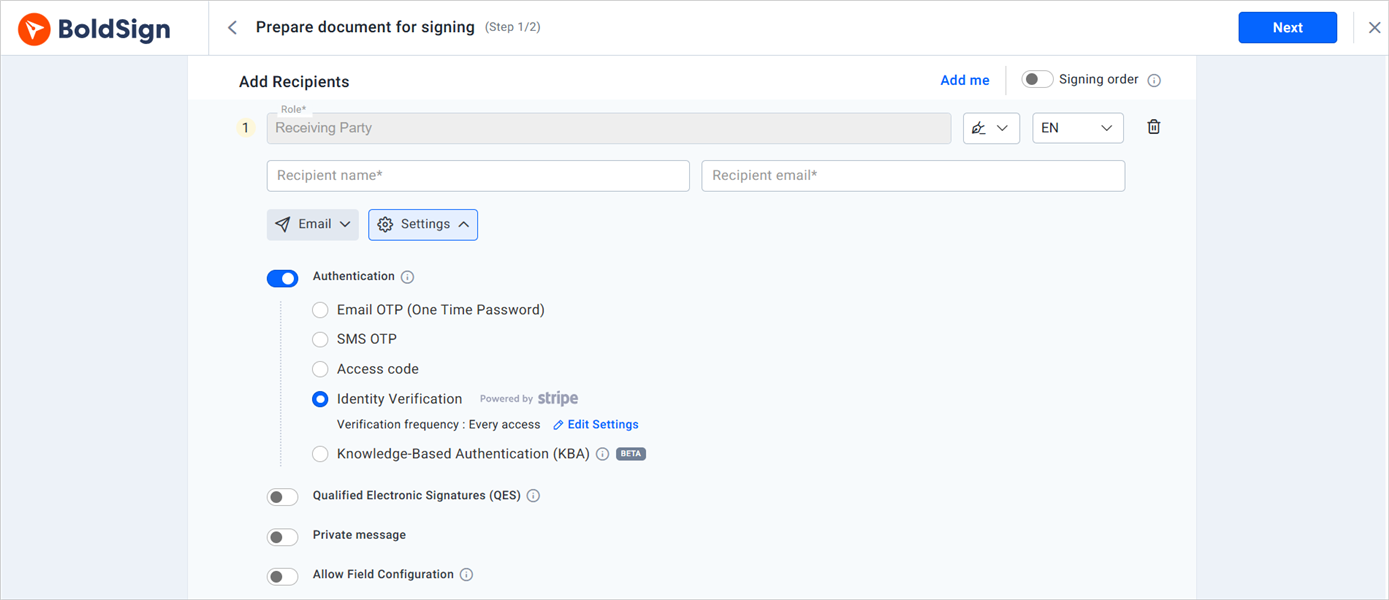
How do you confirm who is signing a document?
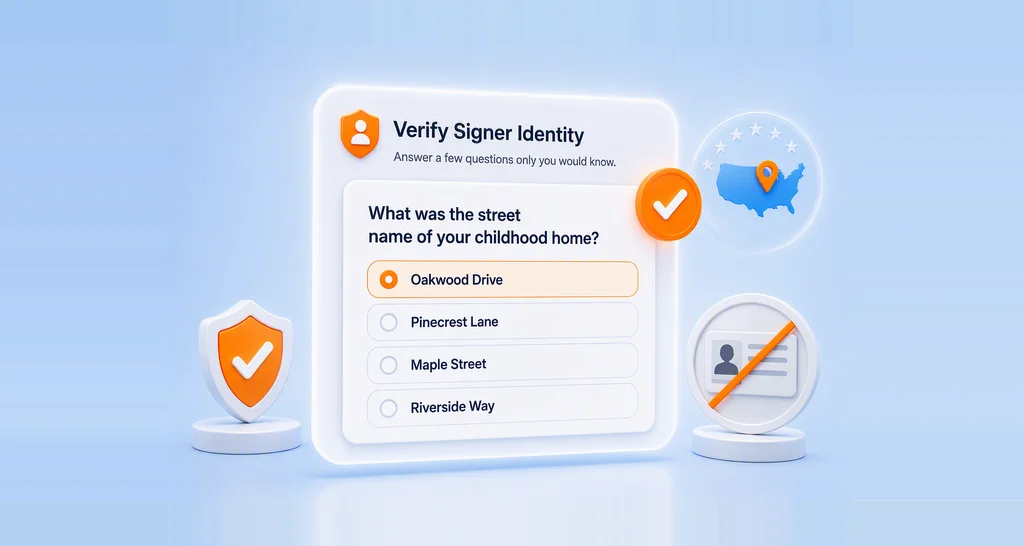
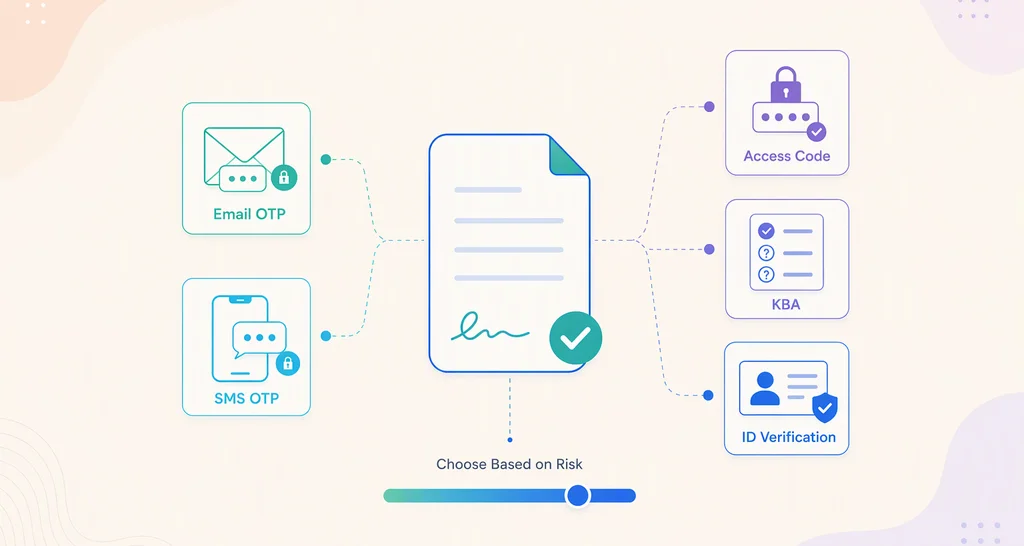
You choose a check for each signer, and they pass it before the document opens. Our signer authentication options cover routine forms and high-value agreements.
- Email one-time password (OTP): a code sent to the signer’s email address.
- SMS OTP: a code sent to the signer’s phone by text message.
- Access code: a code you share with the signer outside the signing email.
- ID verification: a government ID and a selfie checked before signing.
Can you send signature requests by SMS or WhatsApp?
Yes, we send signature requests by email, SMS or WhatsApp. You can also send by email and SMS at once, and pick a channel for each signer.
Text messages reach phone numbers in 26 countries, as listed on our multi-channel delivery page. Every request keeps the same audit trail, whichever channel delivered it. That helps with field staff and contractors who check their phone more often than their inbox.
How do templates save time on documents you send often?
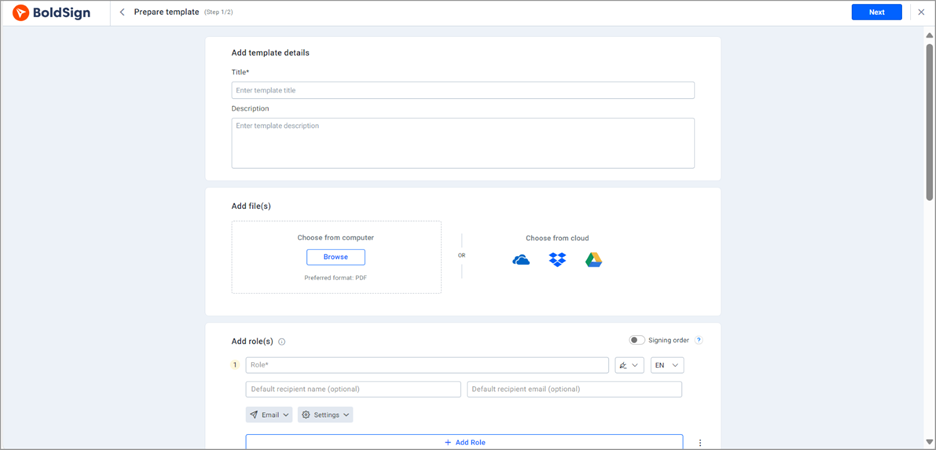
A template stores a document with its signers, fields and settings already in place. You set it up once and send it again with new names.
You can also set the brand, the expiry date and the reassignment rules inside the template. Lock the signer checks and the message so senders cannot change them. Then share the template with your team so everyone sends the same version.
How do bulk links collect signatures from many people?
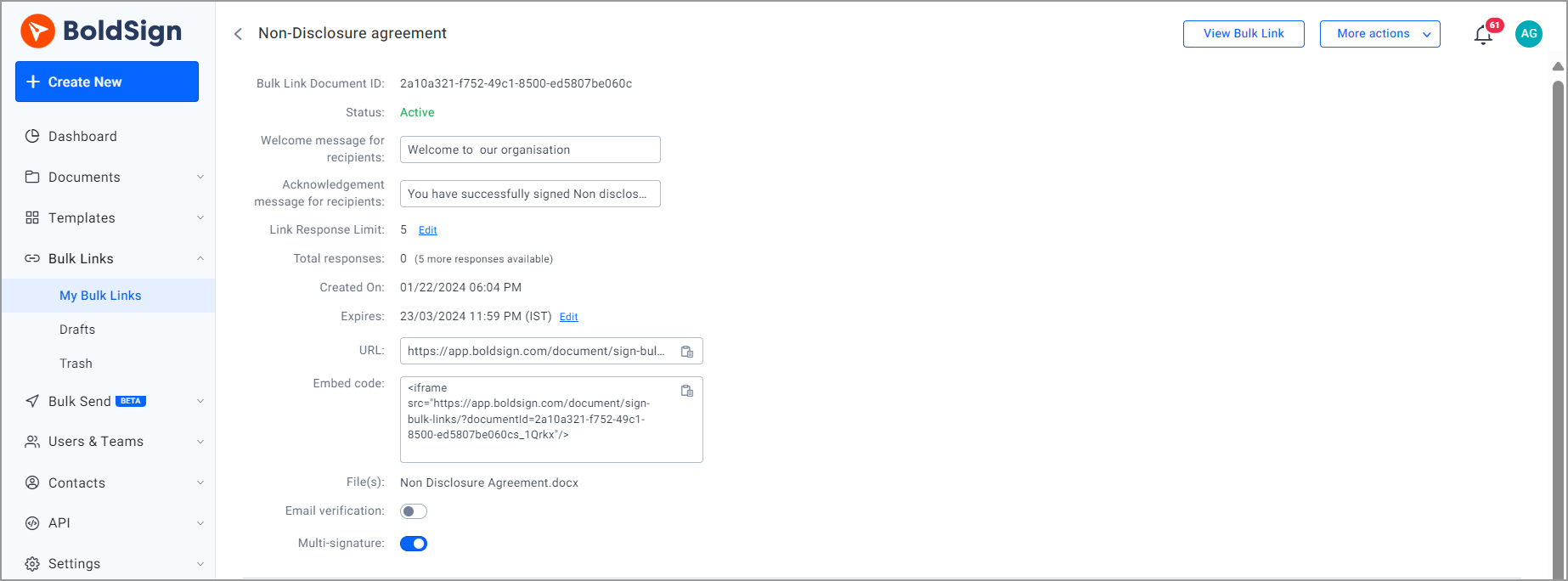
A bulk link is one signing link you share on a website or in a message. Each person who opens it fills in their details and signs their own copy.
You control how the link behaves:
- Cap how many people can sign through one link.
- Set a date when the link stops accepting signatures.
- Change a link’s settings after you create it.
- Download responder names and statuses as an Excel file.
How do you track and find signed documents?
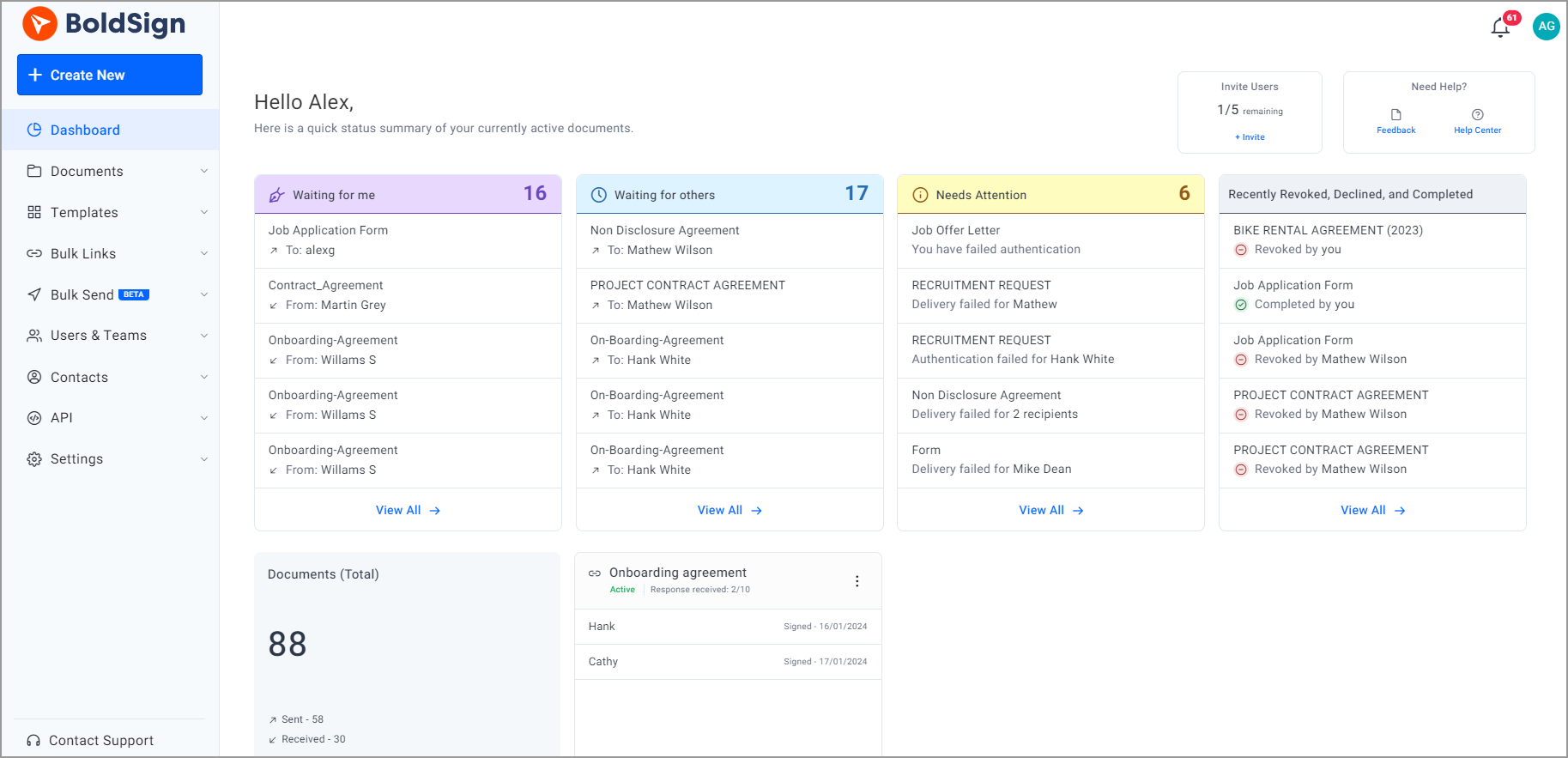
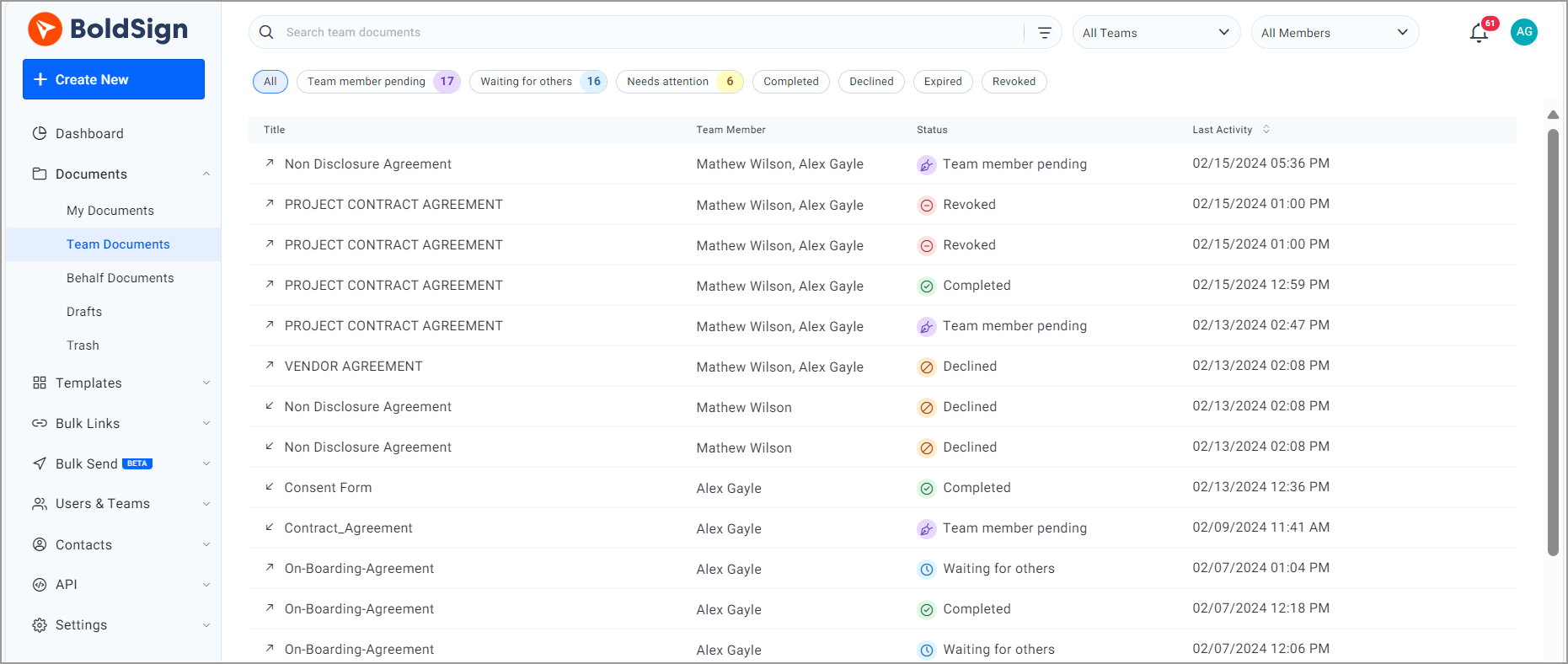
Our document management features show every document your team sends, grouped by status. Each completed document comes with an audit trail of who did what and when.
Team document view
Admins see and manage the documents their team members send, in one dedicated view. You no longer need to ask around to learn where a contract stands.
Labels
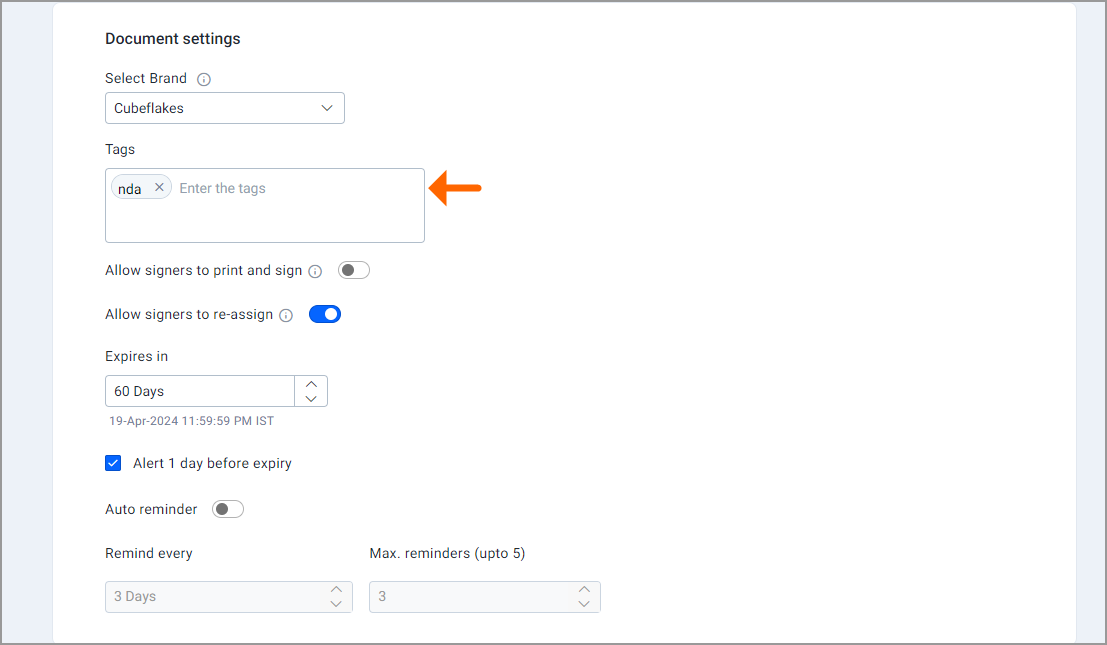
Add your own labels to documents, then filter by label to find related ones fast. A label such as “Supplier” or “Q4 renewals” groups documents across senders.
Search filters
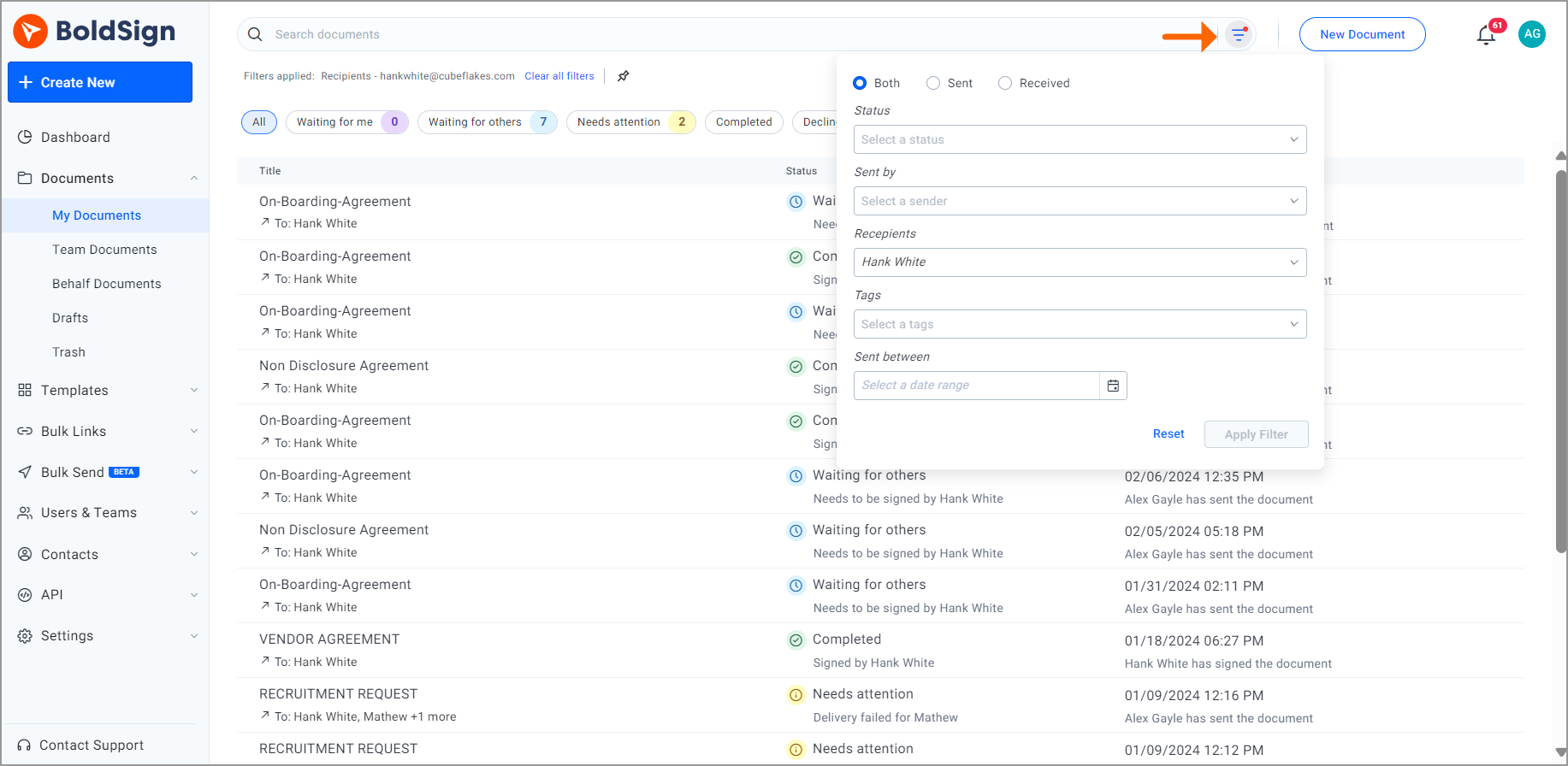
Quick filters sort all documents by status in one click. Advanced filters find documents by sender, recipient or date, and you can pin the ones you use most to your home page.
You can also search in plain words with AI Search, our artificial intelligence (AI) search tool. Try a request such as “sent to Jane last week”.
How do you manage teams, permissions and contacts?
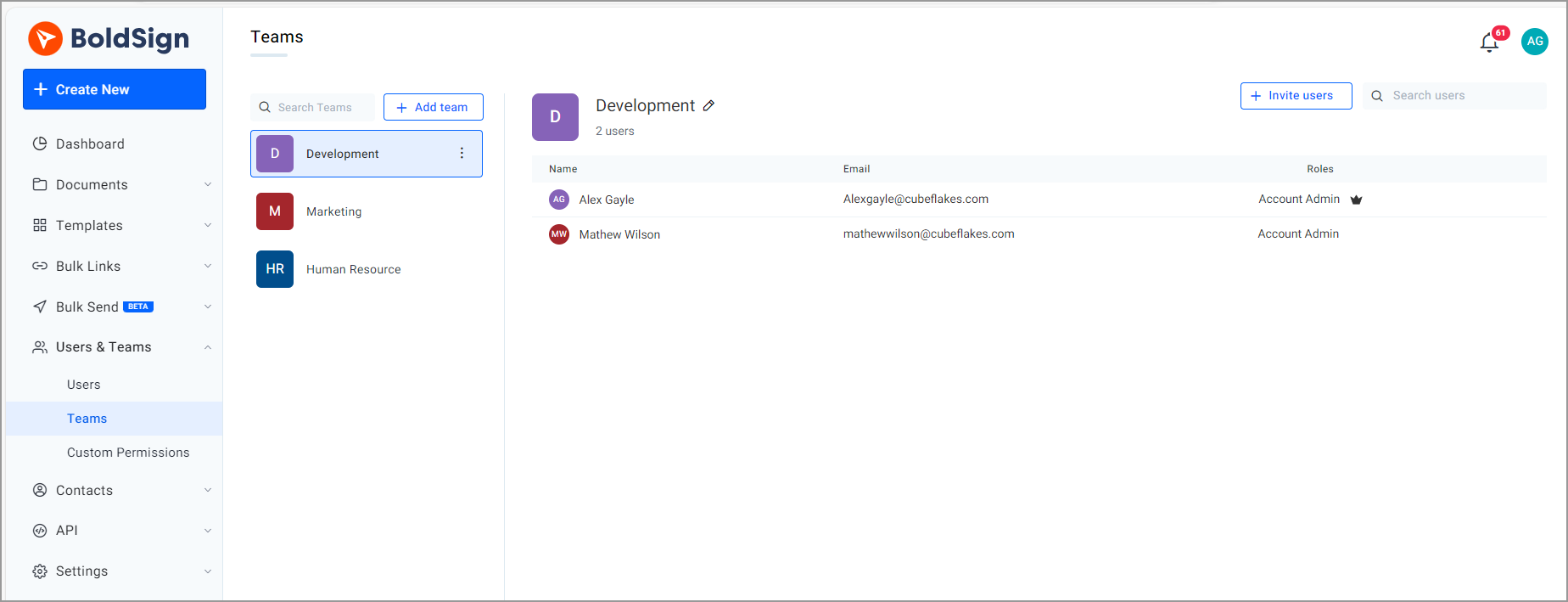
You group users into teams and control what each team can see. Roles set the starting access, and custom permissions add exact rights on top.
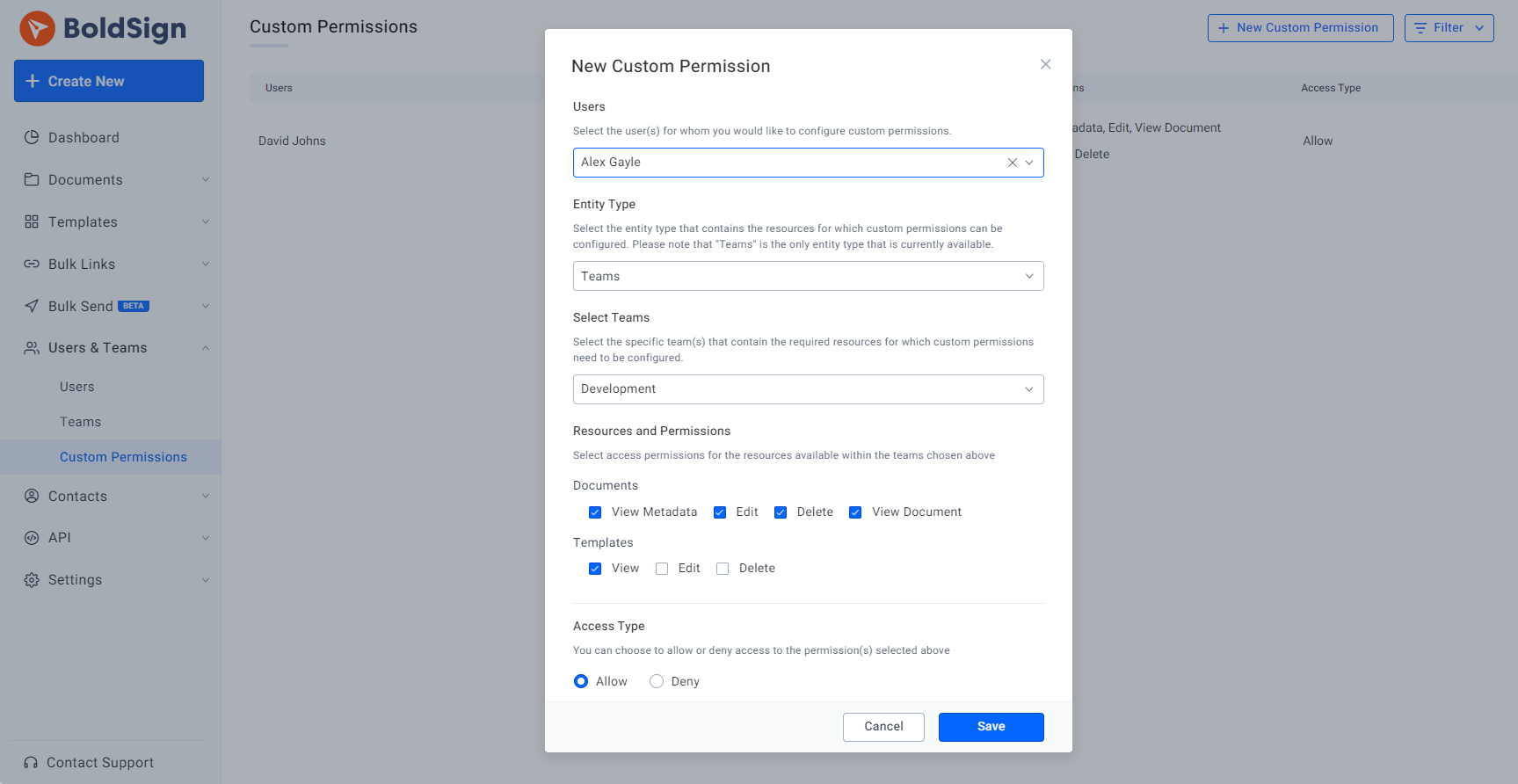
Custom permissions
By default, members see only their own team’s documents. An account admin can give a user access to another team’s documents with custom permissions.
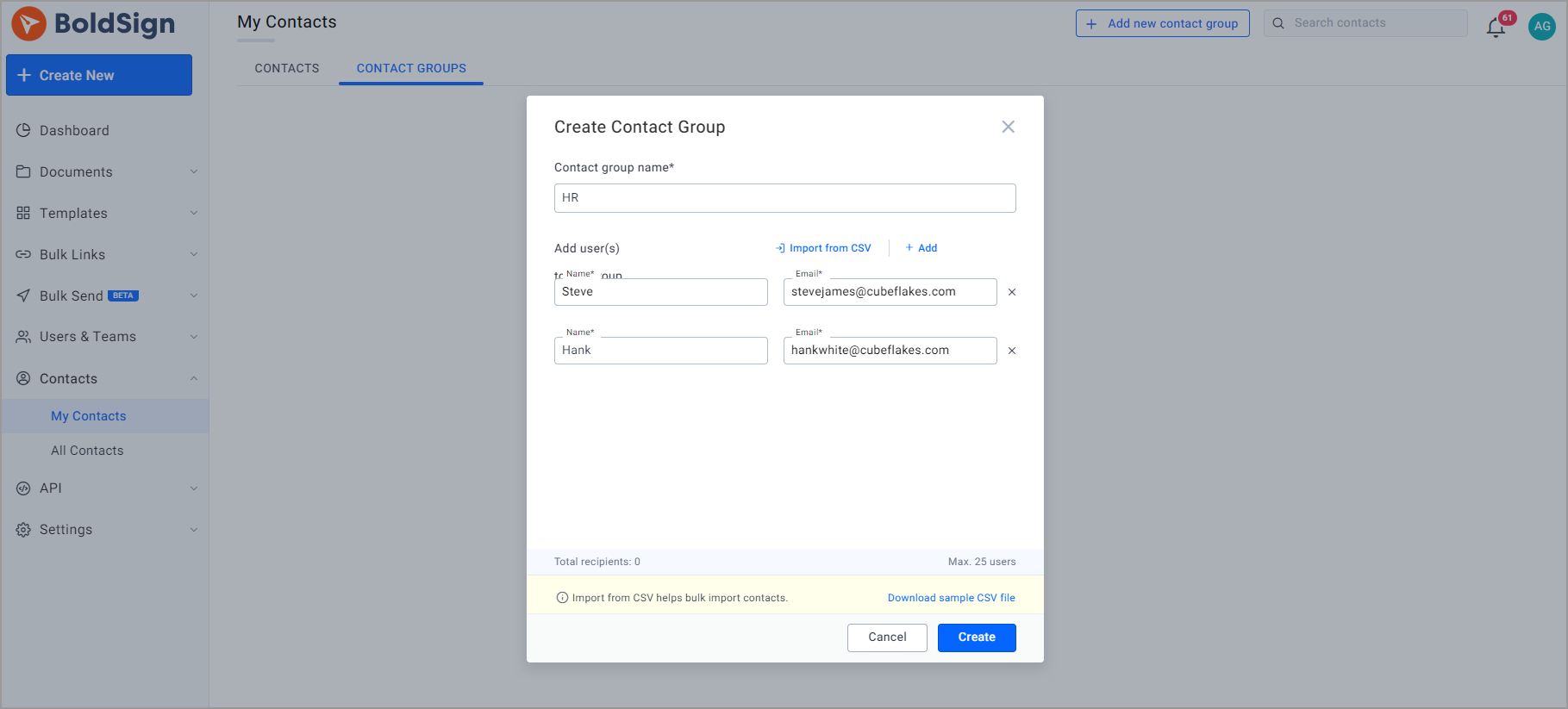
Contacts and contact groups
Your contact list fills in names as you type a signer’s email address. That cuts typing mistakes when you add the same people often.
Contact groups let you add a whole group in one step instead of each person.
How do you put your brand on signing pages?
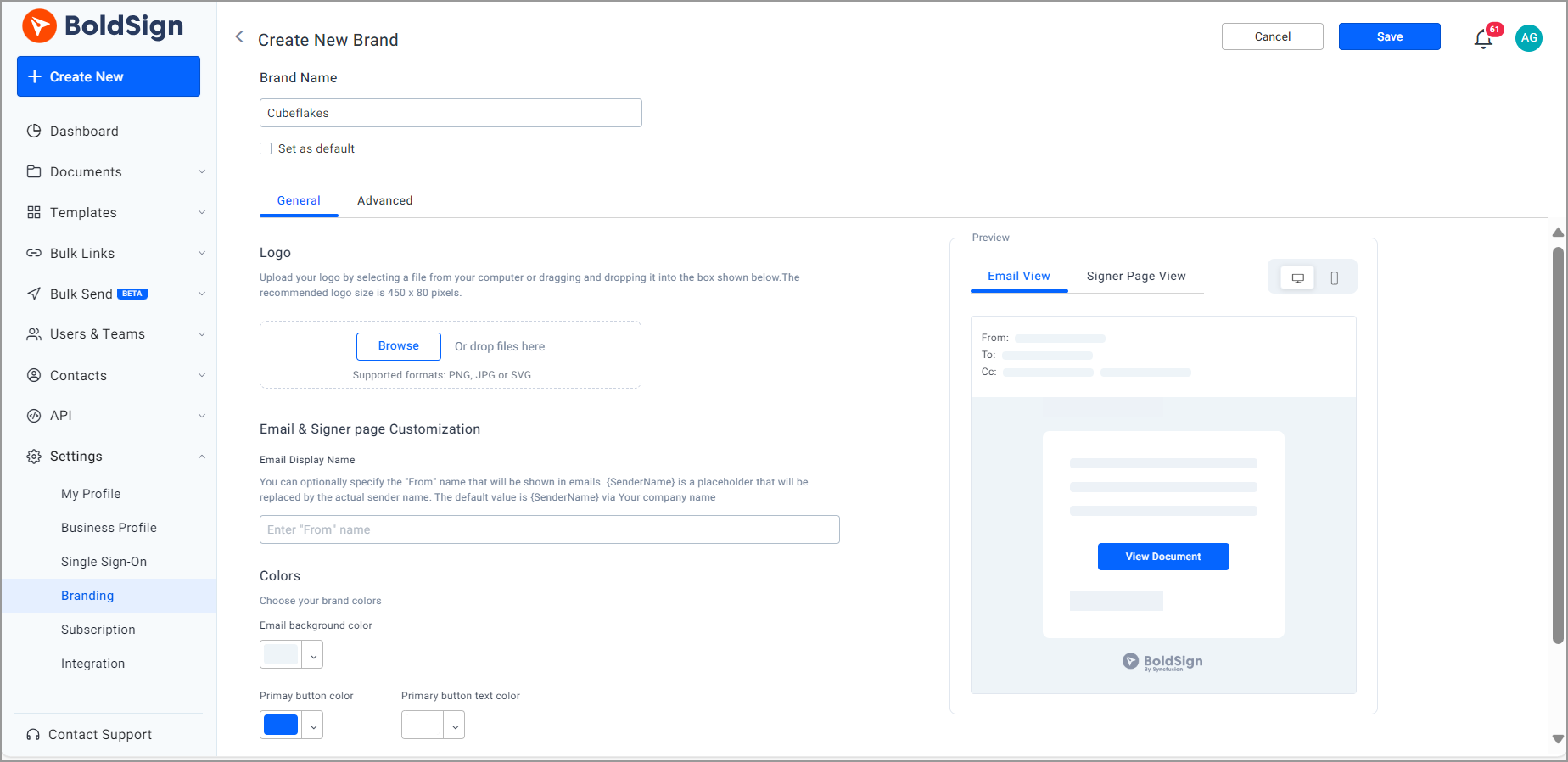
You add your logo and colors to signing pages and emails, so signers know the request comes from you. Our branding features also carry your brand onto the audit trail.
Keep several brands in one account for different teams or companies. Pick a brand for each document, or set a default. You can also send emails from your own verified domain and sender name.
Can signers sign in their own language?
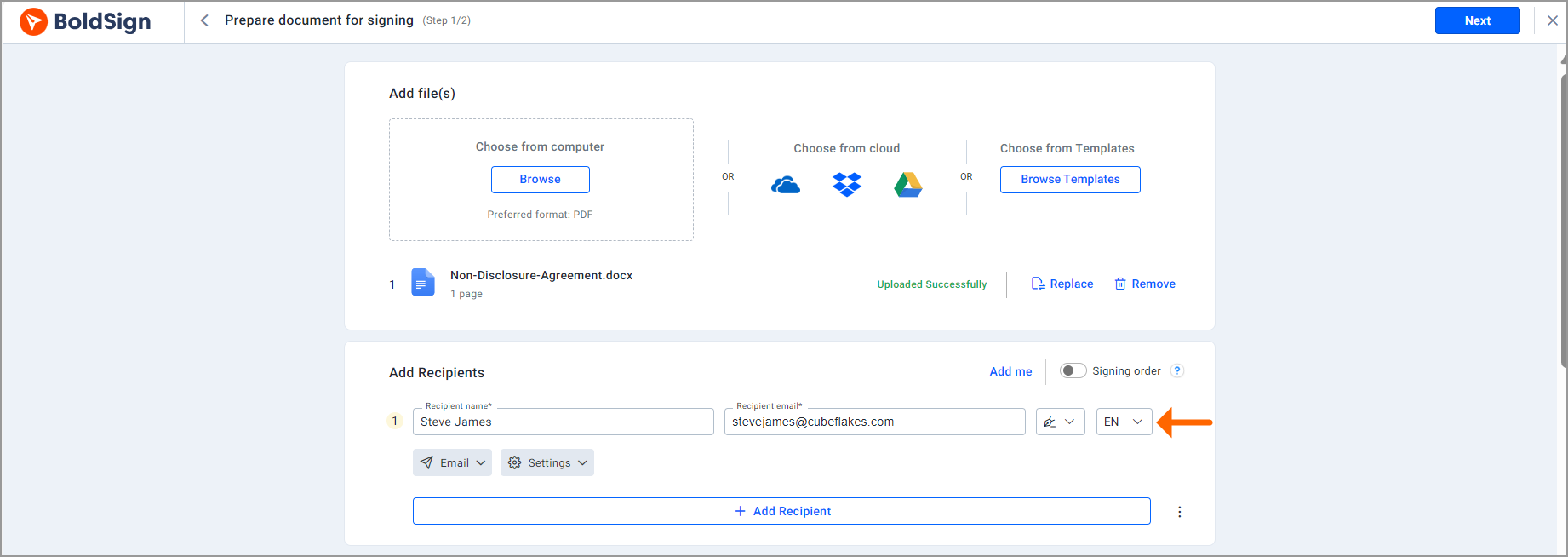
Yes. Signers can see signing pages and emails in their own language, such as English, French, German or Spanish.
You pick the signer’s language while you prepare the document. Dates and times follow the time zone and format you set for your organization.
How does AI help prepare and find documents?
AI field detection finds the fields in a PDF or Word file and places them for you. AI Search then finds documents and templates from a plain description.
Developers can add signing to their own apps with our electronic signature API. Model Context Protocol (MCP) builds on it. Our BoldSign MCP server lets an assistant such as Claude or ChatGPT send your approved templates and report who has signed.
How do you compare sign request features and capabilities across different apps?
Compare apps on the jobs your team does every week, not on the length of a feature list. Send one real contract through each trial and note where you get stuck.
- How many ways can a signer prove who they are?
- Can you set signing order, reminders and expiry dates?
- Does each plan include the templates and brands you need?
- Can you track every document and download its audit trail?
Our eSignature pricing page lists each feature by plan, so you can check before you buy.
Which BoldSign plan includes these features?
Signing order, private messages, email codes, access codes and language choice come with every plan, including the free Essential plan. Prices below are in USD and billed yearly.
The Essential plan is free, with 2 templates and 1 brand. The Growth plan costs $5 per user a month, with 10 templates and 2 brands.
The Business plan costs $15 per user a month, and the Premium plan costs $99 a month for unlimited users. Both add unlimited templates and brands, bulk links, AI field detection and AI Search. They also add teams, custom permissions and a custom email domain.
ID verification, SMS codes, and delivery by text message or WhatsApp need the Business plan or higher. Live use of the API, which BoldSign MCP needs, comes with the Enterprise API plan, from $30 a month with 40 envelopes.
Where should your team start?
Pick the one document your team sends most, and try these features on it first.
- Start a 30-day free trial and send that document with a signing order.
- Book a demo to see templates, bulk links and team controls set up for you.
- Read how to choose a signer authentication method for each kind of document.
Frequently asked questions
What are the business solutions and features available for electronic signatures that can help speed up document workflows in an enterprise environment?
Look for signing order, templates, bulk sending, signer checks, team permissions and an audit trail. Large teams also want single sign-on and an API so signing fits the tools they already run.
Can I set the order in which people sign a document?
Yes. You can have signers sign one after another, all at once, or a mix of both. Each signer gets the request when their turn comes.
How does BoldSign check who is signing?
You pick a check for each signer before they open the document. Options include a code sent by email, a code sent by text message, an access code, or an ID check with a selfie.
Can a signer pass a document to someone else?
Yes, a signer can reassign a request to a more suitable person. You can also turn this off for a document or a template when only the named signer should sign.
What is a bulk link in BoldSign?
A bulk link is one signing link you share on a website or in a message. Each person who opens it fills in their details and signs their own copy.
Can I use more than one brand in one BoldSign account?
Yes. You can keep several brands in one account and pick one for each document, or set a default. The number of brands depends on your plan.
Do signers need a BoldSign account to sign?
No account is needed. Signers open the request from the email, text message or WhatsApp link and sign in any browser, on a phone or a computer.
Is there a free trial of BoldSign?
Yes. We offer a 30-day free trial with no credit card required, so you can test these features with your own documents before you pick a plan.

Ben Jacob Ngoya Ouma
Ben Jacob Ngoya is a technical writer at BoldSign with state-of-the-art prowess in elucidating technical intricacies into plain presentations for every software user. Apart from software applications, he has an expressive love for cars, photography, and automotive technology.
More posts by Ben Jacob Ngoya Ouma