How BoldSign Scheduled Send Keeps HR Onboarding on Time
 Rayronald Ochola Otieno
TL;DR: Scheduled send lets you prepare onboarding documents now and have them go out on a date and time you choose. In BoldSign, you pick Schedule send next to the Send button, then move, cancel or skip the schedule as start dates change. Our eSignature for HR teams page shows the rest of the hiring workflow.
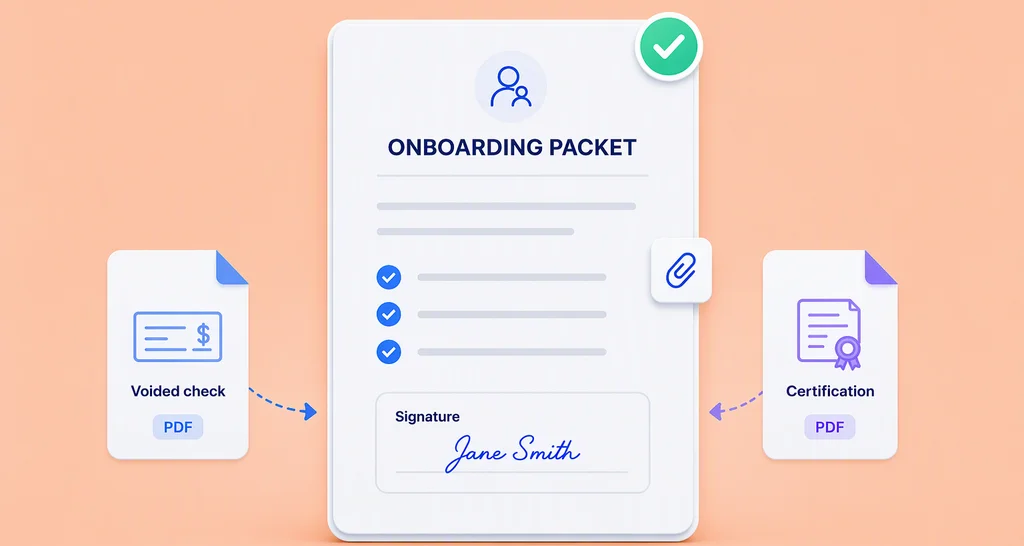
A new hire accepts on Thursday and starts in two weeks. You have the offer letter, the contract and the policy forms ready today. Sending them all at once can bury the important ones, and waiting means you have to remember.
Scheduled send lets you set each document to go out on the right day. This guide covers why that helps, how to set it up, and how to handle a start date that moves.
What is scheduled send in eSignature software?
Scheduled send holds a finished document and sends it for signature at a time you pick. You do the work once and the sending happens later.
Think of it like a timer on a coffee maker. You fill it the night before, set the time, and the coffee is ready when you wake up.
Why does onboarding need esignature software for human resources?
Onboarding runs on dates: a start date, a payroll cutoff, a first training session. Paper and email make those dates hard to hit.
Here is where things slip:
- You chase new hires by email to return signed forms.
- A form goes out late, so payroll setup or training waits.
- A signature or a field is missing, so the form goes back for another round.
- You cannot see who has opened or signed a document.
Good esignature software for human resources fixes the timing and the tracking together. It handles forms such as a non-disclosure agreement (NDA) or an offer letter.
How does BoldSign help HR teams meet onboarding dates?
We give you four tools that work together. Each one takes a manual step off your list.
- Scheduled send delivers each document on the date and time you set.
- Automatic reminders nudge new hires who have not signed yet.
- Templates let you reuse the same onboarding forms for every hire.
- Document tracking shows whether each document is sent, viewed or signed.
How do you schedule an onboarding document in BoldSign?
You prepare the document as usual, then choose a send time instead of sending at once. The whole setup takes five steps.
- On the dashboard, select Create New, then Create New Document, and upload your file.
- Add the new hire and any other recipients, such as a manager.
- Drag signature, initial and other fields onto the document.
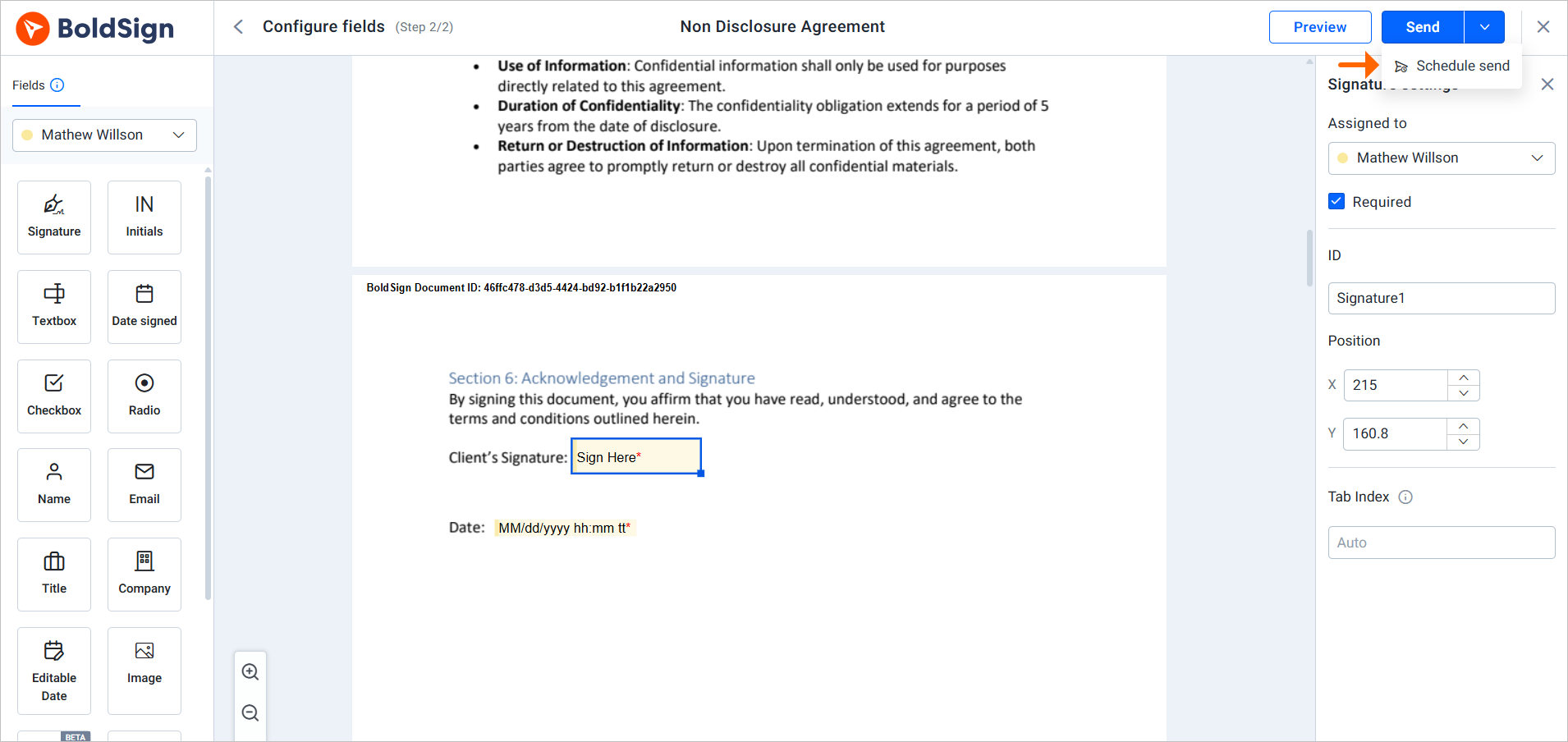
- Open the dropdown next to Send and choose Schedule send.
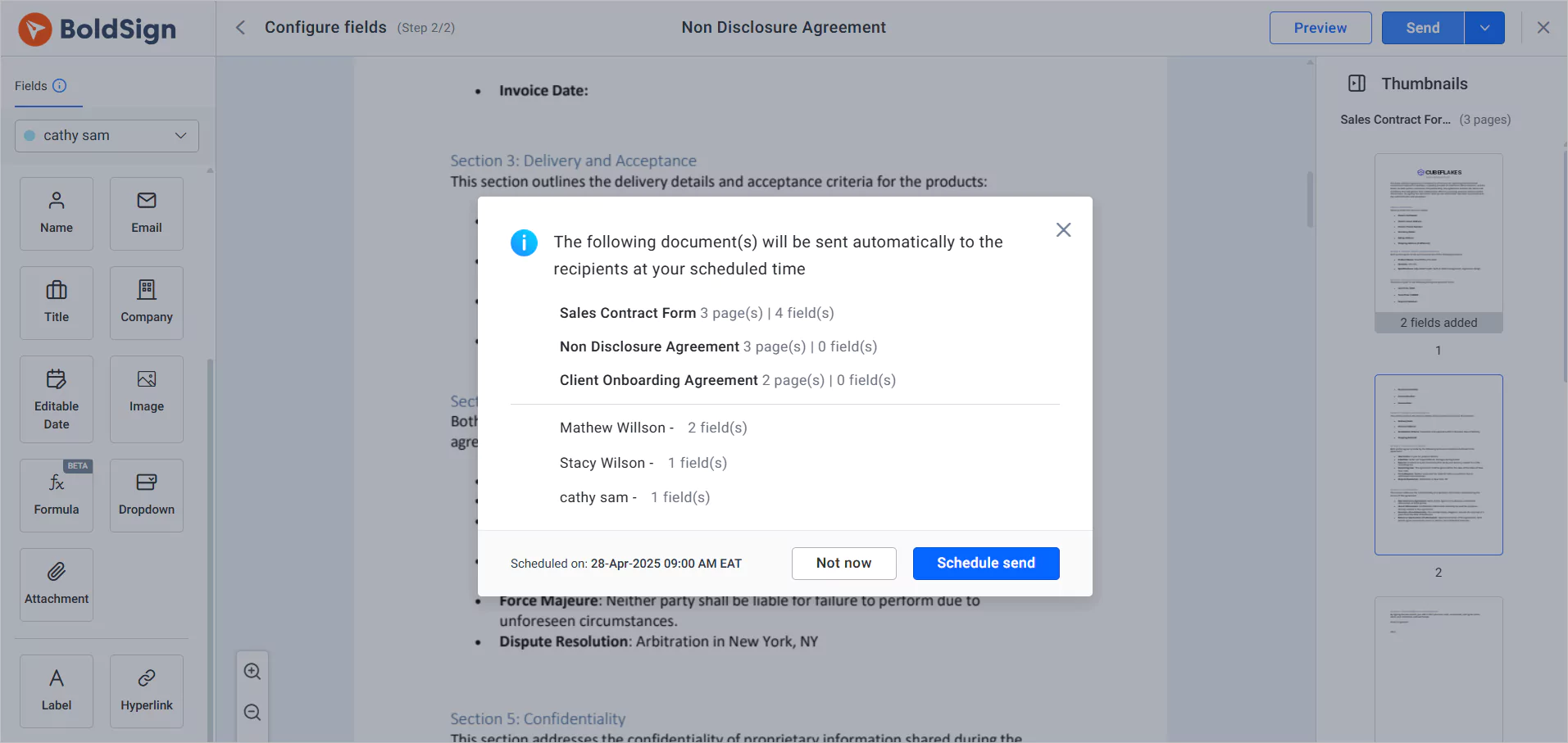
- Pick a suggested time slot or set your own date and time, then select Schedule send.
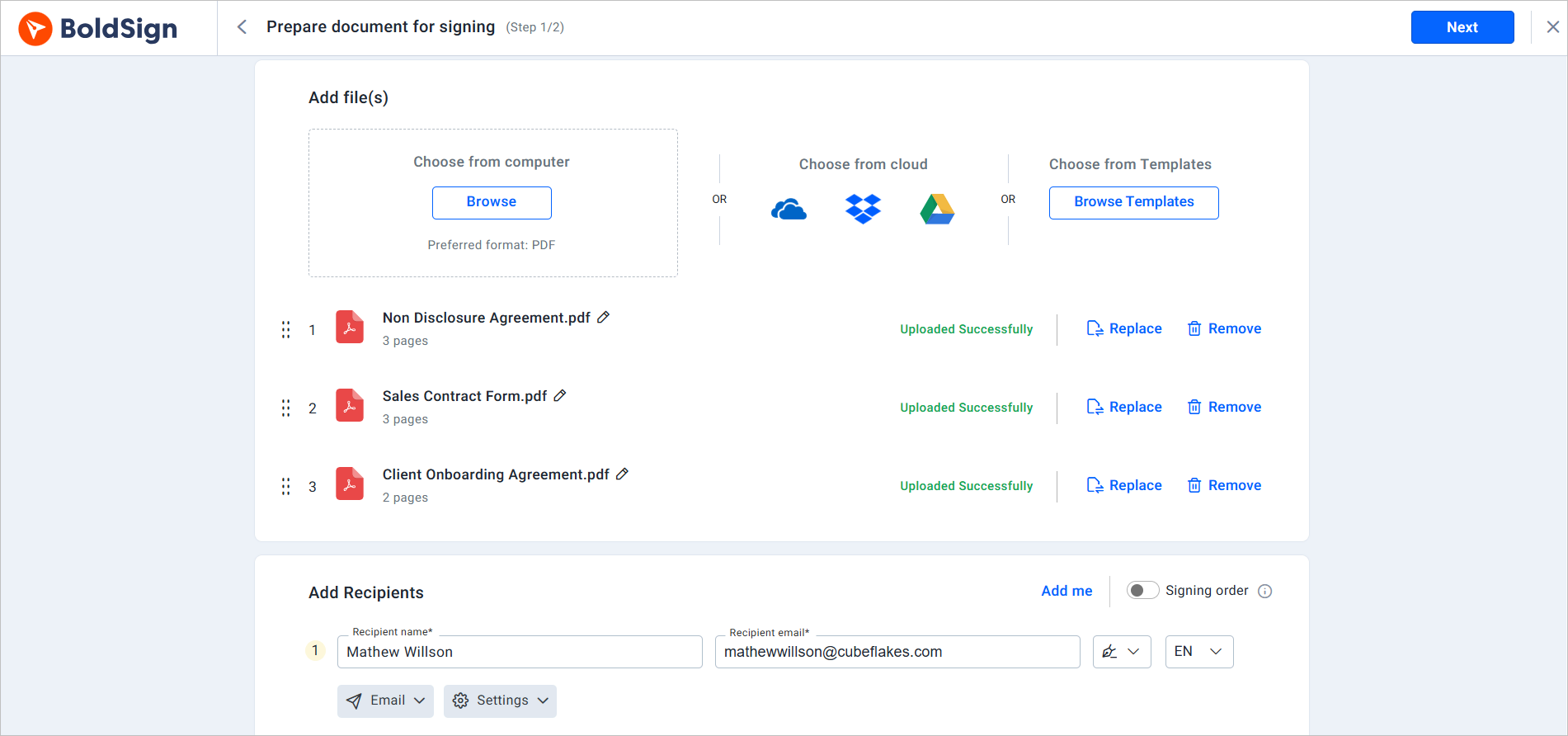
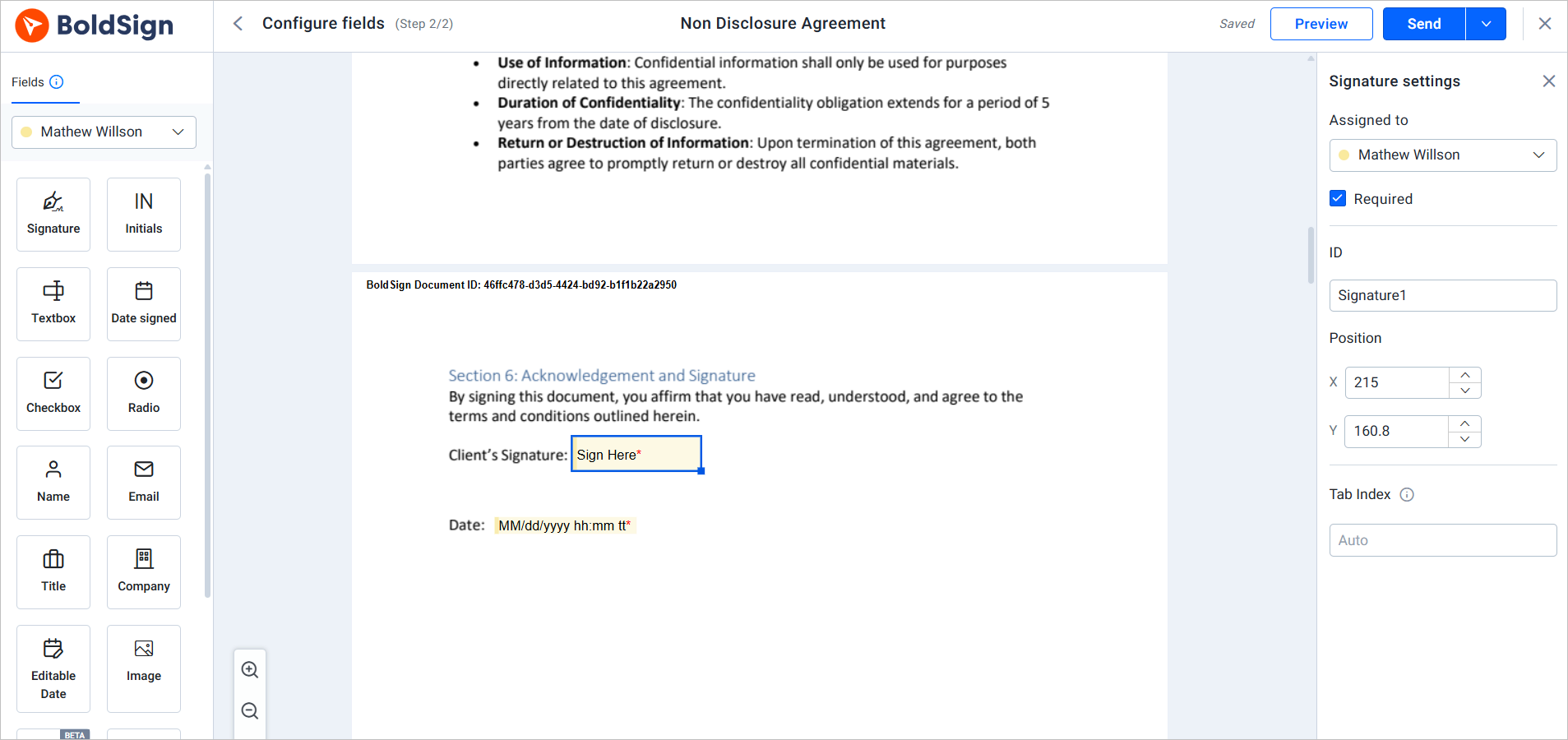
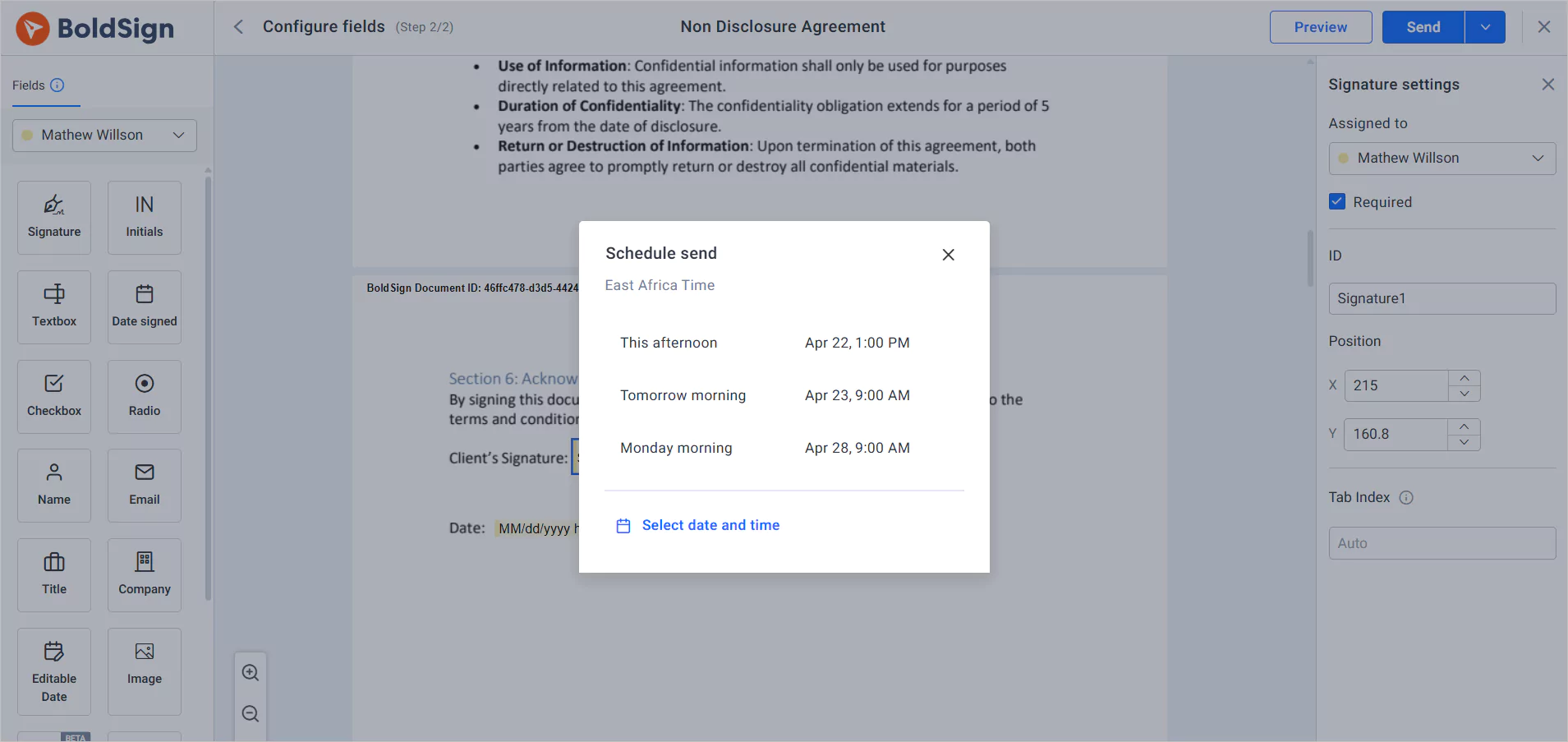
The send time must be at least 30 minutes from now. It also has to fall before the document’s expiry date.
How do you manage documents you have scheduled?
Every scheduled document waits on the My Documents page until its send time. Select Scheduled in the status menu to see only those documents.
Open a document’s menu to change what happens next:
- Edit Schedule moves the send to a new date or time, for example when a start date shifts.
- Send now skips the wait and sends at once, which suits a last-minute hire.
- Cancel sending stops the send and moves the document to your drafts.
Need to fix a mistake in the document itself? Choose Edit document. Saving your edits cancels the schedule, so set a new send time afterwards.
What happens after the new hire receives the document?
The new hire signs from the link in their email. You follow progress on the My Documents page.
Turn on Auto reminder in the document settings so you can stop chasing by email. You choose the days between reminders and up to 5 reminders. Each signed document comes with an audit trail that records who signed and when.
Which BoldSign plan do you need for scheduled send, and what does it cost?
Scheduled send starts on the Business plan, as listed on the BoldSign pricing page in November 2026. The Business plan costs $15 per user a month, billed yearly, and includes unlimited templates and artificial intelligence (AI) powered field detection.
The Premium plan costs $99 a month for unlimited users, billed yearly, and also includes scheduled send. For developers, the Enterprise API plan includes it too. Prices are in USD.
Automatic reminders and audit trails come with every plan, including the free Essential plan. You can try scheduled send with a 30-day free trial.
How can you start scheduling onboarding documents?
Try a scheduled send on one onboarding form before you roll it out to every hire.
- Start a 30-day free trial and schedule a test document to yourself.
- Book a demo to see scheduled send set up for your HR team.
- Read how to save time with eSignature templates for forms you send to every new hire.
Frequently asked questions
What electronic signature workflow software supports scheduled document sending?
BoldSign does. You prepare a document, pick a date and time, and we send it to your signers at that moment. You can move, cancel or skip the schedule before it runs.
How far ahead can I schedule a document in BoldSign?
Set the send time at least 30 minutes from now. The time must also fall before the document's expiry date.
Can I change the send date after I schedule a document?
Yes. Open the document's menu on the My Documents page and choose Edit Schedule to pick a new date or time.
What happens when I cancel a scheduled send?
The scheduled send stops and the document moves to your drafts. You can edit it there and schedule it again later.
Does editing a scheduled document keep the schedule?
No. Editing the document cancels the current schedule, so you set a new send time after you save your changes.
Can new hires get reminders to sign onboarding forms?
Yes. Turn on Auto reminder in the document settings, choose the days between reminders, and set up to 5 reminders.
Are onboarding documents signed this way legally binding?
Yes, when the signer agrees to sign electronically and the signed record is kept. Each document gets an audit trail. Check the rules for your document type and country.
Which BoldSign plans include scheduled send?
Scheduled send is on the Business, Premium and Enterprise API plans. The free Essential plan and the Growth plan leave it out.

Rayronald Ochola Otieno
Rayronald Ochola Otieno is a content specialist at BoldSign, specializing in video content and help articles within the eSignature domain. As a blog author, he creates well-researched, insightful content that simplifies complex eSignature topics like digital signatures, compliance, and workflow automation for businesses and professionals. With expertise in creating educational videos and articles, Ray helps users understand and adopt secure, efficient signing solutions. Beyond writing and video creation, Ray enjoys exploring new technologies, reading about the latest industry trends, and continually refining his skills.
More posts by Rayronald Ochola Otieno