How to Build Client Trust with Every eSignature Document
 Rayronald Ochola Otieno
TL;DR: You build trust with e-sign when every request clearly comes from you, says what the client must do and keeps each step on record. With BoldSign, you add your logo and colors, set reminders and share an audit trail with every signed copy. Our templates keep each request the same every time.
A new client opens your proposal email. The sender name is unfamiliar, the instructions are vague and the deadline is missing. They hesitate, and the deal waits.
Trust starts long before the signature. This guide shows what makes a client signature request feel safe, then how to set one up with BoldSign eSignature software.
How can I use e-sign to build trust with my customers in my business?
You use e-sign to build trust by making each request clear, branded and easy to check. The client should know who sent it, what to do and what happens next.
Think of a parcel delivery. A known courier, a tracking number and a delivery window make you relaxed about handing over your address. A signature request works the same way.
What makes a client signature request feel trustworthy?
Clients look for the same few signals each time they open a document. Each one answers a doubt they might never say out loud.
- A sender name, logo and colors they recognize from your business.
- Plain instructions that say what to fill in and by when.
- A record of who viewed and signed, with dates and times.
- Polite reminders instead of repeated calls and emails.
How do you use a sign request with trust as a key factor in business transactions?
Plan the request from the client’s side before you send it. These five steps cover a typical contract or proposal.
- Set up a brand with your logo, colors and email display name.
- Save the document as a template, with clear field labels and notes.
- Add each signer and set the signing order.
- Set a reminder schedule and an expiry date that fits the deal.
- Send, track progress, then share the signed copy and audit trail.
Our help articles show how to create a document, how clients sign as a recipient and how to manage documents once they are out.
How do you set up trust-building requests in BoldSign?
Each step above maps to a setting in BoldSign. The sections below show where to find them and what your client sees.
Brand every email and signing page
You can create a brand with your logo under Settings and then Branding. Each brand also sets background, button and text colors for the emails and the signing page.
The email display name controls the From line, such as your sender’s name followed by your company name. Clients see a name they know instead of an unfamiliar address.
Write instructions your clients can follow
Use short field labels and notes to guide clients through each part of a form. Plain words reduce questions and help clients feel sure about what they are agreeing to.
Templates keep that wording the same for every client. You fix a confusing label once, and every later request uses the fixed version.
Show clients where each document stands
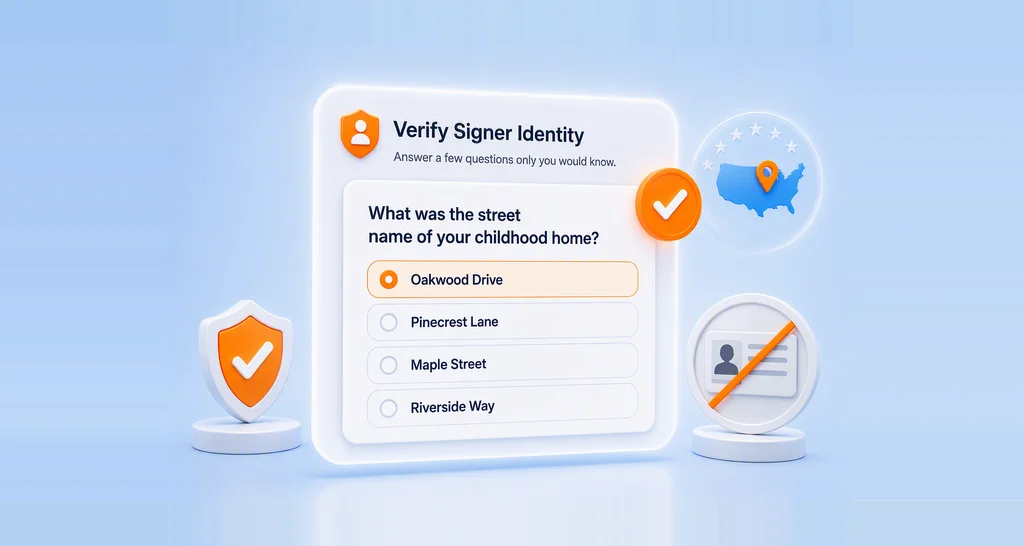
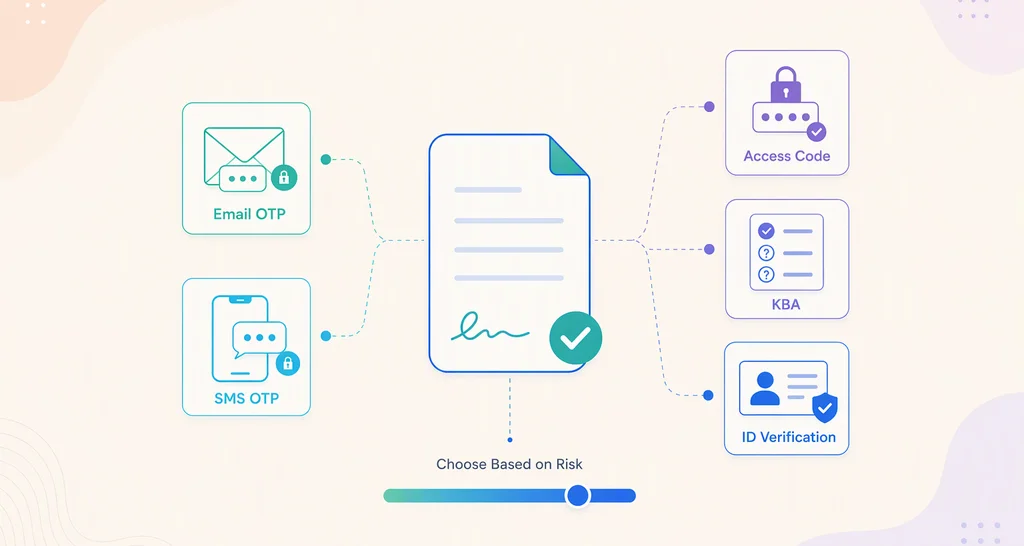
The audit trail records who accessed and signed the document, with timestamps, internet protocol (IP) addresses and devices. It also notes how each signer was verified.
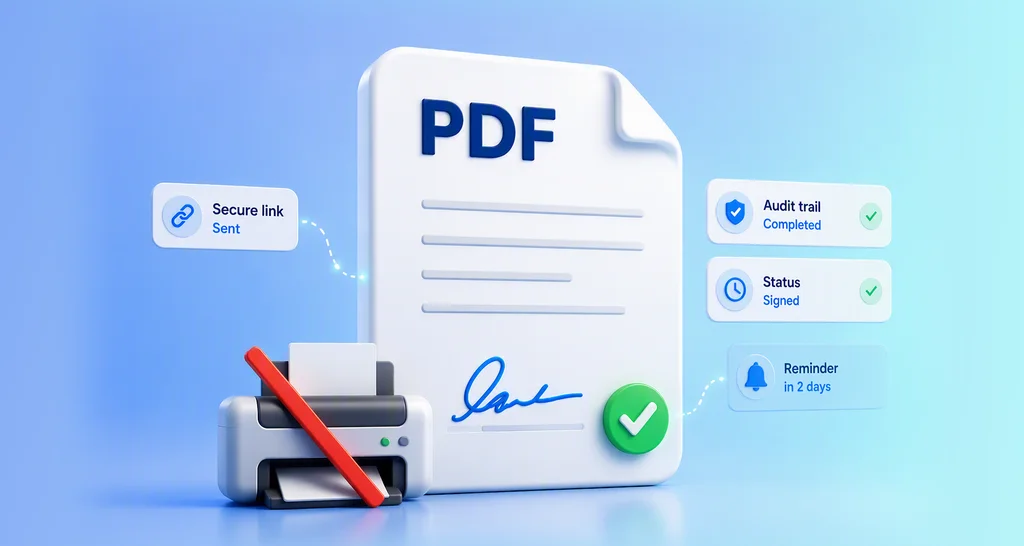
You can follow progress through in-app notifications as clients view and sign. Share the audit trail with the signed copy so the client holds the same record you do.
Send to several signers in the right order
Contracts often need a client, a partner and your own manager. You can add multiple recipients and choose the order in which they sign.
Inside your team, custom permissions let an admin decide who can view, edit or delete documents and templates. Fewer people with access means fewer mistakes on client files.
Follow up without chasing
Automatic reminders go out every 3 days, up to 3 times, unless you change the schedule. Senders can adjust the reminders for a single document.
Each reminder names the document, the sender and the expiry date, as our page on automated reminders explains. Reminders stop once the document is signed or expires.
Personalize documents for many clients at once
Add each client’s name, project details or timeline so the document reads as written for them. Templates hold the fixed text, and you fill in the rest for each send.
Bulk send goes further for repeat paperwork. You upload a CSV file with one row per client, and each person gets their own copy with their own details.
Protect client data
We store documents with Advanced Encryption Standard (AES) 256-bit encryption, as our security policy states. We have completed a System and Organization Controls 2 (SOC 2) Type 2 audit, listed on the same page.
Our General Data Protection Regulation (GDPR) page covers how we handle EU personal data. For health records, see our page on the Health Insurance Portability and Accountability Act (HIPAA).
Keep the relationship going after signing
Trust continues with follow-up documents such as progress reports and invoices. Our integrations connect BoldSign to the tools your team already uses:
- HubSpot and Salesforce for customer records and deals.
- Xero for accounting documents.
- Dropbox, Google Drive and OneDrive for storing signed files.
- Zapier and Power Automate for sending documents when an event happens in another app.
How can businesses build trust when implementing eSignature solutions for their commercial operations?
Start with your most common client documents and get them right before you add more. Small mistakes repeated across many requests do the most damage to trust.
- Test each template by sending it to a colleague first.
- Tell clients ahead of time that a signing email is on its way.
- Use one brand per business so the sender name stays familiar.
- Check the legal rules for your document type and country.
Our security policy notes that our eSignatures follow the US Electronic Signatures in Global and National Commerce (ESIGN) Act. It also notes the EU rules on electronic identification, authentication and trust services (eIDAS).
Which BoldSign plan do you need, and what does it cost?
You can start on the free Essential plan, which includes 25 envelopes a month, 2 templates and one brand. Prices below are in USD and billed yearly, from our pricing page in November 2026.
The Growth plan costs $5 per user a month, with 10 templates, 2 brands and the Xero integration. The Business plan costs $15 per user a month and adds unlimited templates and brands, bulk send, HubSpot, Salesforce, HIPAA support and custom permissions. The Premium plan costs $99 a month for unlimited users.
Zapier and Power Automate come with the Enterprise API plan, from $30 a month with 40 envelopes. Every plan includes an audit trail and automatic reminders.
How do you start building client trust with your next document?
Pick the document your clients see most often and set it up as a branded template. Then send it to yourself and read it as a client would.
- Start a 30-day free trial and brand your first template.
- Book a demo to see these settings on your own documents.
- Visit our support portal with a question about your setup.
Frequently asked questions
How can I use a signature to build trust and credibility with my customers in my business transactions?
Send each signature request under your own brand, with plain instructions and a clear deadline. Then share the signed copy and its audit trail, so the client can see what happened and when.
How can I use eSignature solutions to build trust with my customers and simplify our business processes?
Turn your common documents into templates with your branding, then let reminders handle the follow-up. Clients get the same clear experience each time, and your team spends less time chasing signatures.
Are electronic signatures legally binding for client contracts?
Yes, when the signer agrees to sign electronically and the signed record is kept. In the US, the Electronic Signatures in Global and National Commerce (ESIGN) Act gives them legal effect. Check the rules for your document type and country.
What does an eSignature audit trail show my client?
An audit trail lists who opened and signed the document, with dates, times, IP addresses and devices. It also shows how each signer was verified and whether they typed or drew their signature.
Do my clients need an app to sign on a phone?
No app is needed, because the signing page works in a phone browser. We also offer BoldSign apps for iOS and Android for people who sign or send often.
Can I change the name clients see in the From line of signing emails?
Yes. Each brand in BoldSign has an email display name, such as your sender's name followed by your company name. Clients see it on every email sent with that brand.
How often does BoldSign remind clients to sign?
By default, we send a reminder every 3 days, up to 3 times. An account admin can change the schedule, and senders can adjust it for a single document.
Can I send a client electronic signature request without a paid plan?
Yes. The free Essential plan includes 25 envelopes a month, 2 templates, one brand and an audit trail for each document. Paid plans add more templates, brands and team features.

Rayronald Ochola Otieno
Rayronald Ochola Otieno is a content specialist at BoldSign, specializing in video content and help articles within the eSignature domain. As a blog author, he creates well-researched, insightful content that simplifies complex eSignature topics like digital signatures, compliance, and workflow automation for businesses and professionals. With expertise in creating educational videos and articles, Ray helps users understand and adopt secure, efficient signing solutions. Beyond writing and video creation, Ray enjoys exploring new technologies, reading about the latest industry trends, and continually refining his skills.
More posts by Rayronald Ochola Otieno