How to Collect Supporting Documents Before Signing
 Preethi Loganathan
TL;DR: You collect supporting documents before signing by adding an Attachment field to the agreement, so the signer uploads the file in the same session. Plan what you need, write a clear title for each file, and decide who reviews it. Our eSignature features page lists the other fields you can add.
A vendor signs your supply agreement on Monday. Their insurance certificate turns up by email on Thursday. Now someone has to find both files and match them by hand.
The fix is to ask for the file inside the signing step itself. This guide is about planning that request: what to collect, how to word it, and what to do once the file arrives.
What are supporting documents in an eSignature workflow?
Supporting documents are the files that back up an agreement, such as an ID, a tax form or a certificate. The agreement is not complete until you have them.
Think of a job application at a front desk. The clerk hands you the form and says “clip your ID and resume to the back”. The Attachment field is that clip, built into the digital document.
Common examples by team:
- HR: photo ID, tax forms, certifications and policy sign-offs
- Procurement: insurance certificates, business registrations and licenses
- Banking and insurance: proof of address and income records
- Projects: specifications, site photos and inspection reports
Why collect supporting documents before signing?
Collecting the file at signing time gives you one task to track instead of two. The signer also finishes everything in one sitting, while the request is fresh.
Asking by email splits the work. You track signatures in one place and files in another. The signer gets a second message, hunts for the file and cannot tell whether it arrived.
The gap grows with volume. Picture an HR team with 15 new hires in one week, or a lender with dozens of applicants. Each missing file means another reminder and another match by hand.
When is a request attachment not the right tool?
A request attachment suits files that support a specific agreement. Pick another route in three cases.
- Use signer identity verification to confirm who is signing, not just keep an ID copy.
- Use a dedicated intake form for many questions and files unrelated to one agreement.
- Collect the file first when it changes the contract terms, such as a scope document.
Identity verification checks a government-issued ID, and an optional selfie match, before the signer can open the document. A manually reviewed upload cannot do that.
How do you plan which files to request?
Start from the agreement and list only the files it depends on. Then name the person who holds each file and the person who will check it.
| What to settle | Why it matters |
|---|---|
| Which signer holds the file | A vendor cannot upload a certificate your finance team holds |
| One field per file | Separate fields keep each file easy to find on review |
| Who reviews the upload | A file that arrives is not yet a file that is correct |
| How long you keep it | Easy collection makes over-collection easy too |
Then test the request on yourself. Send the document to your own email and complete it as the signer would.
How do you write a clear attachment request?
Name the document in the field title, not the action. A vague title gets you vague uploads.
| Vague title | Clear title |
|---|---|
| Upload document | Upload your government-issued photo ID |
| Attachment | Attach your current certificate of insurance |
| File | Upload the completed W-9 form |
| Proof | Upload proof of address from the last 3 months |
Add a short instruction when the file needs a date range, a form version or a certain page. For a sensitive file, such as a bank form, say in one line why you need it.
How do you collect supporting documents in BoldSign?
You add an Attachment field to the document and assign it to a signer, then send as usual. Our guide on how a signer attaches a document while eSigning shows each screen from the signer’s side.
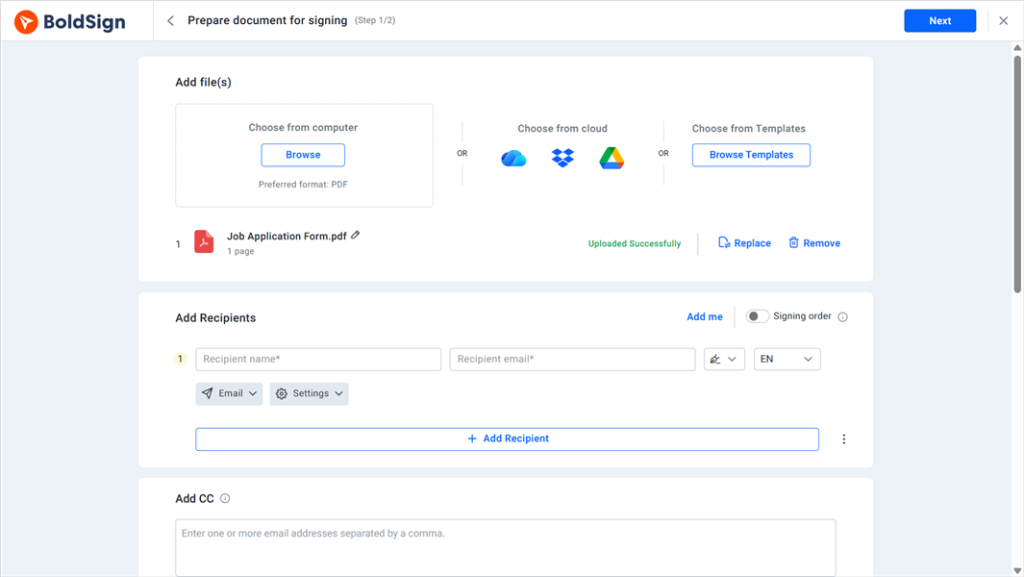
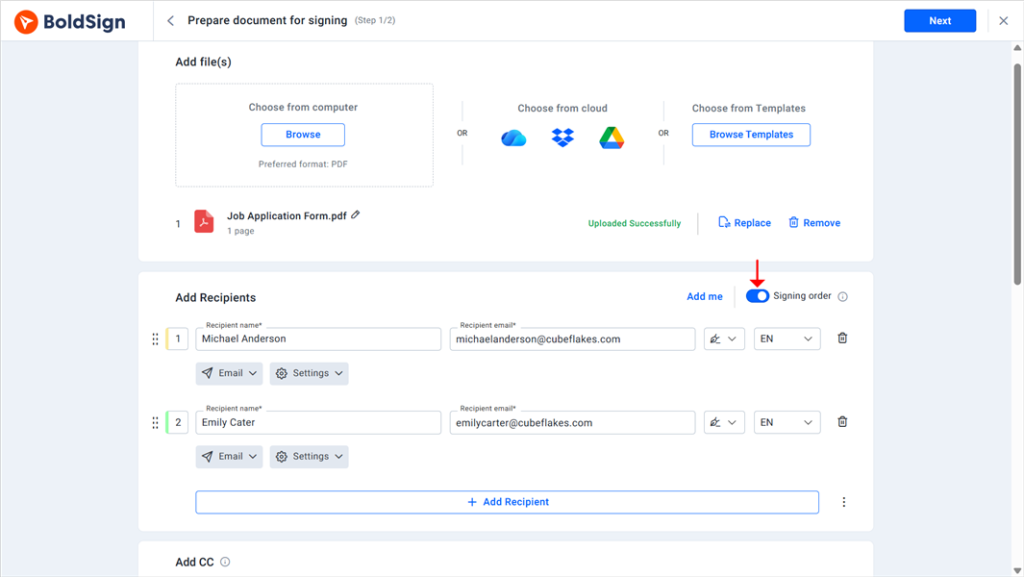
Prepare the document and recipients
- Upload the document you need signed, or start from one of our free templates.
- Add each signer’s name and email address, and choose the delivery method.
- Turn on signing order when people must sign in sequence.
Add and set up the Attachment field
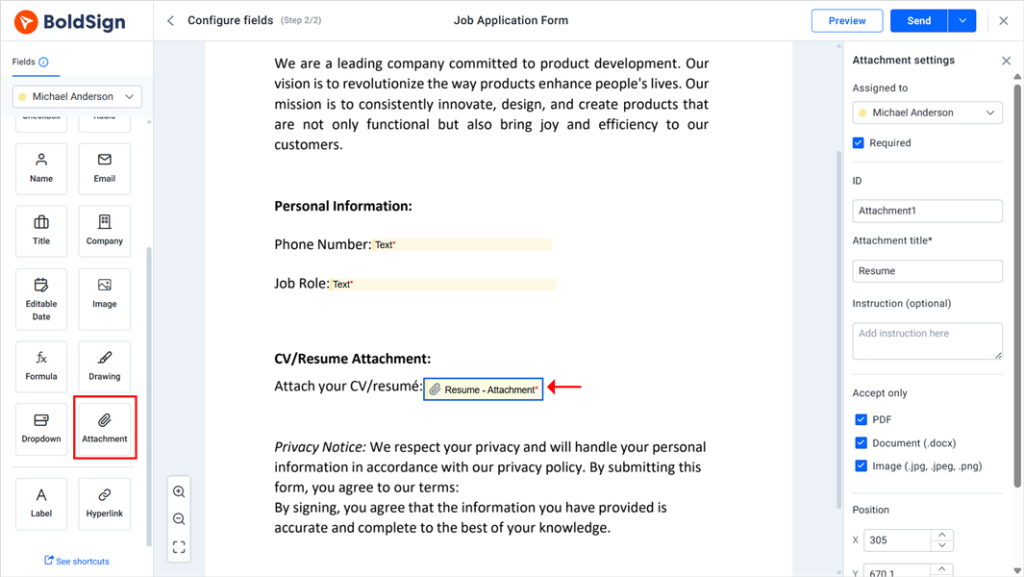
- On the Configure fields page, pick the signer who holds the file.
- Drag the Attachment field next to the text that explains the request.
- In Attachment settings, type the Attachment title and pick file types in Accept only.
- Mark the field as required when the agreement needs the file to go ahead.
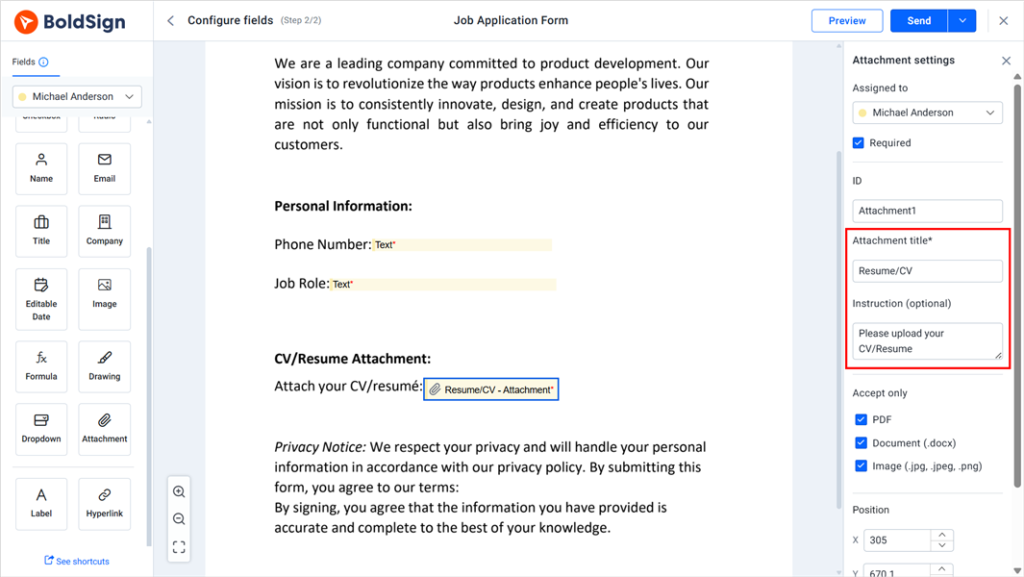
Accept only PDF when you need a clean record. Allow images when a phone photo of an ID or a site is fine.
Send, sign and download
- Add the signature field and any other fields, then send the document.
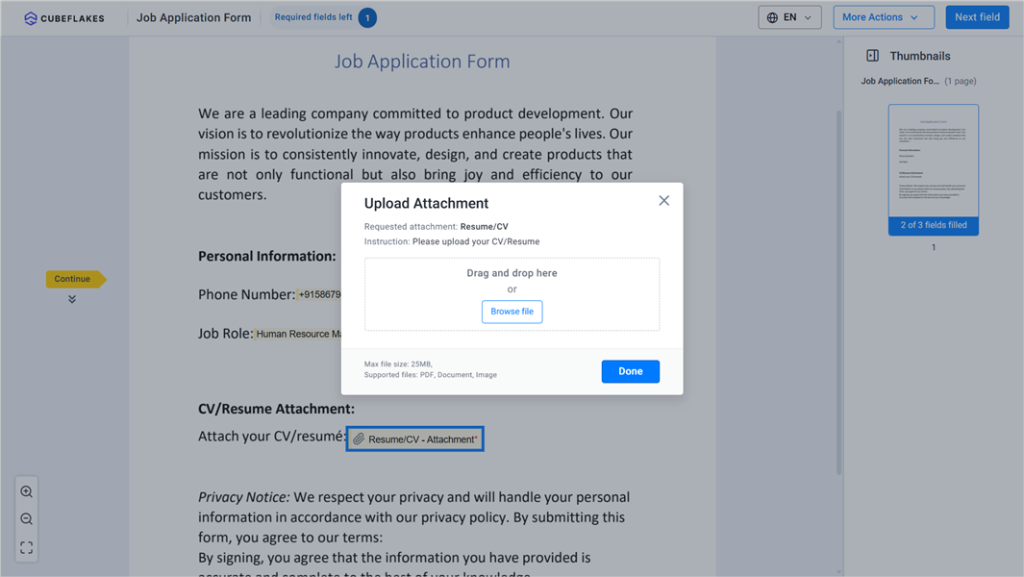
- The signer clicks the Attachment field, uploads the file, completes the other fields and signs.
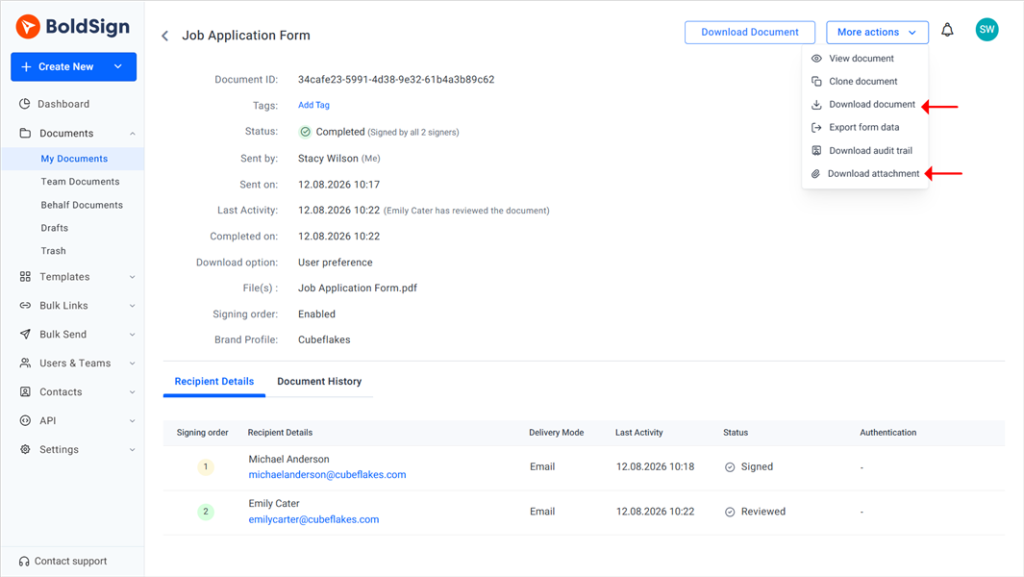
- Open the completed document from My Documents and select Download attachment.
Save the finished document as a template when you send the same request often. Each sender then starts from the same titles and instructions.
How do you keep supporting documents attached to the agreement?
Collect the file inside the signing step, and it stays with the agreement under the same access controls. You can keep the files separate or add them to the signed PDF.
Choose with the Combine Attachments setting in your brand. With it on, we add the files to the end of the signed document as one combined file. With it off, you download the attachments one by one.
Signers often pull the file from their own document management software. Once uploaded, the copy you rely on is the one attached to the agreement, not one in a downloads folder.
How do you keep collected files secure?
Treat supporting documents as more sensitive than the agreement. A driver’s license or a bank statement is personal data, and email copies of it spread fast.
Every forwarded thread makes another copy, and nobody can tell who opened what. Inside the signing workflow, the upload lands in one place and shows in the audit trail.
Here is what we publish about our own security:
- We encrypt stored documents with Advanced Encryption Standard (AES) 256-bit encryption, as our security policy states.
- We hold a System and Organization Controls (SOC) 2 Type 2 audit report.
- Our General Data Protection Regulation (GDPR) overview covers personal data in the EU.
Healthcare teams can read our Health Insurance Portability and Accountability Act (HIPAA) overview. Our eSignatures meet the US Electronic Signatures in Global and National Commerce (ESIGN) Act. They also meet the EU electronic identification and trust services (eIDAS) rules.
What should happen after the signer uploads the file?
Someone checks the file against your requirements before the next step starts. A finished signing request means the file arrived, not that it is right.
- Review the file, and go back to the signer if it falls short.
- Download the signed document and attachment, together or apart.
- Update the employee, vendor or customer record.
- Tell the team that owns the next approval or onboarding task.
A procurement team, for example, confirms the insurance certificate is current before it activates the vendor.
How do request attachments compare with email follow-ups?
Request attachments keep the file request inside the agreement. Email follow-ups run a second process next to it.
| Request attachments | Email follow-ups |
|---|---|
| The signer sees the request while signing | The signer may miss or delay a later email |
| One status to track | Signatures and files tracked apart |
| Files stay with the agreement record | Files spread across inboxes and folders |
| Accepted file types set before upload | The signer sends whatever format they have |
| Easy to repeat from a template | Each sender words the request their own way |
Email still fits when you must review a file before you draft the agreement.
Which BoldSign plan do you need to collect supporting documents?
Signer attachments are on every plan, including our free Essential plan, as listed on our pricing page in November 2026. Plans differ in the extras around them.
Templates: Essential includes 2, Growth includes 10, and Business and Premium include unlimited templates. Brands, which hold the Combine Attachments setting, are 1 on Essential, 2 on Growth and unlimited on Business and Premium. Bulk send, signer identity verification and HIPAA support start on the Business plan.
Billed yearly, Growth costs $5 per user a month and Business costs $15 per user a month. Premium costs $99 a month for unlimited users. Prices are in USD.
How do you start collecting supporting documents with BoldSign?
Pick one request you send often, such as vendor insurance or new hire forms, and build it once.
- Start a 30-day free trial and add an Attachment field to your first document.
- Book a demo to see attachments set up for your own forms.
- Read our guide to attachment fields for onboarding documents, or ask our support team.
Frequently asked questions
Can a signer upload a document while signing?
Yes. A Request Attachment field lets the signer upload a file in the same session as their signature and other fields.
What file types can signers upload as supporting documents?
Signers can upload PDF files, Word documents (.docx) and images (.jpg, .jpeg and .png). You choose which of these each field accepts.
Can a signer finish signing without the supporting document?
Only when the field is optional. Mark the Attachment field as required, and the signer has to upload a file before they can complete signing.
Can two signers upload different files on one document?
Yes. Add one Attachment field per file and assign each field to the signer who holds that file.
Are supporting documents safe when collected through an eSignature tool?
Yes, when the tool stores the file with the agreement under the same controls. We encrypt stored documents and record each upload in the audit trail.
Can I get the attachments as separate files?
Yes. Turn off Combine Attachments in your brand settings to download attachments separately. Turn it on to add them to the end of the signed PDF.
Should I ask for a copy of an ID or verify the signer's identity?
Ask for a copy when you need it on file. Use signer identity verification when you need to confirm who is signing, since it checks the ID before the document opens.
Can I request the same documents from many signers at once?
Yes. Save the document with its Attachment fields as a template, then use bulk send to give each recipient their own copy.

Preethi Loganathan
Preethi is a Digital Marketing Executive at BoldSign who develops precise, research-driven content on eSignatures, compliance, and digital signing workflows. She works closely with product and engineering teams to ensure every article is accurate, validated, and aligned with industry best practices. Connect with her on LinkedIn.
More posts by Preethi Loganathan