How Does a Signer Attach a Document While eSigning?
 Lakshmi Priya Soundar Rajan
TL;DR: A signer attachment is a file, such as an ID or a certificate, that the signer uploads while signing. You add an Attachment field to the document, and the signer clicks it, picks a file and finishes signing. Our eSignature features page shows the other fields you can add.
You send a rental application and need a copy of the tenant’s ID with it. Without an upload option, the signer emails the ID in a separate message. Now you have to match two files by hand.
An Attachment field keeps both in one place. This guide covers how you request the file, how the signer adds it, and how you get it back.
What is a signer attachment?
A signer attachment is a file the signer uploads into the document while they sign it. The file stays with that document, so you never chase it in your inbox.
Think of a paper form with a note that says “staple a copy of your ID here”. The Attachment field is that note, built into the digital document. The signer sees it at the right moment, and the copy stays with the form.
So an attachment signature request asks for two things at once: a signature and a file.
How does a sender request a signature attachment?
You place an Attachment field on the document, the same way you place a signature field. Our help article on how to request attachments from signers shows each screen.
- Select Create New, then Create New Document.
- Fill in the Prepare document page and select Next.
- Drag the Attachment field from the Fields list onto the document.
- In Attachment settings, type an Attachment title.
- Pick the allowed file types in Accept only, then select Send.
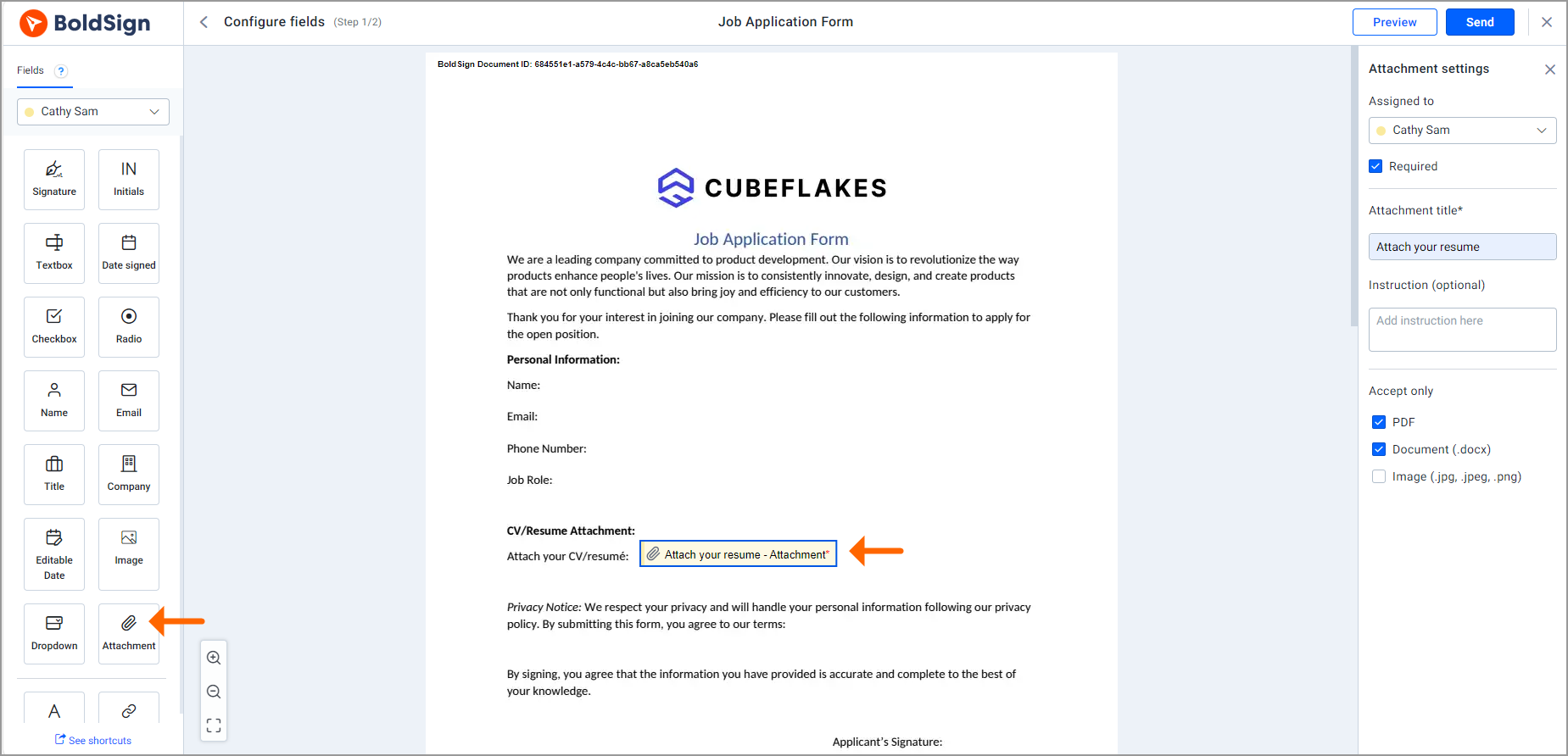
You can add several Attachment fields to one document. Signers can upload PDF files, Word documents (.docx) and images (.jpg, .jpeg and .png).
How does a signer attach a document while eSigning?
The signer clicks the Attachment field and picks a file from their device. Then they finish signing as usual.
- Open the document from the link in the signing email.
- Click the Attachment field to open the upload dialog.
- Read the title and instructions to see which file the sender wants.
- Select Browse, find the file on your device and select Open.
- Finish the other fields and select Complete Signing.
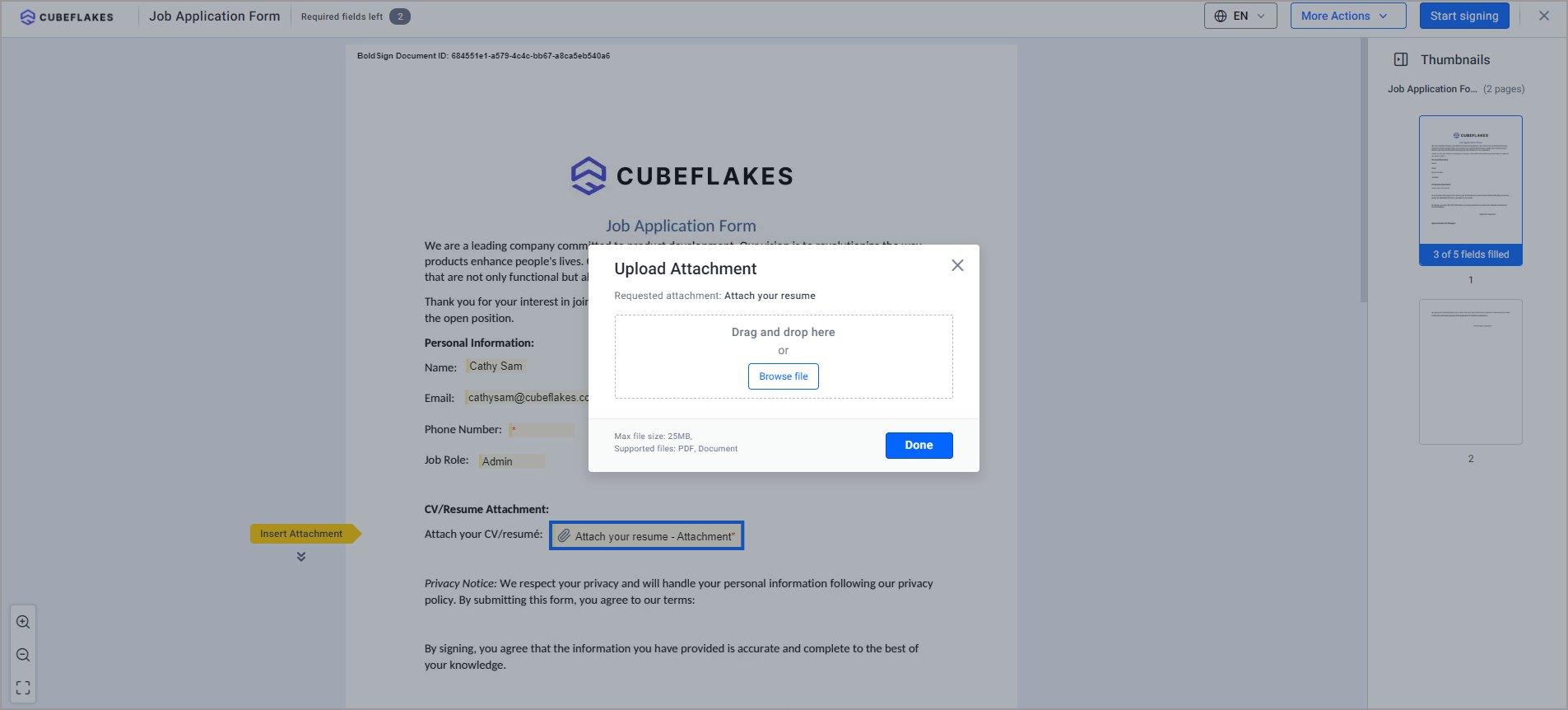
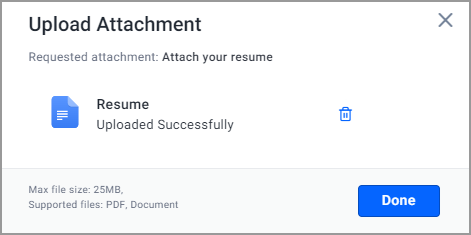
The dialog lists the file types the sender allows. Check that list before you browse, so you pick a file that fits.
Can a signer add an Attachment field on their own?
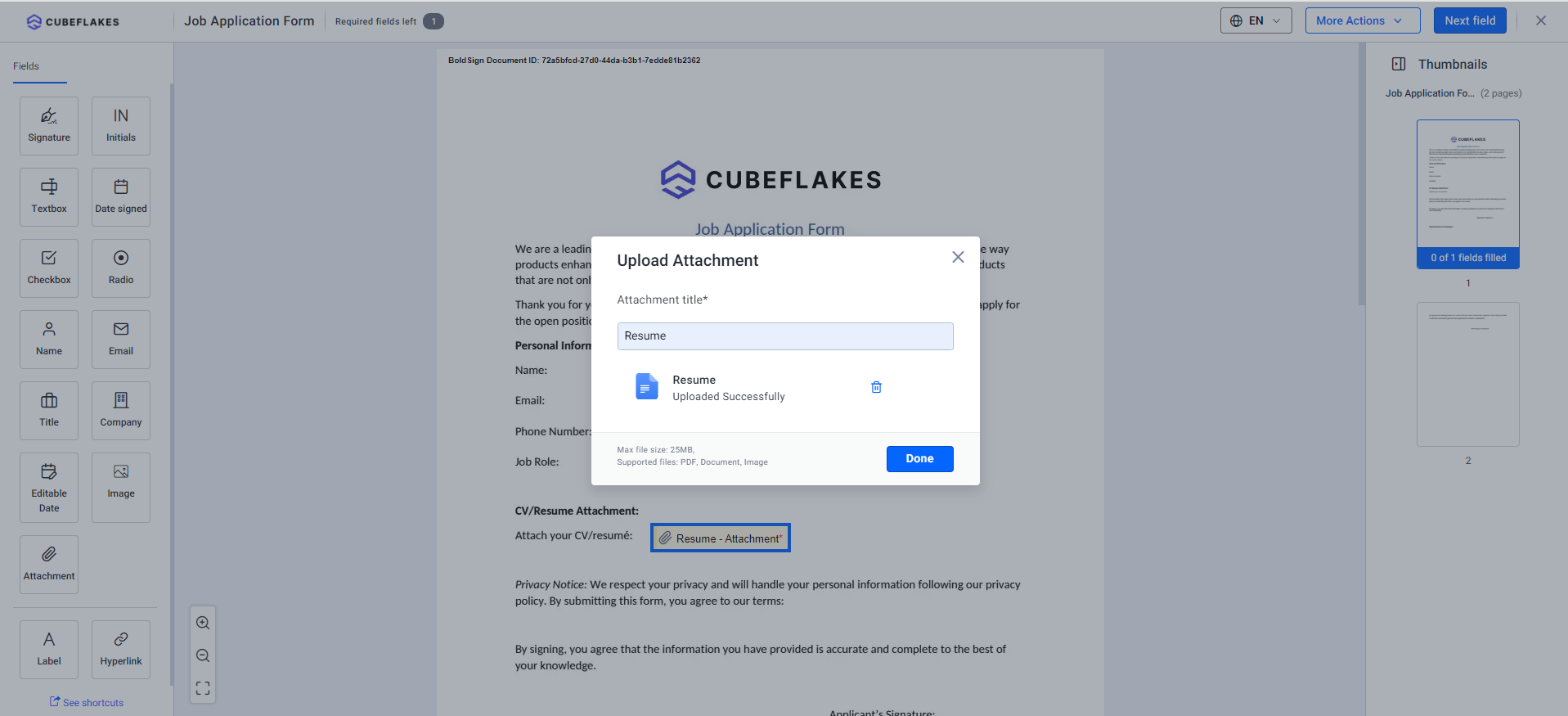
Yes, when the sender turns on Allow Field Configuration for that signer. The signer can then drag fields, including an Attachment field, onto the document.
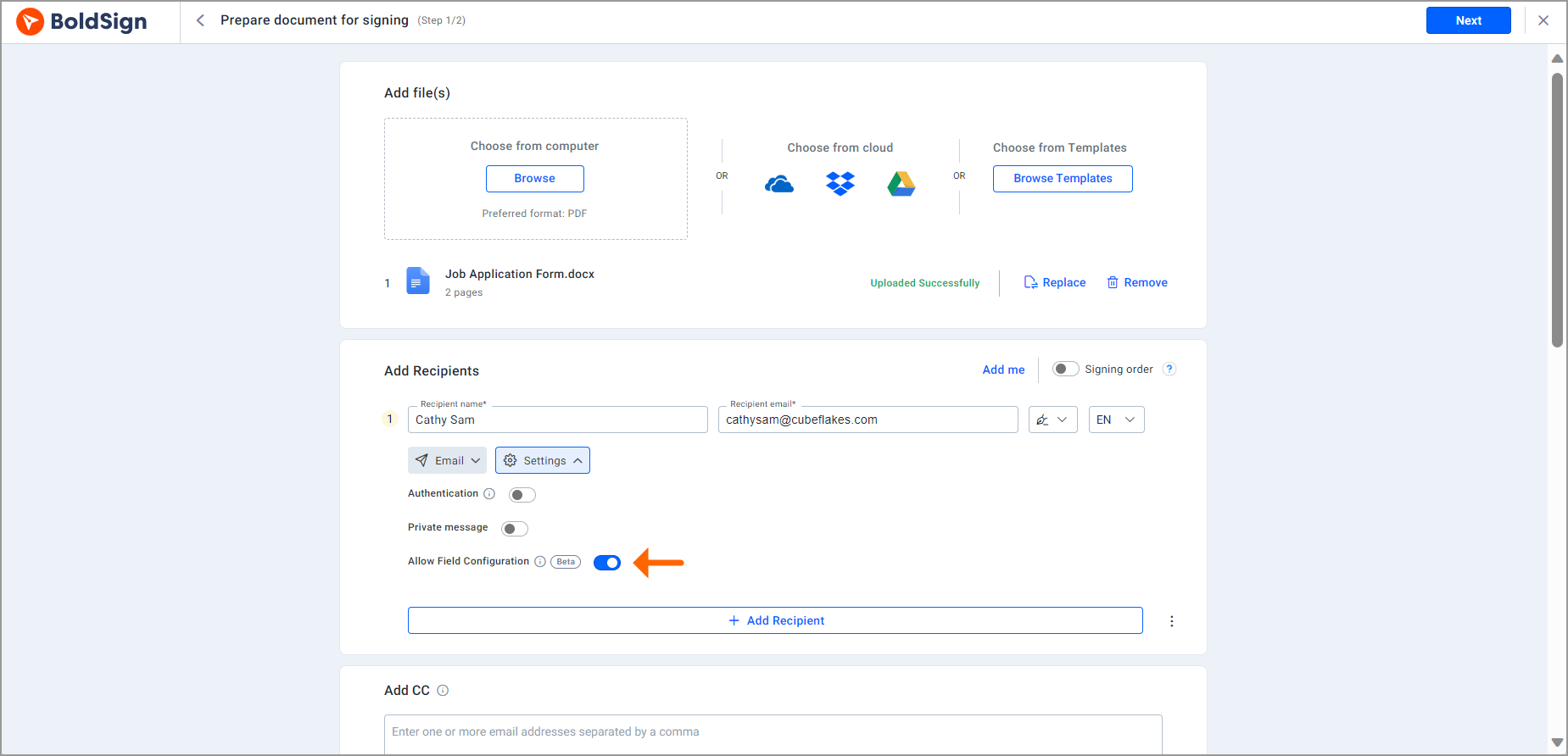
The signer drops the field where it fits and uploads the file through the Upload Attachment dialog. Our guide on how signers can add form fields covers this option. Our help article lists the form fields you can use.
How do you download the attached signed document and its files?
Download options appear once everyone has signed. The sender, the signers and any CC (carbon copy) recipients can download the files.
Our help article on how to download the attachments covers both routes below.
From the My Documents page
- Go to Documents, then My Documents.
- Find the completed document and open its menu.
- Select Download attachment.
You can also open the completed document and download the files from its Overview page.
From the completion email
- Open the completion email from us.
- Select View Document.
- Open the More Actions menu and select Download Attachment.
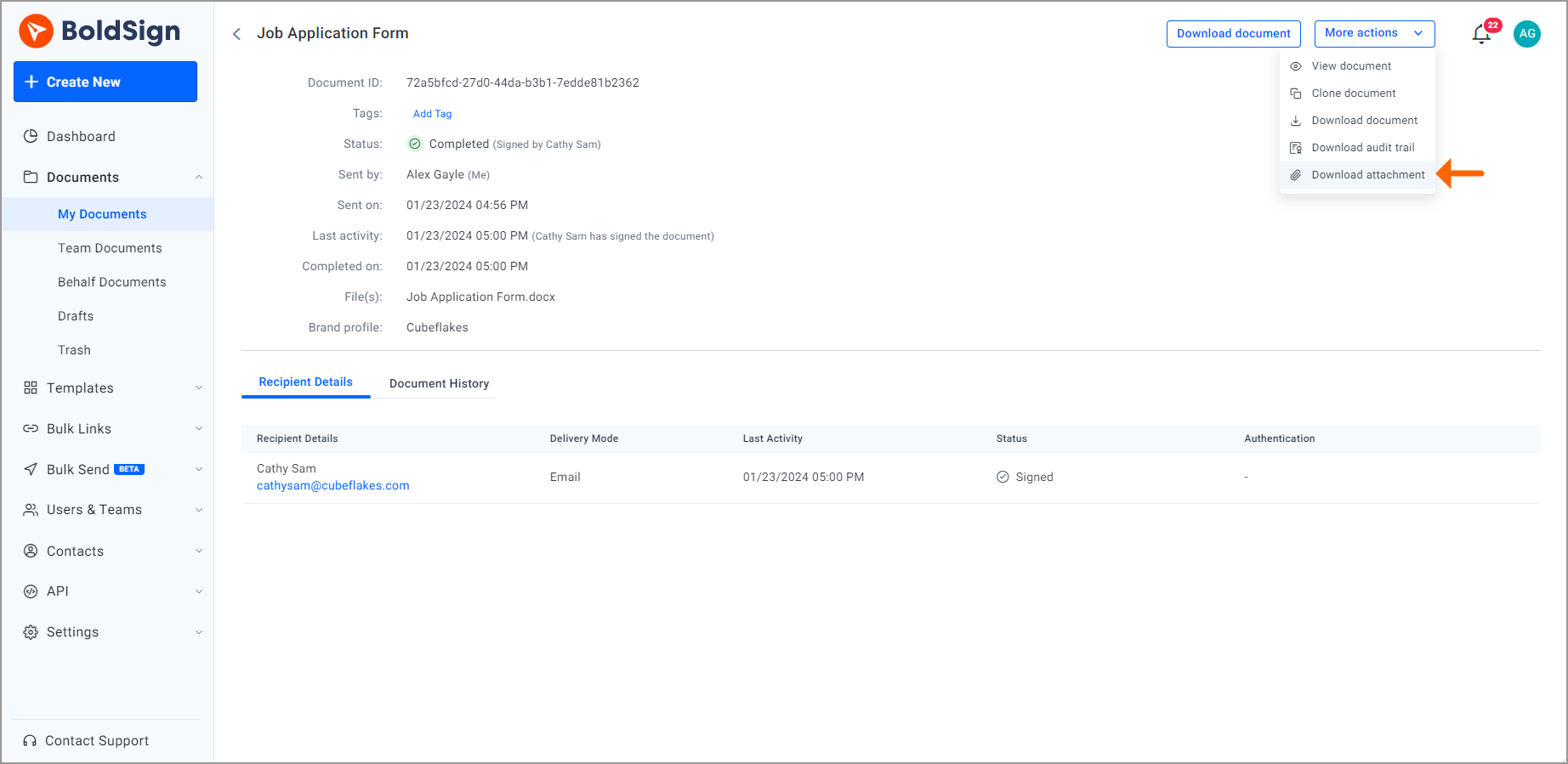
Should you combine attachments with the signed document?
Combine them when you want one file to store or forward. Keep them apart when each file goes to a different place, such as an ID to HR and a contract to your lawyer.
The Combine Attachments setting belongs to a brand. Our help article on how to combine signed documents and attachments shows the steps.
- With the setting on, we add the files to the end of the signed document as one file.
- With the setting off, the files stay separate, and you download them one by one.
- Only an account admin can open the Branding page and change it.
With the setting on, the separate Download attachment option no longer shows on the My Documents page.
How do you turn on Combine Attachments?
- Go to Settings, then Branding.
- Create a new brand or edit an existing one.
- In the Advanced section, turn on Combine Attachments and select Save.
- Choose that brand when you prepare the document for signing.
What should you watch out for when you request attachments?
Most upload problems start with a vague request. A clear title and the right file types prevent the back-and-forth.
- Name each field after the file, such as “Driver’s license, front side”.
- Use one field per file, so files stay in their own place.
- Allow only the file types you can open and store.
- Check that the brand you pick matches how you want the files delivered.
HR teams use the same field to collect onboarding papers. Our guide to attachment fields for onboarding documents shows that use.
Which BoldSign plan includes signer attachments?
Signer attachments are on every plan, from the free Essential plan up. That was the case on the BoldSign pricing page in November 2026.
Combine Attachments is a brand setting, so your brand count matters. The Essential plan includes 1 brand and the Growth plan includes 2. The Business and Premium plans include unlimited brands.
Paid plans, billed yearly, start at $5 per user a month for Growth and $15 per user a month for Business. Premium costs $99 a month for unlimited users. Prices are in USD.
Where do you go next with signer attachments?
Pick the step that fits where you are.
- Start a 30-day free trial and send a document with an Attachment field.
- Book a demo to see attachments set up for your documents.
- Visit our support portal with a question about a document you already sent.
Frequently asked questions
What file types can a signer attach in BoldSign?
Signers can upload PDF files, Word documents (.docx) and images (.jpg, .jpeg and .png). You can narrow that list for each field with the Accept only setting.
Can I ask for more than one attachment in a single document?
Yes. Add one Attachment field for each file you need, and give each field its own title so the signer knows what goes where.
Is a signature subject attachment the same as a signer attachment?
No, they are different things. A file attached to an email is something you send out. A signer attachment is a file the signer sends back inside the document.
Who can download the files a signer attached?
The sender, the signers and any CC (carbon copy) recipients can download them once signing is complete. They can use their BoldSign account or the completion email.
Can the attachments be part of the signed PDF?
Yes, when the brand you send with has Combine Attachments turned on. We then add the files to the end of the signed document as one file.
Can a signer add an attachment if the sender did not ask for one?
Yes, when the sender turned on Allow Field Configuration for that signer. The signer can then place an Attachment field and upload a file.
Is a document with a signer attachment legally binding?
Yes, when the signature itself meets the usual rules for electronic signatures, such as intent to sign and consent. The attachment is supporting material and leaves those rules as they are.
Do I need a paid BoldSign plan for signer attachments?
No. Signer attachments are on every plan, including our free Essential plan, as listed on our pricing page in November 2026.

Lakshmi Priya Soundar Rajan
Lakshmi Priya Soundar Rajan is a Technical Writer at BoldSign. With expertise in simplifying complex concepts, she contributes to the comprehensive documentation and user-friendly content at BoldSign. Lakshmi’s commitment to quality ensures users have access to clear and helpful information. Connect with her on LinkedIn.
More posts by Lakshmi Priya Soundar Rajan