How to Create Bulk Links from Templates in BoldSign
 Yvone Atieno Odhiambo
TL;DR: You can create a bulk link straight from a saved template in BoldSign. Pick Create bulk link from the template’s menu, check the roles and fields, and share the URL you get. Our bulk links page shows what each link can do.
A property manager sends the same rental application to everyone who views a flat. An HR team asks each new hire to sign the same policy pack. The document never changes, but the signers do.
A template already holds that document with its roles and fields in place. This guide shows how to turn one or more templates into a single bulk link. Read our guide on when to use bulk links to decide whether one suits your document.
What is a bulk link, and why start from a template?
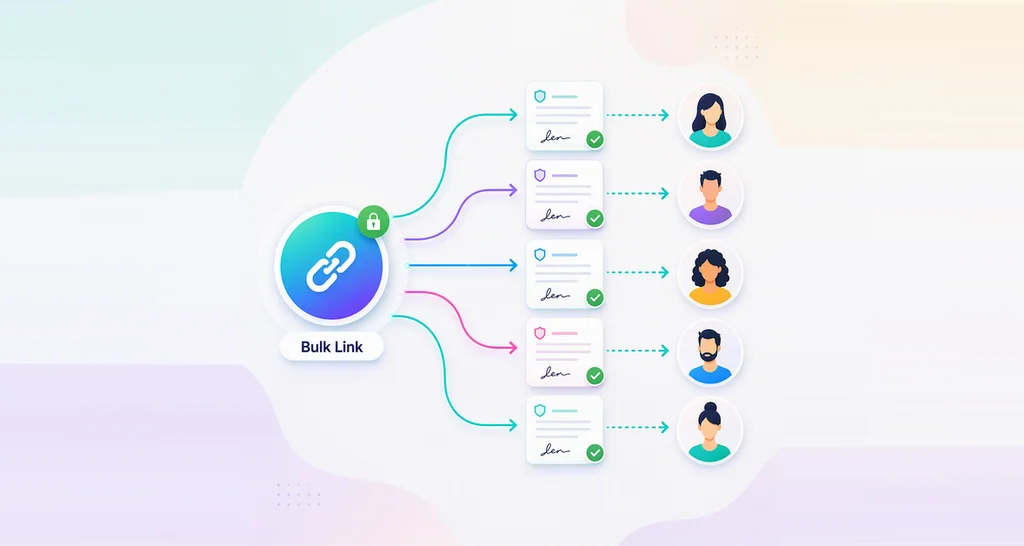
A bulk link is one URL that many people open to sign their own copy of a document. Starting from a template means the file, roles and fields are ready before you begin.
Think of a stack of printed forms at a reception desk. You design the form once, and each visitor takes a fresh copy. A template is the form, and the bulk link is the stack anyone can pick from.
A template also keeps every link consistent. Two links built from the same template ask signers for the same fields in the same places.
How do you create a bulk link from a template?
Open the template list, pick a template and choose Create bulk link. Our help article on how to create bulk links using templates covers each option.
1. Open your templates
Sign in to your BoldSign account. You need at least one saved or shared template; our help article explains how to create a template.
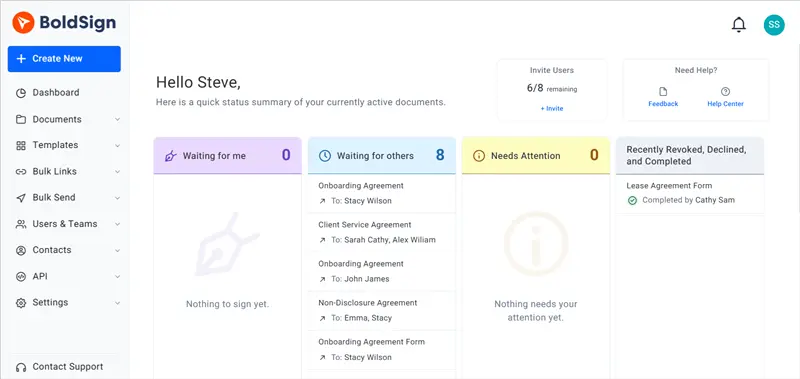
Go to the Templates menu and select All Templates. The page lists every template you created and every template shared with you.
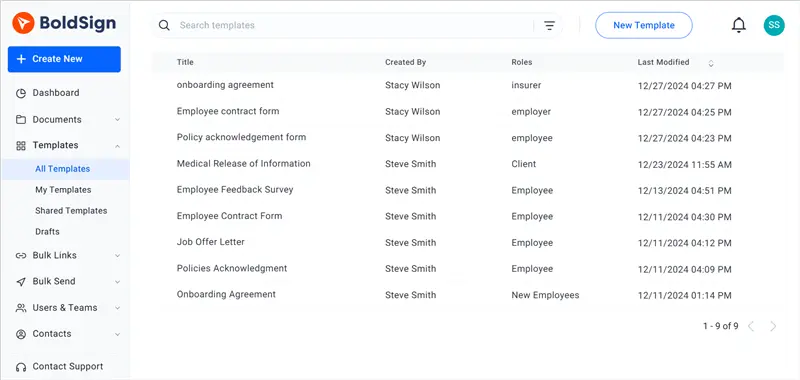
2. Pick one template or merge several
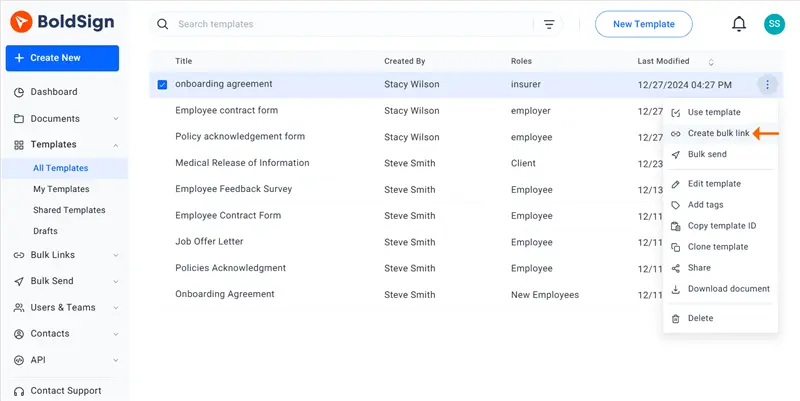
Choose one template when the signer needs a single document. Hover over it, open its menu and select Create bulk link.
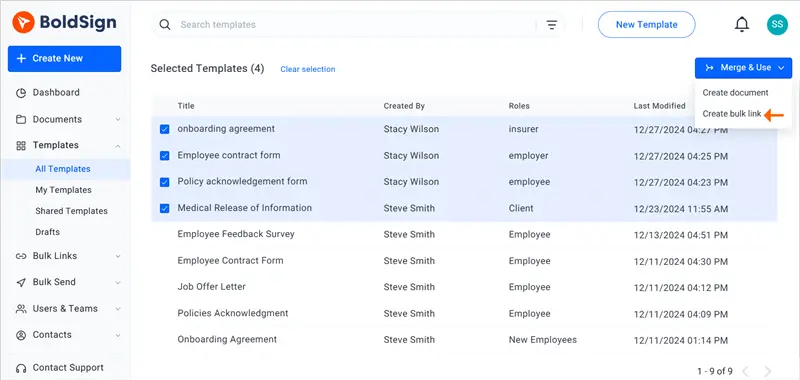
Merge templates when each signer needs several documents at once, such as a lease and a pet policy. Select the templates, choose Merge & Use, then select Create bulk link. We join them into one signing link.
3. Check the roles and carbon copy (CC) recipients
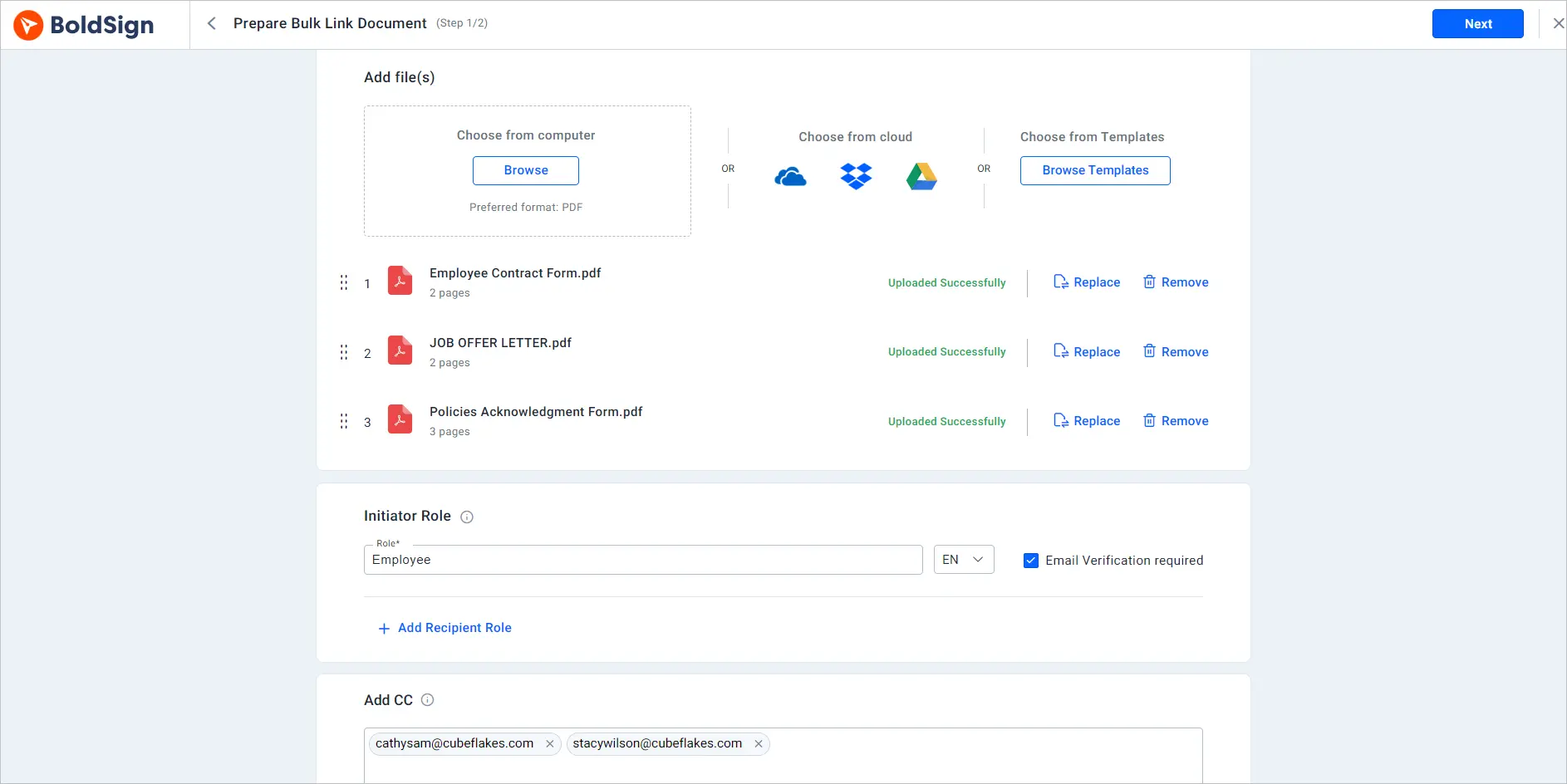
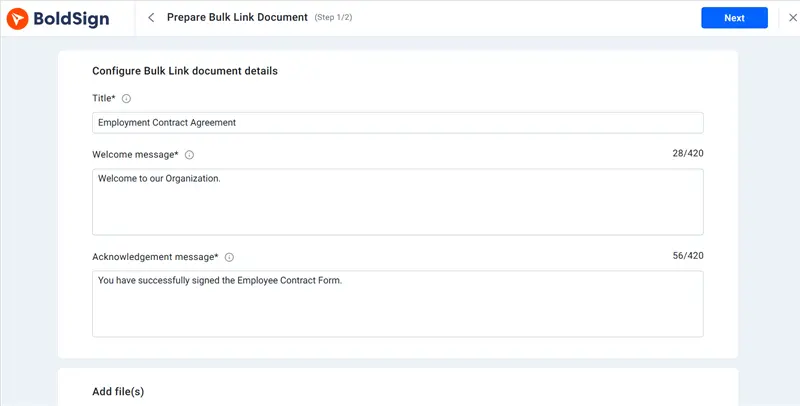
Next, the Prepare Bulk Link Document page opens. The template’s files appear in the Add File(s) section, and its roles fill in on their own.
Any CC recipients saved in the template appear too. Edit, add or remove them as you need.
4. Add a template to a link you started from scratch
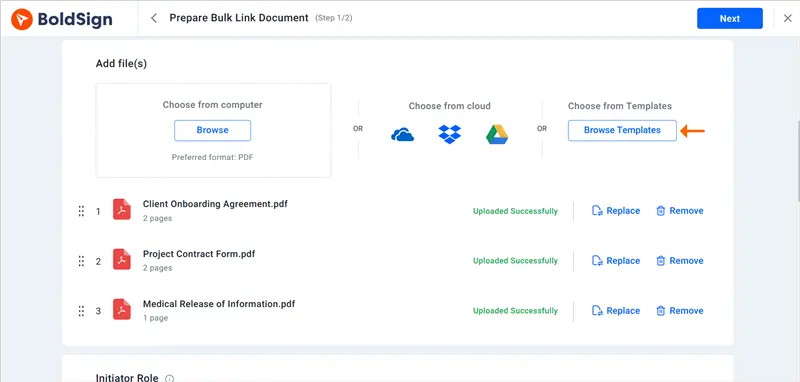
You can still add templates after you start a new bulk link without one. Select Browse Templates in the Add File(s) section, pick a template and select Use.
5. Add the messages and review the fields
Enter a title for the bulk link, a welcome message and an acknowledgment message. Check each section, then select Next.
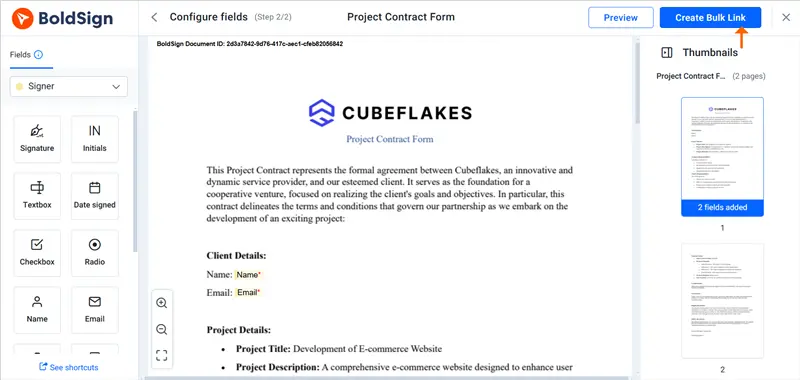
The Configure fields page shows every form field from the templates with its settings. Add, remove or change fields here, then select Create Bulk Link.
6. Share the URL
Copy the bulk link URL we give you and share it with your signers. Send it by email or a message, or post it where signers will find it.
What do signers do with a bulk link?
Signers open the link on any device, enter their details and sign. They sign without a BoldSign account.
- Open the shared bulk link.
- Enter a name and email address.
- Enter the code we send to that email, when the link uses email verification.
- Fill in the required fields, review the document and sign.
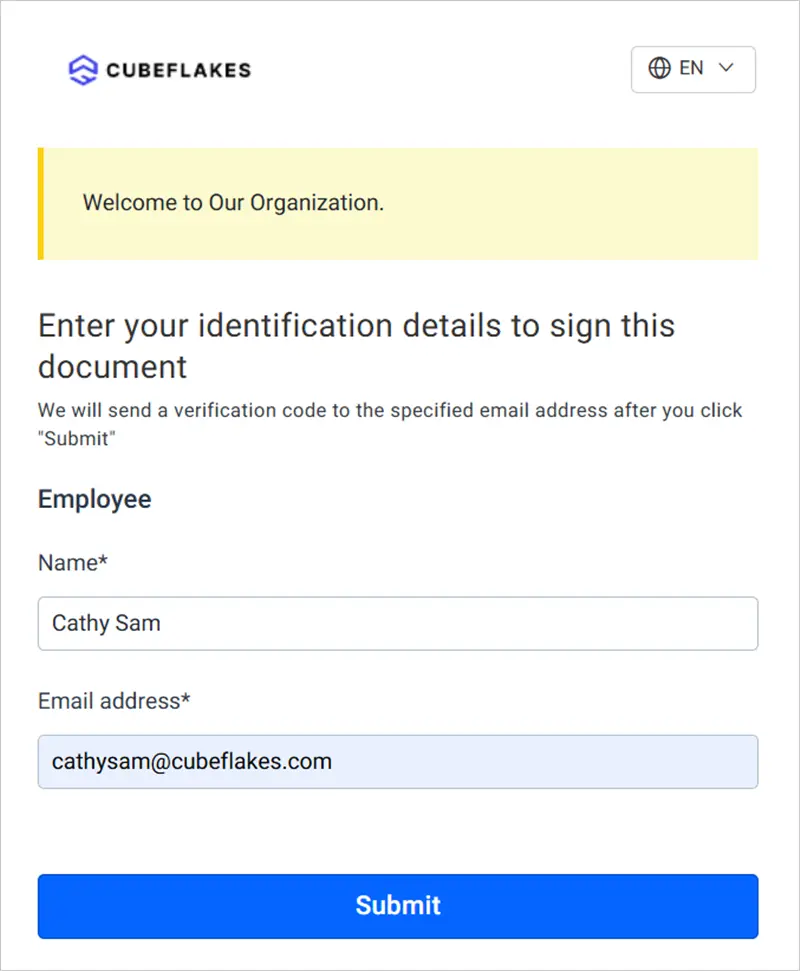
Each signed copy then appears with the bulk link in your account. Our guide to electronic signature authentication methods explains other ways to check who signs.
Which BoldSign plan includes bulk links, and what do they cost?
Bulk links start on the Business plan, as listed on the BoldSign pricing page in November 2026. Prices are in USD, billed yearly.
The Business plan costs $15 per user a month and includes unlimited templates. The Premium plan costs $99 a month for unlimited users, and the Enterprise API plan also includes bulk links. You can try them first with a 30-day free trial.
How do you get started with bulk links from templates?
Pick the template you send most often and turn it into a bulk link. Share it with a small group first to check the fields.
- Start a 30-day free trial and create your first bulk link from a template.
- Book a demo to see bulk links set up for your documents.
- Contact our support team with a question about a link you already share.
Frequently asked questions
What is a bulk link?
A bulk link is one signing URL that many people can open. Each person enters a name and email address, then signs a separate copy of the document.
Why create a bulk link from a template instead of a new file?
A template already holds the file, roles, fields and CC (carbon copy) recipients. You skip placing them again, so every link built from it starts the same way.
Can I combine several templates into one bulk link?
Yes. Select the templates on the All Templates page, choose Merge & Use, then Create bulk link. Signers get one document that holds all of them.
Can I change the fields after I pick a template?
Yes. The template's fields appear on the Configure fields page, where you can add, remove or change them. The saved template itself stays as it was.
Can I add a template after I start a bulk link from scratch?
Yes. On the Prepare Bulk Link Document page, select Browse Templates in the Add File(s) section. Pick a saved or shared template and select Use.
Do signers need a BoldSign account to sign a bulk link?
No. Signers open the URL, enter a name and email address, and sign their own copy without an account.
Are documents signed through a bulk link legally binding?
Yes, when they meet the same rules as any electronic signature, such as the signer's consent and a kept record. Check the rules for your document type and country.
Which BoldSign plan do I need for bulk links from templates?
Bulk links start on the Business plan at $15 per user a month, billed yearly. The Premium and Enterprise API plans include them too.

Yvone Atieno Odhiambo
Yvone is a Technical Assistant at BoldSign who specializes in creating clear documentation and engaging videos. She combines her technical skills and creativity to deliver user-focused solutions. Connect with her on LinkedIn.
More posts by Yvone Atieno Odhiambo