How Signers Can Add Form Fields before eSigning a Document
 Evans Omondi Otieno
TL;DR: Signers can add their own form fields when you turn on Allow Field Configuration for them before you send. The signer then drags fields onto the document, fills them in and signs. Our eSignature features page shows the other fields you can use.
You send a supplier form, but you do not know how many lines the supplier needs. Placing every field yourself means guessing. Guess wrong, and the document comes back for another round.
Field configuration hands that part to the signer. This guide covers how you allow it, what the signer sees, and when prefilled fields suit you better.
What does it mean for signers to add form fields?
The signer places fields such as text boxes, dates or checkboxes on the document while signing. You decide which signers may do this, one by one.
Think of a paper form with a blank back page and a note that says “add anything else here”. The signer writes what fits their case. Field configuration gives them that blank space, with real fields they can drag into place.
How do you allow signers to add form fields while signing?
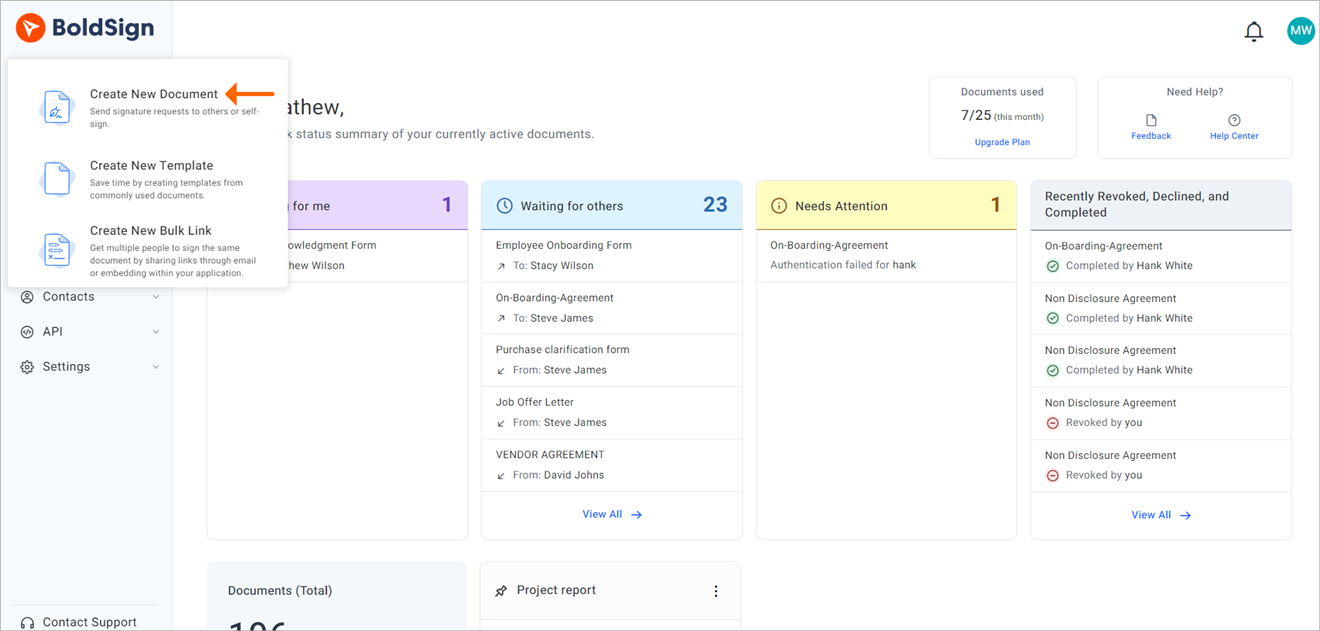
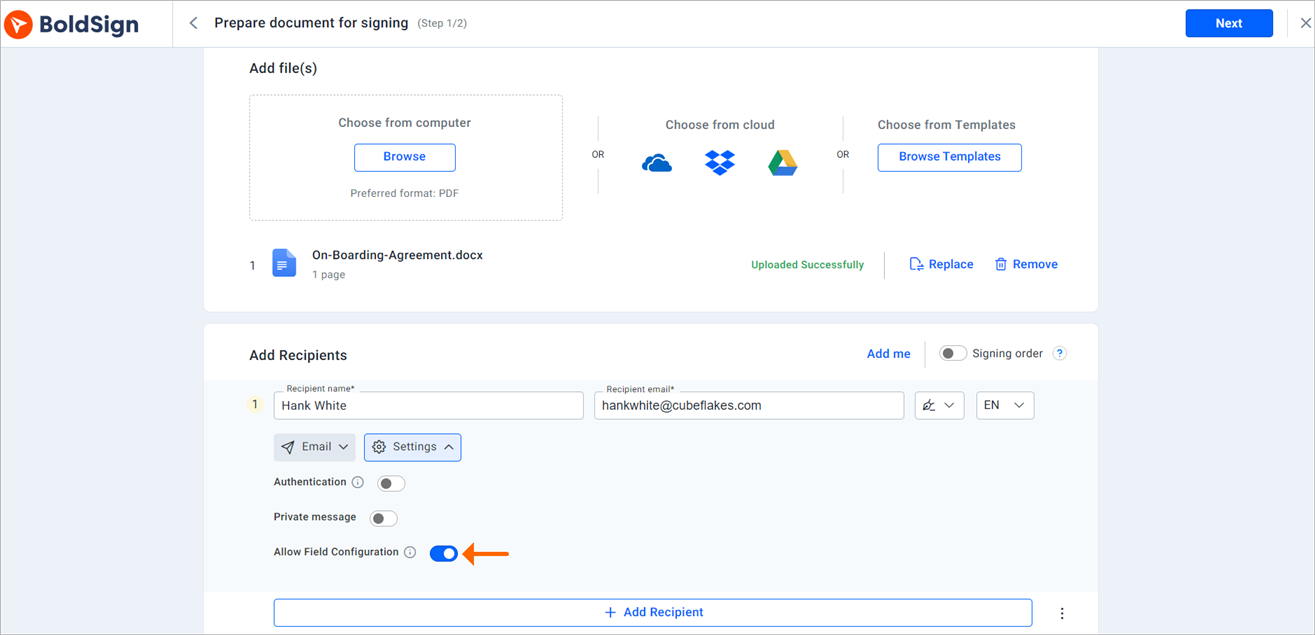
Turn on Allow Field Configuration in the recipient’s settings when you prepare the document. Our help article on how to allow signers to add form fields while signing shows each screen.
- In the BoldSign web app, select Create New, then Create New Document.
- In Add files, upload the document, then add your recipients.
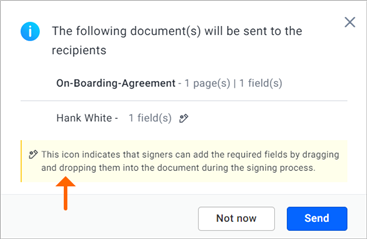
- Open the Settings dropdown below the recipient and turn on Allow Field Configuration.
- Fill in the other required details, then select Next.
- Place any fields you want on the Configure fields page, then send.
Do you need to place fields before you send?
You can, but you do not have to. With the option on, you can send the document with no fields, and the signer adds every field they need.
How does a signer add form fields before eSigning?
The signer drags fields from the left side of the signing page onto the document. Then they fill them in and complete signing.
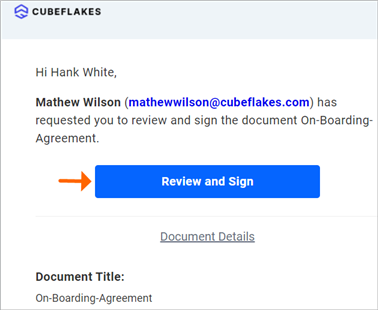
- Open the document from the signing email or from your BoldSign account.
- Read the electronic signature disclosure, tick the box and select Continue.
- Drag a field from the list on the left onto the document.
- Change the field’s settings in the panel on the right, then select Complete signing.
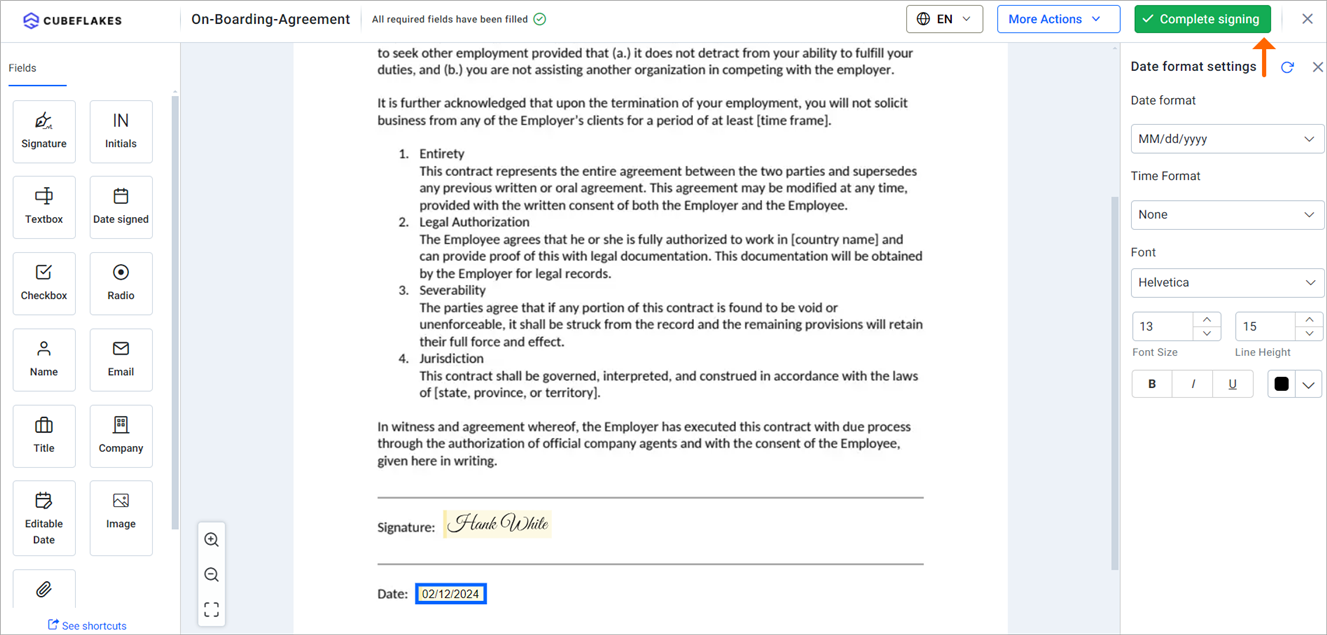
Our help article lists the form fields and their properties. A signer can also place an Attachment field to upload a file, as our guide on how a signer attaches a document while eSigning explains.
When should you prefill fields instead?
Prefill fields when you already know the answers, such as a name from a web form. Let signers add fields when only they know what the document needs.
Prefilling works through the BoldSign API. Your form sends each answer into a template field, so the signer opens a filled-in document. Our guide on how to prefill form details before sending a document walks through the request.
Developers can turn on field configuration through the API too. Set allowFieldConfiguration to true on the signer, as our developer guide shows.
What should you watch out for?
Field configuration gives the signer more control, so a few habits keep documents tidy.
- Turn it on only for signers who need it, not for every recipient.
- Place the signature field yourself when its position matters to you.
- Say in your message which details the signer should add.
- Check the completed document before you file it.
Which BoldSign plan lets signers add form fields?
Basic and advanced form fields are on every plan, from the free Essential plan up. That was the case on the BoldSign pricing page in November 2026.
Paid plans, billed yearly, start at $5 per user a month for Growth and $15 per user a month for Business. Premium costs $99 a month for unlimited users. Prices are in USD.
Prefilling or sending through the API needs the Enterprise API plan, from $30 a month with 40 envelopes. You can build and test first in a free API sandbox.
Where do you go next with signer form fields?
Pick the step that fits where you are.
- Start a 30-day free trial and send a document with field configuration on.
- Book a demo to see signer fields set up for your documents.
- Contact our support team with a question about a document you already sent.
Frequently asked questions
Can a signer add fields to a document I sent?
Yes, when you turn on Allow Field Configuration for that signer before you send. Without that setting, the signer fills in only the fields you placed.
Do I have to place any fields myself before I send?
No. With Allow Field Configuration on, you can send the document with no fields at all. The signer then places every field they need.
Which form fields can a signer add?
Signers drag fields from the list on the left of the signing page. Our help article lists every field type, from Signature and Textbox to Dropdown and Attachment.
Can I turn on field configuration for one signer and not another?
Yes. The option sits in each recipient's Settings dropdown, so you choose it signer by signer when you prepare the document.
Can a signer upload a file while signing?
Yes. A signer with field configuration can place an Attachment field and upload a file, such as an ID, before completing the document.
Can I allow field configuration through the BoldSign API?
Yes. Set allowFieldConfiguration to true on the signer when you send the document through our API. The signer then places fields while signing.
How do I choose an e-signature platform that can prefill fields from a form submission before the signer sees the document?
Pick one whose API accepts field values in the same request that sends a template. Your form handler then passes each answer into its matching field, and the signer opens a document that is already filled in.
Is a document legally binding if the signer added the fields?
Yes, when the signature meets the usual rules for electronic signatures, such as intent to sign and consent. Who placed the fields leaves those rules as they are.

Evans Omondi Otieno
Evans Omondi Otieno is a customer support representative and writer at BoldSign, specializing in creating clear, insightful content to help users navigate eSignature solutions. As a blog author, Evans writes well-researched articles that simplify technical concepts, helping businesses and professionals understand how to use BoldSign effectively. With expertise in technical support and content creation, he ensures users have a seamless experience and gain valuable knowledge from his articles.
More posts by Evans Omondi Otieno