How to Collect Images from Signers with an Image Field
 Evans Omondi Otieno
TL;DR: To collect images from signers, place an image field on your document before you send it. The signer uploads the picture while signing, and you get it back inside the completed document. You set the field’s title, instructions and allowed formats, and our eSignature features page shows the other fields you can add.
A delivery driver needs a photo of the parcel at the door. A landlord wants pictures of a flat at move-in. A claims team asks for a photo of the damage.
Each time, the picture usually arrives in a separate email, days after the signature. An image field puts the photo and the signature in the same document, and this guide shows how to add one in BoldSign.
What is an image field in an eSignature document?
An image field is a box on the document where the signer adds a picture while signing. The picture stays in the signed document, so you never match a photo to a contract by hand.
Think of a paper form with “attach photo here” printed in one corner. The image field is that corner, and the signer fills it from their phone or computer.
Which image formats can signers upload?
You choose the formats for each field, and the signer can upload only those. Our developer documentation lists these options:
- Joint Photographic Experts Group (JPEG) files, ending in .jpg or .jpeg
- Portable Network Graphics (PNG) files
- Scalable Vector Graphics (SVG) files
- Bitmap (BMP) files
Each image can be up to 25 megabytes (MB), as our help article on how to request images from signers states. One document can hold several image fields.
How do you collect images from the signer in BoldSign?
Start a new document, add an image field where the picture belongs, then send it. The steps below follow the order of the screens.
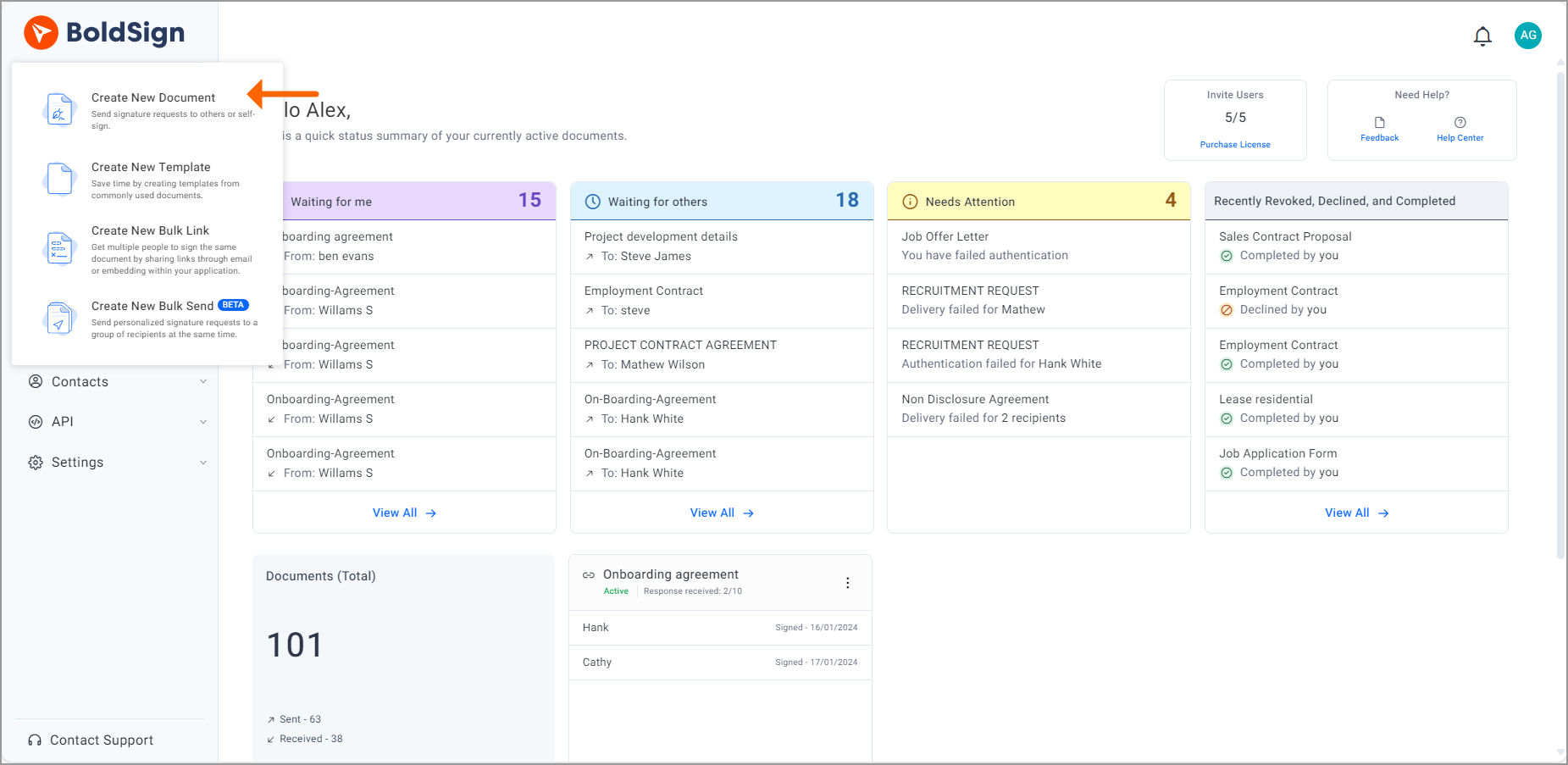
- On the BoldSign home page, select Create New.
- Choose Create New Document to open the Prepare Document page.
- Upload your file in the Add file(s) section.
- Add each signer in the Add Recipients section, then select Next.
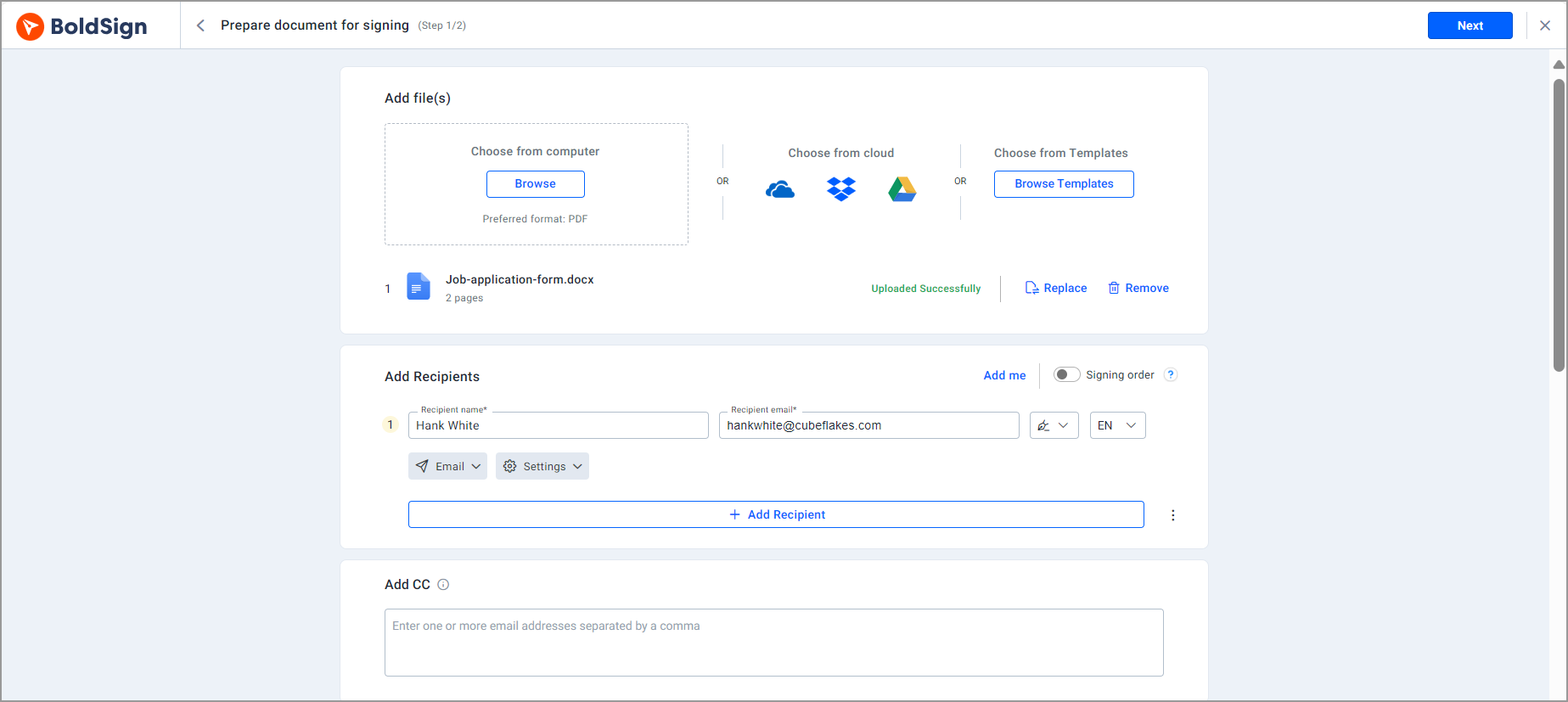
BoldSign then opens the Configure Fields page. Here you drag fields onto the document where each one belongs.
How do you add and set up the image field?
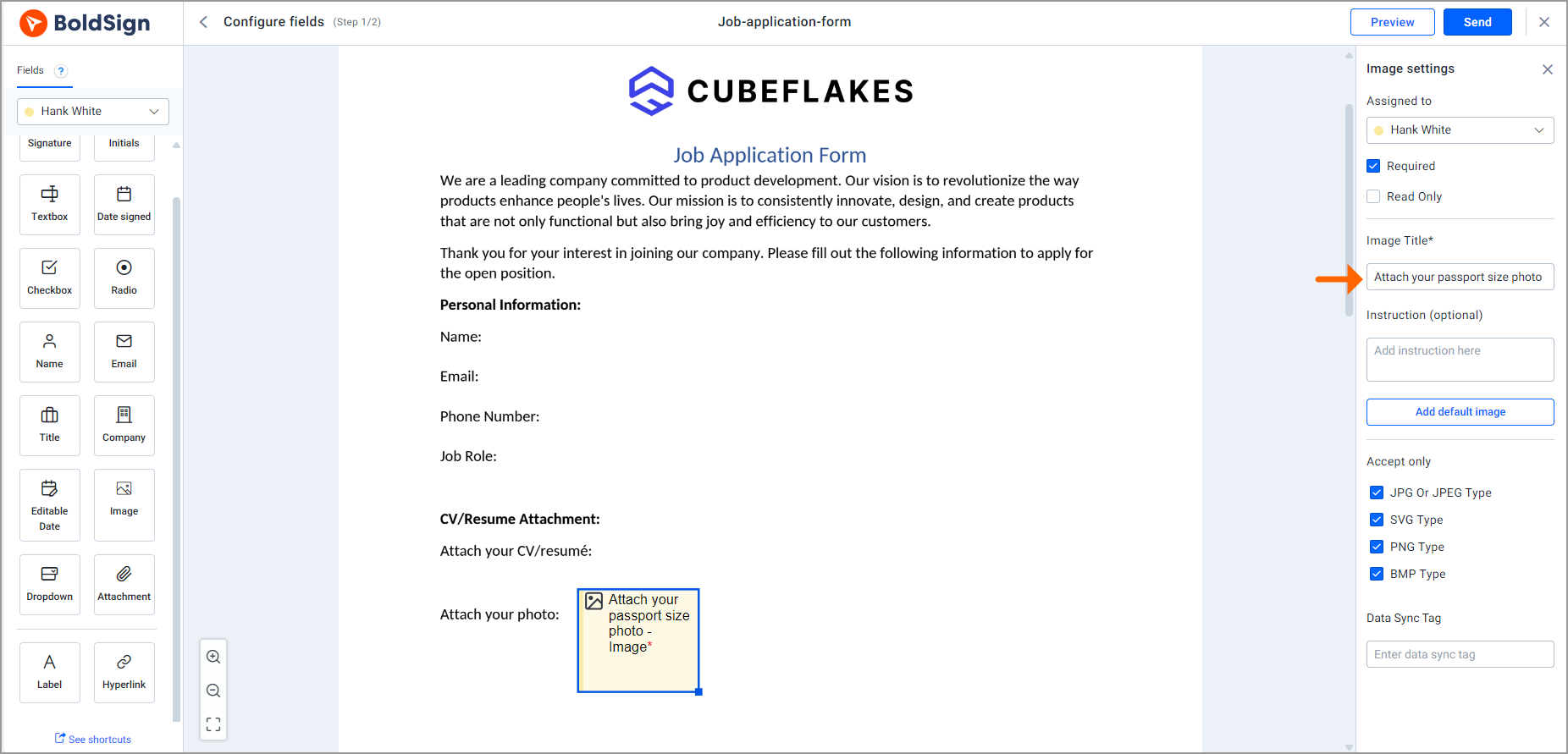
Drag the Image field from the field list to the spot where the photo should appear. The Image settings panel then opens on the right side of the screen.
- Enter a name in the Image Title box, which is required.
- Add guidance in the Instruction (optional) box, such as “Photo of the parcel at the door”.
- In the Accept only section, select the image formats you will take.
- Send the document for signature.
Clear instructions save a round of follow-up. Say what the photo must show, from which angle and whether a date must be visible.
How do I capture e-signatures and delivery photos automatically?
Place an image field next to the signature field on your delivery form. The driver or customer adds the photo while signing, and the completed document holds both without a separate email.
Our guide on how to record package damage in proof of delivery documents adds a drawing field for marking the damaged spot. Use both fields together when a photo alone does not show where the damage is.
What should you watch out for when you request images?
Most problems come from a vague request or the wrong formats. A few habits help:
- Allow every format your signers are likely to have, such as JPEG and PNG for phone photos.
- Mention the 25 MB limit in your instructions.
- Use one image field per photo, so each picture sits where you expect it.
- Use a signer attachment instead when you need a file, such as a PDF.
Which BoldSign plan do you need to collect images, and what does it cost?
Our pricing page lists basic and advanced form fields and signer attachments on every plan, as of November 2026. That includes the free Essential plan, with 25 envelopes a month.
Paid plans add more envelopes, users and templates. The Growth plan costs $5 per user a month and the Business plan $15 per user a month. The Premium plan costs $99 a month for unlimited users, all billed yearly in USD.
How do you start collecting images from your signers?
Pick the document where a photo matters most and add an image field to it. These links help you take the next step with BoldSign:
- Start a 30-day free trial and send your first document with an image field.
- Book a demo to see image fields set up for your own forms.
- Watch our video on how to collect attachments from signers, or ask our support portal a question.
Frequently asked questions
What is an image field in an eSignature document?
It is a box on the document where the signer uploads a picture while signing. The picture becomes part of the completed document, next to the signature.
Can a signer upload a photo while signing a document?
Yes. Place an image field on the document before you send it. The signer opens the field, picks a picture from their device and then finishes signing.
Which image formats can signers upload in BoldSign?
You can allow JPEG files (ending in .jpg or .jpeg), PNG, SVG and BMP files. You pick the formats for each field, and the signer can upload only those.
How large can a signer's image be?
Each image a signer uploads can be up to 25 megabytes (MB), according to our help article on requesting images from signers.
Can I add more than one image field to a document?
Yes. One document can hold several image fields, so you can ask for a front and back photo or a picture for each item.
Is a document with an uploaded photo still legally binding?
Yes, when the signature itself meets the usual rules for electronic signatures, such as consent and a clear record. The photo is extra evidence stored in the same document.
How is an image field different from a signer attachment?
An image field asks for a picture and shows it on the page. A signer attachment collects a file, such as a PDF, that travels with the document.
Do I need a paid BoldSign plan to collect images from signers?
No. Our pricing page lists form fields and signer attachments on every plan, including the free Essential plan with 25 envelopes a month.

Evans Omondi Otieno
Evans Omondi Otieno is a customer support representative and writer at BoldSign, specializing in creating clear, insightful content to help users navigate eSignature solutions. As a blog author, Evans writes well-researched articles that simplify technical concepts, helping businesses and professionals understand how to use BoldSign effectively. With expertise in technical support and content creation, he ensures users have a seamless experience and gain valuable knowledge from his articles.
More posts by Evans Omondi Otieno