Improve Document Accuracy with Collaborative Fields in BoldSign
 Rayronald Ochola Otieno
TL;DR: Collaborative fields are form fields that two or more signers can edit while they sign. You choose who may change each field and whether a change needs their initials or a fresh signature from earlier signers. Our collaborative field editing page shows the feature in action.
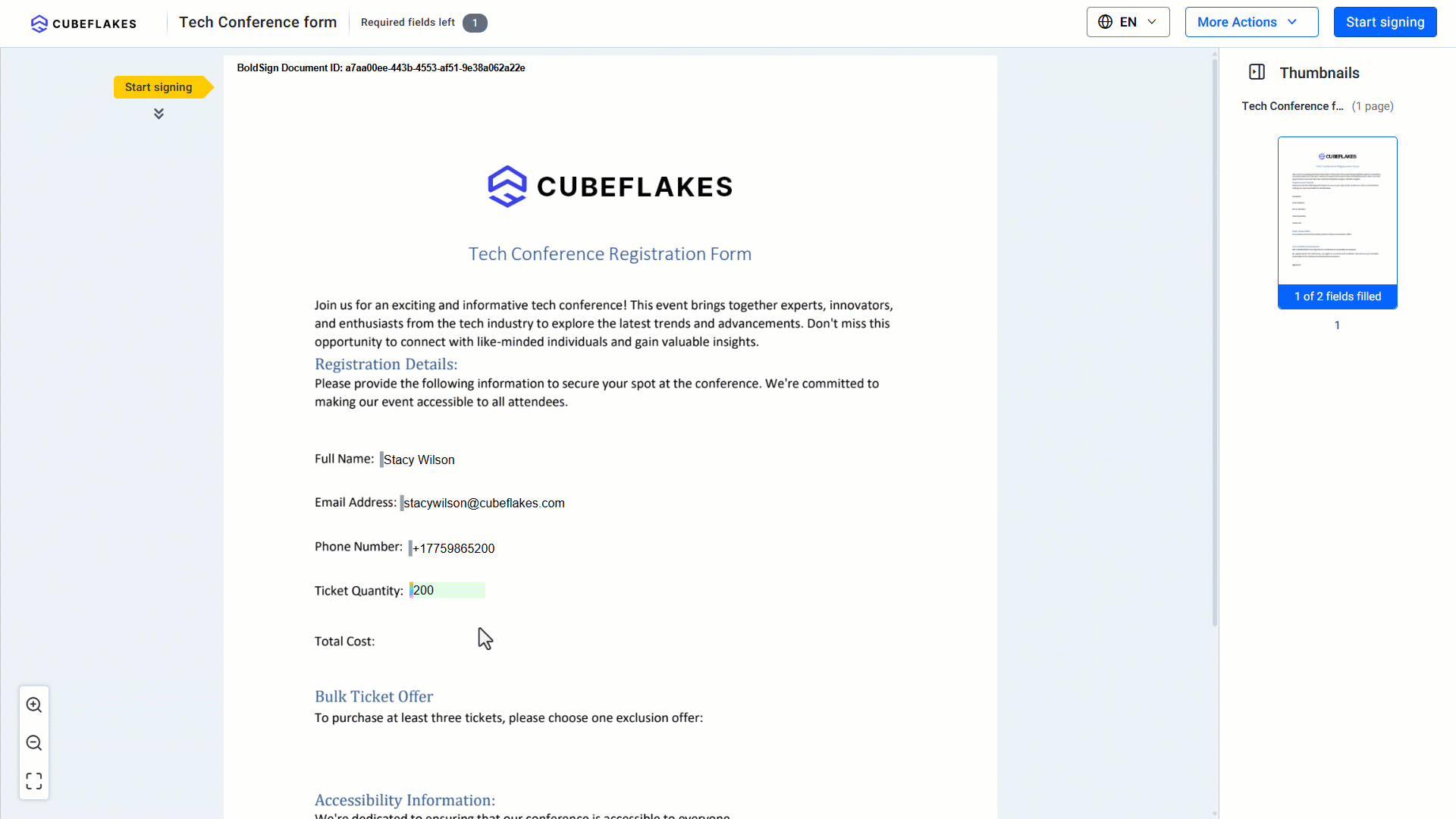
A sales rep fills in a start date and a headcount on a services contract. The client signs next and spots that the start date is a week early. Without shared fields, someone has to void the contract, fix the date and send it out again.
Collaborative fields let the client correct that one value while signing. This guide explains how they work, how to set them up, and the rules that keep each change on record.
What are collaborative fields?
Collaborative fields are form fields that more than one signer can edit during signing. We track every change, so the final document carries values that the right people have checked.
Think of a shared shopping list on the fridge. Anyone in the house can cross out “milk” and write “oat milk”, but the old word stays visible. A collaborative field works the same way, except only the people you pick can change it.
In BoldSign, each collaborator edits the field during their own turn to sign. Two people never type in the same box at the same moment.
Why do shared fields matter for document accuracy?
Shared fields catch mistakes before the document is complete. The person who knows the right value can fix it on the spot.
Shared fields help in three common cases:
- A wrong date or quantity that would otherwise mean voiding and resending the contract.
- Details only the other party can confirm, such as a start date or team size.
- Changes agreed by email, which leave no record of the original value.
You also keep a clear trail for audits, because we log the old and new value of every edit.
Which form fields can signers edit together?
Five field types support collaborative editing in BoldSign. Signature fields and other types stay with the one signer they belong to.
- Text box
- Radio button
- Checkbox
- Editable date
- Dropdown
The five types cover most shared details, from contract terms to onboarding forms. Our help article on supported field types lists them with examples.
How do you set up collaborative fields in BoldSign?
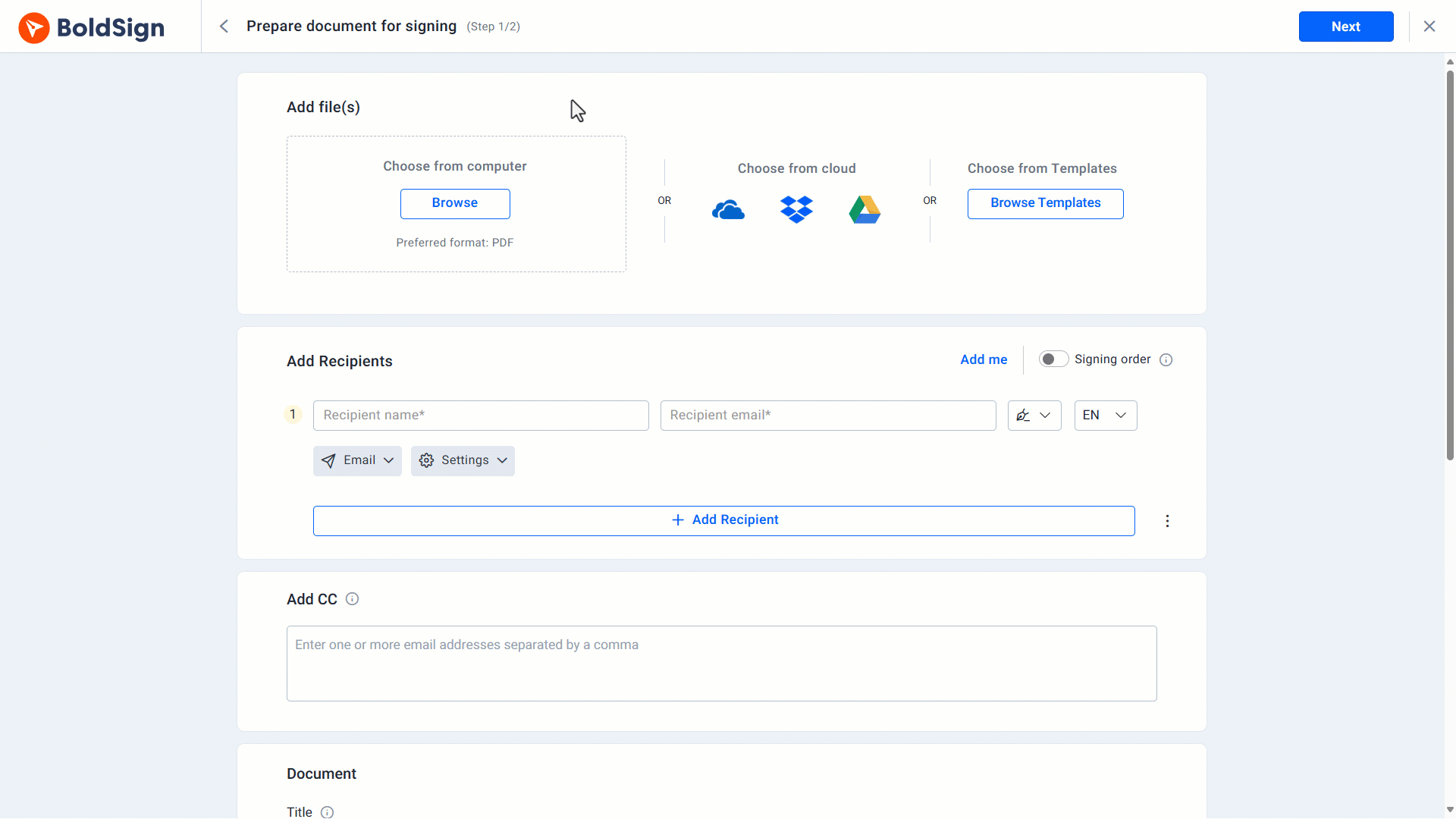
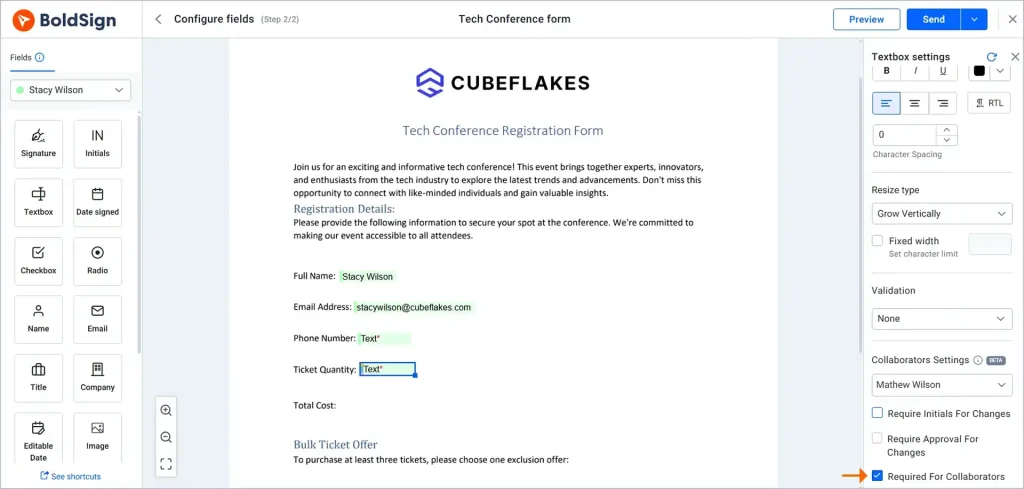
You turn on collaboration field by field on the Configure Fields page. Our guide on how to use collaborative field editing for form fields covers each screen.
- Select Create New, then Create New Document.
- Add at least two signers, upload your document, and select Next.
- On the Configure Fields page, drag a supported field, such as a text box, onto the document.
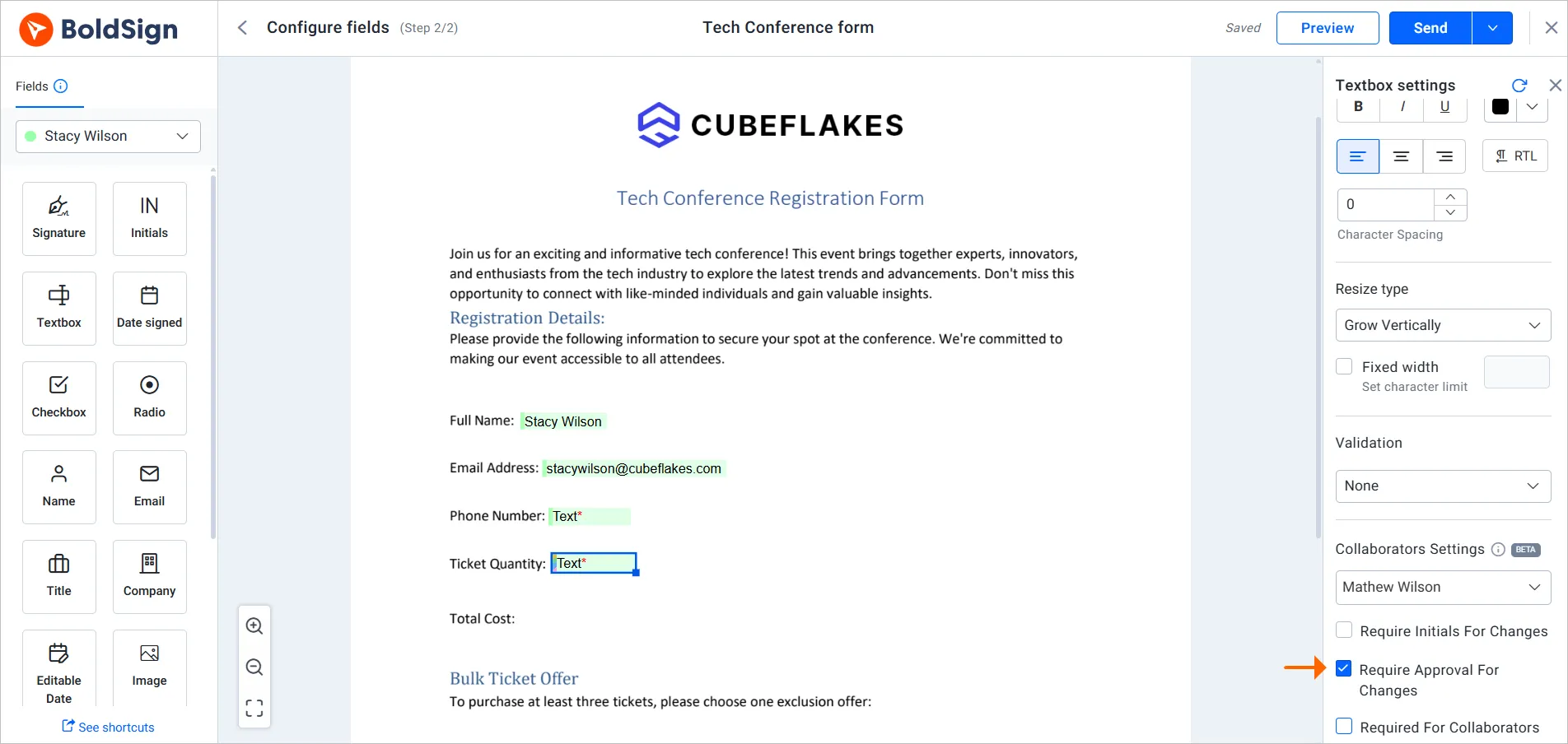
- Select the field to open its settings panel on the right.
- In the Collaborative Settings dropdown, which starts at None, choose the signers who may edit it.
- Tick any of the three options described below, then select Send.
The field’s own signer joins the collaborators on their own. You only pick the extra people.
What are the collaborative field editing options?
We offer three options that control how collaborators change a field. You can use one, two or all three on the same field.
Require initials for changes
Collaborators must add their initials each time they change the field’s value. The audit trail then shows who made the change and when.
Anyone who edits the field later must also add their initials. Use this option for contracts and financial forms, where you need to see each change.
Require approval for changes
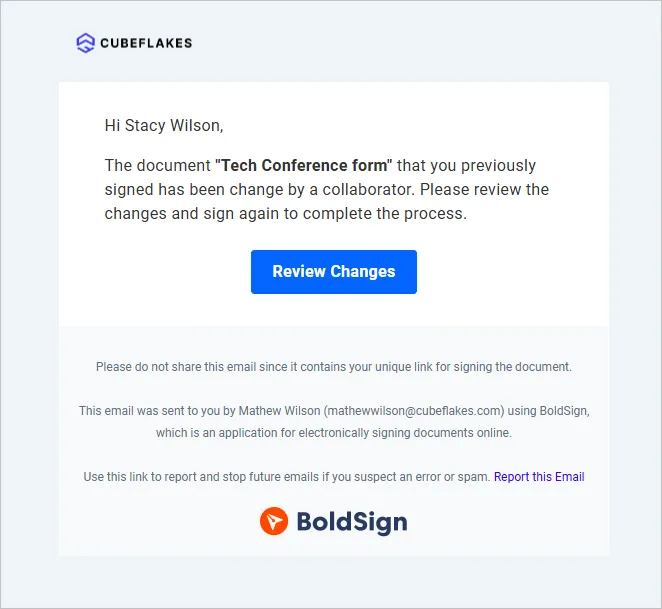
Earlier signers must approve any change made after they signed. They do this by signing the document again.
- A re-signing step starts when a collaborator edits the field after others have signed.
- Those signers get an email asking them to review the new value and sign again.
- Each new change repeats the cycle until everyone agrees on the final version.
- During re-signing, signers can edit only collaborative fields; everything else stays locked.
Required for collaborators
A collaborator has to fill in the field before they can finish signing. Collaborators can’t leave important details, such as employee data or contract terms, blank.
How do you track changes to collaborative fields?
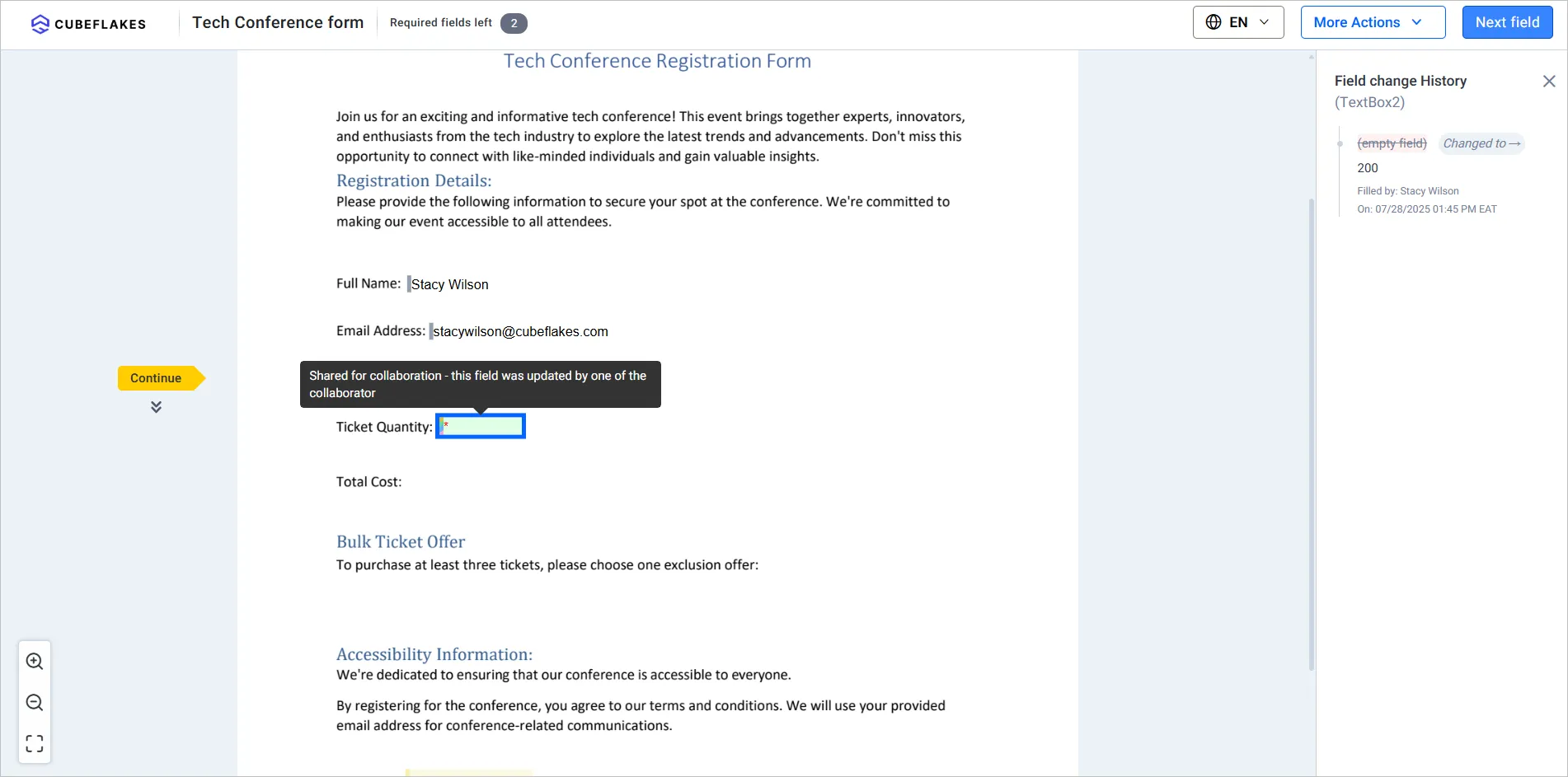
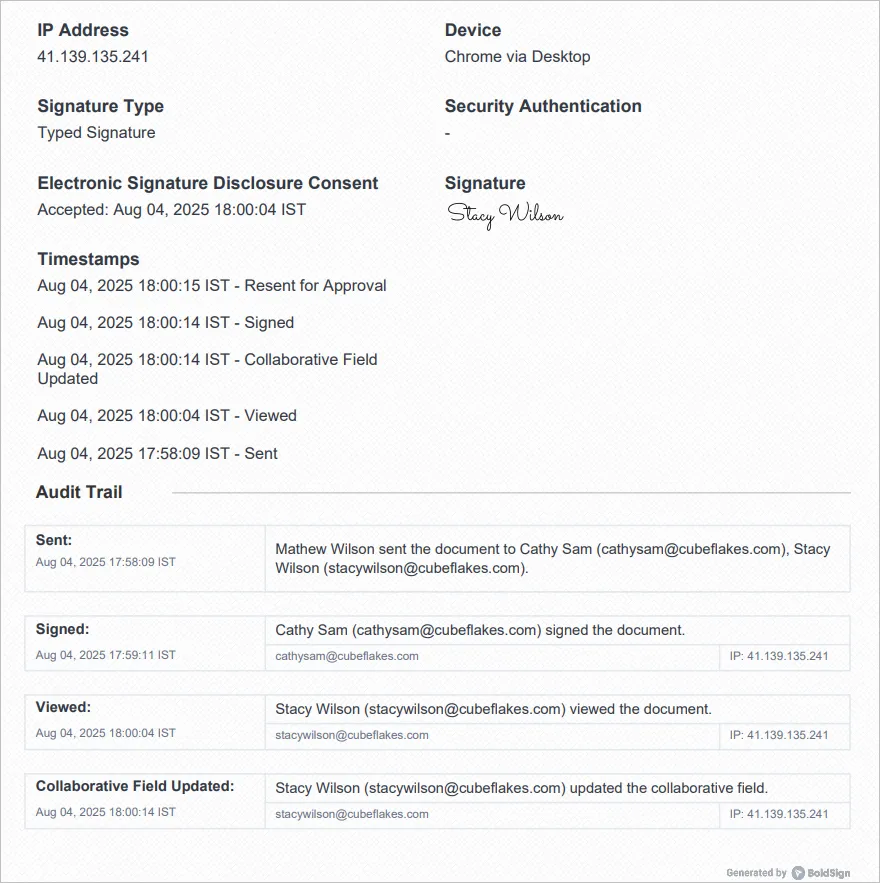
Two records show every change. The audit trail gives a summary, and Document History gives the full detail.
The audit trail lists the field that changed, the person who changed it and the time. For re-sign requests, it also shows who started the request and who was asked to sign again. Document History records each edit line by line, with the original value, the new value and the time.
Read more on why eSignature audit trails matter.
Who gets notified when a field changes?
With Require Approval for Changes on, signers who already finished get an email asking them to sign again. With a signing order, the request goes to the first signer in line. Later signers see that re-signing is pending and can open the document once the earlier signer is done.
What are the limits of collaborative field editing?
Collaborative fields need a document with two or more recipients. They are not available for single-signer or self-signed documents.
Collaborators must be regular signers. In-person signers, group signers and reviewers cannot edit a shared field.
You also can’t add collaborative settings in these cases:
- Documents sent with Print and Sign.
- Fields that carry data sync tags.
- Fields with conditional logic.
- Formula fields.
Our help article on limitations and restrictions keeps this list current.
Which BoldSign plan includes collaborative fields, and what does it cost?
The BoldSign pricing page lists collaborative field editing on every plan in November 2026. That includes the free Essential plan.
Paid plans add more envelopes and features. The Growth plan costs $5 per user a month, and the Business plan costs $15 per user a month. The Premium plan costs $99 a month for unlimited users.
All prices are in USD and billed yearly. In-person signing starts on the Growth plan.
How do you start using collaborative fields?
Pick one contract that often comes back with a wrong date or figure, and make that field shared. Then choose your next step:
- Start a 30-day free trial and send a document with one collaborative field.
- Book a demo to see shared fields set up for your team’s forms.
- Read what collaborative field editing is and how it works in our help center.
Frequently asked questions
What are collaborative fields in eSignature?
They are form fields that more than one signer can edit. Each chosen signer can check or correct the value during their own turn to sign, and every change is recorded.
Can two signers edit the same field at the same time?
No. Each collaborator edits the field during their own signing turn, so changes happen one after another and each one is logged.
Which fields can be collaborative in BoldSign?
Text boxes, radio buttons, checkboxes, editable dates and dropdowns can be shared. Signature fields and other field types stay with one signer.
Do earlier signers have to sign again after a change?
Only when you turn on Require Approval for Changes. Then anyone who already signed gets an email asking them to review the new value and sign again.
Is a document still legally binding after a collaborator changes a field?
Yes, when the usual eSignature rules are met and everyone affected approves the final version. Turning on re-sign approval gives you that agreement, and the audit trail records it.
Where can I see who changed a collaborative field?
Open the audit trail for a summary of each change and re-sign request. Document History shows the original and new value for every edit, with the time it happened.
Can I use collaborative fields with in-person signing?
No. A collaborator has to be a regular signer, so in-person signers, group signers and reviewers cannot be added to a shared field.
Does collaborative field editing cost extra?
No. The BoldSign pricing page lists collaborative field editing on every plan, and we do not charge an add-on fee for it.

Rayronald Ochola Otieno
Rayronald Ochola Otieno is a content specialist at BoldSign, specializing in video content and help articles within the eSignature domain. As a blog author, he creates well-researched, insightful content that simplifies complex eSignature topics like digital signatures, compliance, and workflow automation for businesses and professionals. With expertise in creating educational videos and articles, Ray helps users understand and adopt secure, efficient signing solutions. Beyond writing and video creation, Ray enjoys exploring new technologies, reading about the latest industry trends, and continually refining his skills.
More posts by Rayronald Ochola Otieno