How the BoldSign Mobile App Helps You Send and Track eSignature Requests
 Jayavigneshwaran
TL;DR: The BoldSign mobile app lets you prepare, send and follow up on signature requests from your phone. You can reuse templates, clone past documents, check a summary before sending and nudge signers who have not acted. Our eSignature mobile app page lists every feature.
A sales rep closes a deal at a client’s office and needs the contract out before lunch. A property manager wants a lease signed while still at the viewing. In both cases, the person sending has a phone and no laptop.
This guide covers the parts of our app that save a sender time. You can get it on Google Play for Android and the App Store for iOS.
How does the BoldSign mobile app help you send documents?
The app gives you the same send flow as the web, sized for a phone or tablet. You can start a request, watch its progress and chase signers without going back to your desk.
New to the app? Our introduction to the BoldSign mobile app gives the overview. The step-by-step guide walks through every screen.
Signers can read how to sign documents on your phone.
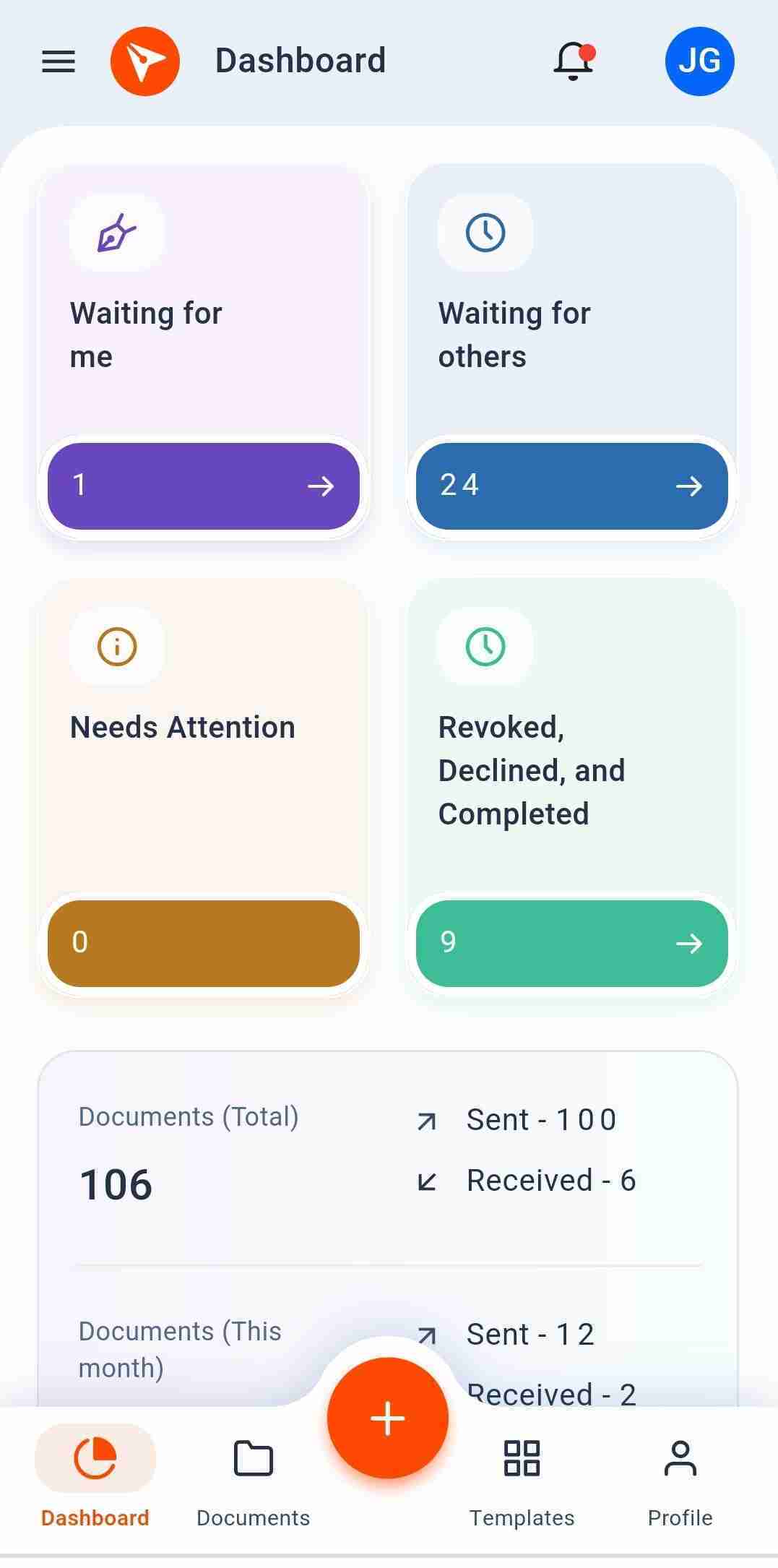
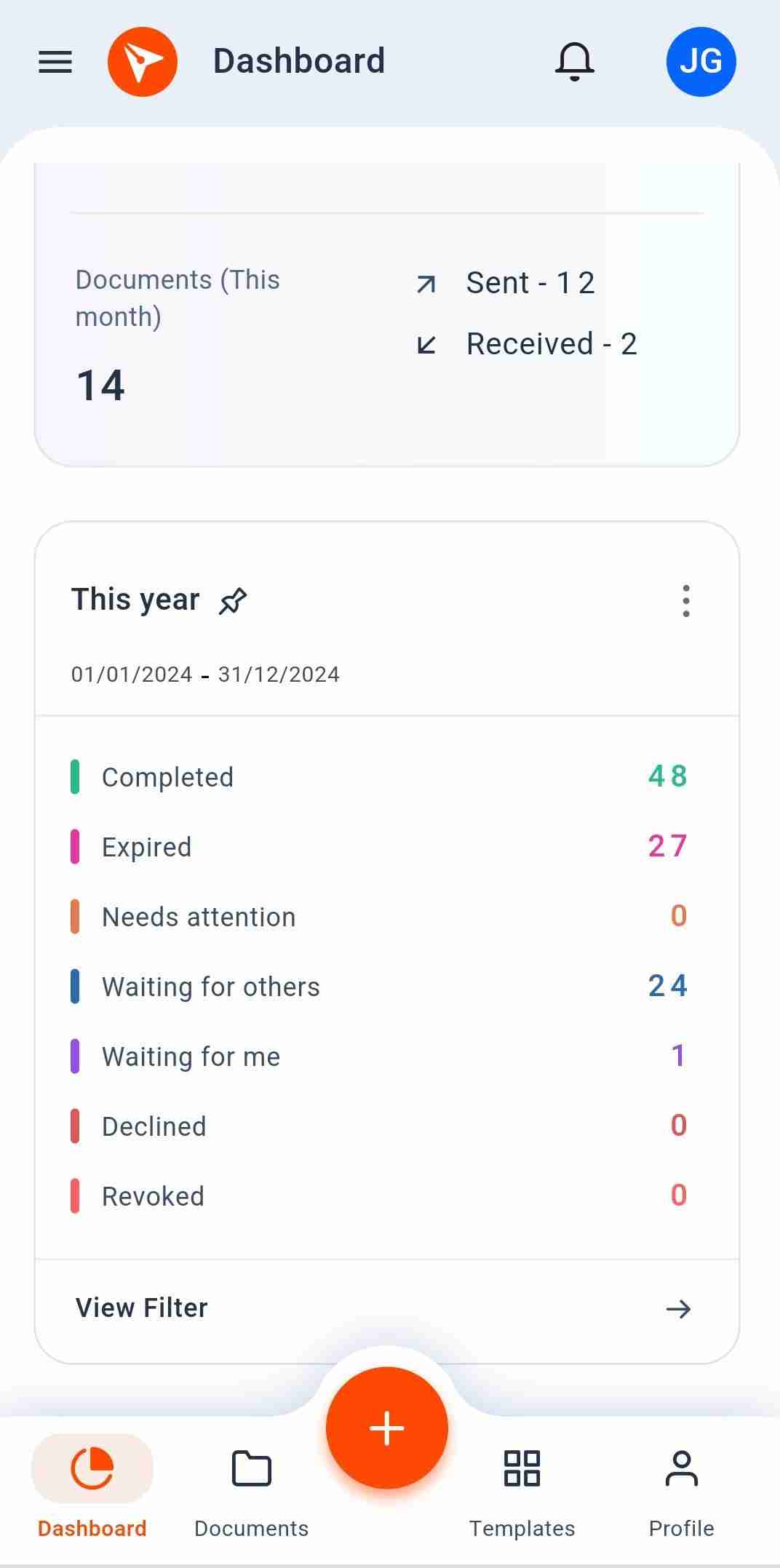
The dashboard shows how many documents you sent this month and in total. It also counts your documents by status, so you see at a glance what needs you.
How do you send faster from your phone?
Start from something you already have instead of a blank page. Templates and clones both skip the set-up you did last time.
Send from a template
Templates you build on the BoldSign web app show up in the mobile app. Pick one, add the real signers and send. Documents you start on one device open on the other in the same state.
Our help article on how to send a document from your phone covers each option in the send flow.
Clone a past document
Cloning makes a new copy of a document you sent before, with a new document ID. Use it for a contract that changes only in the names.
- Tap Documents in the bottom bar.
- Open the document’s menu and choose Clone document.
- Choose With form field values or Without form field values, then tap Clone.
- On the Prepare document screen, change the recipients, files or fields, then send.
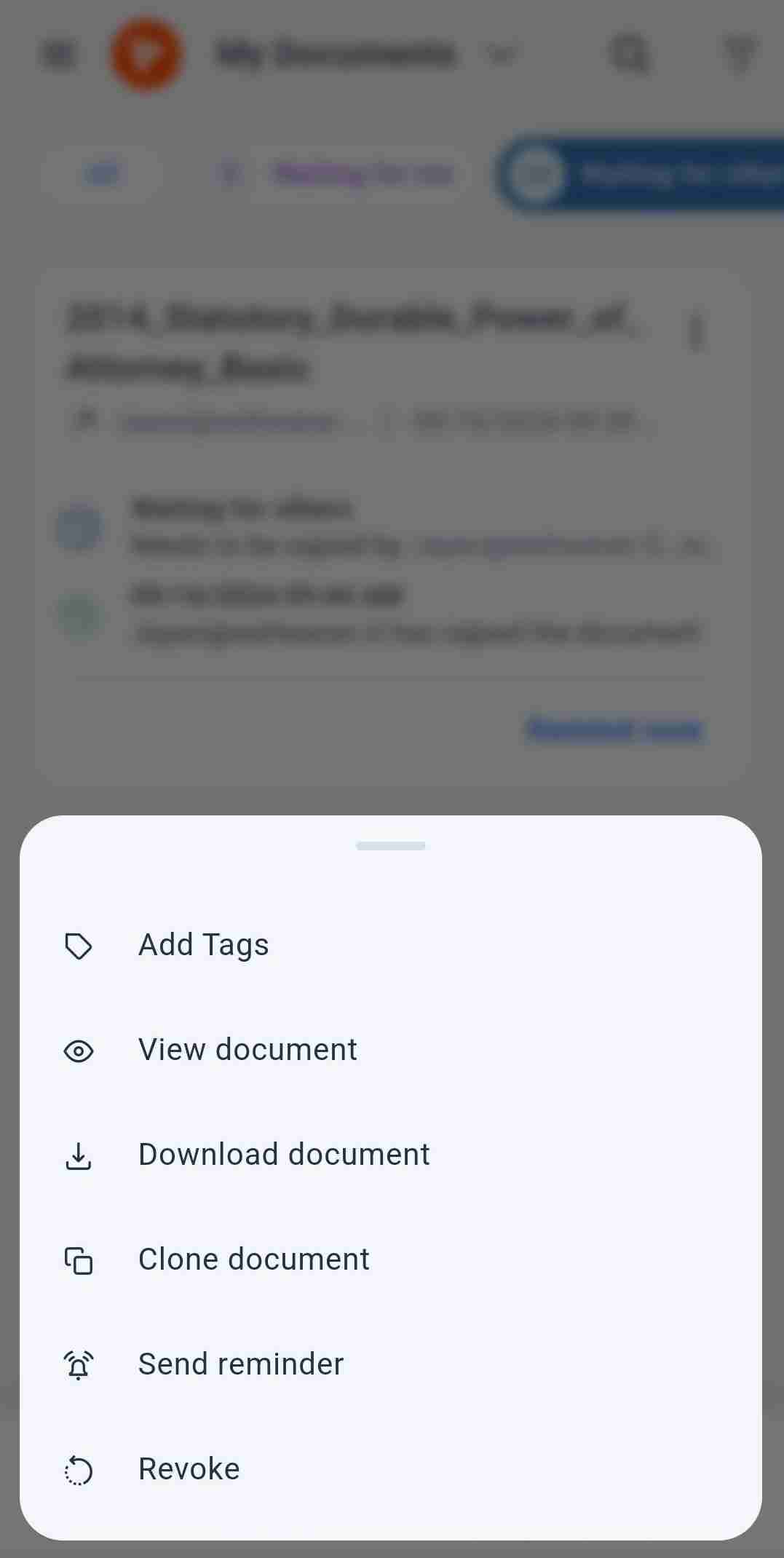
Signature, initial and image values never carry over to the copy. Our article on how to clone a document in the mobile app lists every field that resets.
How do you check a document before you send it?
Preview the document as your signers will see it, then read the summary. Both steps catch a missing field before it costs you a round trip.
- On the Configure Fields screen, place your fields and tap Continue.
- On the Document Actions sheet, choose Preview & Send.
- Check each page, then tap Send in the top-right corner.
- Read the Document Summary sheet and tap Send again.
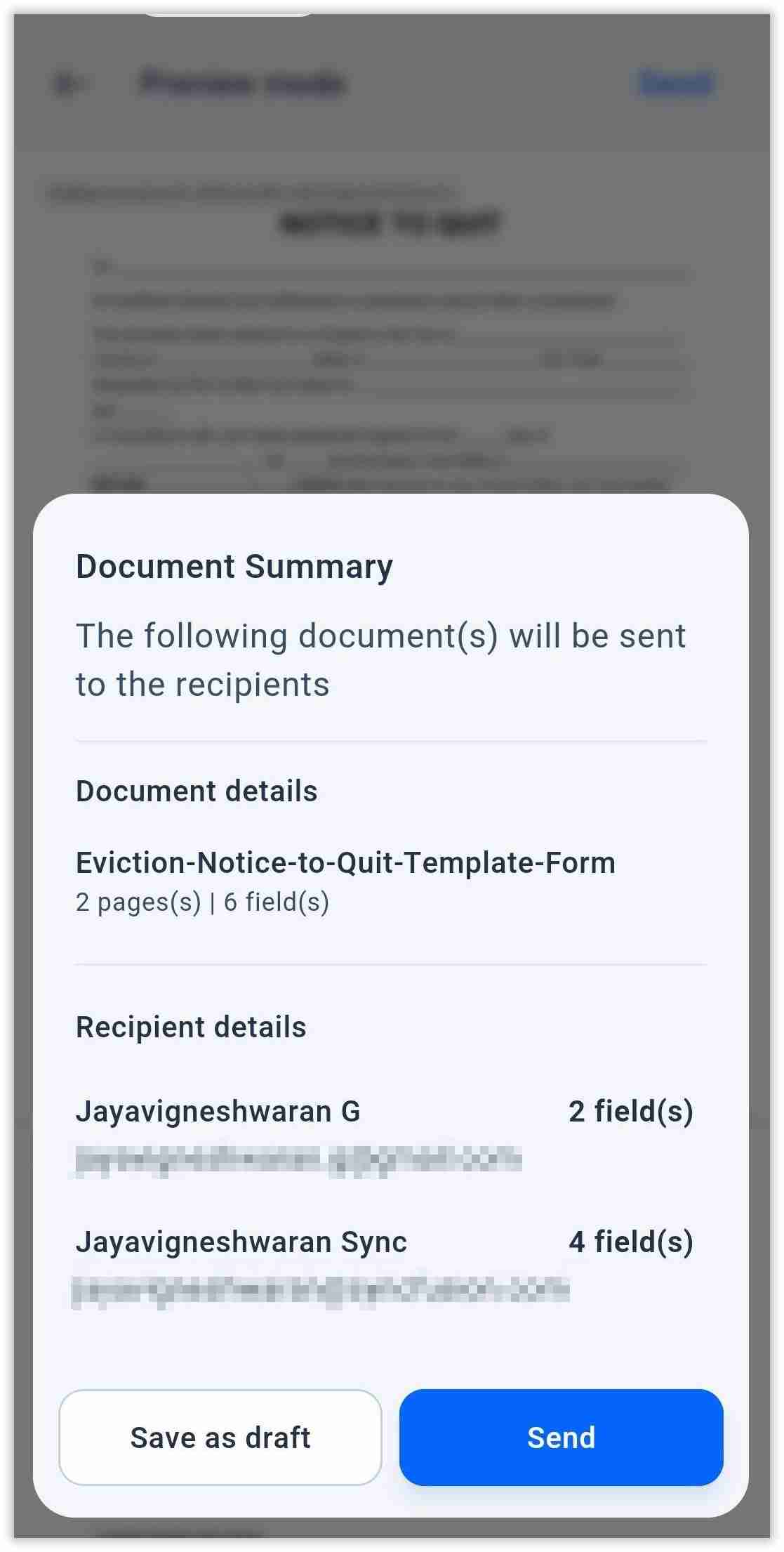
The summary lists the recipients, the number of pages and the number of fields. It also shows how many fields each signer has. A signer with zero fields is a sign that something went wrong.
How do you keep track of every document you send?
Filters and tags sort your documents, and a pinned filter puts the count on your dashboard. You see what is stuck without opening each document.
Filter documents and pin the filter
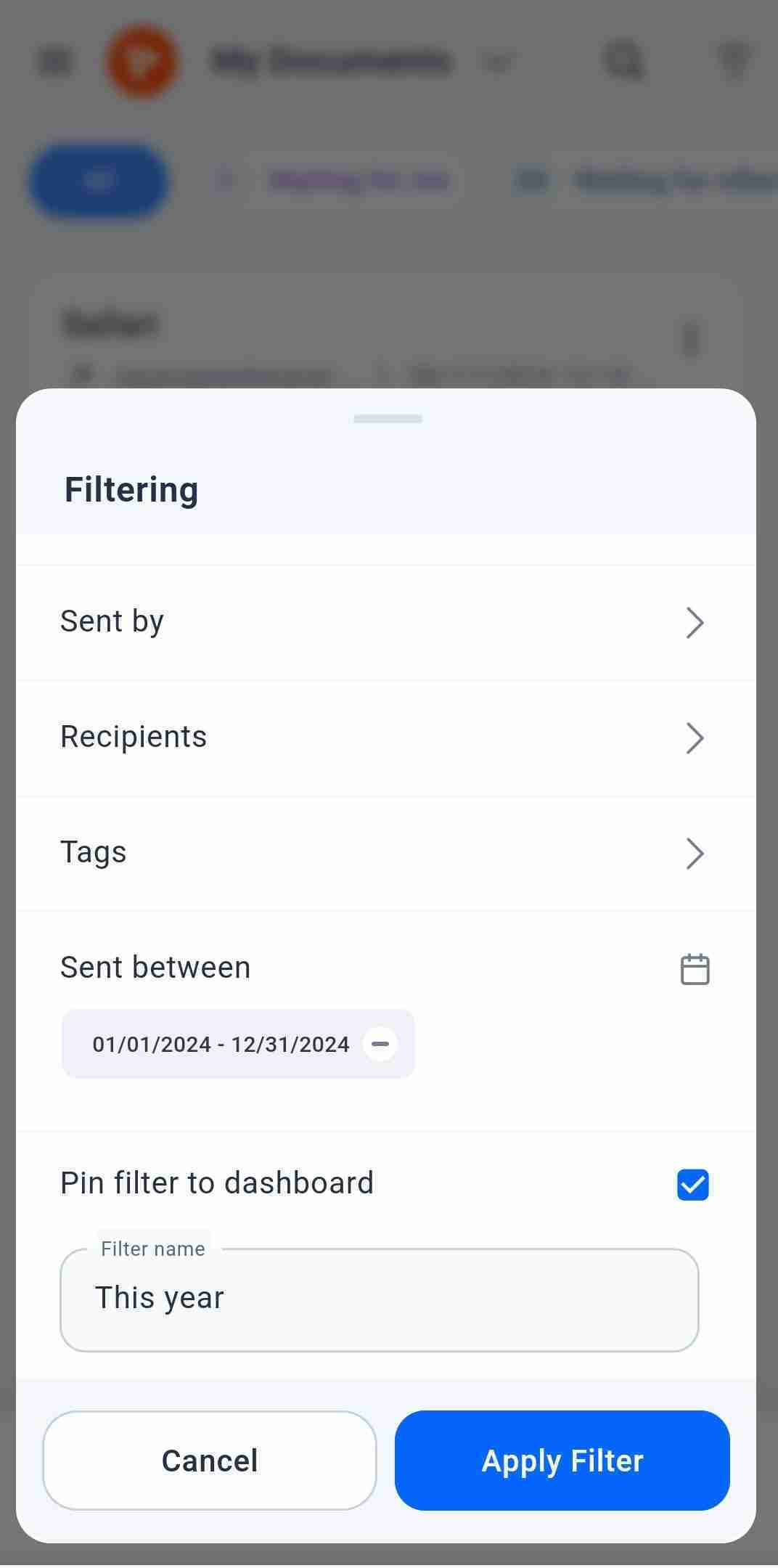
- On the My Documents screen, tap the filter icon next to the search box.
- Choose a status, a sender, a receiver, a tag or a date range.
- Check Pin filter to dashboard and give the filter a name.
- Tap Apply Filter.
Statuses include Waiting for Me, Waiting for Others, Needs Attention, Declined, Completed, Revoked and Expired. Pin one for each group of documents you follow, such as contracts waiting on clients.
Label documents with tags
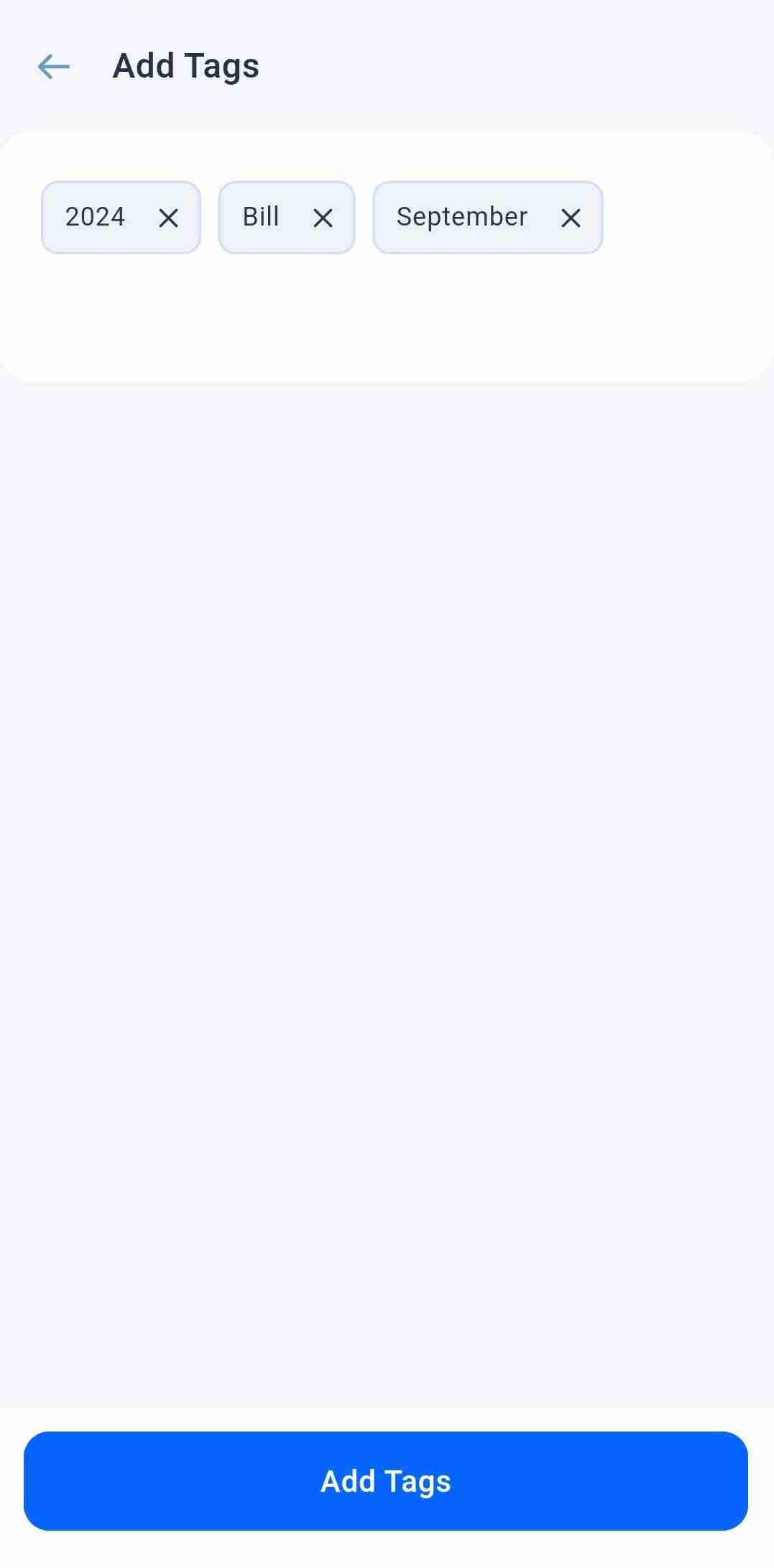
Tags are labels you add to documents, such as a client name or a deal stage. You can add several tags to one document, while you create it or afterwards.
To find tagged documents, tap the filter icon on My Documents, select Tags, choose your tags and tap Apply Filter. Our guide to organizing documents with tags shows more ways to use them.

How do you get signers to finish sooner?
Set reminders when you send, and follow up by hand when a deal is urgent. A signing link reaches signers who missed the email.
Set automatic and manual reminders
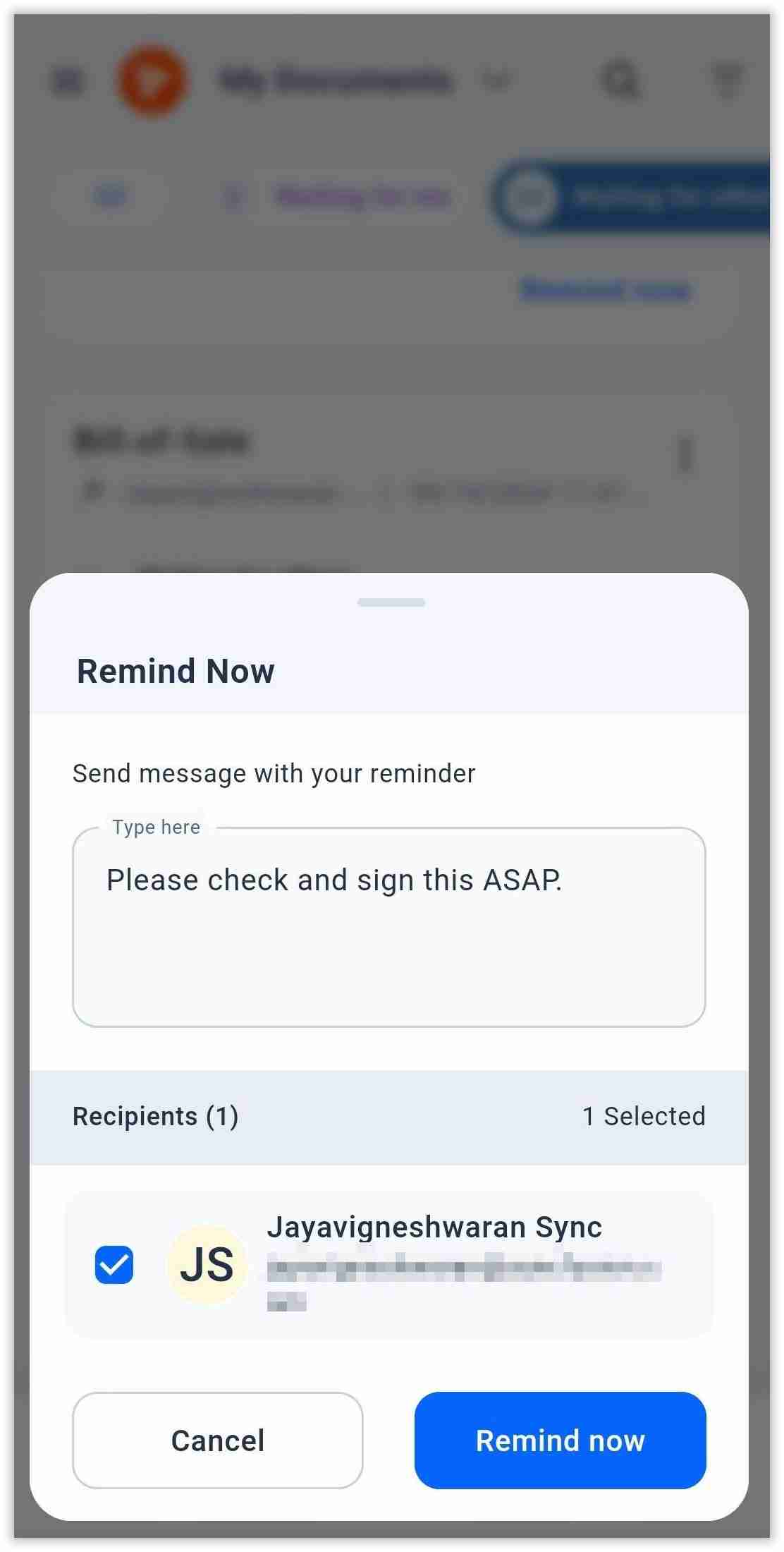
Turn on automatic reminders in Document Settings while you prepare the document. You choose the days between reminders and up to 5 reminders in all, as our auto reminder article explains.
After you send, you can also remind signers by hand from the document. You can send one manual reminder per document each day, and it leaves your automatic schedule as it is.
Share a signing link
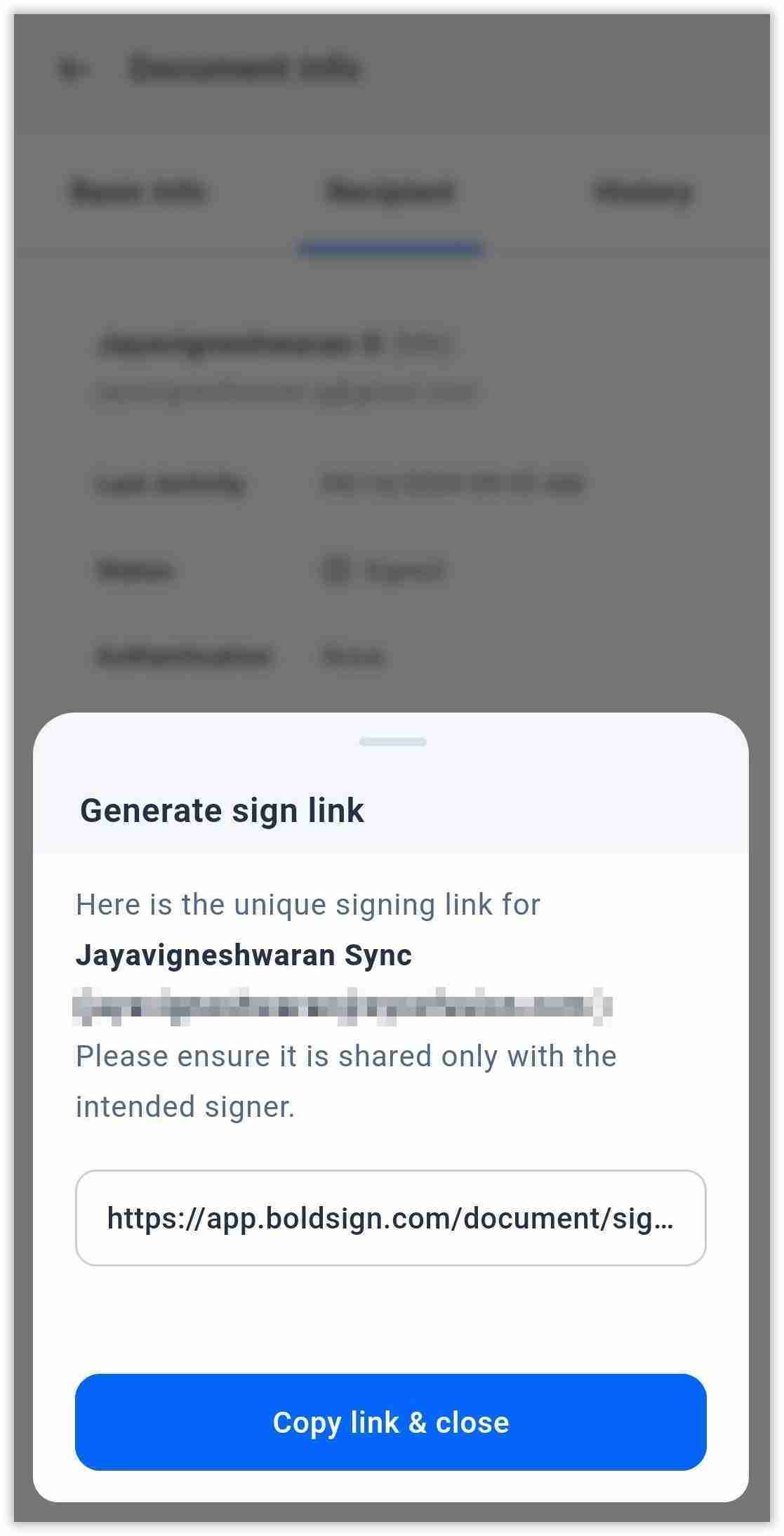
Generate a signing link for a signer while the document is in progress, then send it through your messaging app. The signer opens the document straight from the link.
Open the document’s details and go to the Recipients tab to generate the link. Your account admin must first turn on signing link generation. Our article on how to generate and share a signing link lists the cases where the option is missing.
Watch for status alerts
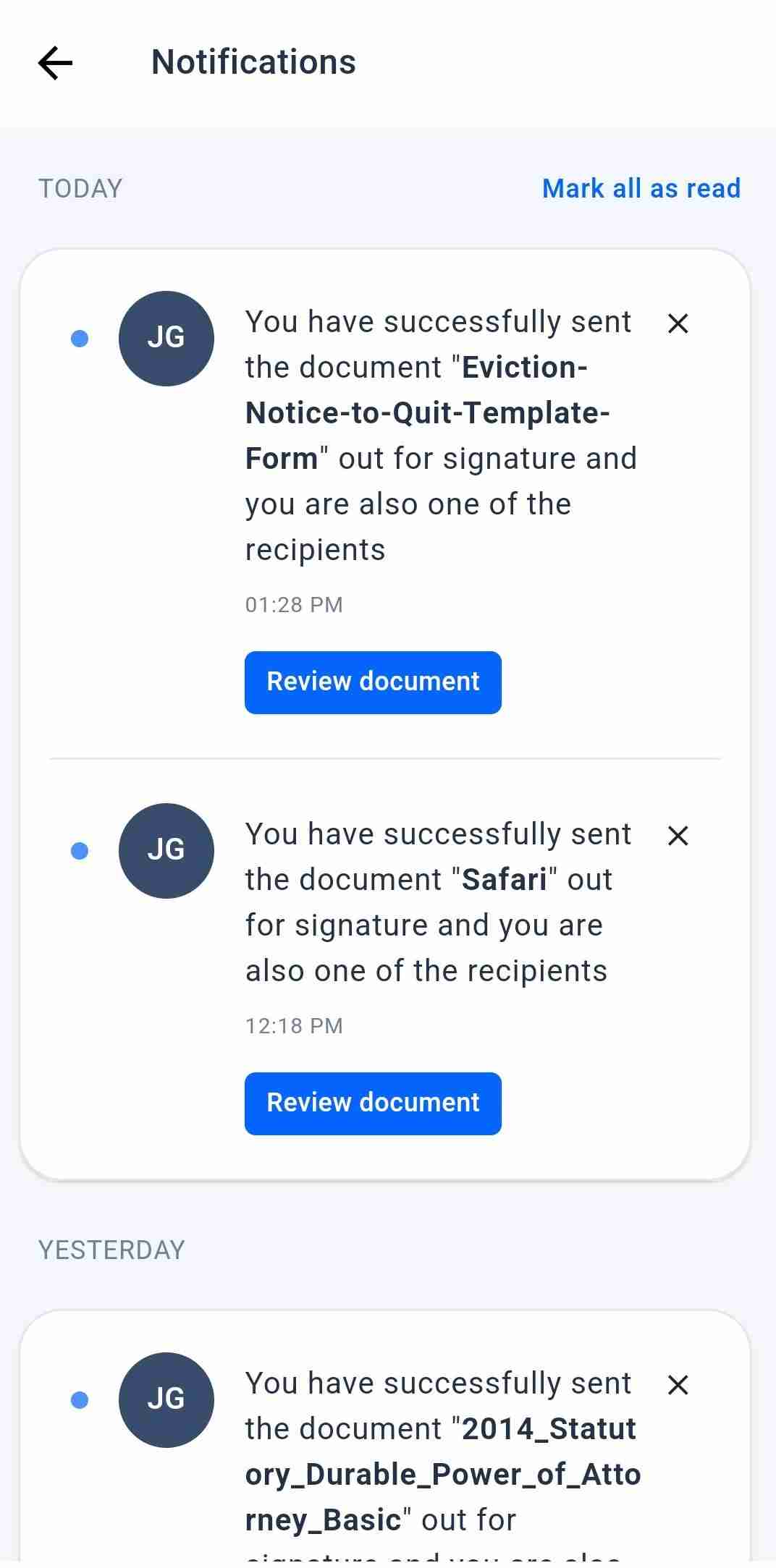
The app tells you when a document is signed, shared with you or waiting on you. You get an alert as the sender, as a recipient or as a CC (carbon copy) recipient.
Choose which actions send an alert under Profile, then Notifications. Our post on push notifications in the mobile app covers the setup.
How do you keep your brand on requests sent from your phone?
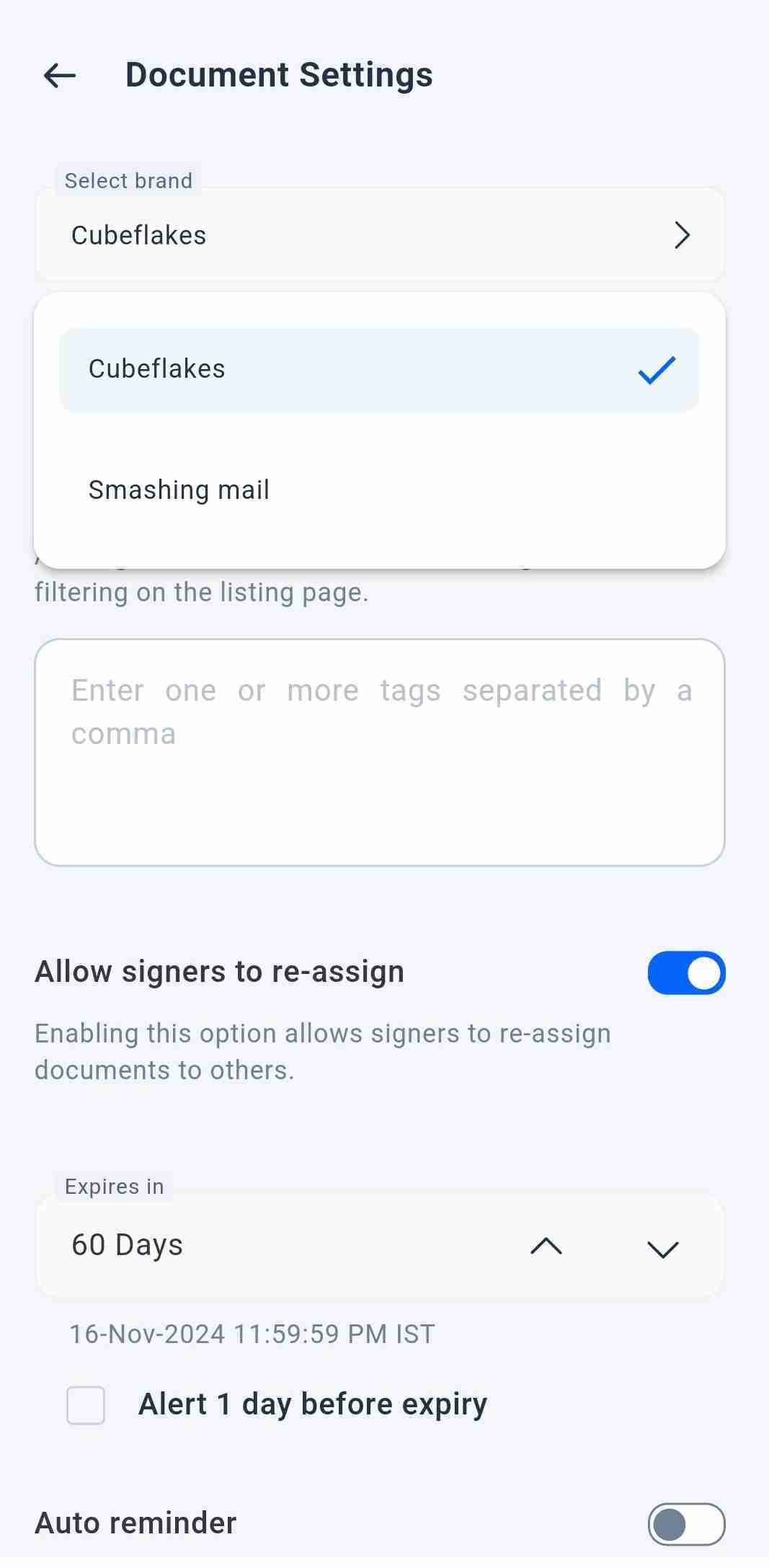
Pick a brand in Document Settings before you send. Your logo and colors then appear in the signing email and on the signing screen.
You create brands in the BoldSign web app, under Settings and then Branding. You can keep several brands but choose one for each document. Our guide to personalizing requests with your brand shows each setting.
How do you save your own signature for later?
Save a default signature and initials once, and the app fills them in each time you sign. That helps when you countersign many documents a week.
- Go to the Profile screen and select Signature Settings.
- Tap your saved signature or initials.
- Draw a new one, pick a typed style or upload an image.
- Tap Save.
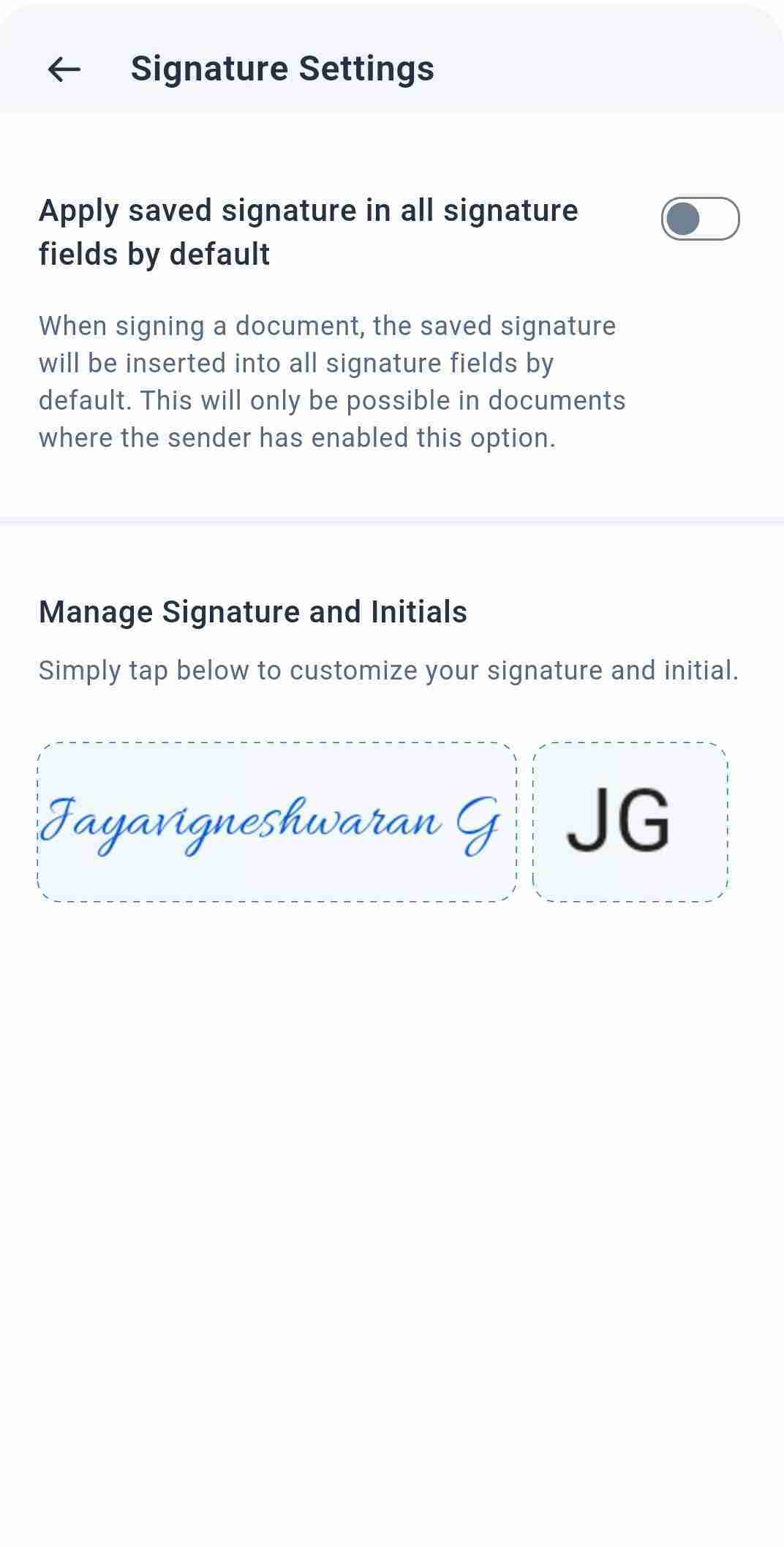
Double tap a signature field to sign one document with something other than your default. The app then opens the full signature picker.
How do you lock the app when you share your phone?
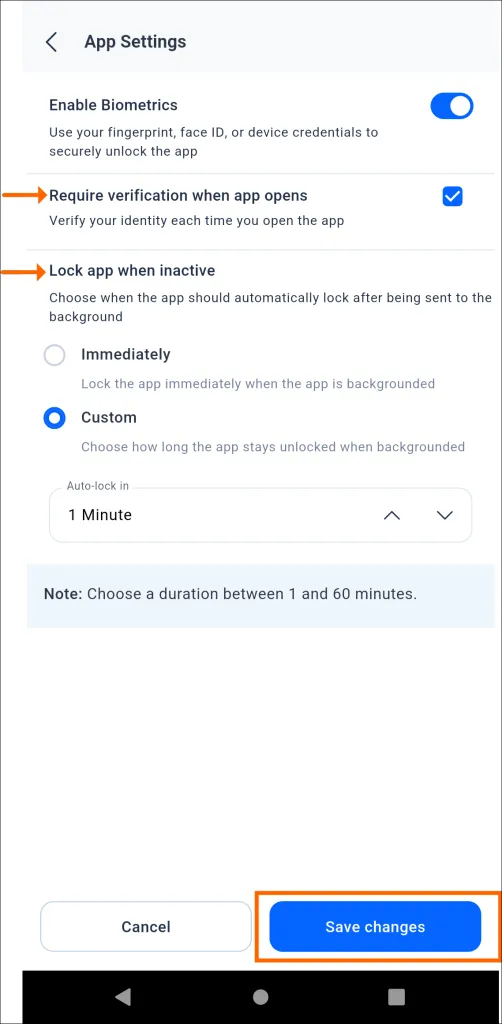
Turn on biometrics so the app asks for your face, fingerprint or device passcode before it opens. Your documents stay private when someone else picks up your phone.
Find the setting under Profile, then App Settings. Lock the app as soon as it goes to the background, or after a delay of 1 to 60 minutes. You can also ask the app to check it is you every time it opens.
Which BoldSign plan do you need to send from the app?
The app is free and comes with every plan, so you pay only for the plan you choose. Limits below come from the BoldSign pricing page in November 2026.
Our free Essential plan includes 25 envelopes a month, 2 templates and one brand. Automatic and manual reminders come with every plan. The Growth plan costs $5 per user a month, billed yearly, and adds 10 templates and 2 brands.
The Business plan costs $15 per user a month, billed yearly, with unlimited templates and brands. The Premium plan costs $99 a month for unlimited users. Prices are in USD, and you can start with a 30-day free trial.
What should you try first in the app?
Send one real document from your phone this week and use a template or a clone to do it. Then pick the next step that fits.
- Start a 30-day free trial and send your first request from your phone.
- Book a demo to see the mobile send flow set up for your team.
- Email support@boldsign.com with a question or feedback about the app.
Frequently asked questions
Can I send a document for signature from the BoldSign app?
Yes. Upload a file or start from a template, add your signers, place the fields and send. The whole flow starts from the + button on the dashboard.
Can I use my web app templates in the BoldSign mobile app?
Yes. Templates you create on the web appear in the app, so you can send from them on your phone. Documents also stay in step between the two.
How do I duplicate a document in the BoldSign app?
Open the document's menu on the Documents screen and choose Clone document. You can keep the original field values or start with empty fields.
How many manual reminders can I send to a signer?
You can send one manual reminder per document each day. It runs alongside any automatic reminders you set and does not change them.
Can I create a new brand in the mobile app?
No, you create brands in the BoldSign web app. Once a brand exists, you can pick it from Document Settings when you prepare a document on your phone.
What can I do when a signer misses the signing email?
Generate a signing link from the document's recipient details and send it through any messaging app. Your account admin must turn the option on first.
Are documents sent from the BoldSign app legally binding?
Yes, when they meet the same rules as any electronic signature, such as the signer's consent. A request sent from the app follows the same signing process and audit trail as one sent from the web.
Does the BoldSign mobile app cost extra?
No. The app is a free download and comes with every BoldSign plan, including our free plan. Your plan sets your monthly envelopes, templates and brands.

Jayavigneshwaran
Product Manager at BoldSign with a strong foundation in web and mobile development. Started as a web developer working with React, Angular, TypeScript, and Blazor, then moved into mobile development with Flutter and Dart. Now leading the BoldSign mobile app and support experience, combining technical depth with product strategy to deliver reliable releases and great customer outcomes. Connect with him on LinkedIn.
More posts by Jayavigneshwaran