How to Scan and Upload Documents in the BoldSign Mobile App
 Jayavigneshwaran
TL;DR: The BoldSign mobile app takes files from your phone, a cloud drive or the camera scanner. You can also share a file to it from another app. After upload, you can rename, reorder, replace or delete each file before you send. Our eSignature mobile app page lists what else the app does.
A client hands you a signed-off quote on paper. Or the contract you need sits in Google Drive, and you are nowhere near a laptop. You can get either one into a signing request from your phone in a minute.
This guide covers each way to upload a file in the BoldSign app, then how to tidy the files before you send. Get the app free from the App Store or Google Play.
Which file types can you upload, and how large can they be?
The app takes PDF, Word, Excel, PowerPoint and image files. One signature request can hold up to 25 files.
- PDF, Word, Excel and PowerPoint files, plus image files.
- Up to 25 files in one signature request.
- Up to 25 megabytes (MB) and 1,000 pages per file.
Remove any password from a file before you upload it. The app cannot open password-protected files.
How do you upload documents in the BoldSign mobile app?
Every upload starts from Create New Document. The next screen offers Upload documents and Scan documents.
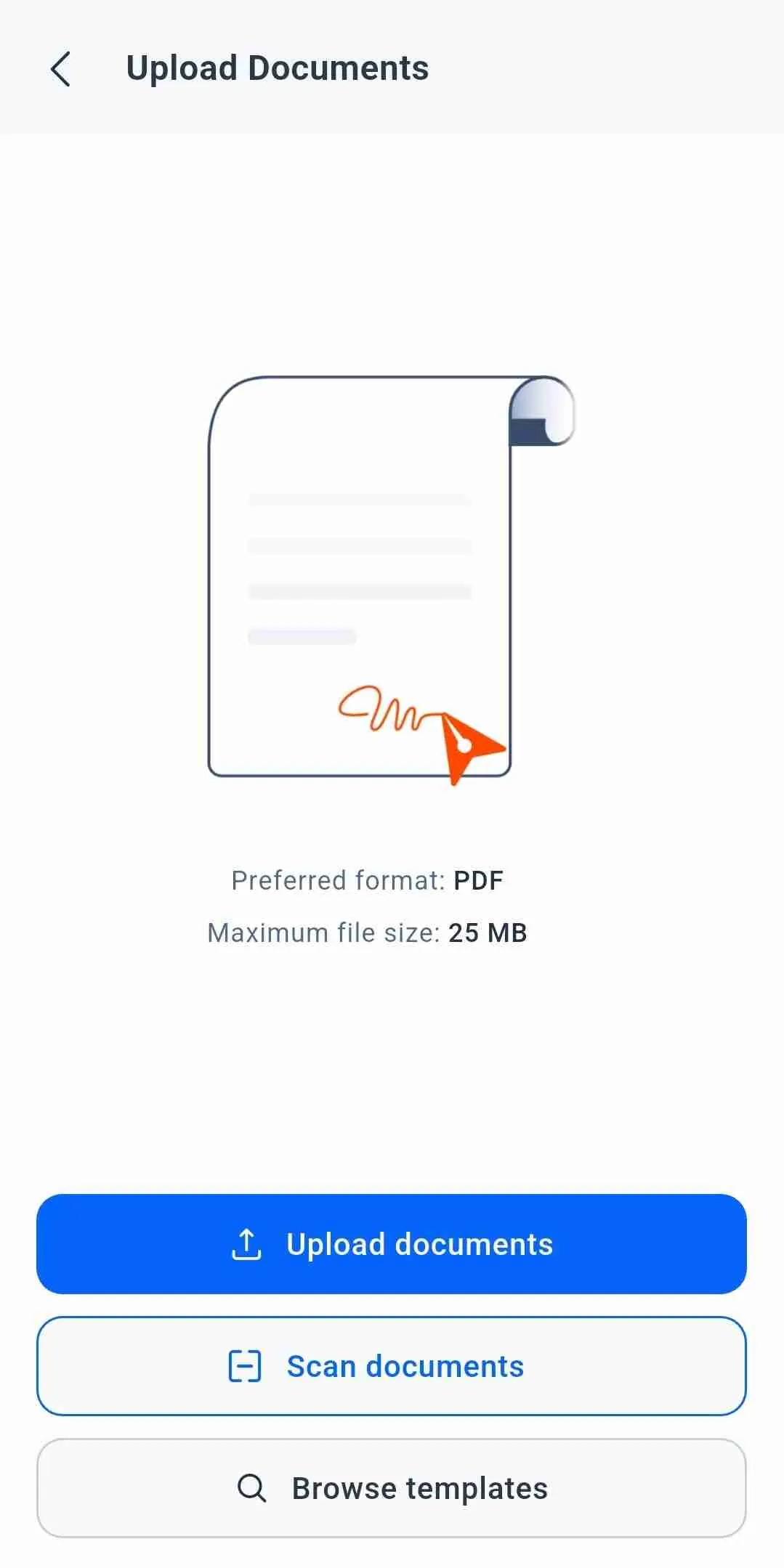
The steps below match our help article on how to send a document for signature on your mobile device. New to the app? Our step-by-step guide to the BoldSign mobile app covers logging in, signing and sending.
Upload a file from your phone
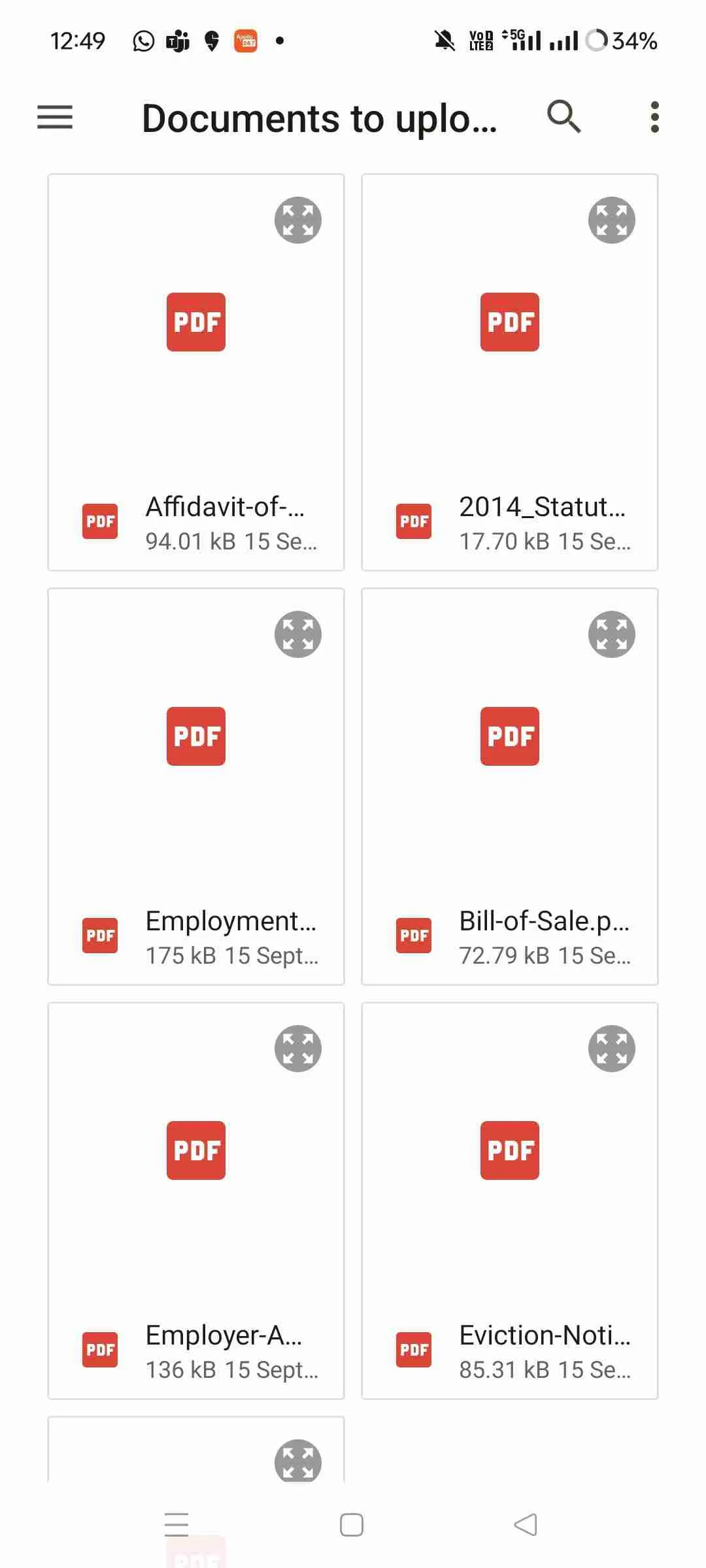
Pick the file straight from your phone’s storage. You can select several files at once.
- Tap Create New Document on the dashboard.
- Tap Upload documents to open your phone’s file browser.
- Find the file you want and tap it to upload.
Upload a file from Google Drive, OneDrive or Dropbox
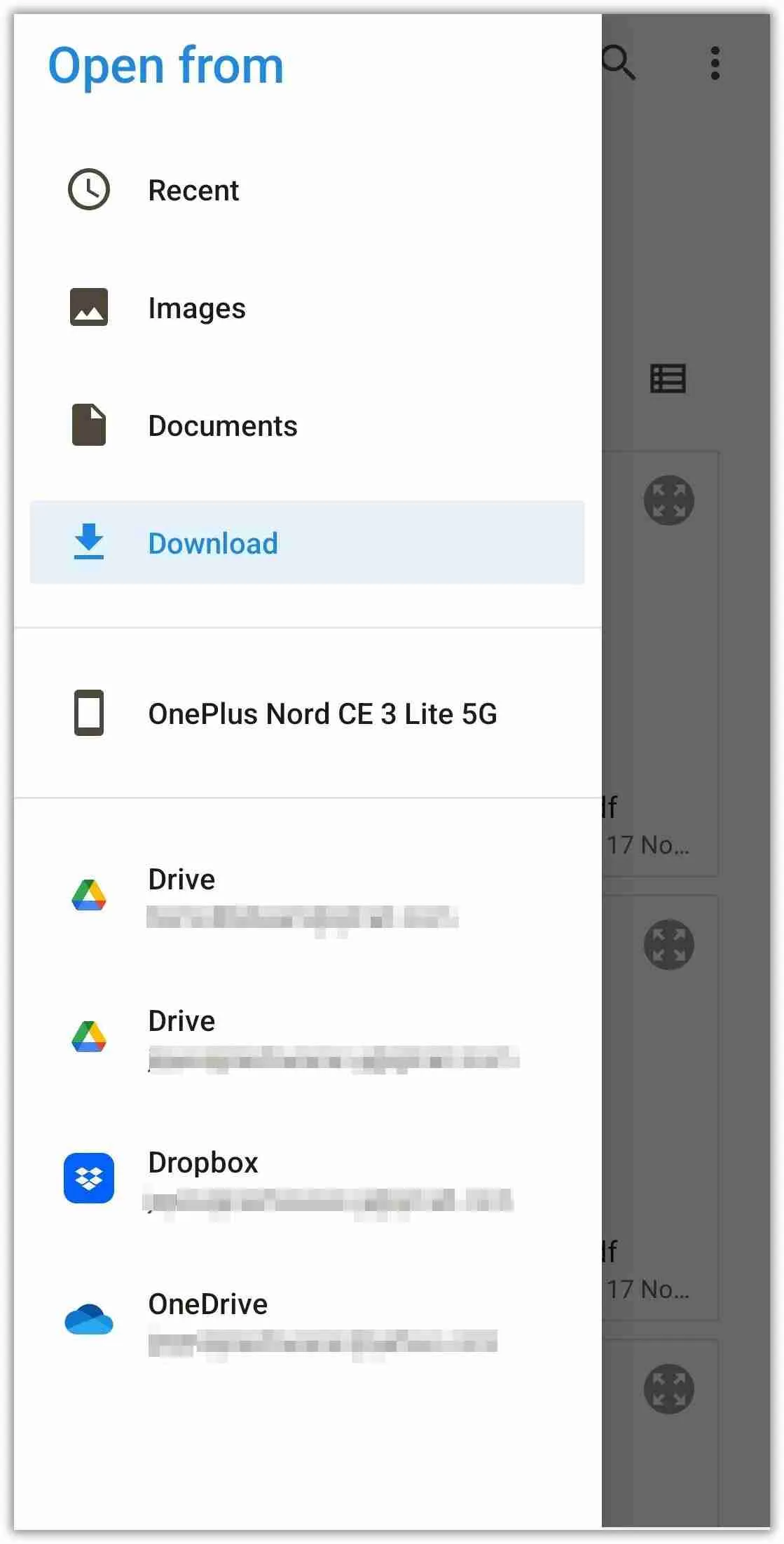
The phone’s file browser can also reach your cloud drives. Install the drive’s app and sign in to it first.
- Tap Create New Document, then Upload documents.
- In the file browser, tap the menu button (☰) in the top-left corner.
- Tap Google Drive, OneDrive or Dropbox and choose your files.
How do you scan a paper document with the BoldSign app?
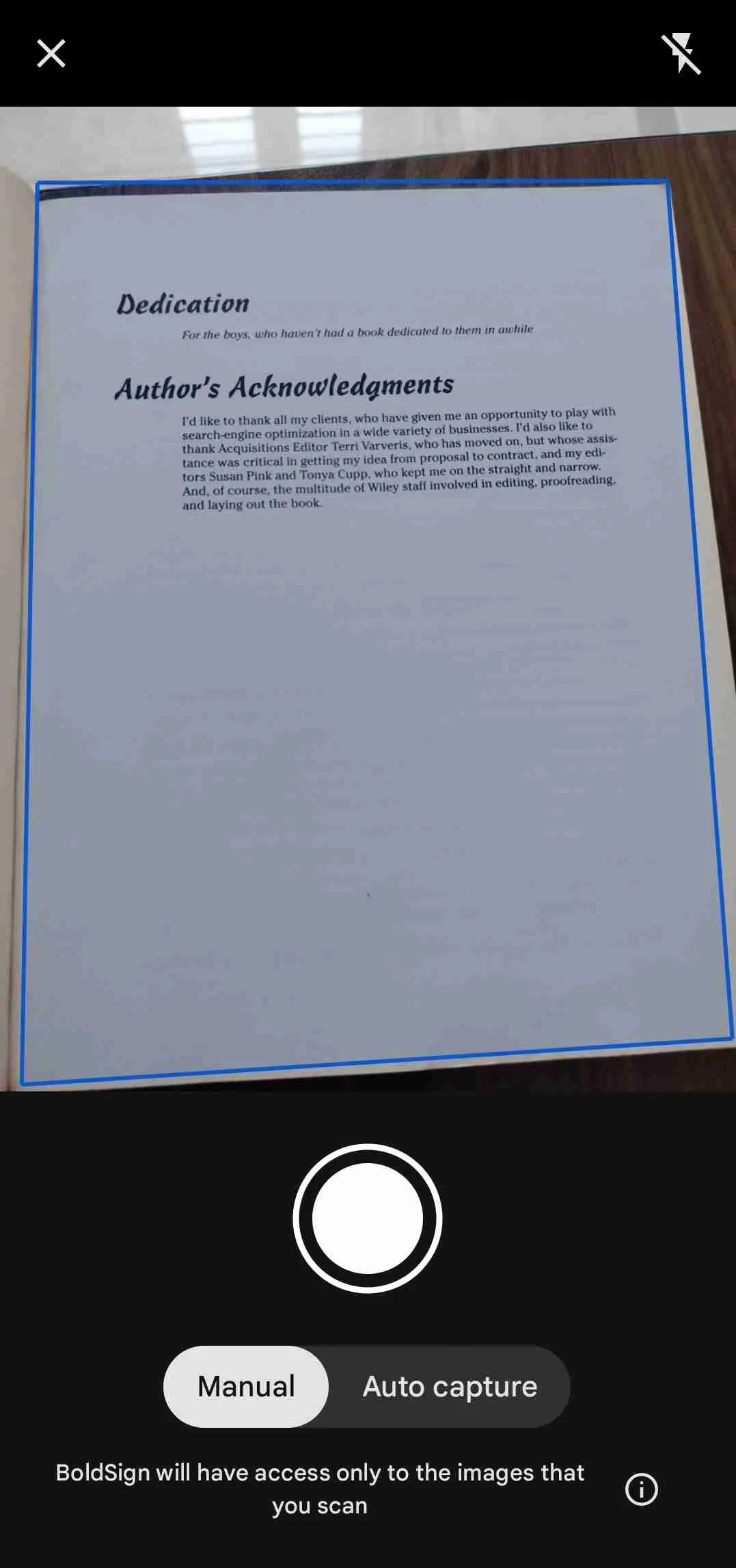
Tap Scan documents and point your camera at the page. The app turns your pages into one document, ready to send for signature.
- Tap Create New Document, then Scan documents.
- Allow BoldSign to take pictures when your phone asks.
- Choose Manual Capture and tap the shutter, or let Auto Capture find the page.
- Scan more pages to add them to the same document.
You can fix each page before you upload it:
- Crop or rotate the page.
- Apply a filter or clean up marks.
- Retake a blurry shot.
Need to scan a page you only want to keep, not sign? Our free BoldSign Document Scanner app saves scans on your phone.
How do you share a file to BoldSign from another app?
Open the file in a file manager such as Google Files and tap Share. Choose BoldSign, and the app opens with the file already uploaded.
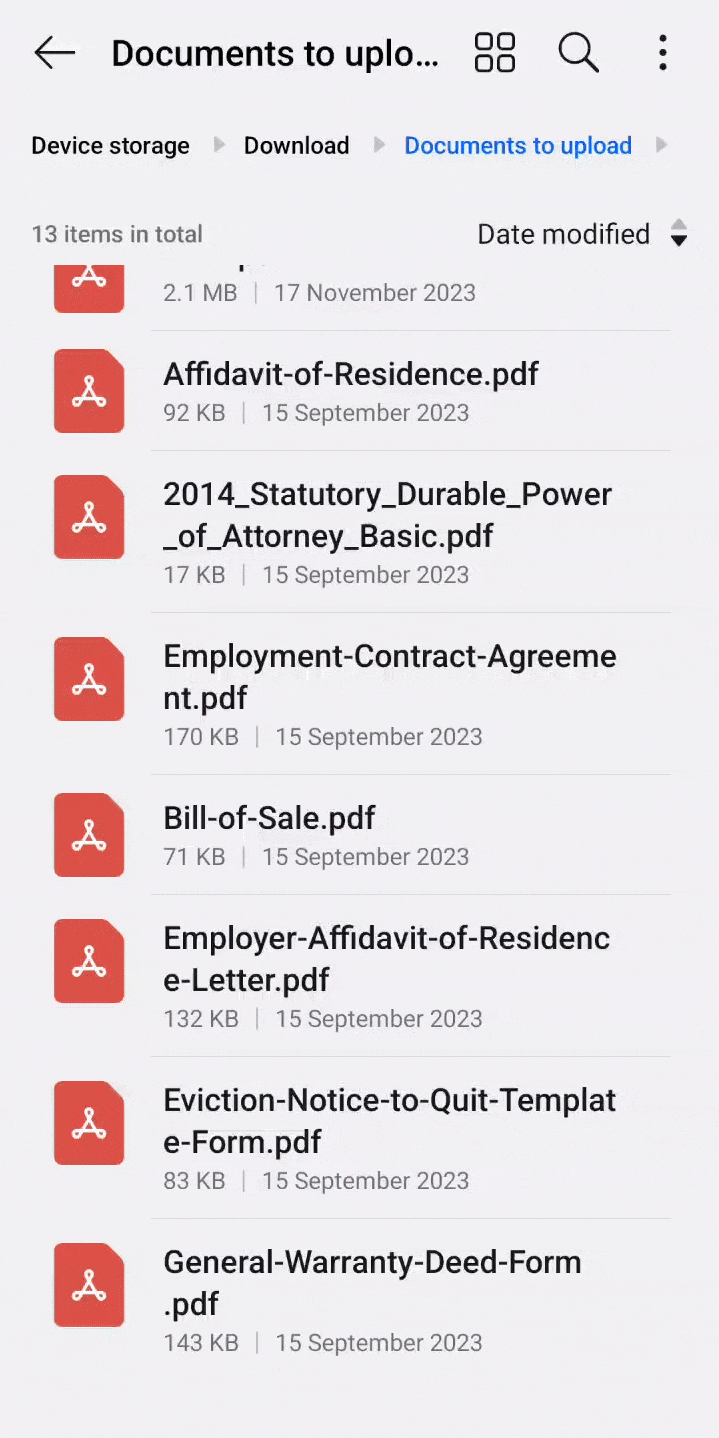
Sharing works on both Android and iOS once the BoldSign app is on your phone. You can also start from a saved template instead of a new file.
How do you rename, reorder, replace or delete an uploaded file?
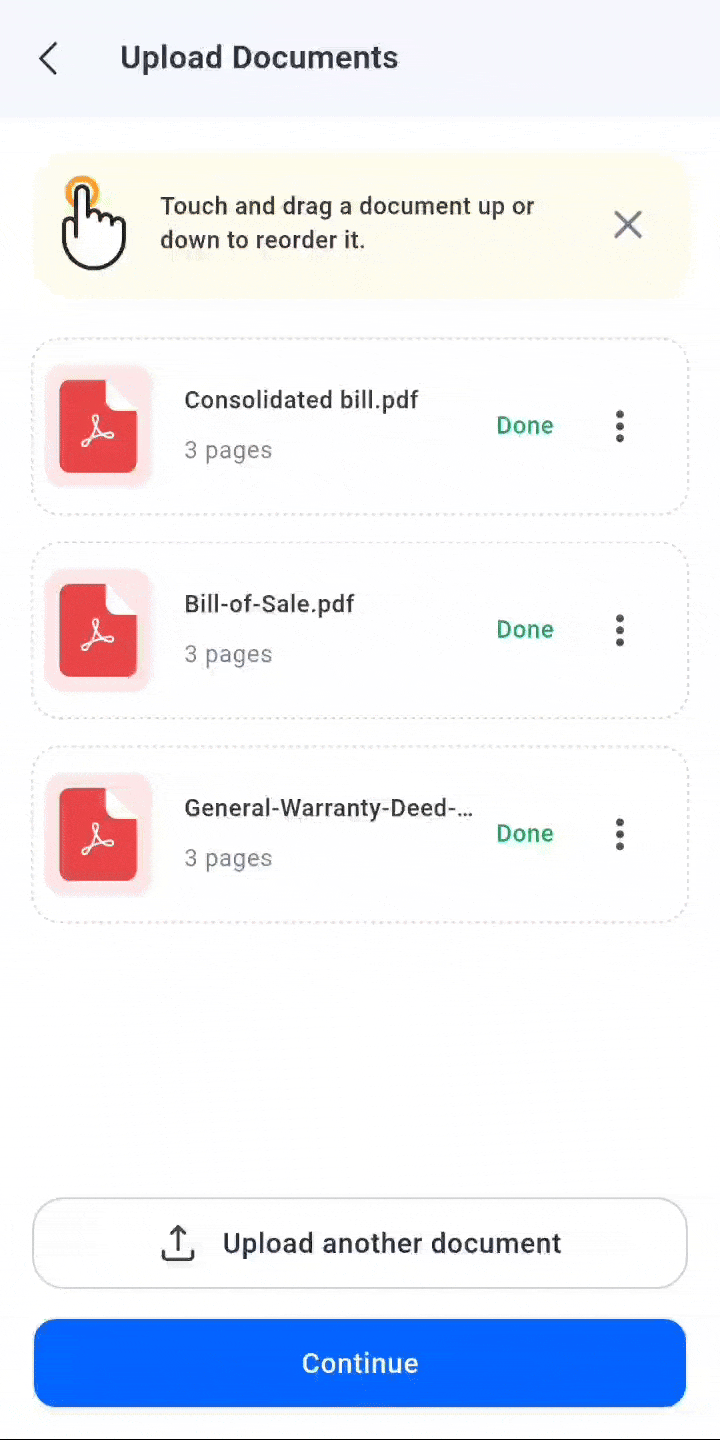
Each uploaded file has a menu behind its three dots (⋮). Use it to rename, replace or delete the file, or drag the file to reorder it.
Rename a file
- Tap the three dots (⋮) next to the file.
- Tap Rename.
- Enter the new name and tap Update.
The new name stays with the file when you download the signed files one by one. A combined download uses the document title instead.
Reorder your files
Press and hold a file, then drag it up or down. Lift your finger, and the file stays in its new place.
Replace a file
Uploaded the wrong file? Swap it without starting over.
- Tap the three dots (⋮) next to the file.
- Tap Replace.
- Choose to upload or scan the new file.
Delete a file
- Tap the three dots (⋮) next to the file.
- Tap Delete.
- Tap Yes to confirm.
What happens when you upload a PDF with fillable fields?
The app finds the fillable fields in the PDF and asks whether to add them. Say yes, and each field lands in its exact spot.
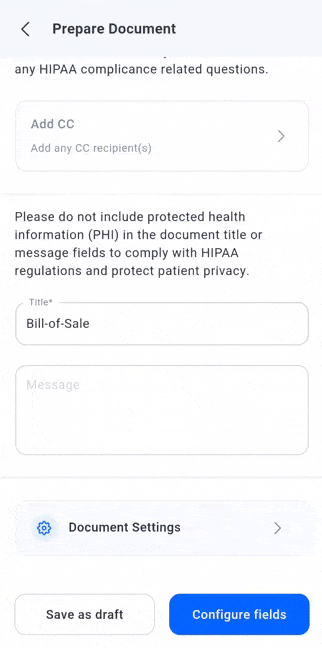
The app picks up signature, text box, checkbox, radio button and dropdown fields. You save the time of placing each one by hand.
Which BoldSign plan do you need to upload files on mobile?
The iOS and Android apps come with every BoldSign plan, so uploading and scanning cost nothing extra. Your plan sets how many templates you can save, as listed on the BoldSign pricing page in November 2026.
Our free Essential plan includes 2 templates. The Growth plan costs $5 per user a month and includes 10 templates.
The Business plan costs $15 per user a month, and the Premium plan costs $99 a month for unlimited users. Both include unlimited templates. Prices are in USD and billed yearly.
Where do you go after your first upload?
Once your files are in, the next step is adding recipients and fields. Pick what fits.
- Start a 30-day free trial and send a scanned document from your phone.
- Book a demo to see the mobile app with your own documents.
- Visit our support portal or email support@boldsign.com with a question about uploads.
Frequently asked questions
What file types can I upload in the BoldSign mobile app?
You can upload PDF, Word, Excel and PowerPoint files, plus photos and other image files. PDF gives the most predictable layout once fields are placed.
How many files can I add to one signature request?
You can add up to 25 files to one request. Each file can be up to 25 megabytes (MB) and hold up to 1,000 pages.
Can I scan a paper document with my phone and send it to sign?
Yes. Tap Scan documents, capture each page with the camera, and the app turns the pages into one document you can send for signature.
Is there a bold scanner app just for scanning without signing?
Yes. BoldSign Document Scanner is a separate free app that scans pages and saves them on your phone as PDF or image files. Use the BoldSign app when the scan needs a signature.
Can I upload a file from Google Drive on my phone?
Yes, when the Google Drive app is installed and you are signed in to it. Open the file browser from Upload documents, open its side menu and pick Google Drive.
Can I upload a password-protected PDF?
No. Remove the password from the file first, then upload it again.
Does a renamed file keep its new name when I download it?
Yes, when you download the files one by one. A combined download uses the document title as the file name instead.
Is a scanned document signed in the app legally binding?
Yes, when the signature meets the same rules as any other electronic signature, such as the signer's consent. The scan goes through the same signing process and audit trail as any upload.

Jayavigneshwaran
Product Manager at BoldSign with a strong foundation in web and mobile development. Started as a web developer working with React, Angular, TypeScript, and Blazor, then moved into mobile development with Flutter and Dart. Now leading the BoldSign mobile app and support experience, combining technical depth with product strategy to deliver reliable releases and great customer outcomes. Connect with him on LinkedIn.
More posts by Jayavigneshwaran