How Signature Frame Settings Improve the Signing Experience
 Stephen Otieno Okoth
TL;DR: A signature frame is a border around each signature that shows the signer’s name, email address and signing time. Signature frame settings let you pick those details, so anyone who opens the signed copy can read them at a glance. In BoldSign, you set up the frame inside a brand on our branding page.
A signed contract lands in a shared folder months after the deal closed. Someone from finance opens it and asks a simple question: “Who signed this, and when?”
The answer sits in the audit trail, but that is a separate file. A signature frame puts the short answer right next to the signature, inside the document.
What is a signature frame?
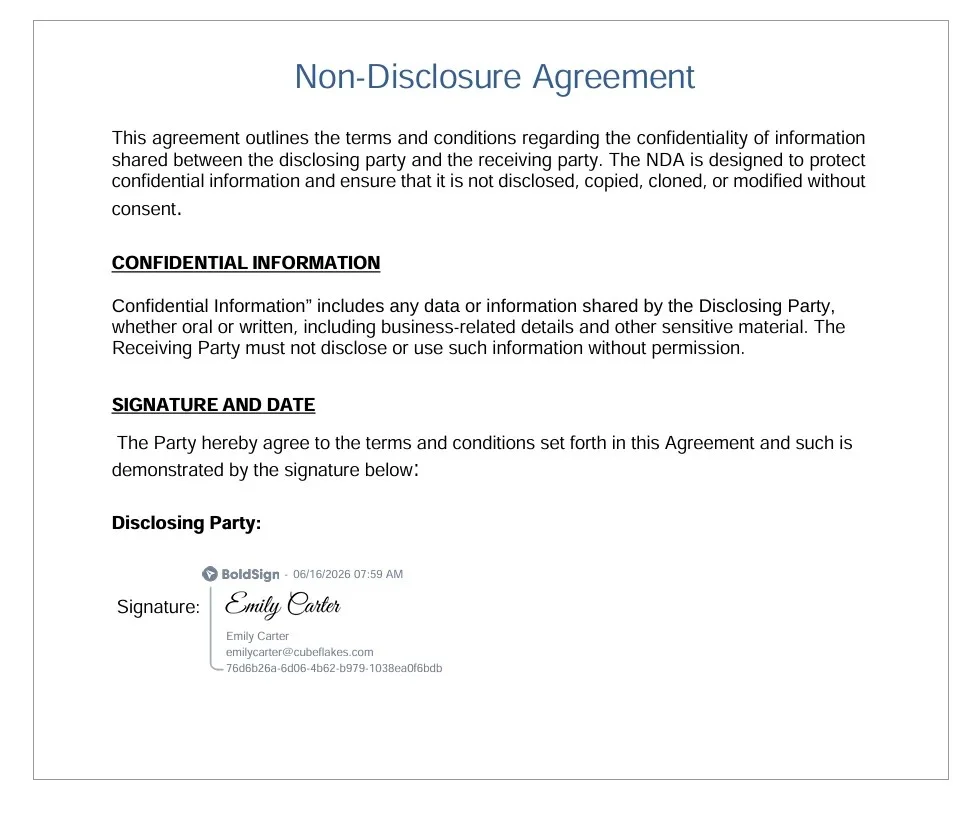
A signature frame is a visible border around a signature field. Inside it, the platform prints a few facts about the person who signed.
Think of the name badge a guest gets at a front desk. The badge does not prove who the guest is, but anyone in the hall can tell at a glance. A signature frame does the same for a signature on a page.
In BoldSign, a frame can show these details:
- The signer’s name
- The signer’s email address
- The time signing was completed
- A unique signature ID, with the BoldSign name
How do signature frame settings improve the signing experience?
Signature frame settings decide which signer details sit next to each signature. Good settings make the signed copy easy to read for the signer and for everyone who reviews it later.
Signers see what their signature will look like
The frame shows up on the signing page, around each field the signer fills in. Signers know before they finish that their name and email will appear beside their mark.
That small preview builds trust. People are more at ease signing when nothing about the final copy is a surprise.
Reviewers stop hunting for basic facts
Once a document is signed, it gets passed around. Teams download it, attach it to email and file it in other systems.
A reviewer who sees the name, email and time next to the signature can move on. Only an unusual question needs a trip to the audit trail.
Documents with several signers are easier to follow
A lease may have two tenants and a landlord. A vendor contract may need someone from each side.
With a frame on every field, each signature carries its own name and email. Reviewers can match each signature to a person without guessing.
The signed copy looks consistent
Frames give every signature the same neat layout. Customers, staff and partners all see a tidy, uniform signature area.
The finished document then matches the rest of your brand, as long as your emails and signing pages use your logo and colors too.
How do you add a signature frame in BoldSign?
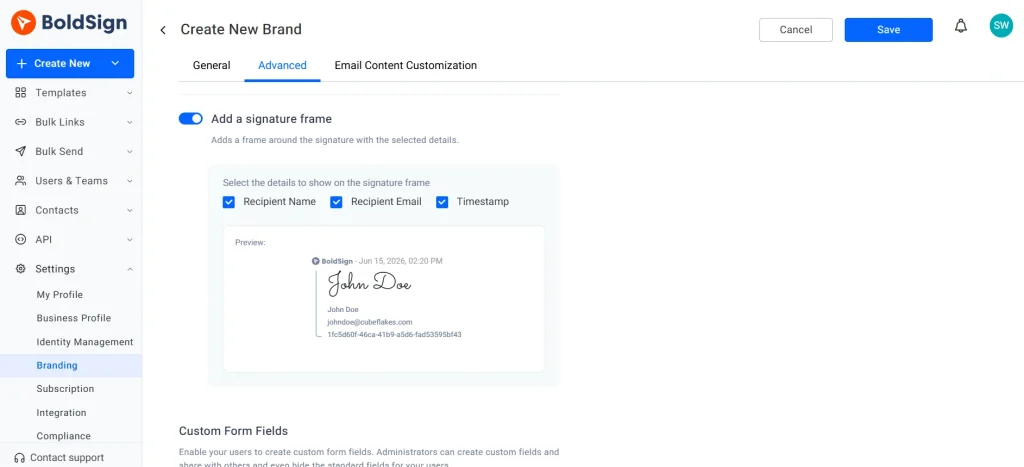
You add the frame to a brand, and every document sent with that brand uses it. Our help article on how to send a document with your brand signature frame covers each option.
Turn on the frame in a brand
- In the left menu, go to Settings and select Branding.
- Select Create New Brand, then enter a Brand Name and upload your logo.
- In Advanced options, switch on Add a signature frame. It is off by default.
- Choose whether to show the recipient name, recipient email and timestamp.
- Select Save.
Send a document with that brand
- Select Create New, then Create New Document.
- Fill in the document details and scroll to Document Settings.
- Under Select Brand, pick the brand that has the frame.
- Place the signature fields and send. The frame applies to every signature field assigned to a recipient.
You will see the frame on the Configure fields page, on the signing page and in the completed document.
Set up the frame through the API
Developers can create a brand with the frame already on. The create brand reference lists a SignatureFrameSettings object for this.
Set EnableSignatureFrame to true, then use ShowRecipientName, ShowRecipientEmail and ShowTimeStamp to pick the details. The three show settings are ignored when the frame is off.
What should you watch out for with signature frames?
A frame is simple to switch on, but a few details catch people out. Check these before you send your first framed document.
- The timestamp appears only after signing is complete, in the viewed or downloaded copy.
- A settings change does not touch existing documents, templates or bulk links.
- Documents with qualified electronic signature (QES) turned on do not get a frame.
- Download one signed test copy and check that every detail is easy to read.
Keep the frame to the details your reviewers use. A frame with only a name and time can be easier to read on a crowded form.
For the full record of each step, read our guide to the e-signature audit trail.
Which BoldSign plan do you need for signature frames, and what does it cost?
The frame is a setting inside a brand, and every plan includes at least one brand. These numbers come from our pricing page in November 2026, billed yearly in USD.
The free Essential plan includes 1 brand. The Growth plan, at $5 per user a month, includes 2 brands.
The Business plan costs $15 per user a month and includes unlimited brands. The Premium plan costs $99 a month for unlimited users and also includes unlimited brands.
Bulk links and qualified electronic signature (QES) need the Business or Premium plan. QES documents do not show a frame.
To create brands through the API, you need the Enterprise API plan, from $30 a month with 40 envelopes. You can test first with a free API sandbox account.
How do you start using signature frames?
The quickest way to judge a frame is to sign a test document and look at the result. Pick the next step that suits you.
- Start a 30-day free trial and send yourself a framed test document.
- Book a demo to see brands and frames set up for your team.
- Read how to send eSignature requests with your brand identity via API.
Frequently asked questions
What is a signature frame in eSigning?
It is a border drawn around a signature field. Inside the border, the platform prints facts about the signer, such as their name and a signature ID.
What details can a BoldSign signature frame show?
It can show the signer's name, email address, the time they finished signing and a unique signature ID. You choose whether the name, email and time appear.
Where do I turn on the signature frame in BoldSign?
Go to Settings, then Branding, and open or create a brand. Under Advanced options, switch on Add a signature frame and save.
Does the signature frame replace the audit trail?
No. The frame puts a few signer facts next to the signature. The audit trail is still the full record of each step in the signing process.
Is a signed document with a signature frame legally valid?
Yes, when the signing meets the usual rules for electronic signatures, such as consent and intent to sign. The frame only changes how the signature looks on the page.
Why does the timestamp not show while I sign?
The timestamp is added once signing is complete. You see it when you view or download the final document.
Will changing my frame settings update documents I already sent?
No. A change applies only to documents, templates and bulk links you create after it. Earlier ones keep the settings they had.
Can I set up a signature frame through the BoldSign API?
Yes. The SignatureFrameSettings object in the create brand call turns the frame on and picks which signer details it shows.

Stephen Otieno Okoth
Stephen is a Technical Assistant at BoldSign who specializes in creating clear documentation and engaging videos. He combines his technical skills and creativity to deliver user-focused solutions. Connect with him on LinkedIn.
More posts by Stephen Otieno Okoth