How to Sign Documents on Your Phone, With or Without the BoldSign App
 Jayavigneshwaran
TL;DR: Yes, you can sign a document on your phone. Tap Review and Sign in the signing email to open the document in your phone browser. It opens in our BoldSign mobile app instead if you have it. Agree to the terms, fill in each field and tap Finish.
A contract lands in your inbox while you are on a train. The sender needs it back today, and your laptop is at home.
You can sign it from the phone in your hand. This guide shows how, with or without the app, and what to do when you need to pause.
Can you sign a document on your phone?
Yes. You can sign a document on your phone in the browser or in the BoldSign app, with no printer or scanner.
Think of it like paying with your phone instead of a card. The phone is just the tool, and the payment counts the same. A signature you add on your phone works the same way.
Can I sign contracts on mobile devices?
Yes, when the signature meets the same rules as any electronic signature. The US Electronic Signatures in Global and National Commerce (ESIGN) Act protects electronic signatures.
Under that law, a signature may not be denied legal effect solely because it is electronic. The device makes no difference to that rule. What counts is your consent to sign electronically and a record of the signing.
We add an audit trail to each signed document. It shows who signed and when.
Some documents, such as wills in many places, have their own rules. Check the rules for your document type and country before you sign.
Do you need the BoldSign app to sign?
No. Signers can sign in any phone browser, without the app or a BoldSign account.
The app helps when you sign often. It sends push alerts, lists every document waiting for you, and lets you draw with a stylus. It runs on phones in portrait view and on tablets held upright or sideways.
The app is on the Apple App Store and the Google Play Store. Log in with your existing BoldSign account, or create a free account with no credit card.

How to sign documents on your phone: four ways to open the request
Start from wherever the request reached you. Each route below ends on the same signing screen.
Sign from the email
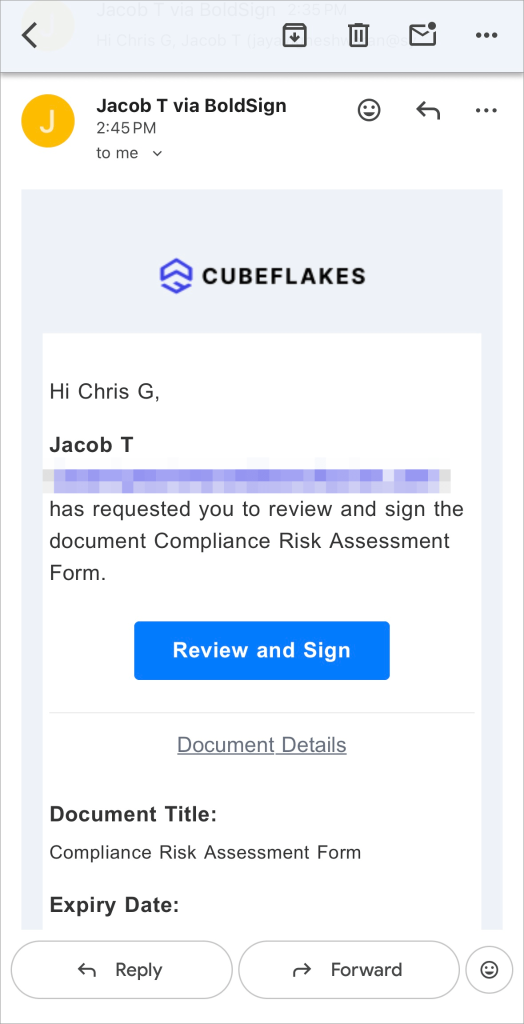
You get an email when a sender asks you to sign. Open it and tap Review and Sign.
The document opens in the BoldSign app when you have it installed. Otherwise, it opens in your phone browser.
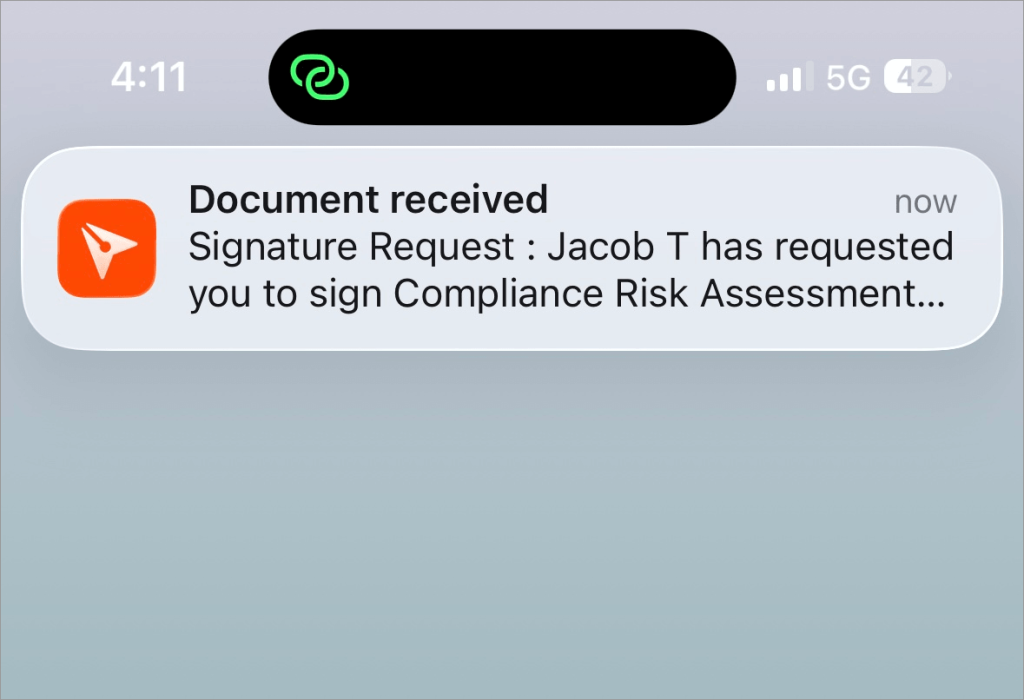
Sign from a push notification
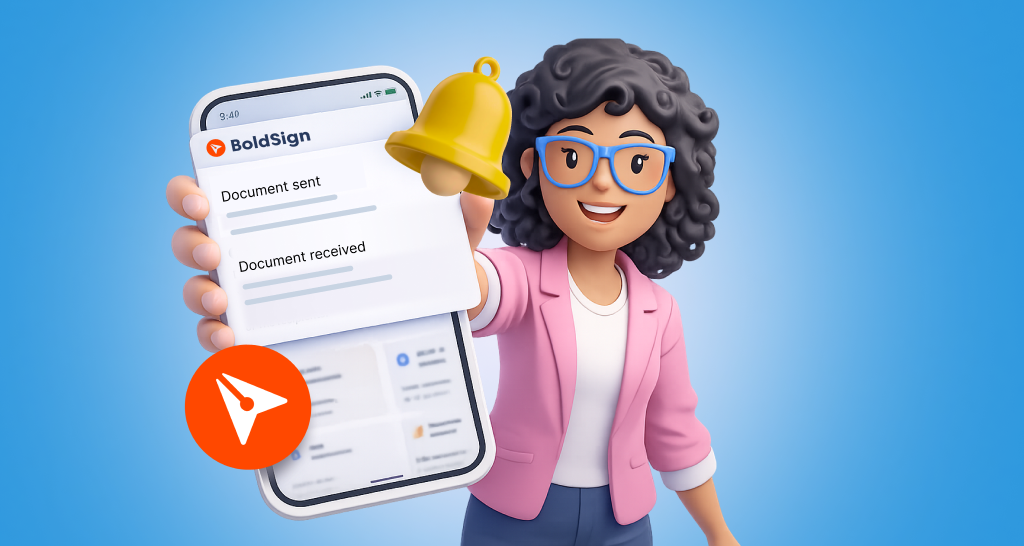
You get a push notification for each new request once you install the app and allow notifications. Tap it to go straight to the signing screen.
The alert works whether the app is open, running in the background or closed.
Sign from a shared link
A sender may also share the signing link in a chat or messaging app. Tap it, and the document opens in the app or in your phone browser.
A signing link looks like this:
https://app.boldsign.com/document/sign/?documentId=049b0def-88a0-xxxx-xxxx-19374193ffacs_fSE1V;a6bc6a09-xxxx-xxxx-xxxx-fec997a02974Sign from the app’s dashboard
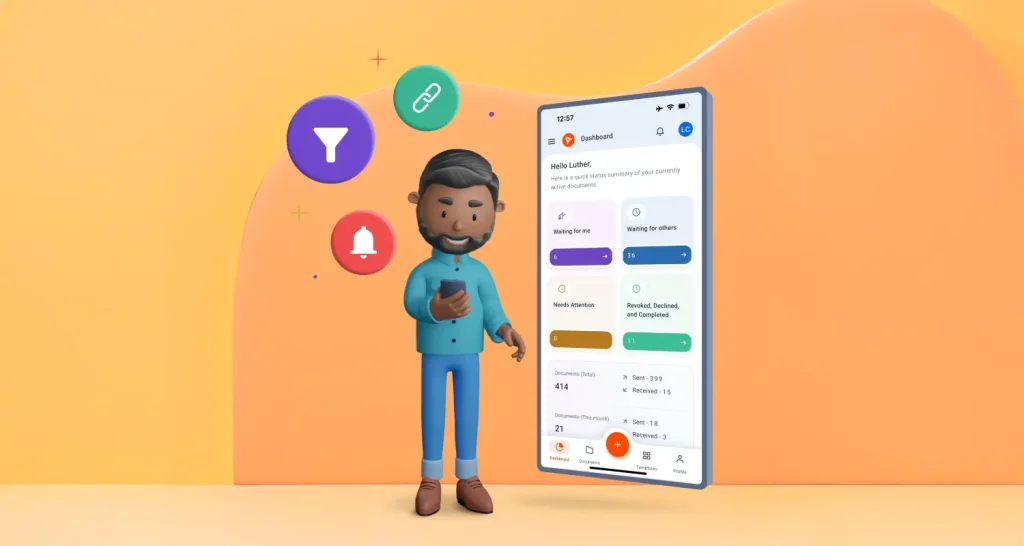
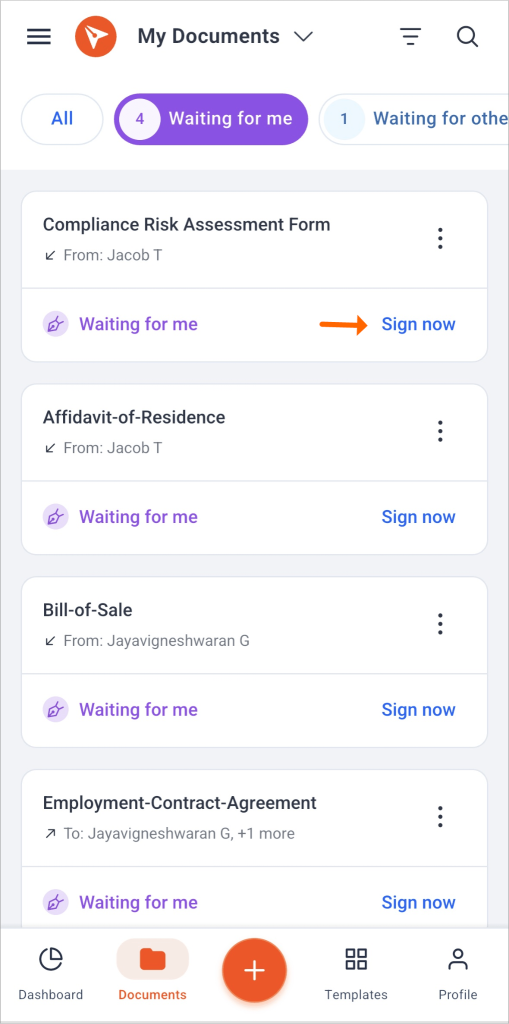
Log in to the app and tap the Waiting for me card on the dashboard. Pick the document and tap Sign now.
How do you fill in and finish the document?
Agree to the terms, then let the app walk you from field to field. The screen shows how many required fields you have left.
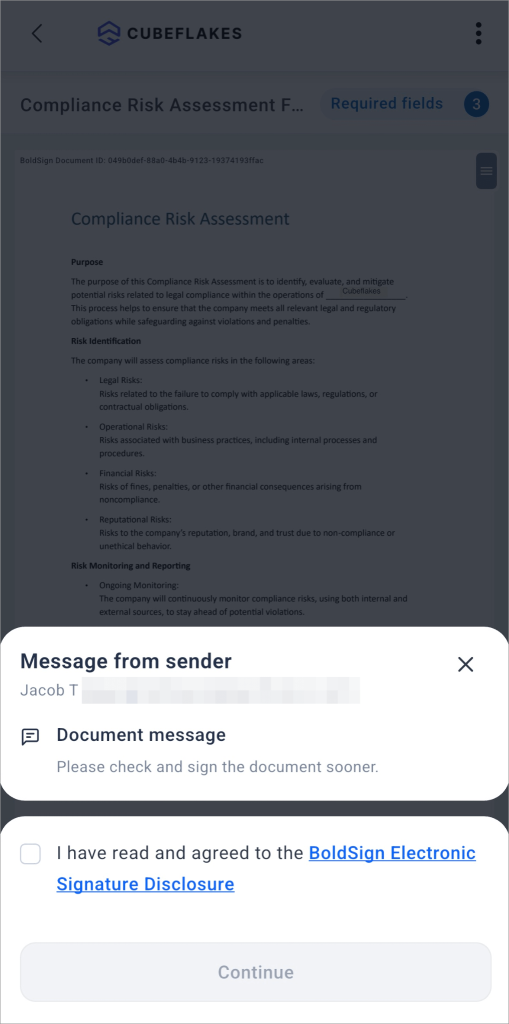
- Read the electronic signature disclosure and any message from the sender, then agree and tap Continue.
- Pinch out to zoom in on the text, and pinch in to zoom back out.
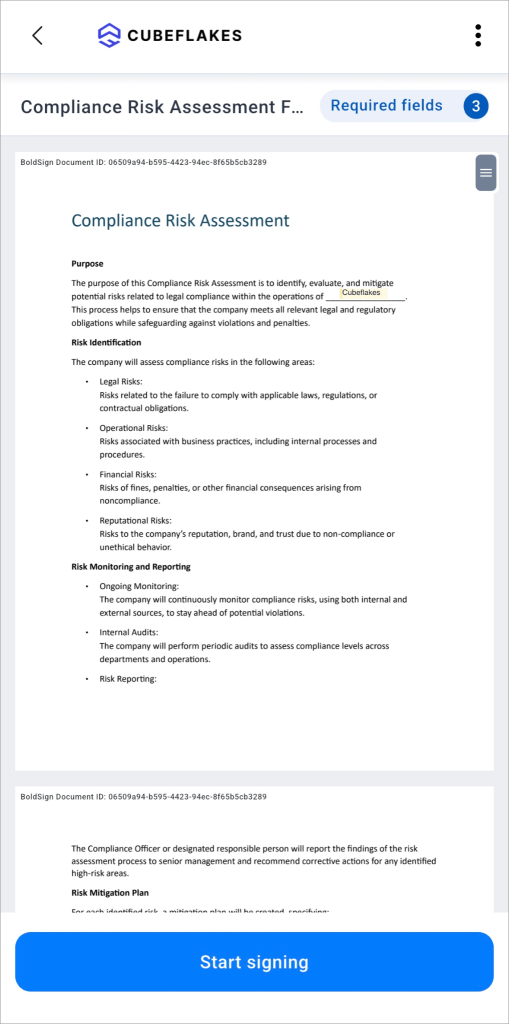
- Tap Start signing. The app jumps to the first field you need to fill.
- Fill in the field, then tap Next field to move on.
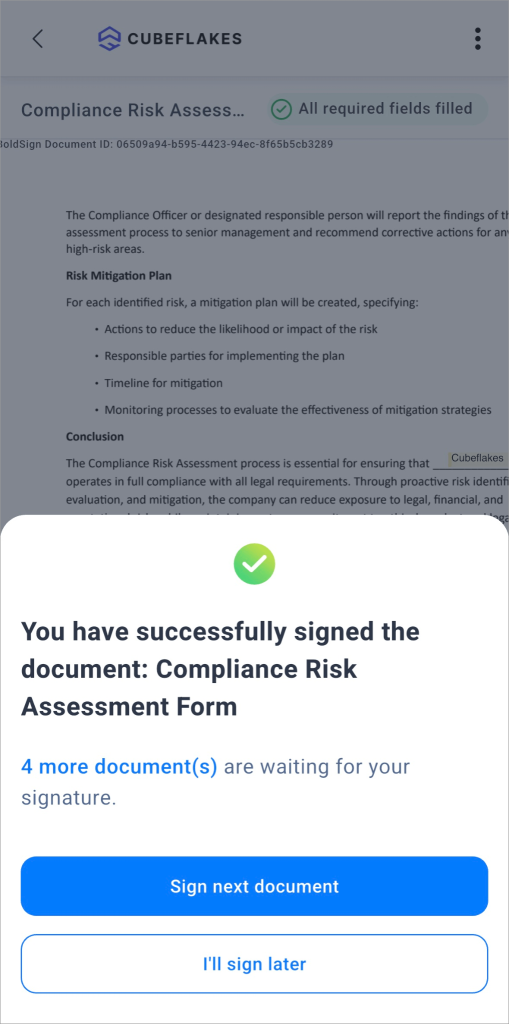
- Tap Finish when every required field is done.
Add your signature
Tap a signature field to add your signature. You can draw it, upload a picture of it, or pick one of the styles the app creates from your name.
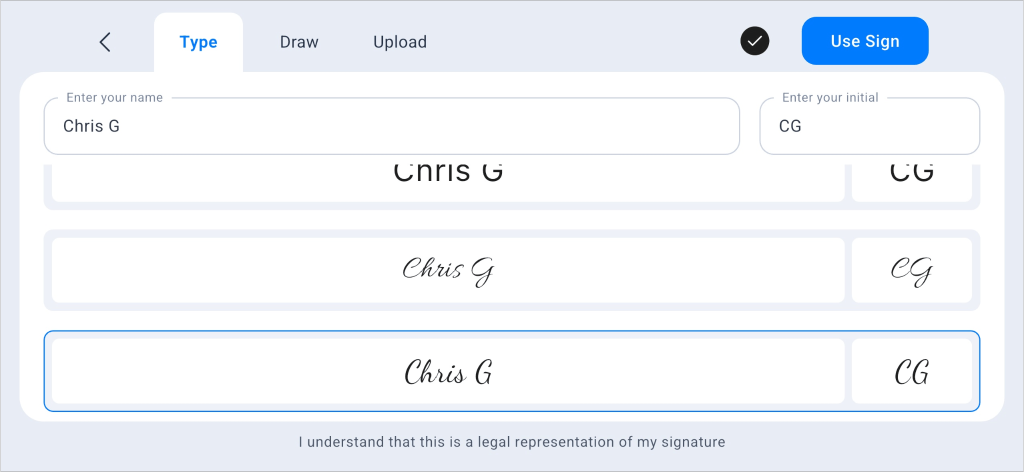
Other fields may ask for text, initials, a date or a tick in a checkbox. A confirmation message appears once you finish.
What else can you do from the signing screen?
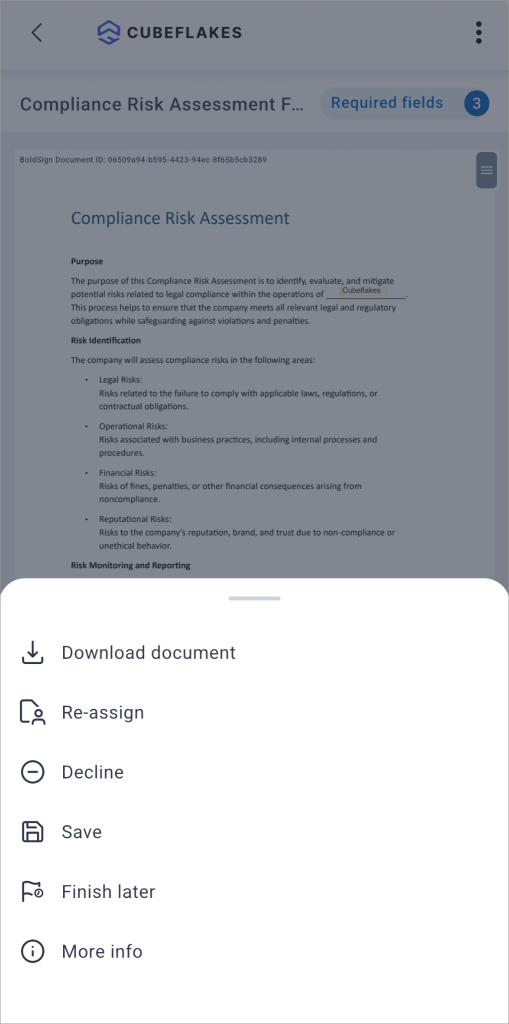
The menu at the top of the signing screen holds the other choices. The sender’s settings decide which ones you see.
- Finish Later: save your entries and come back to the document.
- Reassign: pass the document to the right person to sign.
- Decline: refuse to sign, so the sender knows.
- Download Document: keep a copy to read offline.
- Print & Sign: sign on paper instead, when the sender allows it.
Which signing features help on a small screen?
A few features save time when you sign on a phone. Most of them are in the app.
Sign the next document straight away
After you finish one document, the app can offer the next one waiting for you. Tap Sign next document to keep going without returning to the dashboard.
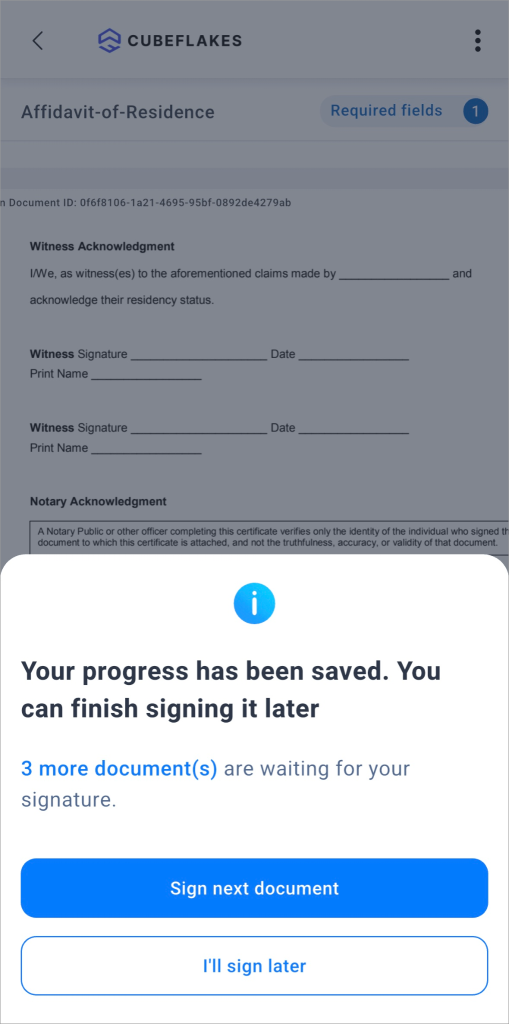
Pause and finish later
Not ready to finish? Choose Finish later from the menu, and your entries stay saved. Come back to the document when you have the answer you need.
Draw with a stylus
The app accepts a stylus, including Apple Pencil on supported devices. Drawing with a pen tip gives a signature closer to the one you write on paper.
Print and sign on paper
Some people need to sign by hand. You print the document, sign it, and send back the signed copy. This works when the sender turns on print and sign.
Download your signed copy and audit trail
Keep the signed document and its audit trail once everyone has signed. The audit trail lists who signed, when, and from where.
What should you watch out for when you sign on a phone?
Most problems come from settings the sender chose. Here is what to expect.
- The sender may ask for an access code or a one-time password (OTP) sent by email or SMS.
- You must be logged in to your BoldSign account to use Finish later.
- The sender’s settings may hide some menu choices, such as print and sign.
Read the whole document before you tap Finish, even on a small screen. Zoom in on the fine print, as you would on paper.
Does it cost anything to sign a document on your phone?
No. Signing is free for the person who signs, and the sender’s plan decides which options you see.
The plans below are listed on our pricing page in November 2026.
Our free Essential plan lets a sender send 25 envelopes a month. The Growth plan costs $5 per user a month, billed yearly, and adds print and sign.
The Business plan costs $15 per user a month, billed yearly. SMS one-time passwords need the Business or Premium plan. Prices are in USD, and you can start with a 30-day free trial.
Where do you go from here?
You now know how to sign on your phone. Pick the next step that fits.
- Start a 30-day free trial and send your own documents from your phone.
- Read our step-by-step guide to the BoldSign mobile app to send, self-sign and find documents.
- Follow the help article on signing a document on your mobile device, or email support@boldsign.com.
Frequently asked questions
How do I sign a contract on my phone?
Open the email from the sender and tap Review and Sign. Agree to the terms, tap Start signing, fill in each field and tap Finish.
How can I sign documents on my phone without downloading anything?
Tap the link in the signing email and sign in your phone browser. You can sign without the app or a BoldSign account.
Is a contract signed on a phone legally binding?
Yes, when it meets the same rules as any electronic signature, such as your consent to sign electronically. The device you sign on does not change that.
Do I need a BoldSign account to sign a document on my phone?
No. Anyone who gets a signing email can sign from the link. You need an account only to sign from the Waiting for me list in the app.
Can I stop signing halfway and finish later?
Yes, when you are logged in to your BoldSign account. Choose Finish later from the menu, and your entries are saved for when you come back.
How do I draw my signature on a phone screen?
Tap the signature field and choose to draw. Use your finger, or a stylus such as Apple Pencil on a tablet for a more natural line.
Why does the document ask me for a code before I can sign?
The sender has turned on signer authentication. Enter the code sent to your email or phone, or the access code the sender gave you.
Where do I find my signed copy after signing on my phone?
In the app, open the completed document from the Documents screen and tap Download document. You can also download the audit trail, the record of who signed and when.

Jayavigneshwaran
Product Manager at BoldSign with a strong foundation in web and mobile development. Started as a web developer working with React, Angular, TypeScript, and Blazor, then moved into mobile development with Flutter and Dart. Now leading the BoldSign mobile app and support experience, combining technical depth with product strategy to deliver reliable releases and great customer outcomes. Connect with him on LinkedIn.
More posts by Jayavigneshwaran