How to Mark Issues in a Property Inspection Report Before Signing
 Rayronald Ochola Otieno
TL;DR: Mark each issue right on the inspection report before anyone signs: circle the spot, add a short label and name who acts on it. Every party then signs the same picture of the property’s condition. Our eSignature for real estate page shows how agents, landlords and property teams send these reports for signing.
A buyer reads “water damage near window” in an inspection report. There are six windows in the house. Nobody can say which one the inspector meant, or how bad it looked.
Now the repair talks stall while people trade emails. This guide shows what to mark, in what order, and how to draw the marks right on the report before signing.
Why do property inspection reports slow down approvals?
Reports slow things down when a written note cannot point to a spot. Each reader pictures a different window, wall or pipe.
A note like that leaves these questions open:
- Which room, and which wall or window?
- How large is the problem, and how serious?
- Who is meant to fix it, and by when?
An inspection report is more than a record. Buyers, sellers, landlords and tenants use it to agree on repairs, credits and move-in condition.
What does marking up an inspection report solve?
A mark on the photo or floor plan shows every reader the same spot. A label next to it says what the problem is and who acts on it.
Take a text-only note such as “Water stain near the window.” Readers have to guess the room and the size.
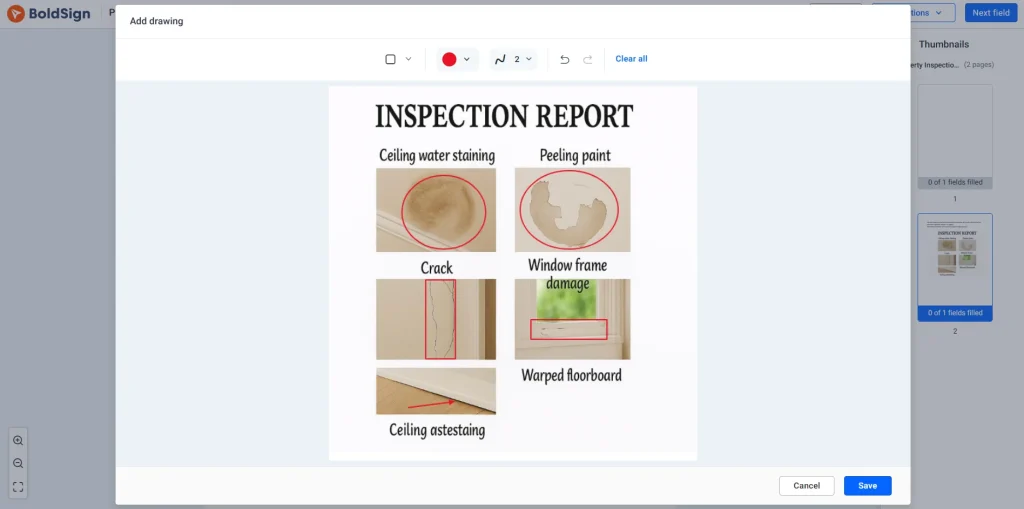
Now picture a circle around the stain on the bedroom photo. Its label reads “Water stain, seller to get a contractor quote by May 10.”
The second version leaves far less room for argument. It also gives the contractor a clear target when quoting the work.
What should you mark first in an inspection report?
Mark the issues that change a decision first, and skip what does not. Work through the report in this order.
Safety hazards and water problems
Safety hazards come first, since they carry risk to people. Label them with plain words such as “Safety” or “Recommend evaluation.”
Water and moisture come next, because hidden damage can grow. Labels such as “Water stain,” “Damp area” or “Monitor” keep them clear.
Structure, systems and cosmetic items
Then mark cracks and failed seals in walls, roofs and windows. Use labels such as “Crack observed” or “Seal failure.”
Building systems follow, such as electrical panels and heating, ventilation and air conditioning (HVAC). Cosmetic items come last, with a short “Cosmetic” or “Monitor” label.
How do you mark an issue so nobody disputes it later?
Give every issue the same five steps, so each one ends with a clear owner and a clear finish line.
- Mark the exact spot on the photo, diagram or floor plan.
- Label the issue in a few plain words.
- Assign it to a person: buyer, seller, landlord, tenant or contractor.
- Route it for action, such as a quote, a repair or a second inspection.
- Write down what counts as fixed.
These steps work on paper too. The difference online is that the marks and the signatures live in one file.
Can digital signature property reports include marked issues?
Yes. You can send a property report for electronic signature, and each signer marks issues in the same document before signing.
Our Drawing form field turns any area of a PDF into a space the signer can draw on. Place it over a photo or floor plan, and the signer marks the issues there. Signers can draw with a mouse or a finger on a touch screen.
How does the sender add a Drawing field?
The sender places the field while preparing the document:
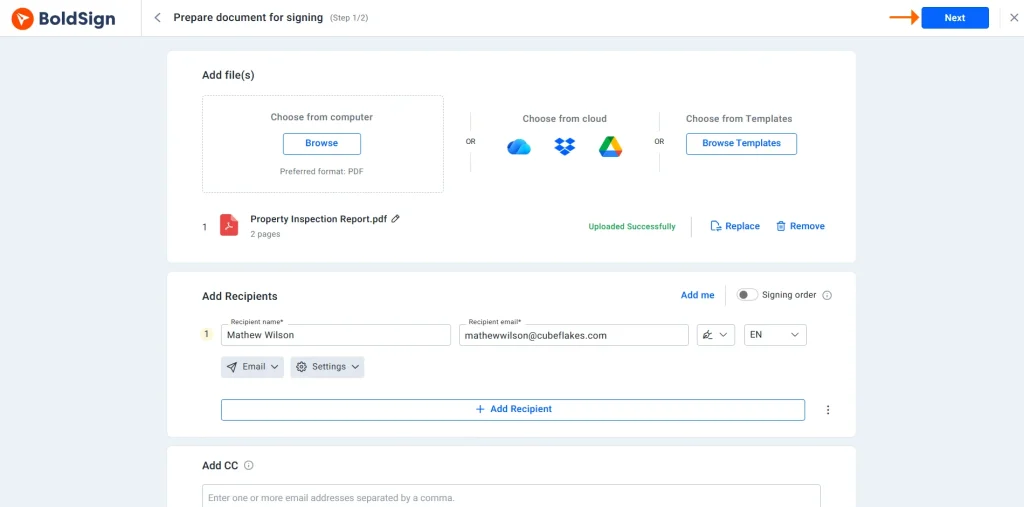
- Select Create New Document, upload the inspection report, add the signers and select Next.
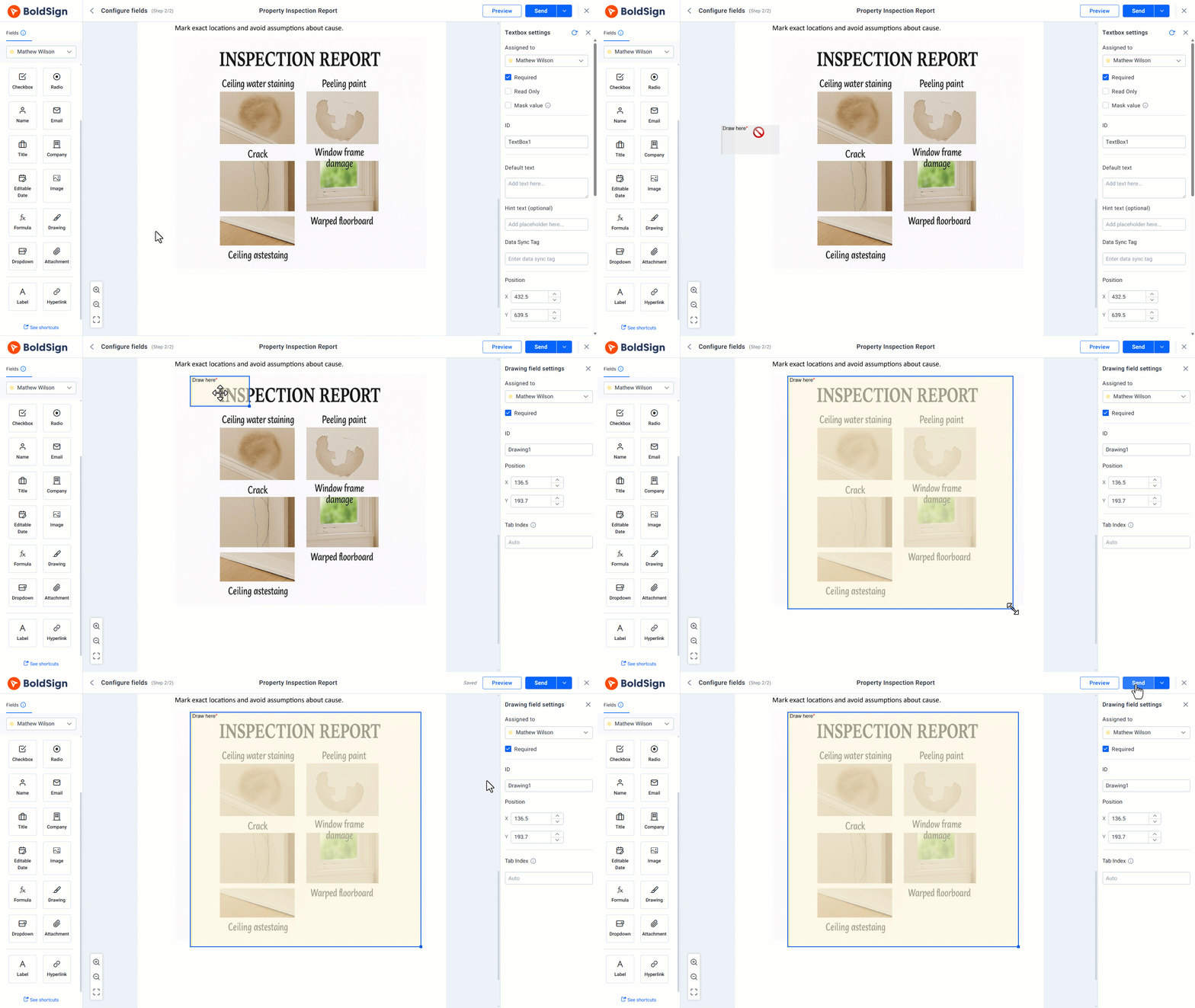
- In the Fields panel, find Drawing Field and drag it onto the photo or plan.
- Resize the field to cover the whole area, assign it to a signer and select Send.
Make the field large enough for the signer to work in, especially on a phone. Our help article adds a tip: put a short line next to it, such as “Please mark the damaged areas.”
How does the signer mark an issue?
The signer opens the document from the email, or from the BoldSign dashboard with an account. Selecting the Drawing field opens a dialog with a close view of that part of the page.
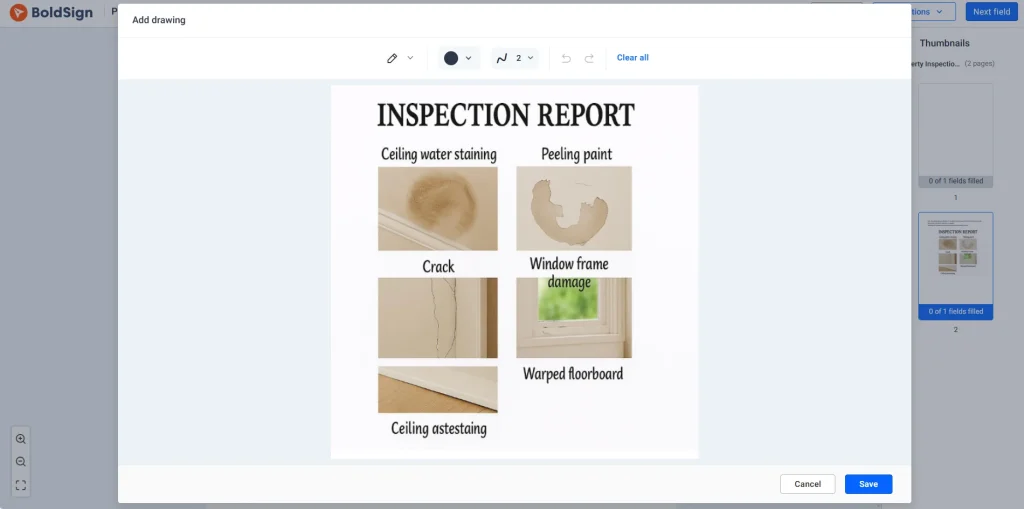
The signer marks the issue with the drawing tools, then selects Save to keep it or Cancel to discard it. After that, the signer fills any other required fields and signs.
Which drawing tools can signers use?
The tools match the kinds of marks an inspection report needs:
- Pencil for freehand marks and short handwritten notes
- Circle or Rectangle to ring or box a problem area
- Line to trace a crack, and Pointer to point at one spot
Signers can pick a pen color and set the stroke width from 1 to 20. Undo and Redo fix single marks, while Clear All removes every mark and cannot be undone.
What ends up in the signed PDF?
The saved drawing becomes part of the signed document. Every party who gets the signed copy sees the same marks in the same places.
Pair each mark with a written note in a text field. The drawing shows where, and the note says what and who.
What should you watch out for when marking up a report?
Most mix-ups come from marks with no label or a field that is too small. A few habits prevent them.
- Mark one issue per circle or arrow, and number them if there are many.
- Use the same labels on every report, such as “Observed” or “Recommend evaluation.”
- Back up color with a label or shape, since some readers cannot tell colors apart.
- Check every mark before signing, because Clear All cannot be reversed.
When is a marked-up report not enough?
Marks help with problems you can see. They do not replace a formal addendum for repair terms or price credits.
The same goes for third-party engineering or environmental reports. Attach those as their own documents and refer to them in your notes.
Who uses marked-up inspection reports?
The same method fits many property tasks:
- Home buyers who want repair talks to focus on high-impact items
- Landlords and tenants who record damage at move-in and move-out
- Facilities teams who track issues the same way across sites
- Contractors who need a clear scope before they price a job
Vehicle teams use the same idea, as our guide on how to mark car dents in a vehicle inspection form shows.
Which BoldSign plan do you need, and what does it cost?
Every BoldSign plan includes basic and advanced form fields, mobile signing and an audit trail. Prices are in USD, billed yearly.
The Essential plan is free, with 25 envelopes a month and 2 templates. The Growth plan costs $5 per user a month and holds 10 templates. The Business plan costs $15 per user a month, with unlimited templates and envelopes.
The Premium plan costs $99 a month for unlimited users. A 30-day free trial lets you test the Drawing form field on your own report first. The pricing page lists every feature by plan.
How do you start marking up your own inspection reports?
Take one inspection report your team uses today, add a Drawing field over its main photo and send it to yourself. You will see how the marks look in the signed copy.
- Start your 30-day free trial and build your first marked-up report.
- Request a demo to see the Drawing field on a property report.
- Read how to show accident damage in insurance claim forms, or contact support with questions.
Frequently asked questions
What does it mean to mark up a property inspection report?
It means drawing on the report itself, such as a circle around a stain on a photo. Each mark gets a short label, so readers see the spot and the problem together.
Which issues should I mark first in an inspection report?
Start with safety hazards and water problems, then structure and building systems. Cosmetic items can wait or get a simple Monitor label.
Can a tenant mark existing damage at move-in?
Yes. Place a Drawing field over the room photo or floor plan, and the tenant circles each mark or scuff before signing. Both sides then keep the same record.
Can I mark issues on a phone or tablet?
Yes. The Drawing form field works with a finger on a touch screen as well as with a mouse. A thicker stroke makes marks easier to see on a small screen.
Do the marks stay in the signed PDF?
Yes. The drawing is saved when the signer selects Save and finishes signing. It then becomes part of the signed document that every party receives.
Is a marked-up inspection report legally binding?
Yes, when the parties sign it as an agreement and the electronic signature meets your local law. For repair terms or price credits, many teams also sign a formal addendum.
Can I undo a mark on the report?
Yes. Undo removes your last mark and Redo brings it back. Clear All removes every mark at once, and that step cannot be undone.
Should I use the same inspection report form every time?
Yes, one standard form keeps labels and fields the same, so reports are easy to compare. Save it as a template and send a fresh copy for each property.

Rayronald Ochola Otieno
Rayronald Ochola Otieno is a content specialist at BoldSign, specializing in video content and help articles within the eSignature domain. As a blog author, he creates well-researched, insightful content that simplifies complex eSignature topics like digital signatures, compliance, and workflow automation for businesses and professionals. With expertise in creating educational videos and articles, Ray helps users understand and adopt secure, efficient signing solutions. Beyond writing and video creation, Ray enjoys exploring new technologies, reading about the latest industry trends, and continually refining his skills.
More posts by Rayronald Ochola Otieno